

Intro
This article explains how to connect Google Gemini Enterprise to Domo’s MCP Server using a custom MCP data store, letting Gemini Enterprise securely access your Domo AI Library Toolkits and the private data behind them.Required Grants
To connect Gemini Enterprise to Domo’s MCP Server, the following grants must be enabled for your role:- Use AI Services — Access to features and Apps built using the AI Services Layer.
- Use AI Chat — Access to the Domo AI Assistant.
- Use MCP — Access to connect external AI tools to Domo’s MCP Server.
Prerequisites
- A Toolkit in the AI Library that you want to expose to Gemini Enterprise.
- Admin access in Domo to create an OAuth client and generate an access token.
- Access to the Google Cloud Console with permission to create data stores in your Gemini Enterprise app.
Note: A custom MCP data store can be shared by every user in your Gemini Enterprise app. Only one person needs to complete this setup — the rest of your organization doesn’t need to create its own data store.
Get Your Toolkit’s MCP Server Details
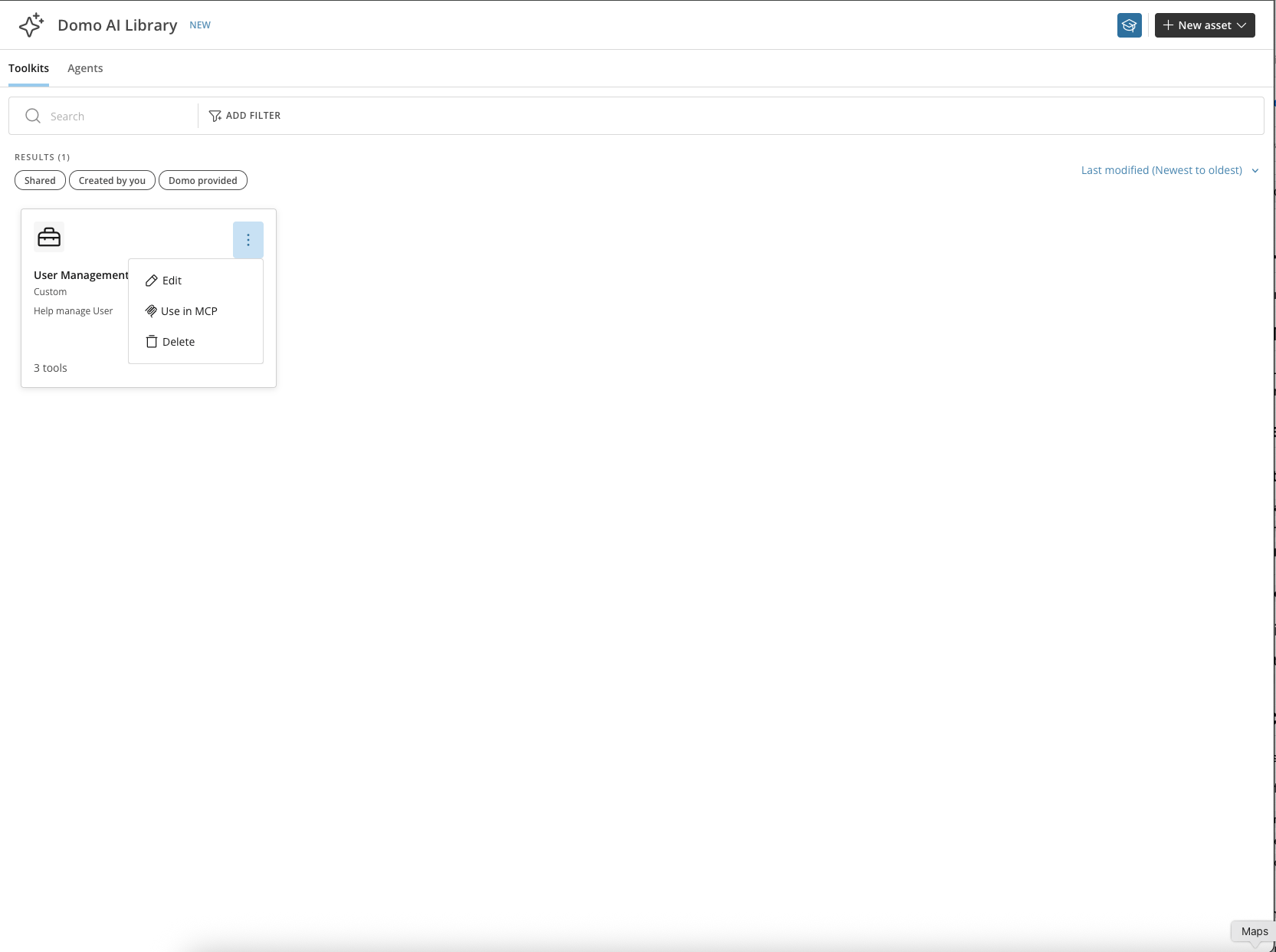
- From the AI Library, select the Toolkits tab and find the Toolkit you want to expose.
-
Select the action menu on the Toolkit and choose Use in MCP.
-
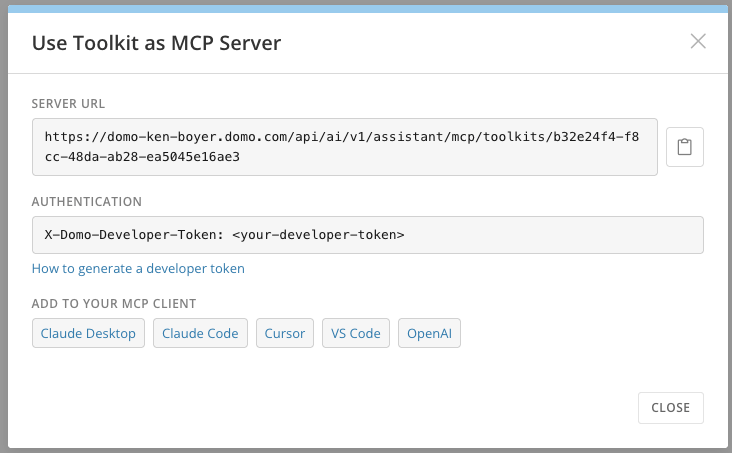
Copy the Server URL. You’ll paste this into Gemini Enterprise in a later step.
Create a Domo Client ID and Secret
Gemini Enterprise authenticates to your Toolkit’s MCP server using an OAuth 2.0 Client ID and Secret. Create one before configuring the data store.- Generate a Domo access token. See Manage Access Tokens for instructions.
-
Open a terminal and run the following curl command, replacing
<DOMAIN>with your Domo instance domain and<ACCESS_TOKEN>with the token you generated:Note: You can also authenticate this request with a browser session cookie instead of an access token by sendingX-DOMO-Authentication: <SESSION>, where<SESSION>is the value of theDA-SID-xxx-xxx-xxx-xxxcookie (found under Developer Tools > Network > Headers > Cookie in your browser). An access token is recommended since it doesn’t require you to stay signed in. -
The response includes a
client_idandclient_secret. Copy both values — you’ll need them to configure the data store in Google Cloud.
Configure the Data Store in Google Cloud
- Open the Google Cloud Console and go to the Gemini Enterprise page.
- Select Data stores, then select Create data store and search for Custom MCP Server.
-
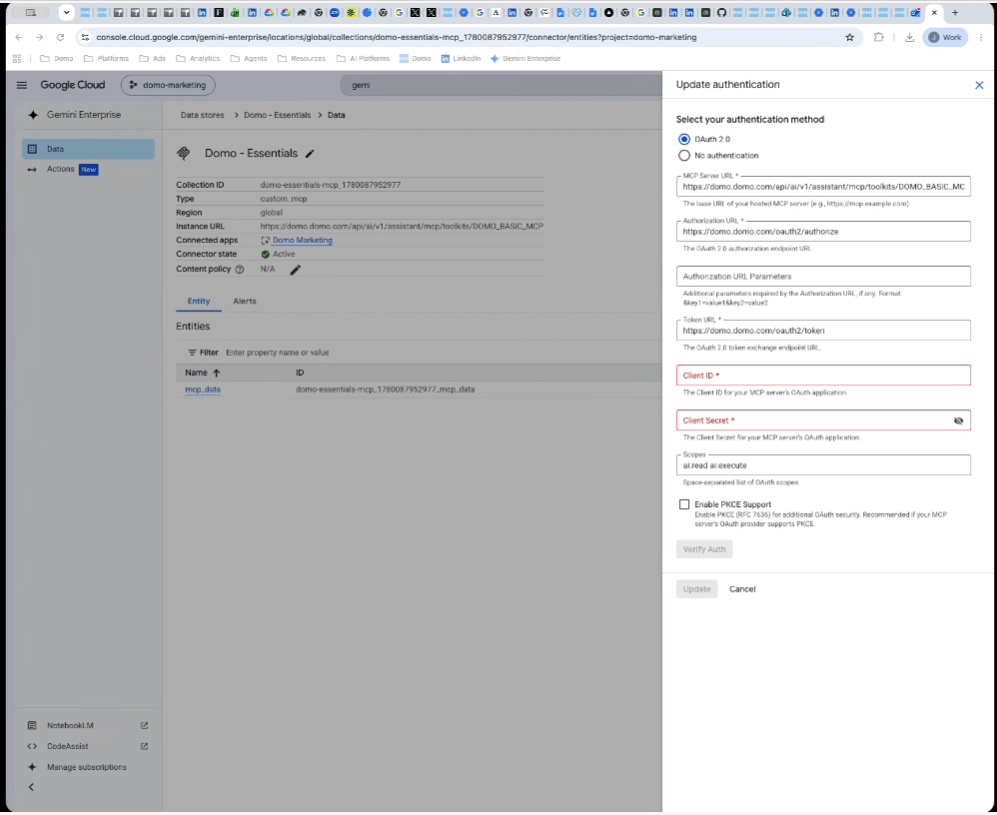
Under Configure Endpoint, enter the Server URL you copied in Get Your Toolkit’s MCP Server Details, then select an authentication method:
- OAuth 2.0 (recommended) — enter the following:
- Authorization URL —
https://<DOMAIN>/oauth2/authorize - Token URL —
https://<DOMAIN>/oauth2/token - Client ID and Client Secret — from the curl response in the previous step.
- Scopes —
ai:read ai:execute
- Authorization URL —
- No authentication — only available if your MCP endpoint doesn’t require credentials. This doesn’t apply to a Domo Toolkit MCP server.
- OAuth 2.0 (recommended) — enter the following:
- Under Manage Governance, optionally control traffic and egress routing through the Agent Gateway and other advanced options.
- Select Save (or Update, if you’re editing an existing data store).
Note: If the tool your Gemini Enterprise agent calls uses a Domo-provided AI model, input and output token charges may apply.
FAQ
Does each user need to create a Google Data Store?
Does each user need to create a Google Data Store?
No. All users can share a single Google Data Store.
Can I connect to an existing data store?
Can I connect to an existing data store?
Connecting to an existing data store isn’t supported. You must create and register a new custom MCP server data store directly within your Gemini Enterprise app.