Intro
The Domo AI Playground capability allows you to leverage large language models (LLMs) to use various generative AI services within the Domo platform. These services include Text-to-SQL, Text Generation, Text-to-Beast Mode, and Text Summarization.
The AI Services Playground allows you to test AI services and generate code snippets for use in other coding tools like Jupyter Notebooks.
Required Grants
To use AI Playground, users must have the following grant added to their custom role. Domo admins have the grant enabled by default. To learn more about grants, see Managing Custom Roles.
Use AI Services — Allows a user to access AI services for use in Domo apps, Domo Bricks, Jupyter Workspaces, and Workflows. This grant should be given to any user who needs to use AI services but does not need to manage them.
Available Services
The available AI services are described below. You can use these services in Jupyter Workspaces, Domo apps, Domo Bricks, and Workflows.
Text-to-SQL
Text-to-SQL allows you to use natural language to prompt the system to output SQL to use on your selected DataSet. This service accepts text and DataSet metadata, such as the schema, as input and generates SQL. Templates are available if you need assistance.
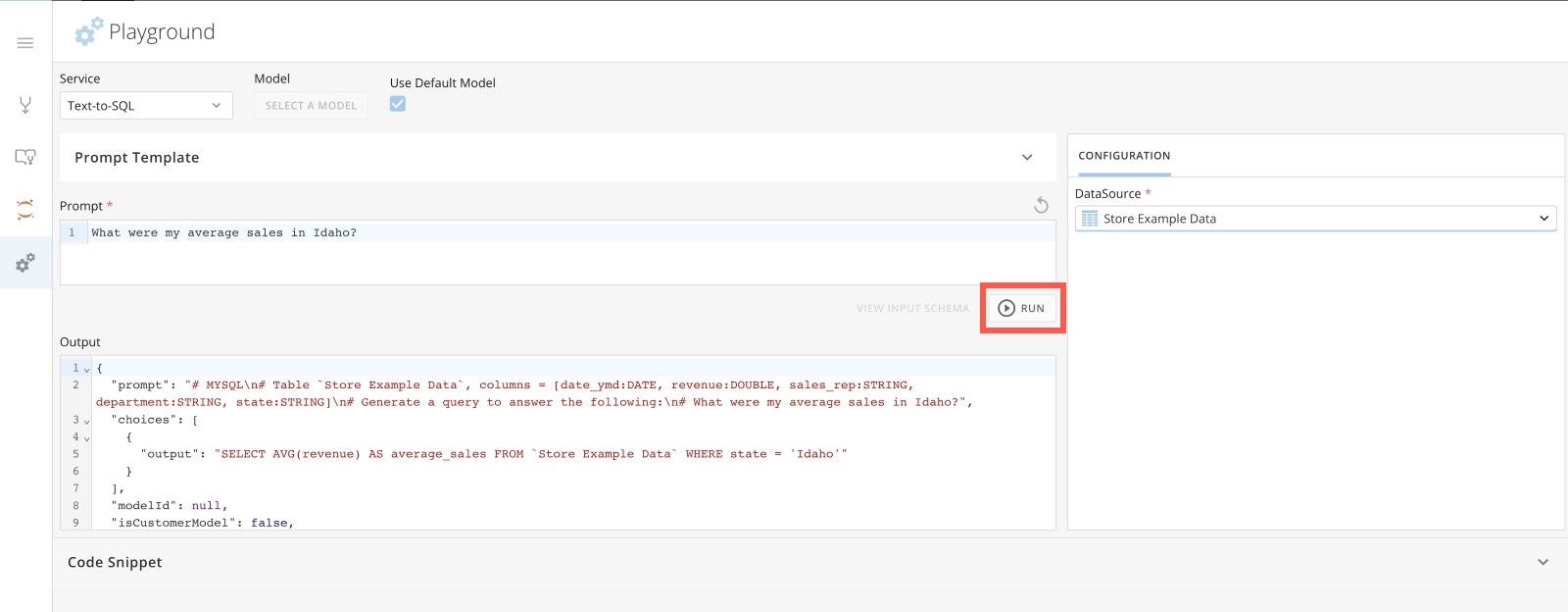
In the example below, sample store revenue data is selected. The specified prompt is What were my average sales in Idaho?
After you select Run, the SQL query is provided in the Output field.
Now you can copy the SQL formula into the MySQL Editor or into Magic ETL to transform the data.
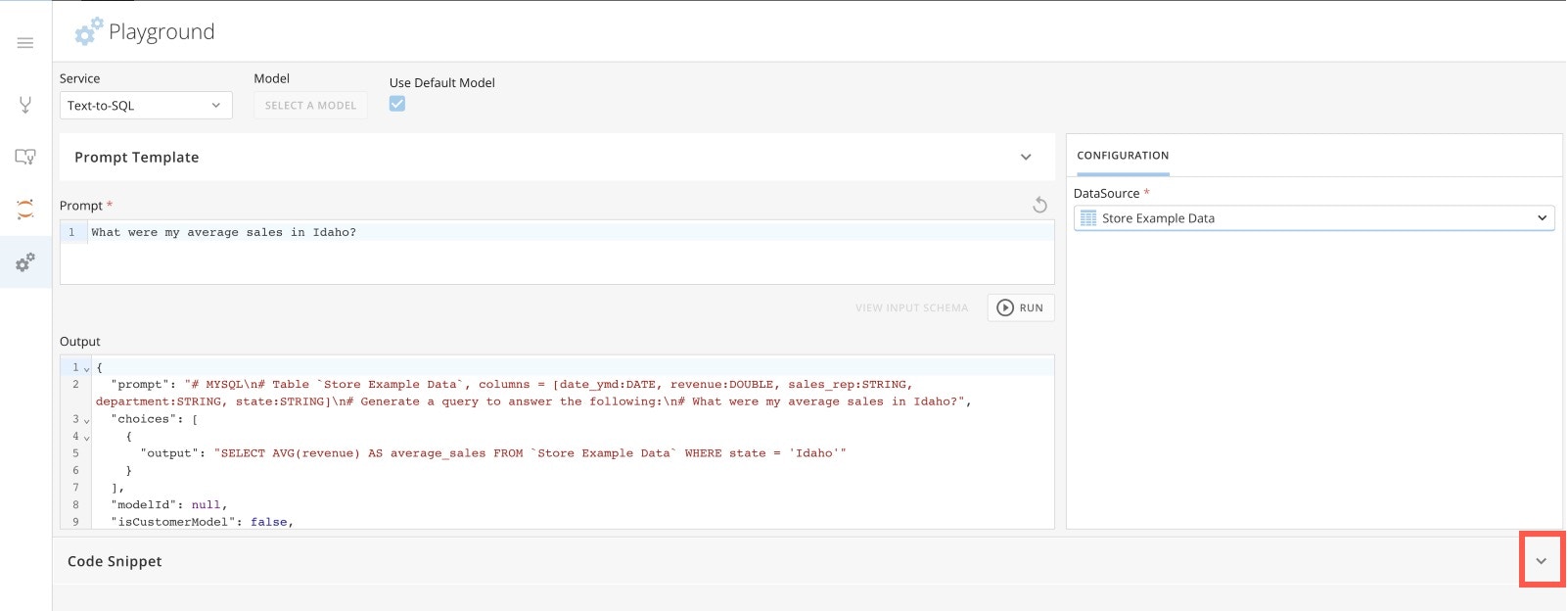
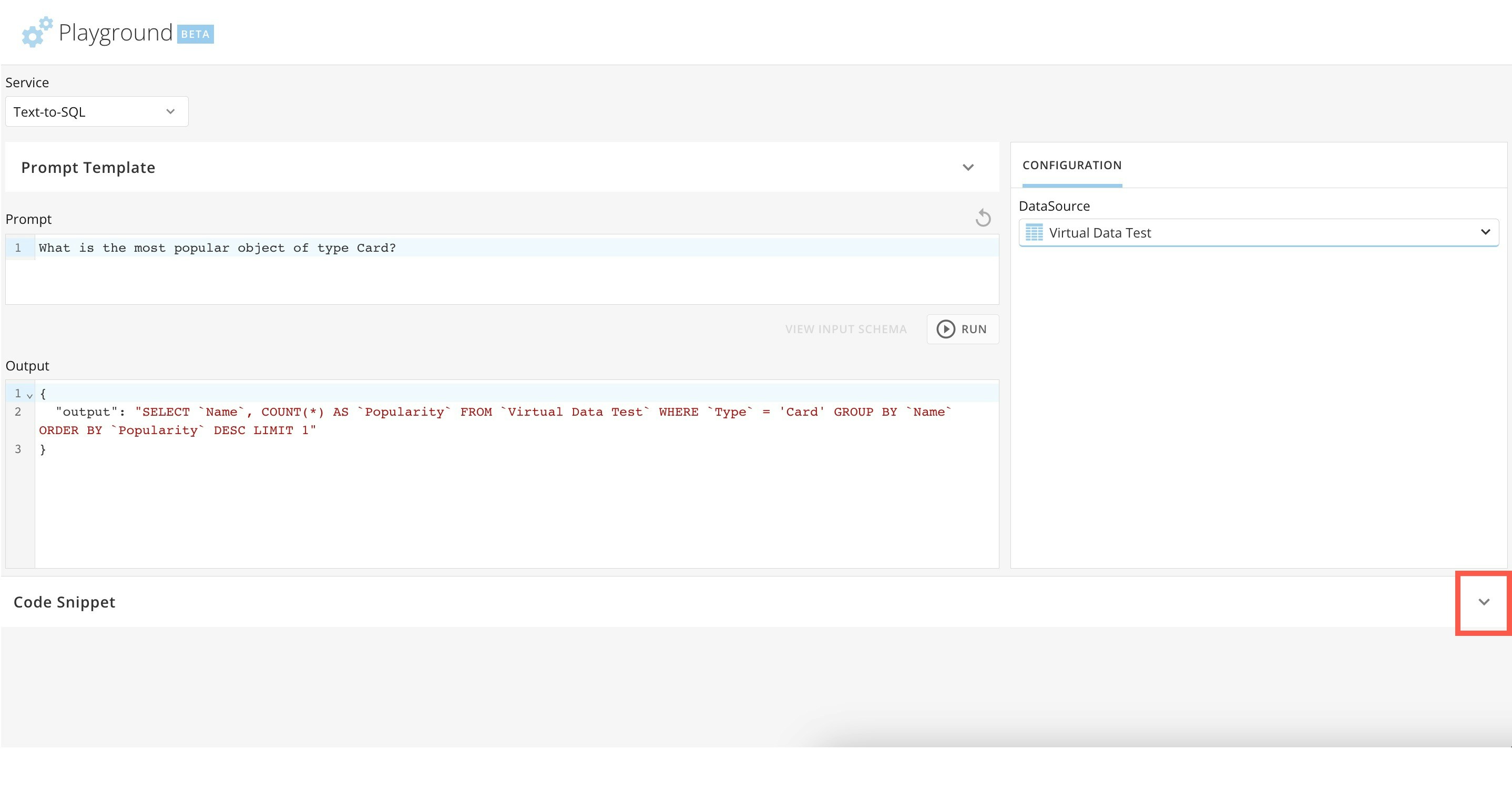
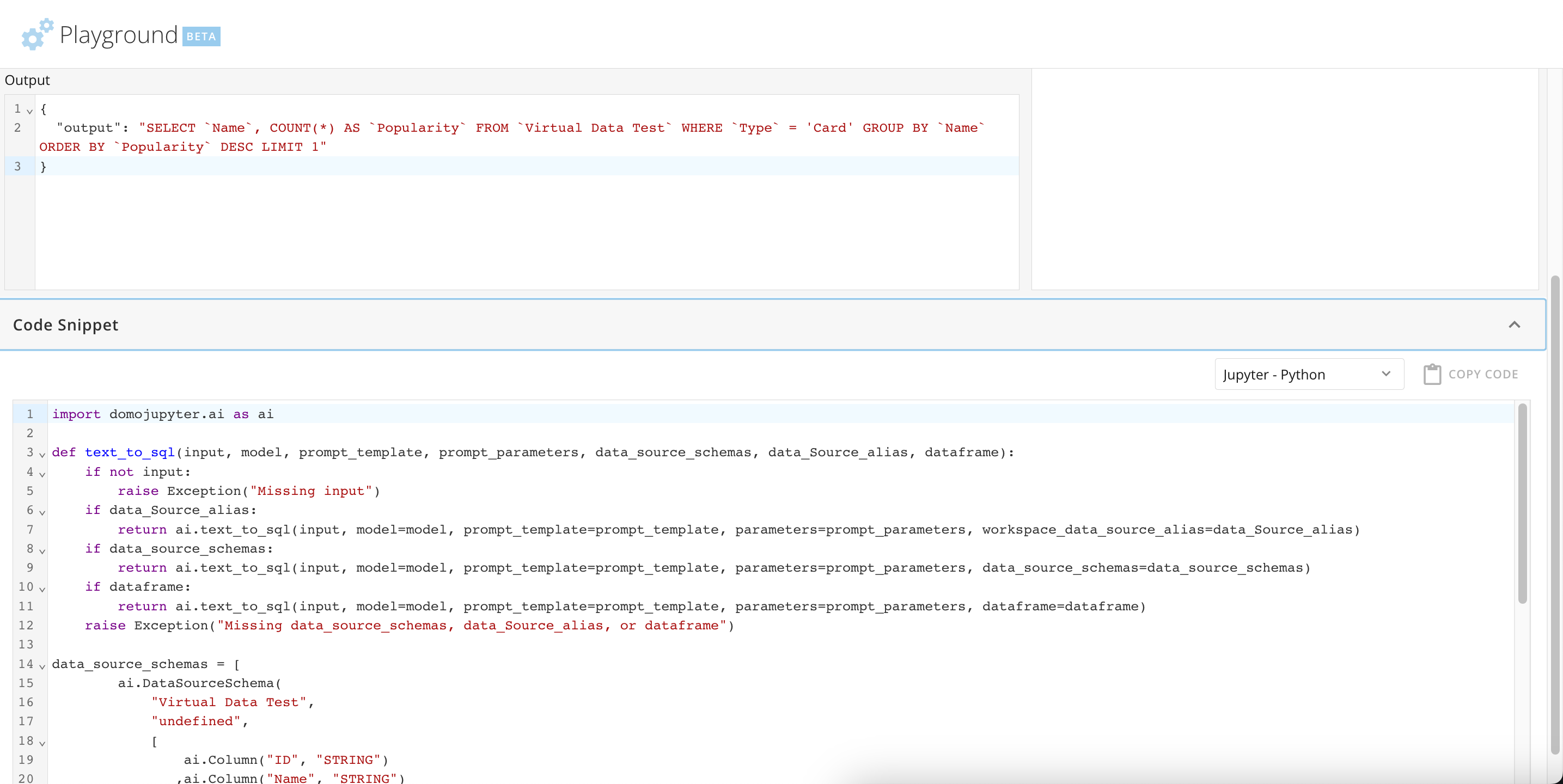
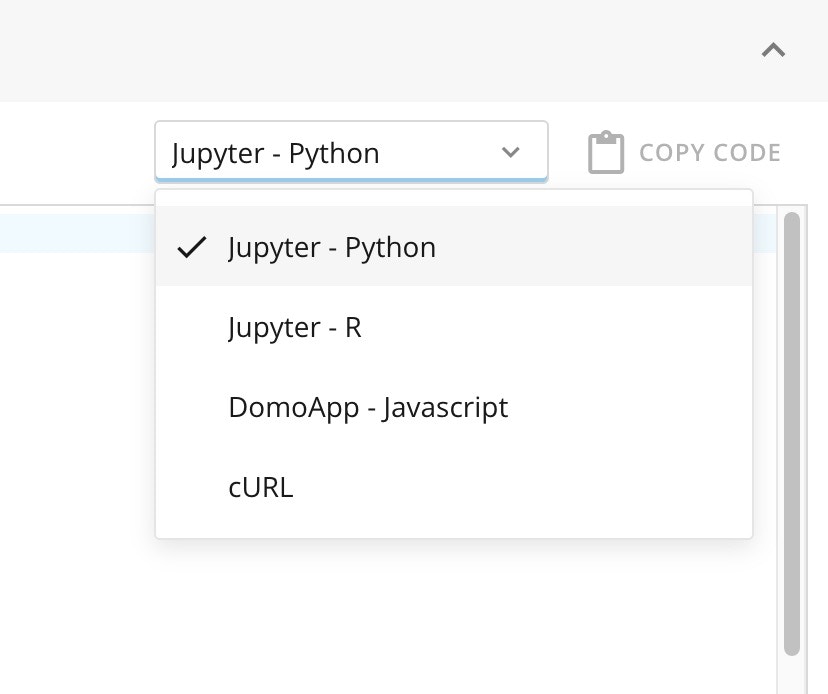
You can also expand the Code Snippet field to view the code snippet used to find the requested SQL formula. Copy the code to use it in Jupyter (in either Python or R) or in a Domo App (in either JavaScript or cURL).
Text Generation
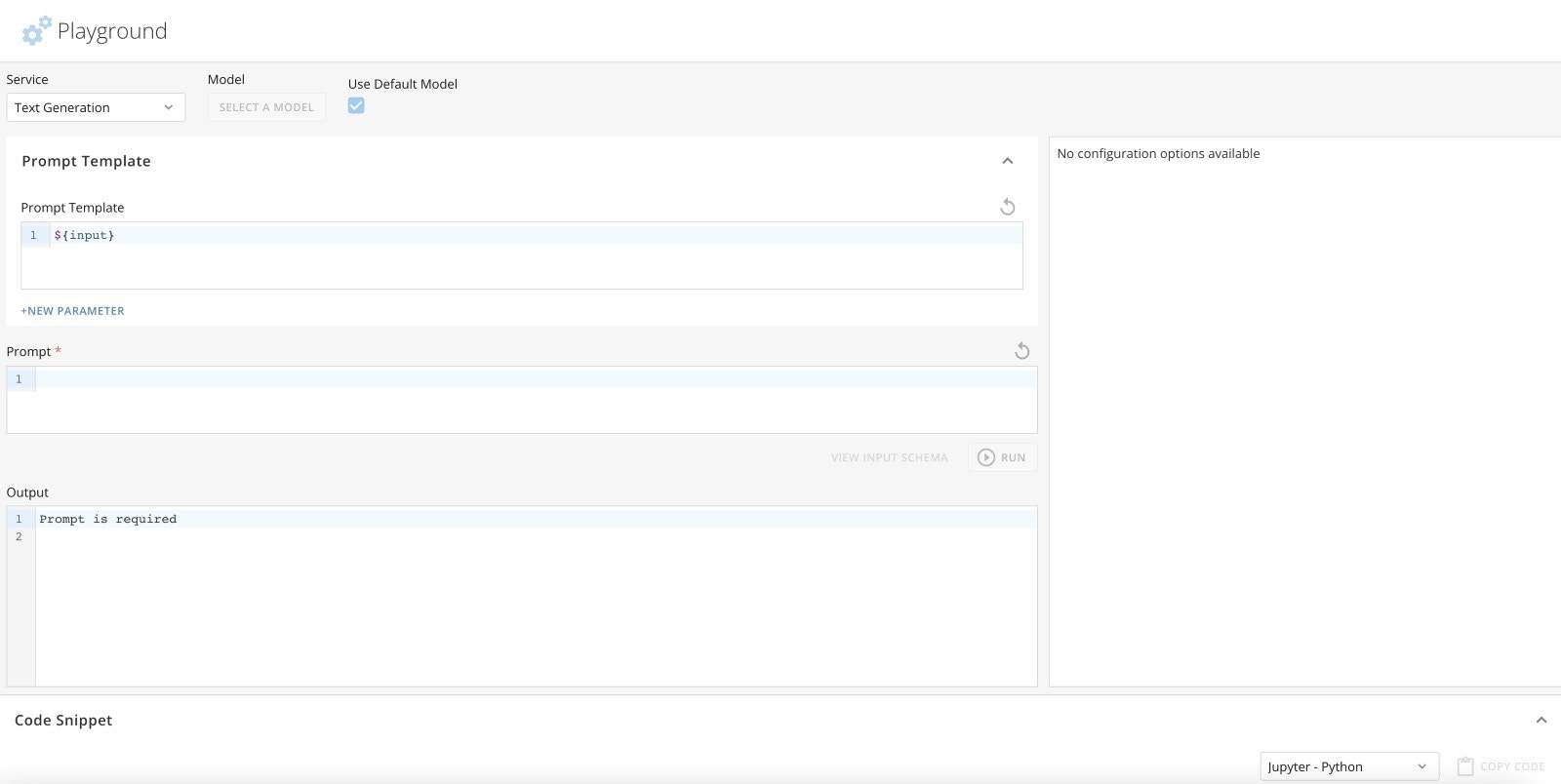
Text Generation allows you to enter a natural language prompt and receive a natural language response output. There are templates available to help you generate an appropriate prompt. Multiple iterations of the prompt may be necessary to achieve the desired result.
Text Generation is powered by a Large Language Model (LLM). The checkbox labeled Use Default Model is automatically selected. (The current default model is ChatGPT.) If other models have been made available in your instance, you can select a different LLM. Different models likely result in slightly different outputs, and you may find that you like one model’s performance over others for a specific use case.
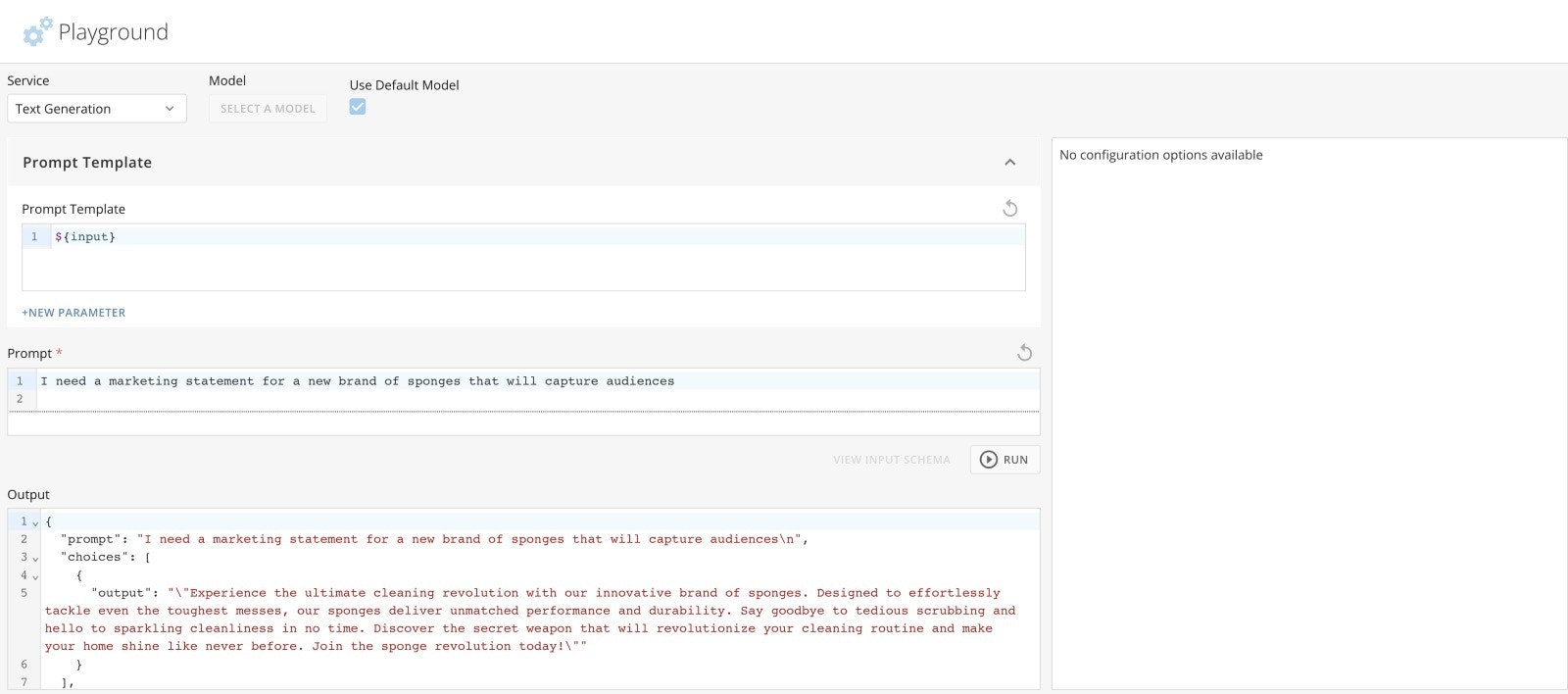
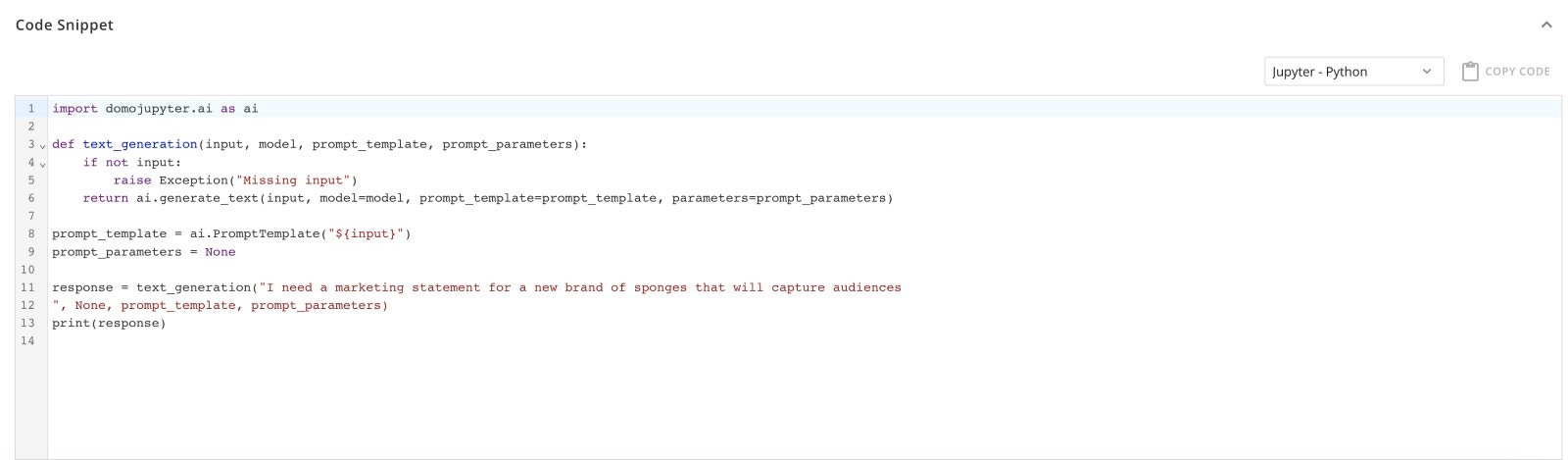
In the example below, we are using a marketing-type text prompt, and the system has output a statement that could be used in a future marketing campaign.
You can also expand the Code Snippet field to view the code snippet used to find the requested Text Generation. Copy the code to use it in Jupyter (in either Python or R) or in a Domo App (in either JavaScript or cURL).
Text-to-Beast Mode
Text-to-Beast Mode allows you to use natural language to prompt the system to output a Beast Mode calculation to use on your selected configured data. There are templates available to help you generate an appropriate prompt.
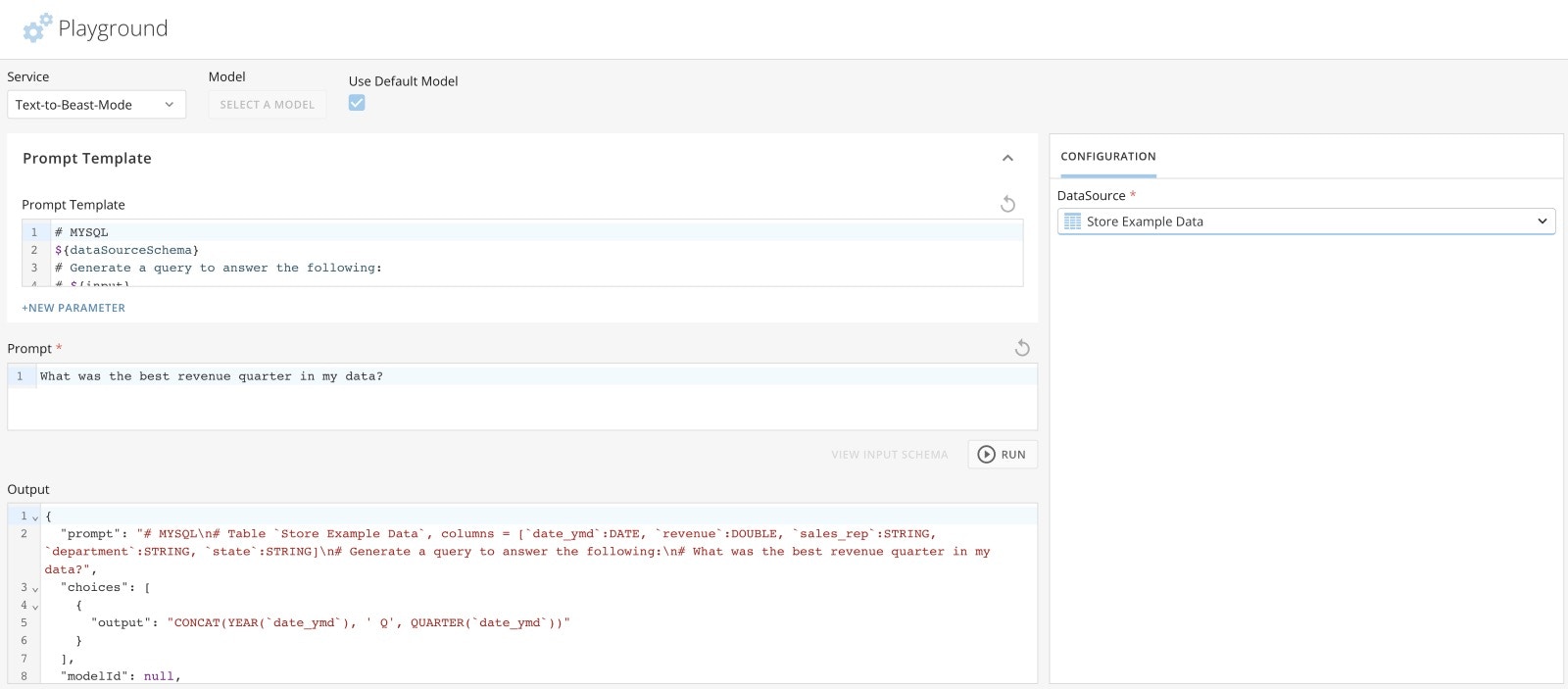
In the example below, sample store revenue data is selected. The prompt is What was the best revenue quarter in my data? After you select Run, the output Beast Mode is provided in the Output field.
Now you can copy the Beast Mode into Analyzer or a Magic ETL DataFlow to transform the data.
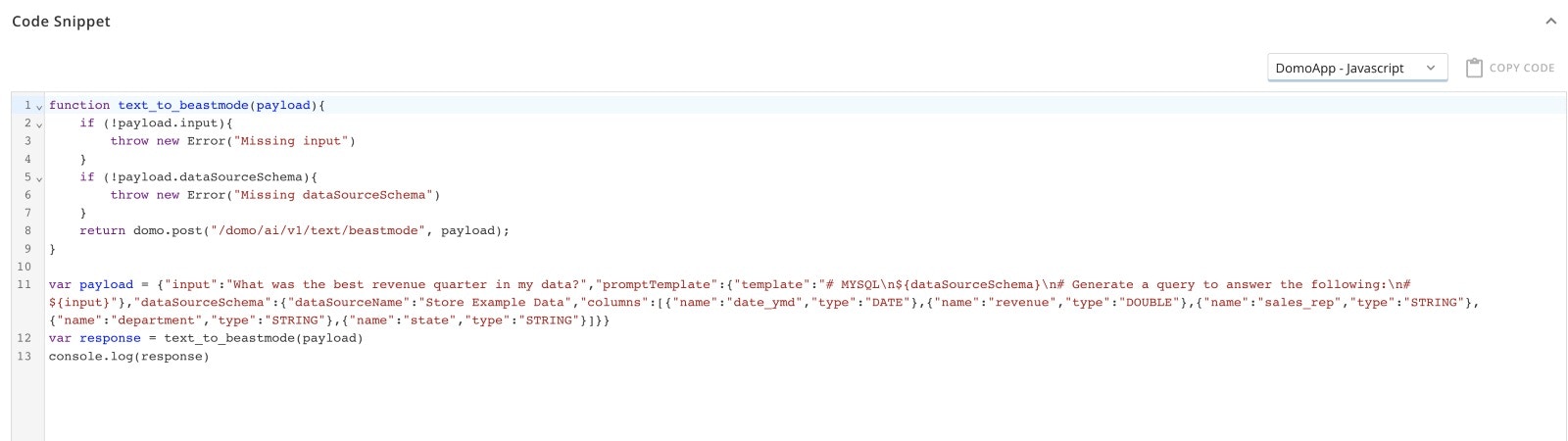
You can also expand the Code Snippet field to view the requested Beast Mode calculation. Copy the code to use it in Jupyter (in either Python or R) or in a Domo App (in either JavaScript or cURL). Learn more about Beast Mode.
Text Summarization
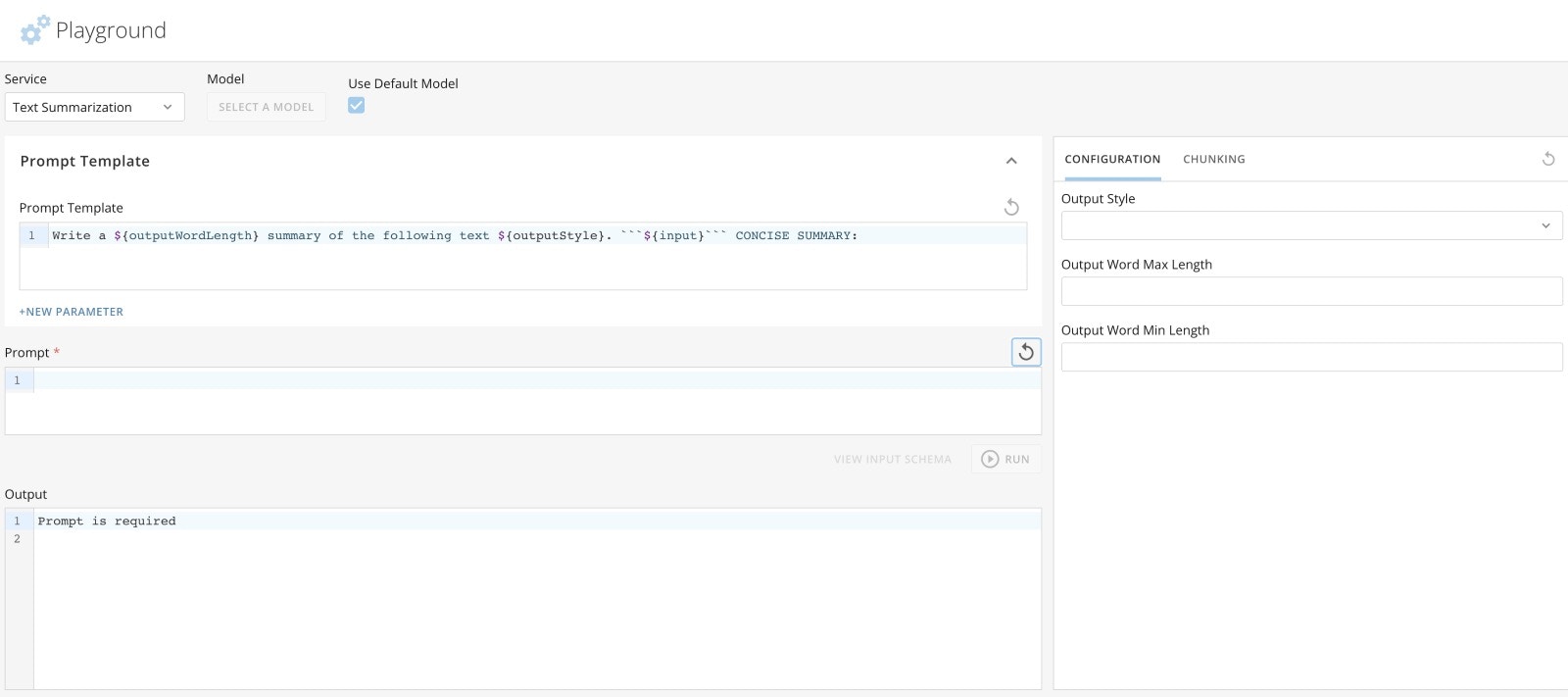
Text Summarization allows you to input a text prompt and receive a summary output in natural language. The prompt template defines the type of prompt needed to get the best results. Multiple iterations of the prompt may be necessary to achieve the final result. You can use the Configuration and Chunking tabs in the right panel of the Playground page to define the output style.
Text Summarization is powered by a Large Language Model (LLM). The checkbox labeled Use Default Model is automatically selected. (The current default model is ChatGPT.) If other models have been made available in your instance, you can select a different LLM. Different models likely result in slightly different outputs, and you may find that you like one model’s performance over others for a specific use case.
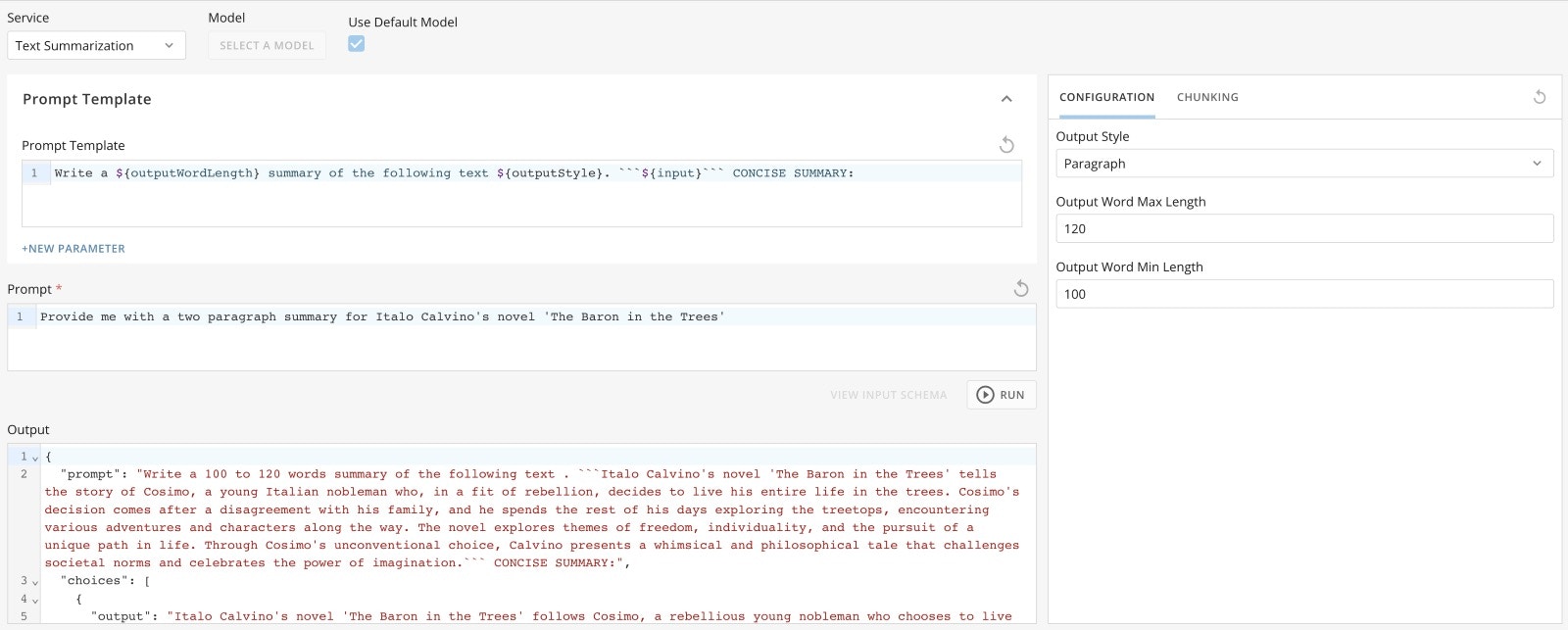
In the example below, we have asked the Text Summarization service for a two-paragraph summary of the novel “The Baron in the Trees” by Italo Calvino. We have also defined the output style of paragraph, a maximum of 120 words, and a minimum of 100 words.
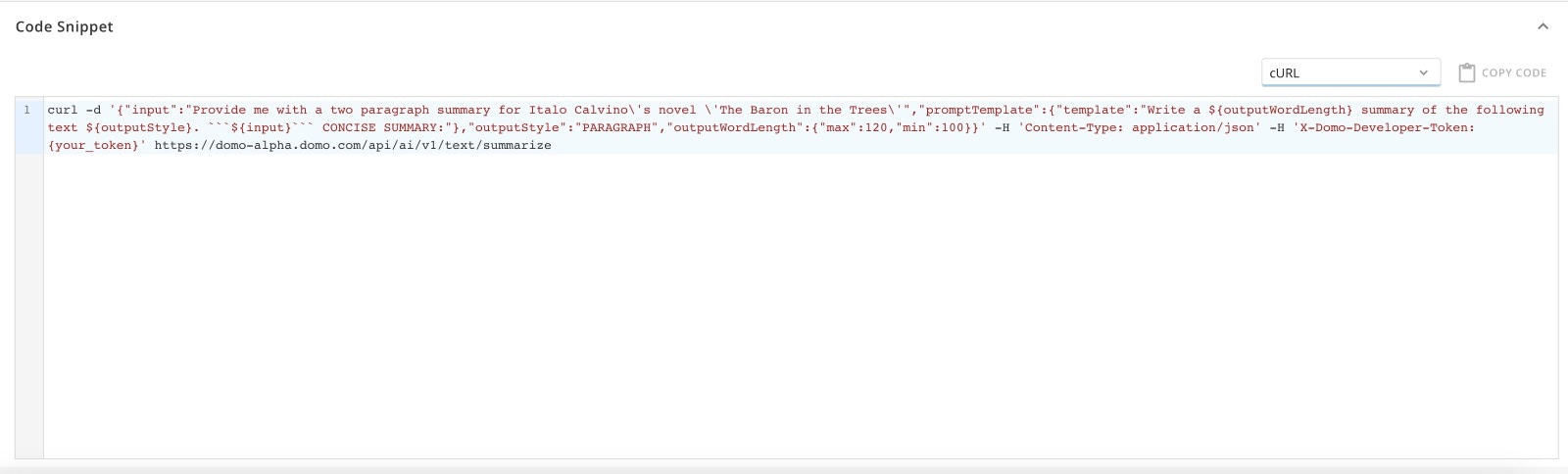
You can expand the Code Snippet field to view the requested text summarization. Copy the code to use it in Jupyter (in either Python or R) or in a Domo App (in either JavaScript or cURL).
Access Playground
Access Playground from the navigation header by selecting More > Domo AI to display the AI landing page.
In the left sidebar, select  Playground.
The AI Playground page displays.
Playground.
The AI Playground page displays.
Use Playground
In Playground, you can test the available AI services using the p rompt template and generate code snippets.
Prompt Template
The content of the Prompt Template field is what is sent to the service. The content of the Prompt field is what is passed as in the template.
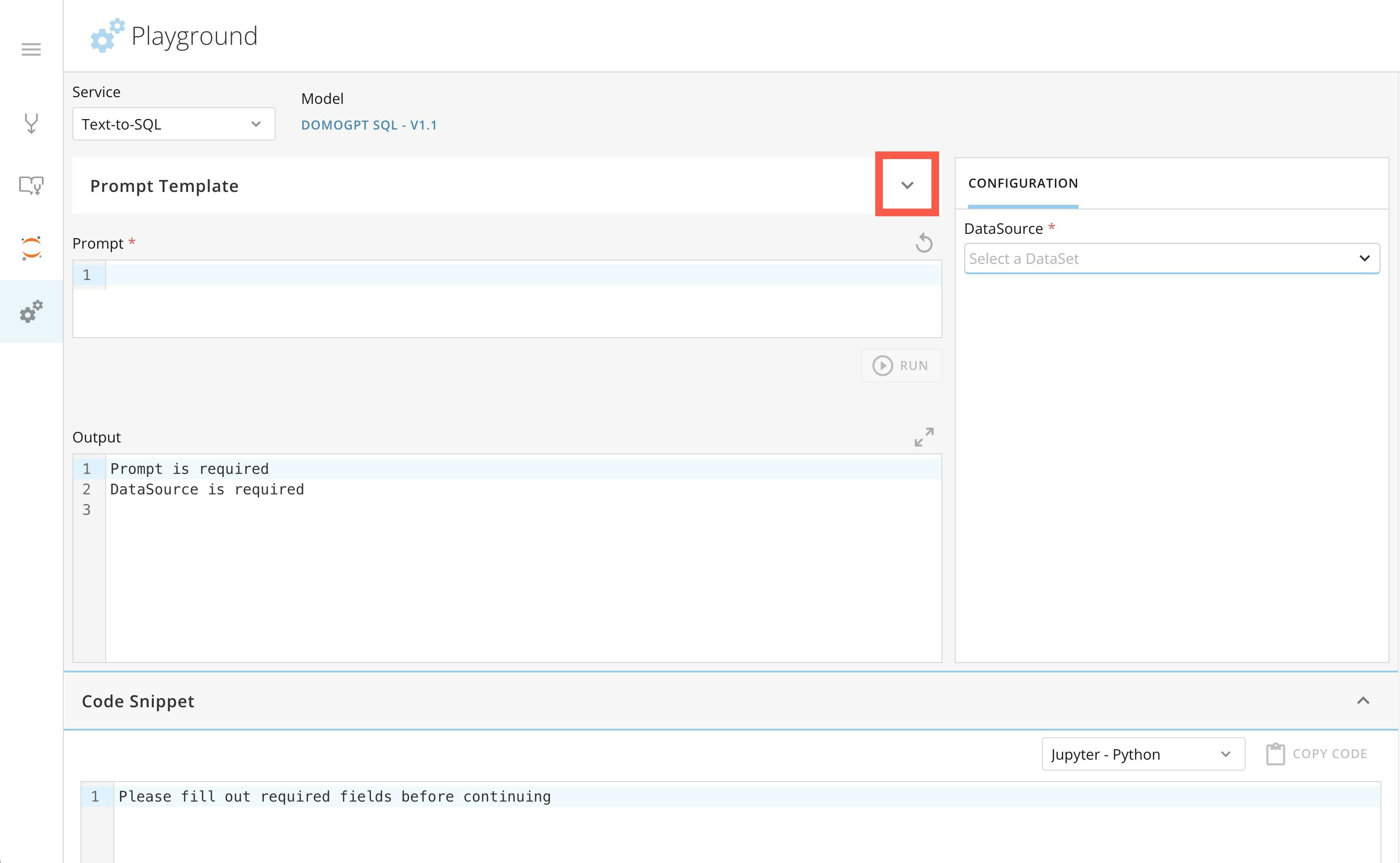
To edit and test the prompt template, expand Prompt Template.
You can edit the prompt template, add a data source in the Configuration tab if the service requires it, and select Run to test the prompt template and validate the output. If no output is returned, make changes to the prompt template and re-run.
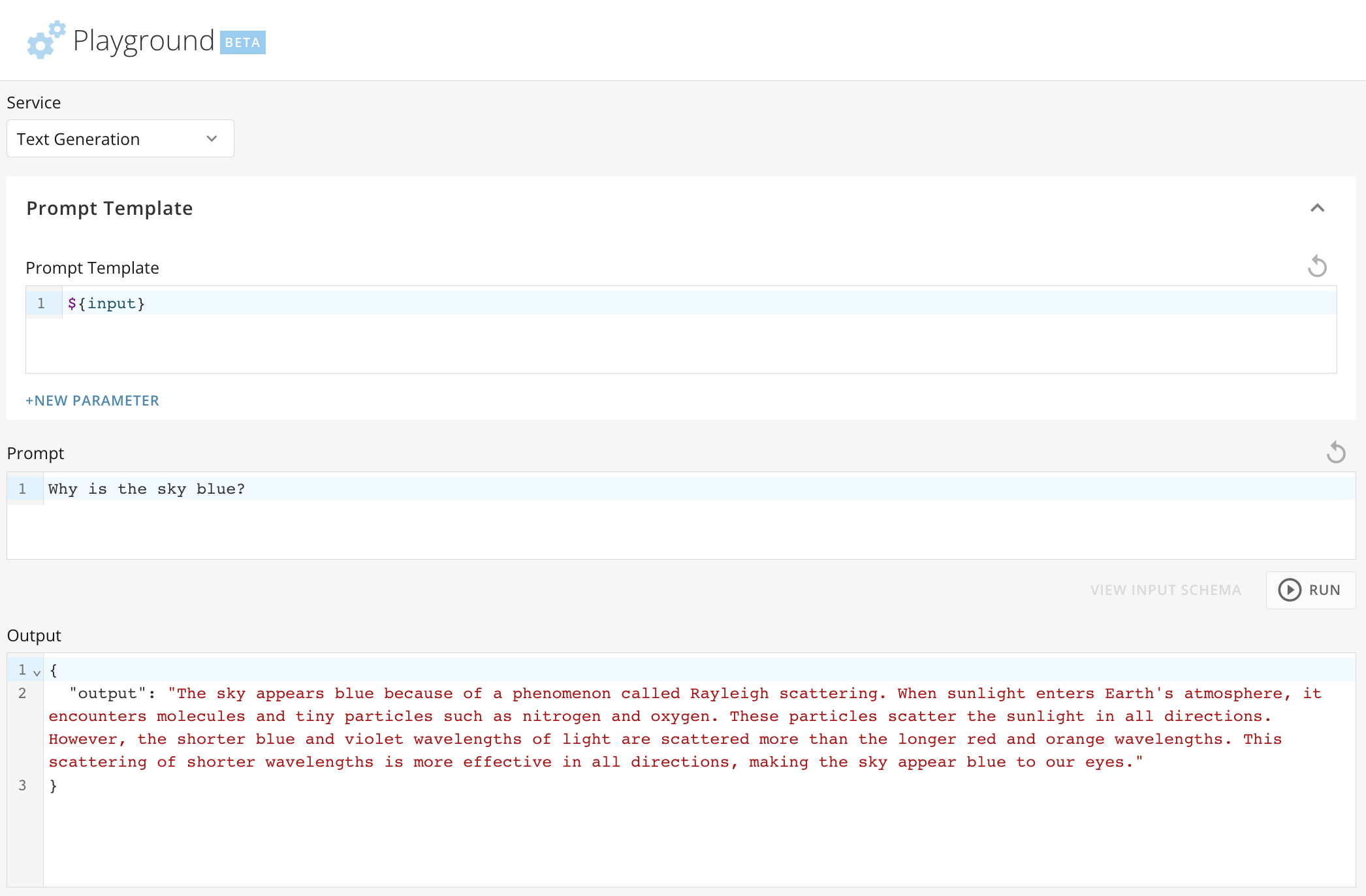
In the example below, the prompt, Why is the sky blue? is passed as in the prompt template. In the Output field, you can view the results.
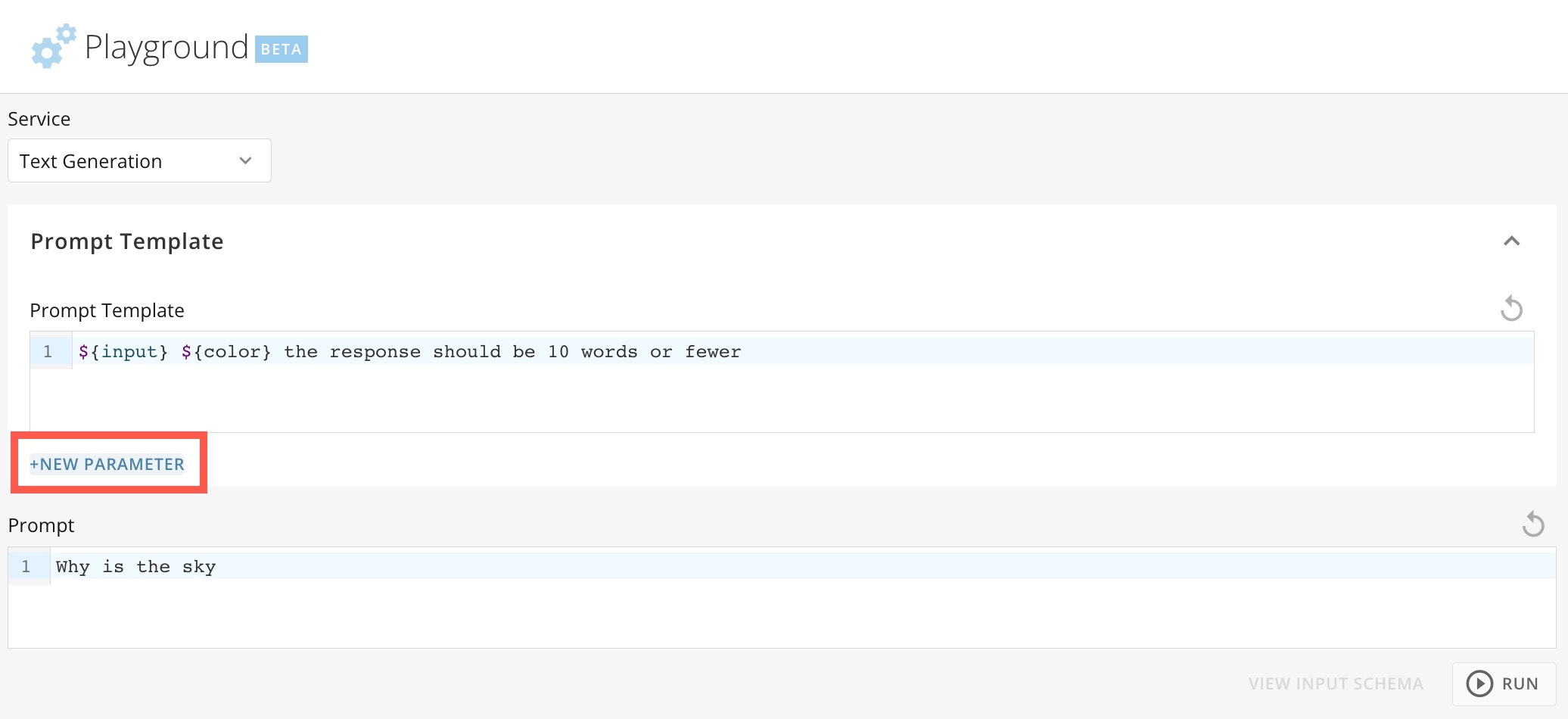
You can also select + New Parameter in the Prompt Template and add parameters to be passed.
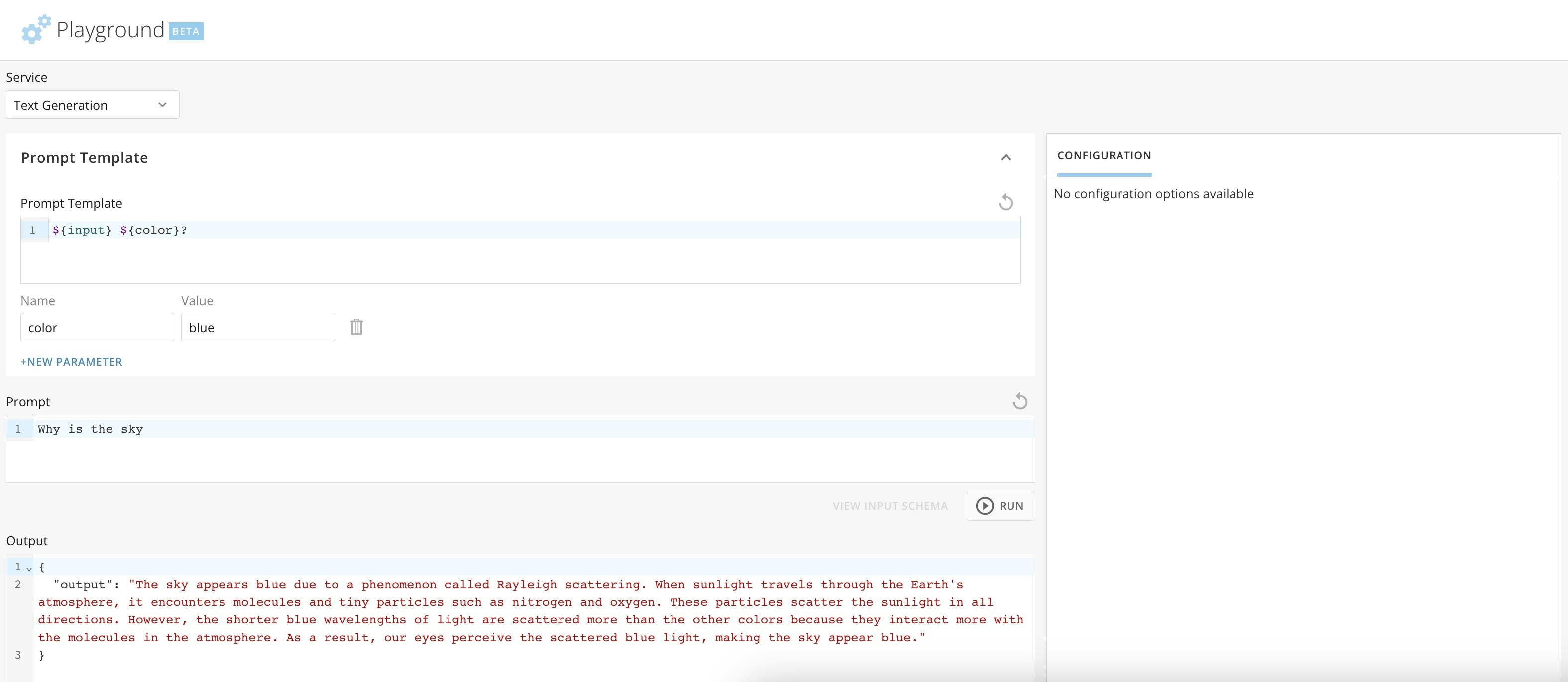
In the example below, a new parameter with a value of blue has been added to the prompt template. The prompt is now updated to Why is the sky, and the parameter is added after the in the prompt template. When the prompt template is passed, the output is the same as the earlier example, but would change if you changed the value of the parameter to green.
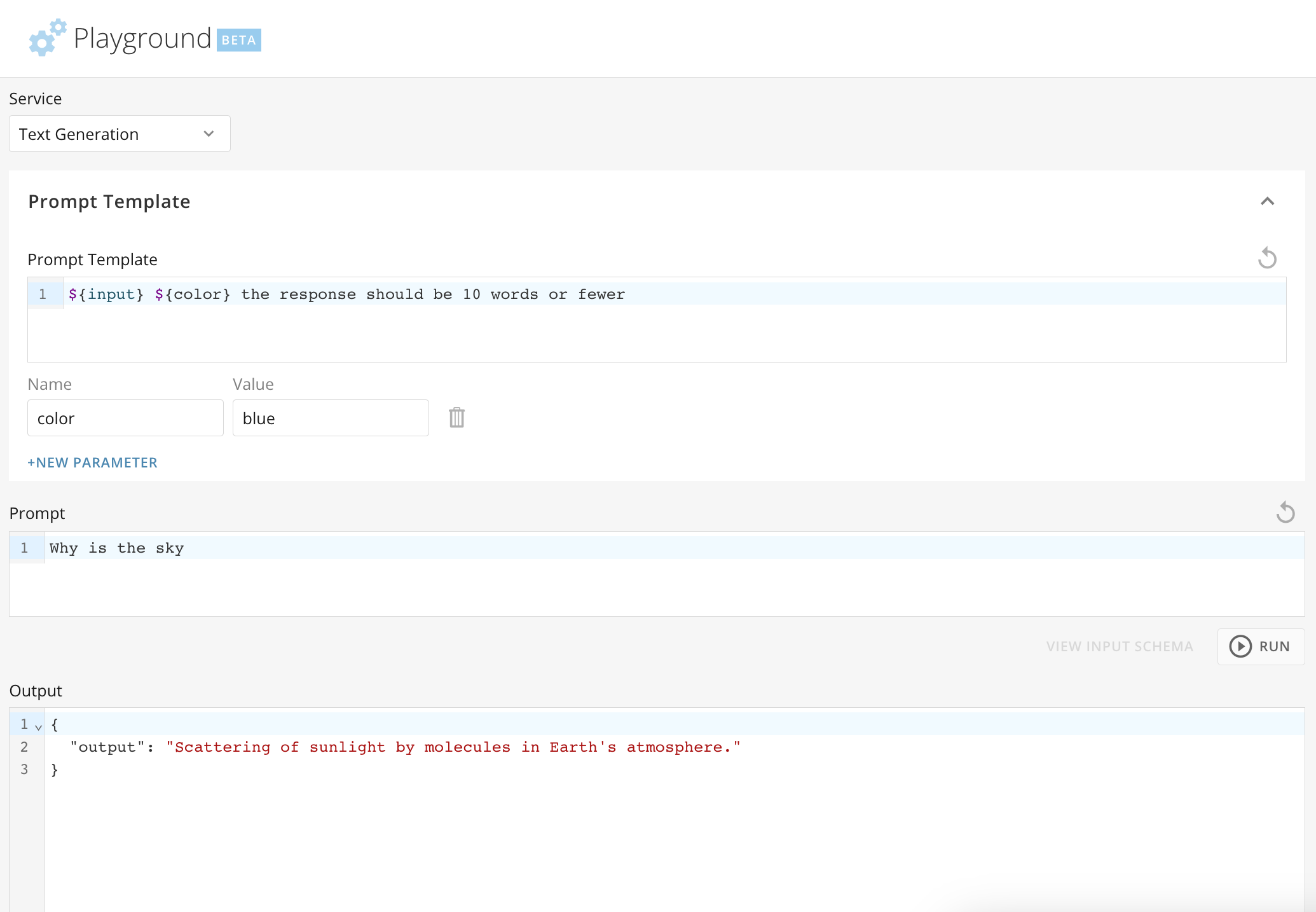
You can also make specifications for the output. In the example below, the same prompt template is passed with a specification for the response to be 10 words or fewer.
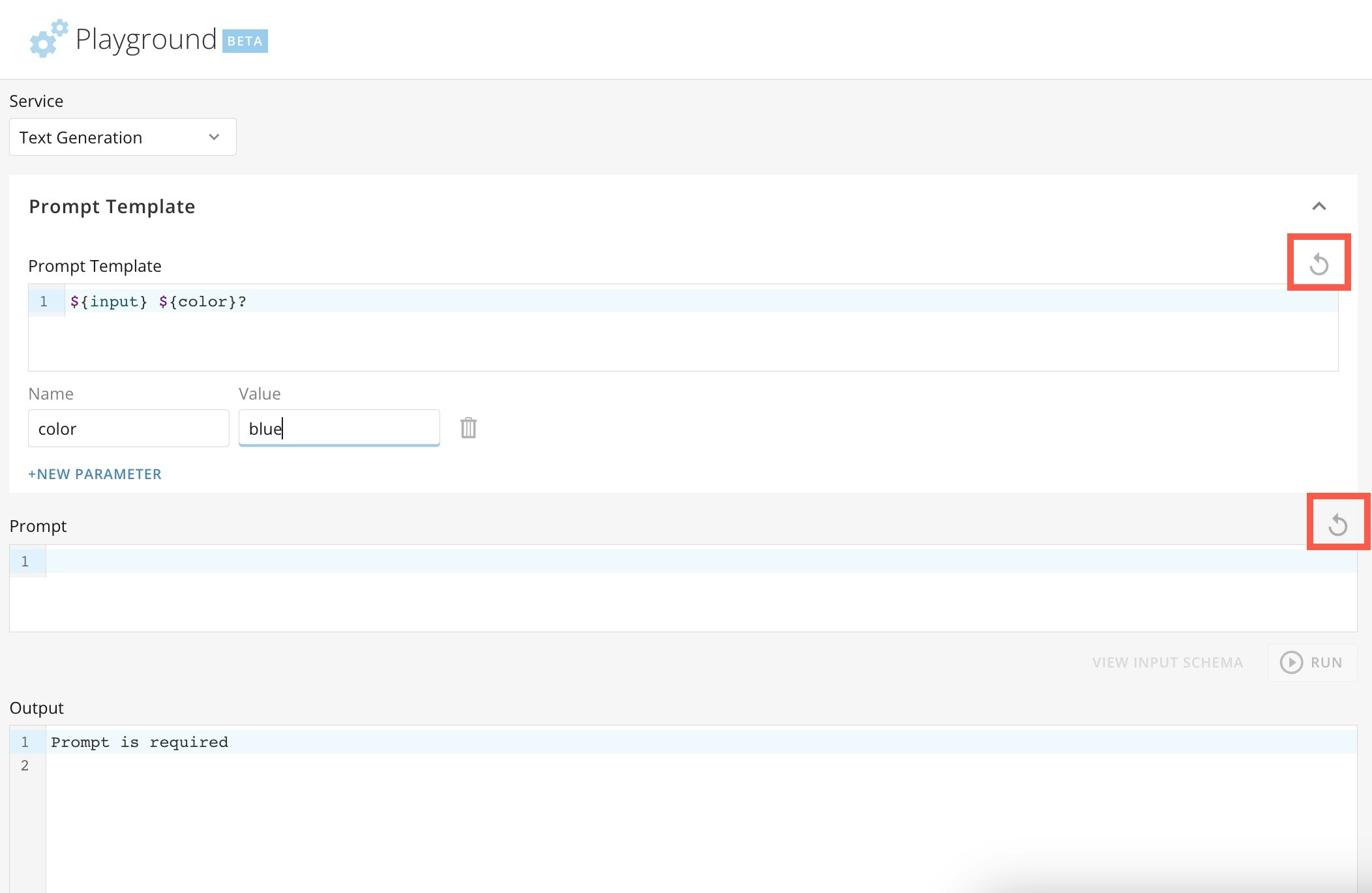
Reset Prompt and Prompt Template
You can always select Reset for either the Prompt or Prompt Template to return to the defaults.
Code Snippets
In Playground, code snippets are available for the following tools and languages:
- Jupyter—Python
- Jupyter—R
- DomoApp—Javascript
- cURL
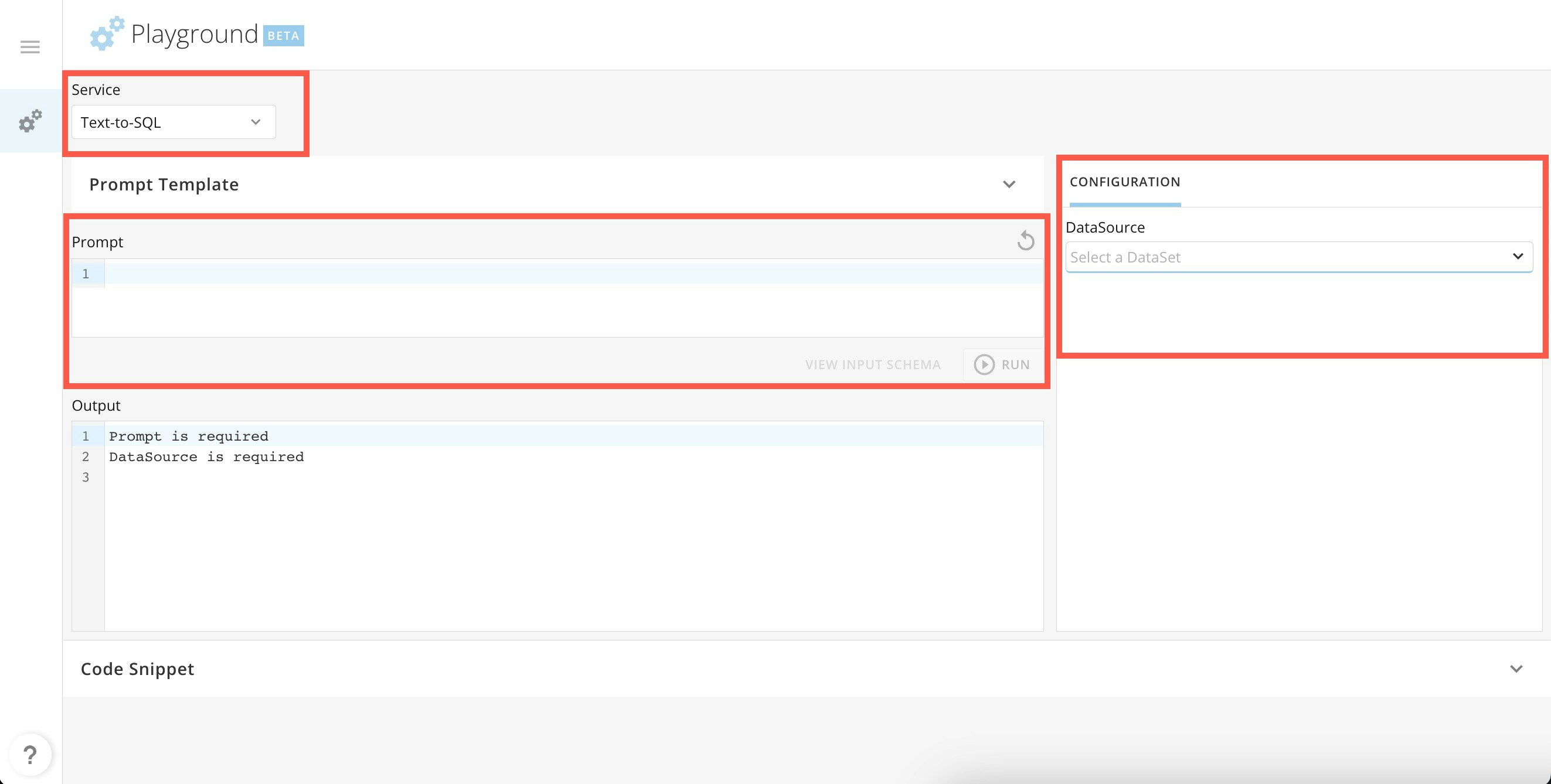
To generate a code snippet in Playground, select a service to test from the Service dropdown, enter a specific prompt to use, and select a DataSet to run the prompt against.
Generate Code Snippets for Jupyter Notebooks
Follow these steps in Playground to generate a Text-to-SQL service code snippet for use in Jupyter Notebooks:
-
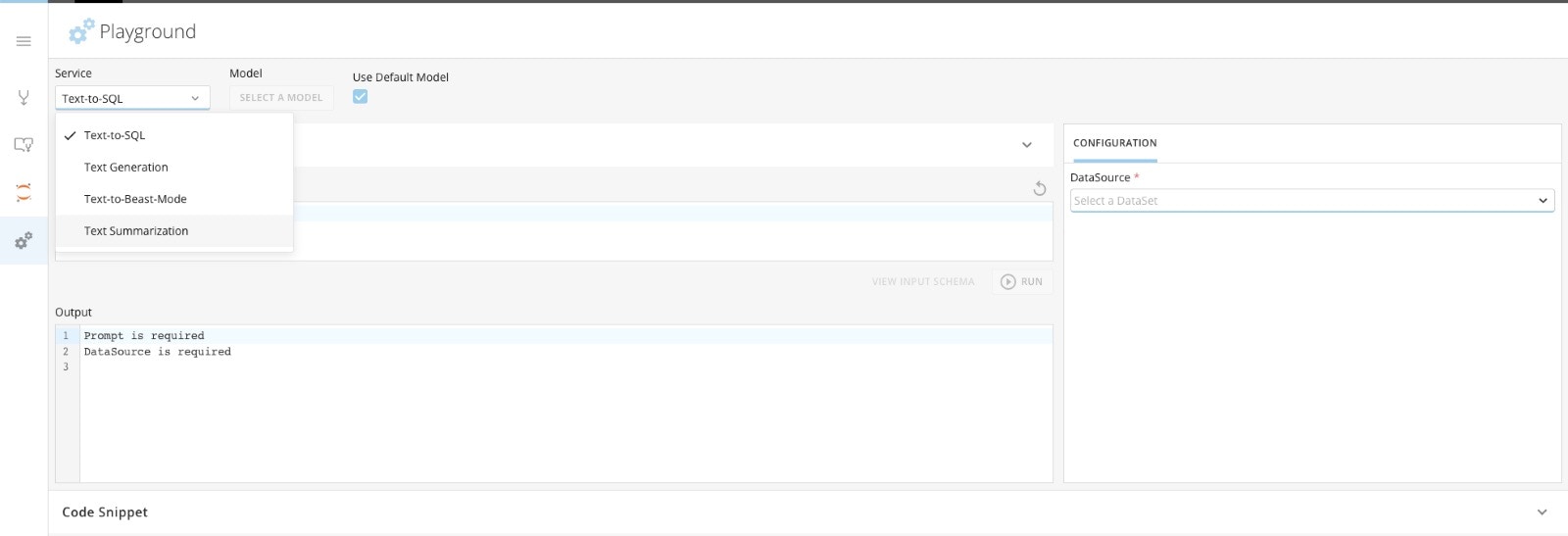
On the Playground page, select Text-to-SQL in the Service dropdown.
-
In the Prompt field, enter the prompt you want the service to run.
-
Under the Configuration tab, select a DataSet to run the prompt against.
-
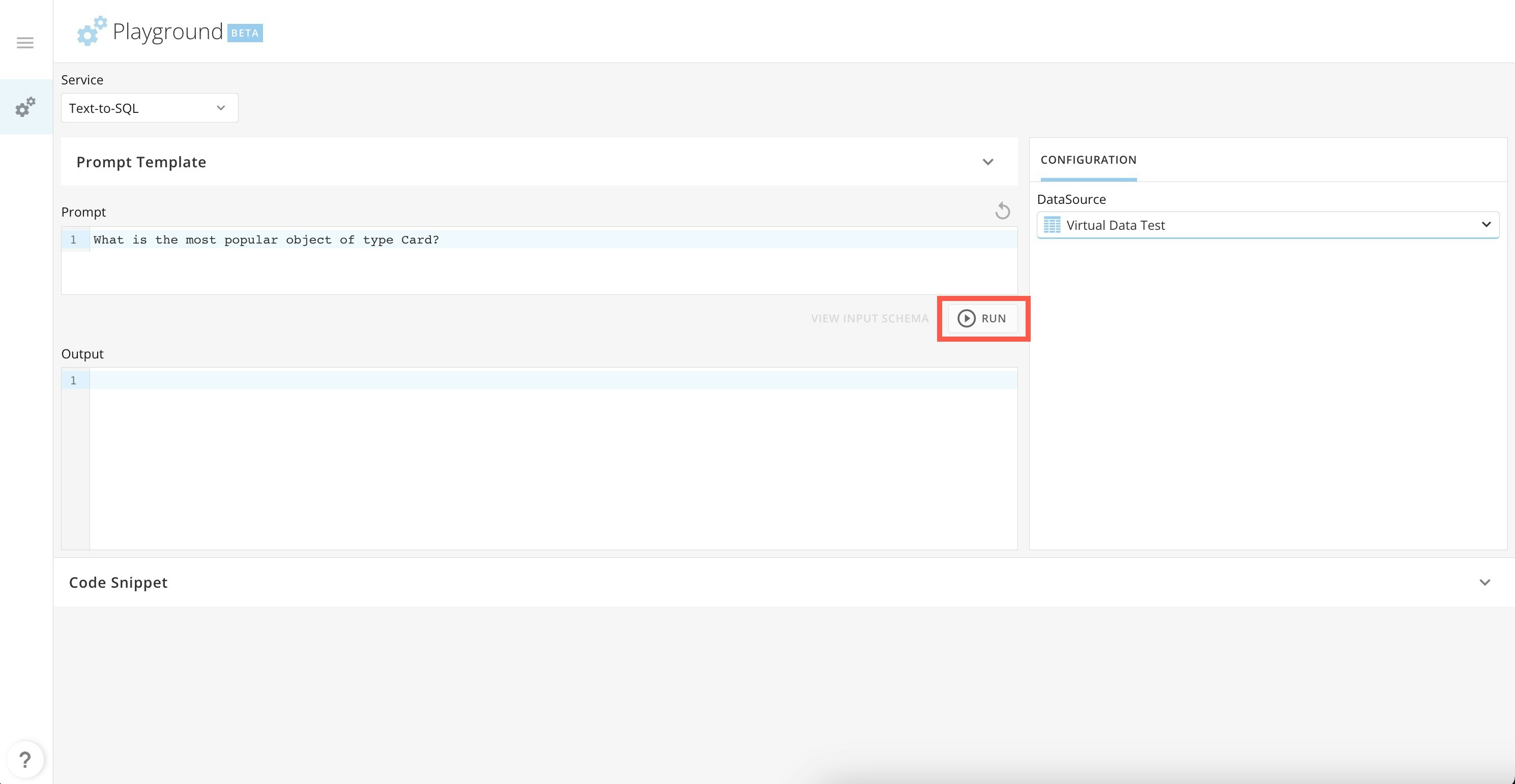
Select Run.
-
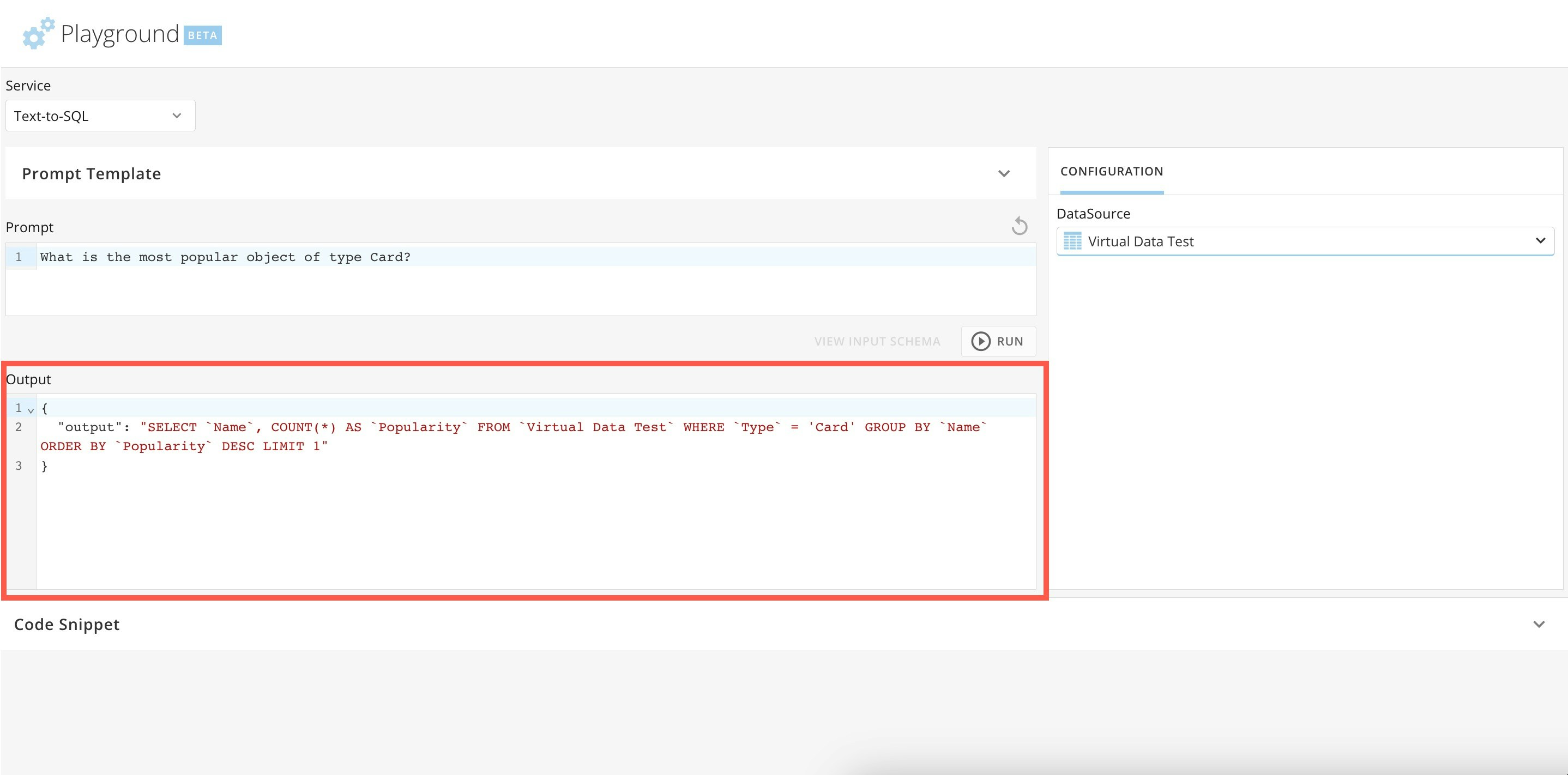
In the Output field, see the output of your prompt.
-
Expand the Code Snippet section to view the relevant Jupyter Python code.
-
(Optional) Under Code Snippet, use the dropdown to change the language of the code snippet or select Copy Code to copy the code to your machine’s clipboard.