Important: Because the new left navigation is opt-in, most knowledge base articles still guide you through the top navigation when walking through steps. If your instance uses the left navigation, menu locations may differ from what an article shows, so adjust the steps accordingly. After the Domo UI fully transitions to the left navigation, we will update the knowledge base to use left navigation instructions throughout.
This article explains how to understand the left navigation migration banner and migrate your users to the new left navigation before Domo disables the top navigation.
To view the migration banner and transition users to the new left navigation, you must have the Admin role. Specifically, this requires the Manage all company settings grant, which is included in the default Admin role by default.
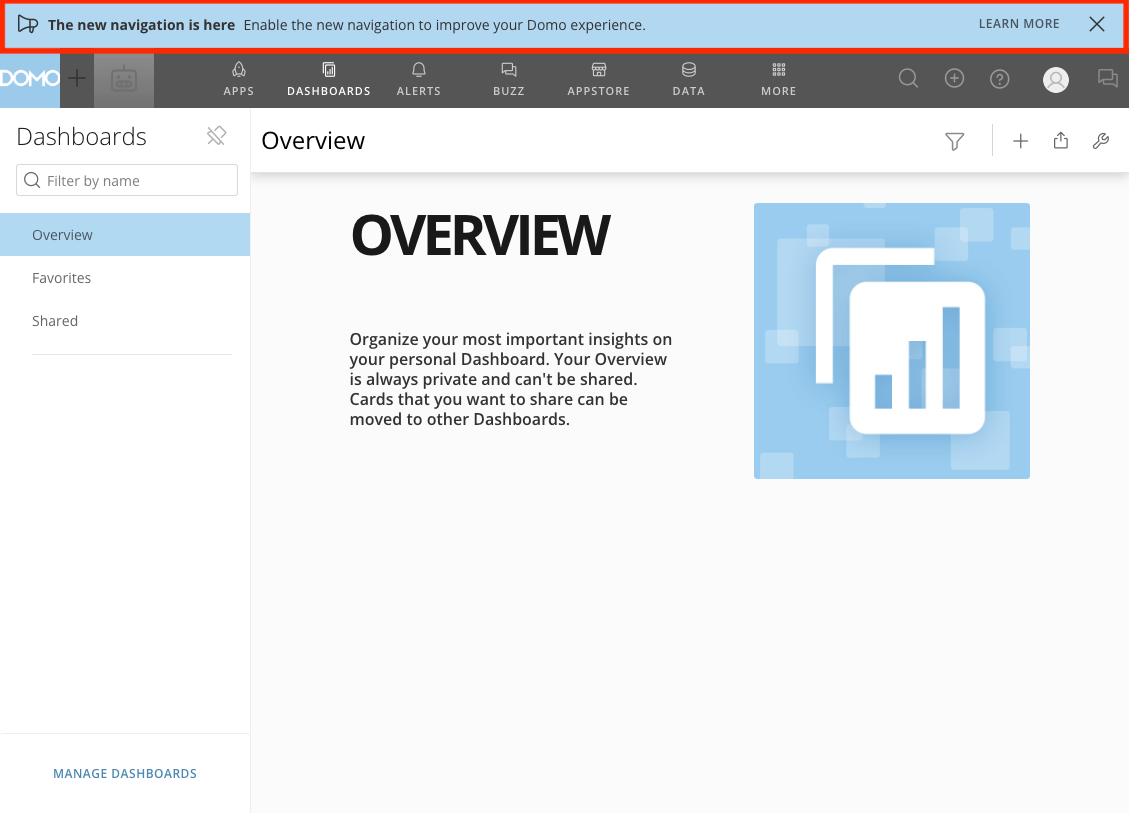
If you are a Domo Admin, a banner will appear in your instance inviting you to enable the new navigation. We recommend migrating your users before the deadline to ensure a smooth transition.
Follow these steps to migrate your users to the new left navigation:
Select Learn More in the notification banner to open the New Navigation settings.
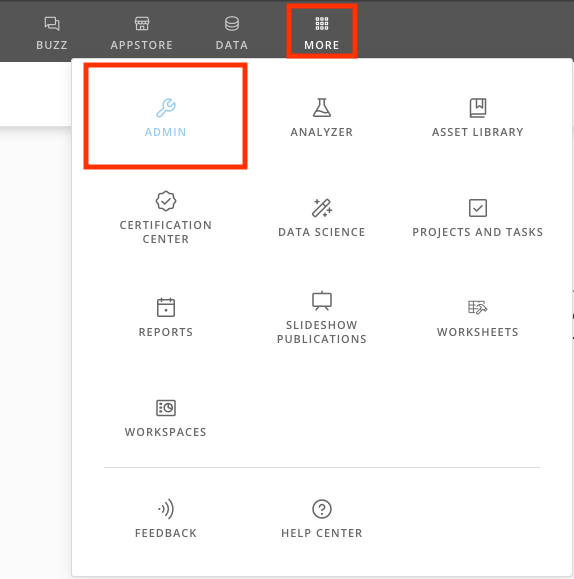
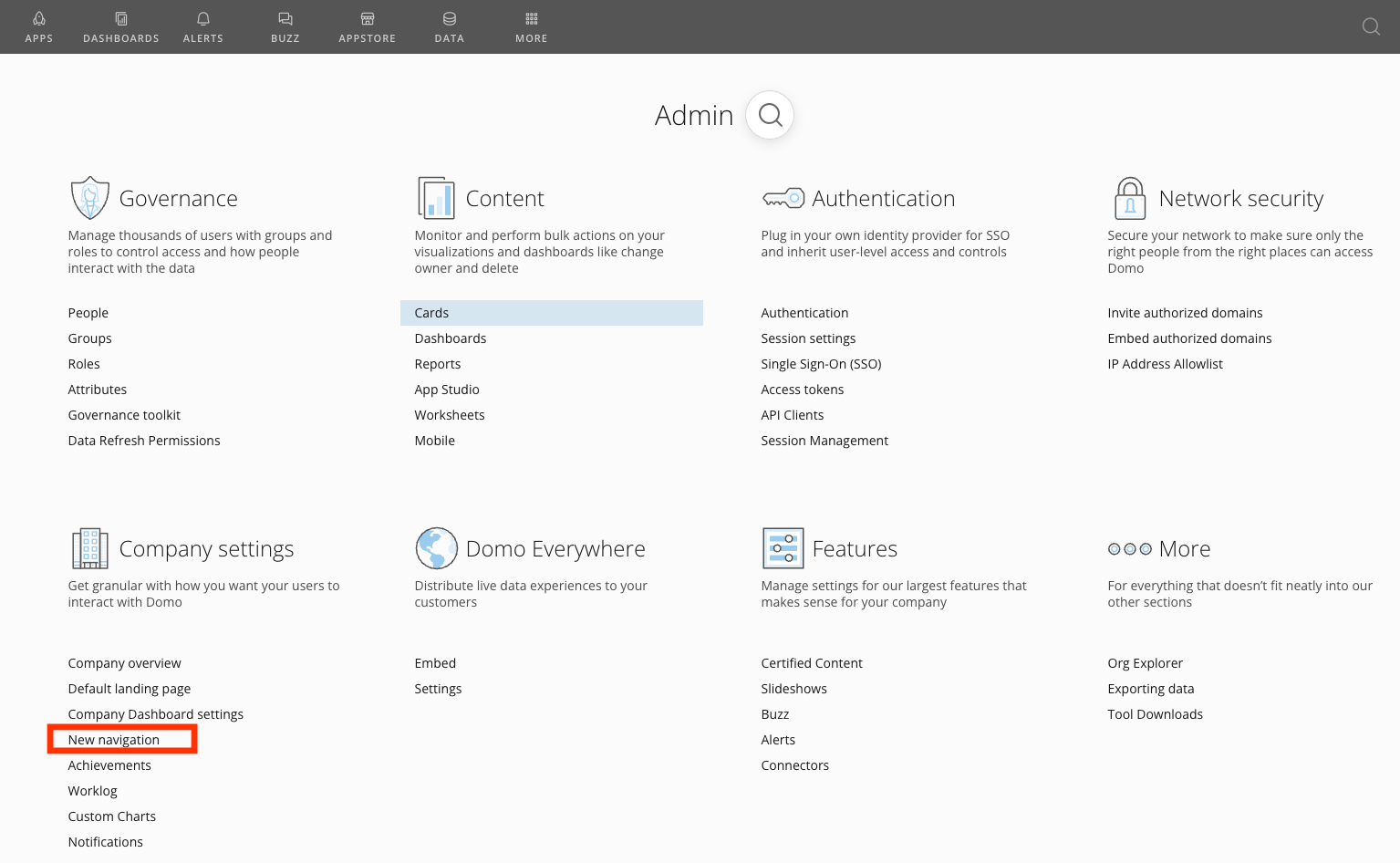
Note: If you dismiss the banner, you can also select More > Admin in the top navigation, then select New Navigation under Company Settings to access the enablement tool.
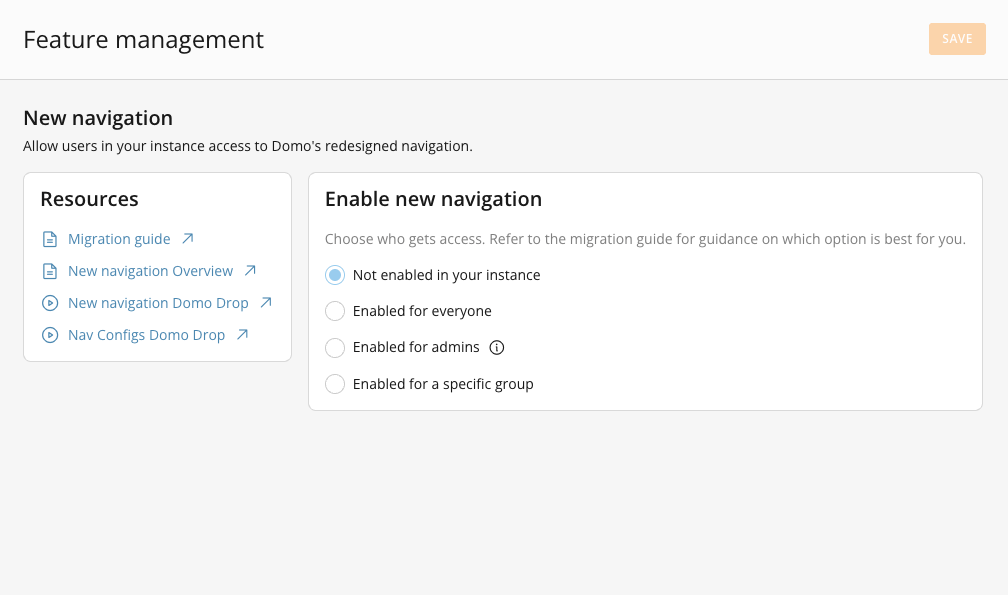
The following options are available to help you migrate users to the new navigation:
Not enabled in your instance — This option disables the new navigation for all users in your instance. It is the default behavior if the new navigation has not been enabled yet.
Enabled for everyone — Enables the navigation for all users in your instance.
Enabled for admins — Enables the navigation for all admin users in your instance. This option grants all admins who can view the Company Settings page access to the navigation enablement tool.
Enabled for a specific group — Enables the navigation for a specific group.
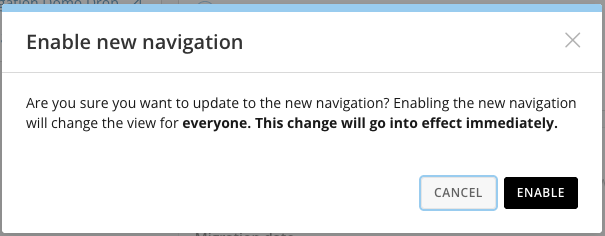
To save your changes, select Save in the top-right corner. A confirmation message appears. Select Enable to confirm. The change takes effect immediately.


 Note: If you dismiss the banner, you can also select More > Admin in the top navigation, then select New Navigation under Company Settings to access the enablement tool.