

Intro
This article explains how to create a navigation config, assign it to people and groups, control personalization, and edit, duplicate, or delete it.Required Grants
To access Navigation Configs, the following grant must be enabled for your role:- Manage All Company Settings — Manage company metadata, security rules and SSO, publishing, and licenses.
Understand Navigation Configs
Navigation Configs let you customize the Domo experience by assigning tailored navigation configs to different people and groups, with each person seeing only what’s relevant to them. Individual users can personalize their own navigation. With Navigation Configs, admins can also create a global, customized navigation experience. You can pin any Domo object, such as apps, Workspace homes, folders, or dashboards, to the section below the global navigation for all users, or customize it for specific departments or groups. For example, you can make sure your CFO sees financial dashboards immediately, while your marketing team gets instant access to campaign metrics.Note: The top section of the left navigation, which contains
Features, Search, Create, Recent, and Admin, isn’t
customizable. It stays global and reflects each user’s grants and access.
Understand Configured Items and Personal Pins
The navigation items in a config appear in the navigation of every assigned user. When personalization is enabled for the config, users can also personalize their navigation by pinning new items below the configured navigation. When personalization is off, users’ own pins are hidden.Understand Permission-Aware Content Pins Beta
Turn on permission awareness for a navigation config to make sure users only see content pins they can open. When Permission-aware content pins is on, users assigned to the config only see a content pin if they have access to that content. Permission awareness applies only to content pins. It doesn’t extend to other types of pins, such as folders, subfolders, smart folders, feature pins, or action pins, which are always shown.Understand How Configs Are Assigned
Each user has one navigation config at a time. When a user receives configs from more than one source, Domo applies these rules:- A config assigned directly to a user takes priority over a config assigned through a group.
- If a group has more than one config, the most recently assigned config applies.
- Users keep a config as long as they have access to it through any source, such as a direct assignment or another group.
- When you assign a config with Override everyone’s config selected, it overrides any navigation config assigned to the people and groups in that config.
- When you assign a config from the People page or from a user’s profile, it overrides any navigation config that’s already been assigned to the selected people.
Access Navigation Configs
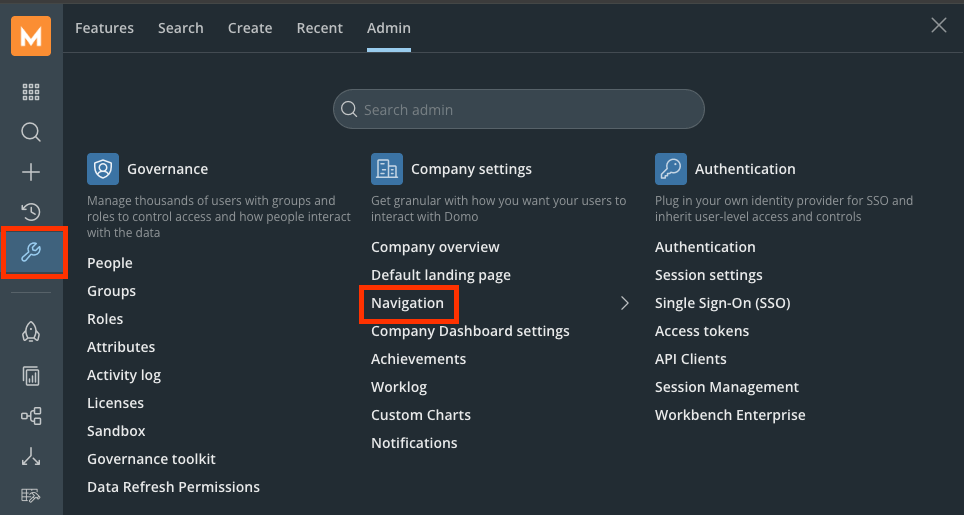
To open Navigation Configs, follow these steps:- In the left navigation, select Admin (the wrench icon ).
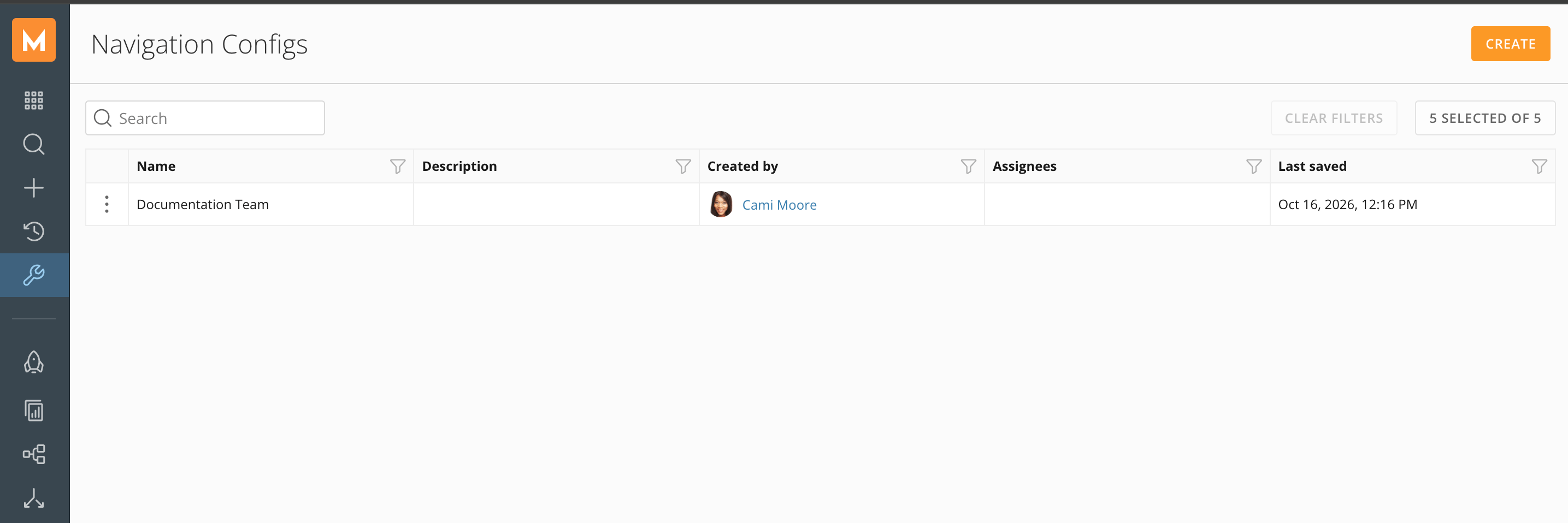
- Under Company settings, select Navigation > Navigation Configs.
Create a Navigation Config
A navigation config has three tabs: Config Settings, Navigation, and Assignees. As you work, a preview of the navigation bar shows what assigned users see. To create a navigation config, follow these steps:- Open Navigation Configs. Learn how to access Navigation Configs.
-
Select Create.
The New Config editor opens to the Config Settings tab.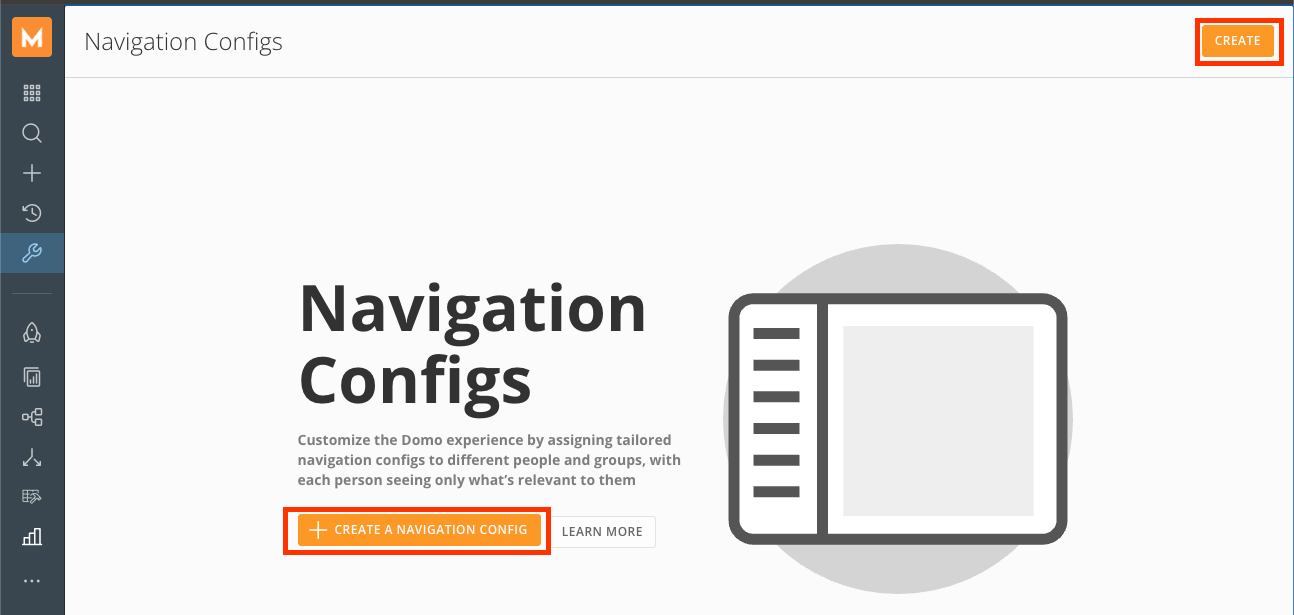
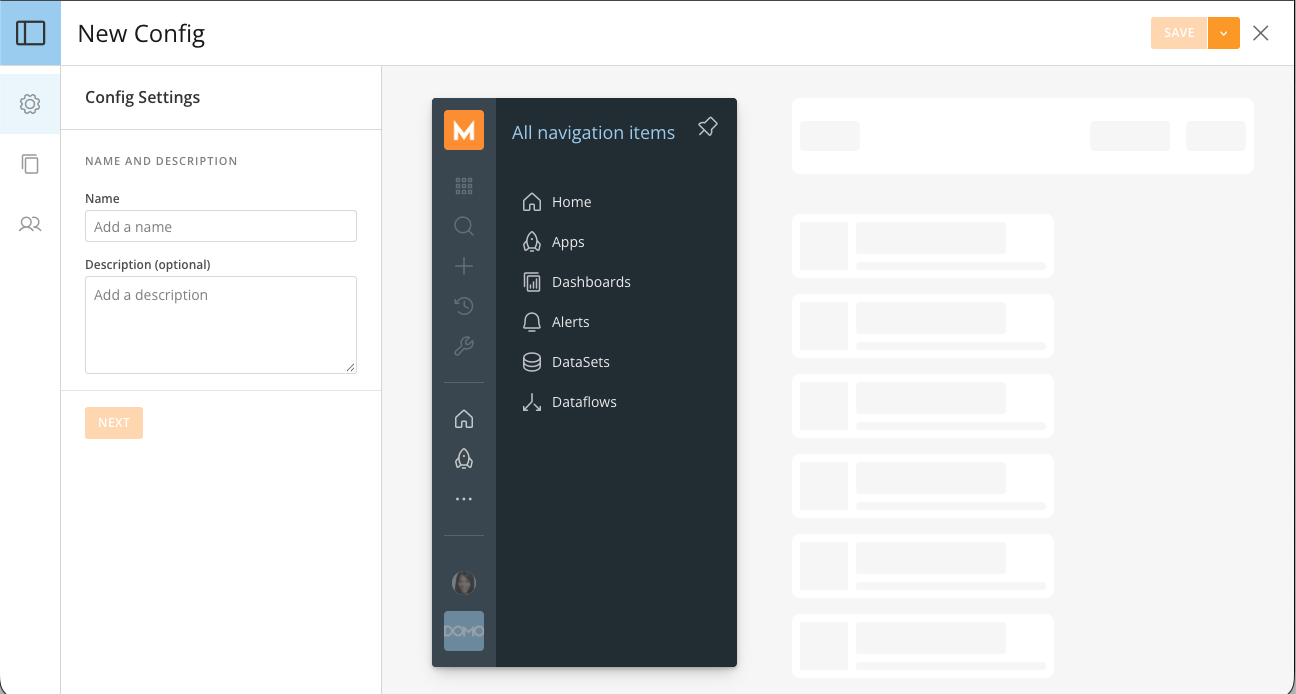
- Enter a Name for the config.
- (Optional) Enter a Description.
-
Select Next.
The Navigation tab opens with a Permissions section and the config’s navigation items. The config starts with a few default items, such as Home, Apps, Dashboards, Alerts, DataSets, and Dataflows, which you can keep, edit, or remove.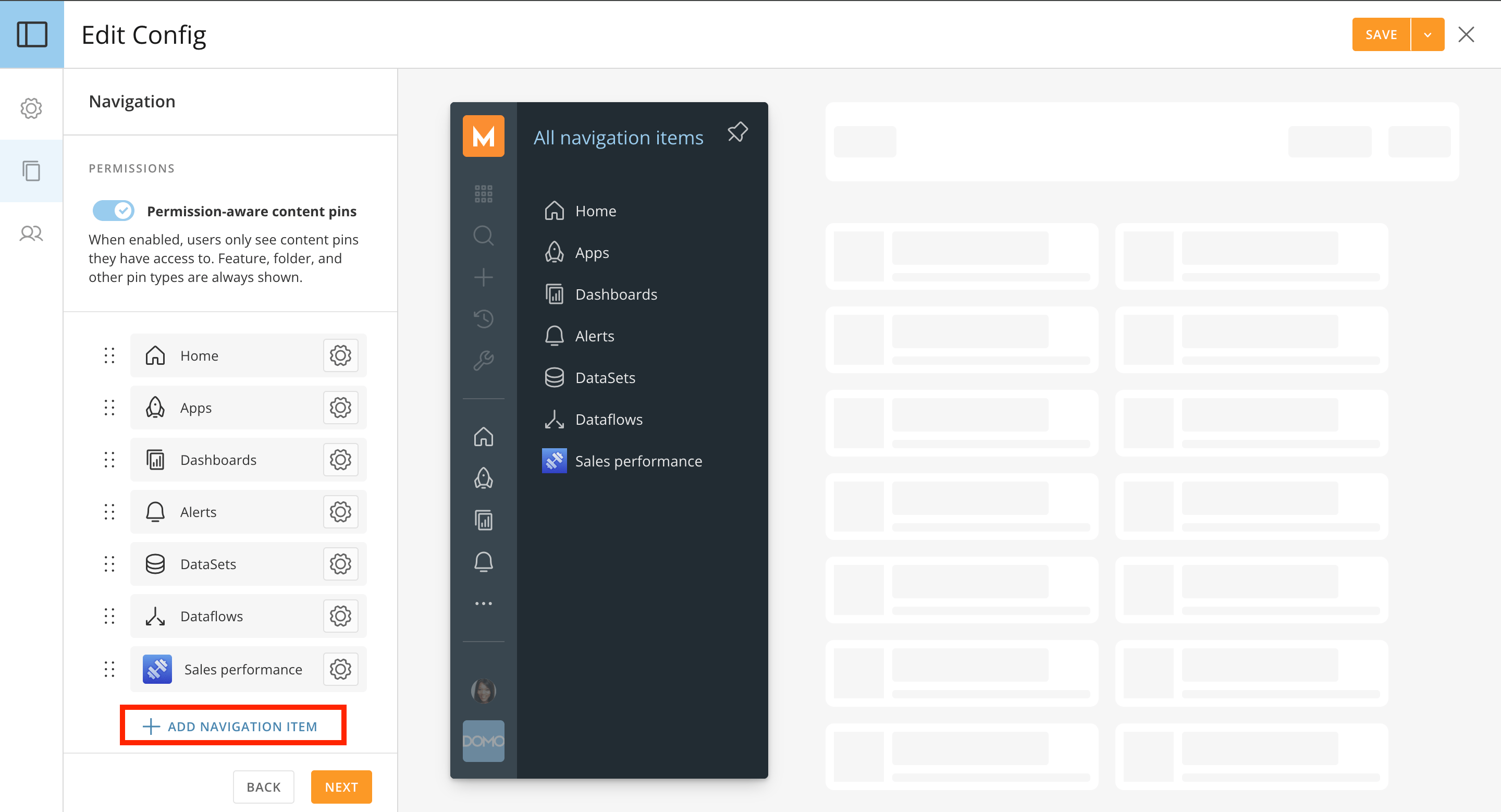
-
(Optional) Under Permissions, turn on Permission-aware content pins.
When this option is on, users only see content pins they have access to. Feature, folder, and other pin types are always shown. Learn more about permission-aware content pins. -
Select Add Navigation Item to add the pins you want users to see.
You can’t add the same pin to a config twice. - (Optional) Drag the navigation items by their handles to reorder them.
-
Select Next.
The Assignees tab opens. - Assign the config to people and groups, and choose whether users can personalize their navigation. Learn how to assign a config to people and groups.
- Select Save in the top-right corner.
Assign a Navigation Config
You can assign a navigation config from the config itself, from the Navigation Configs page, from the People page, or from a user’s profile.Assign a Config to People and Groups
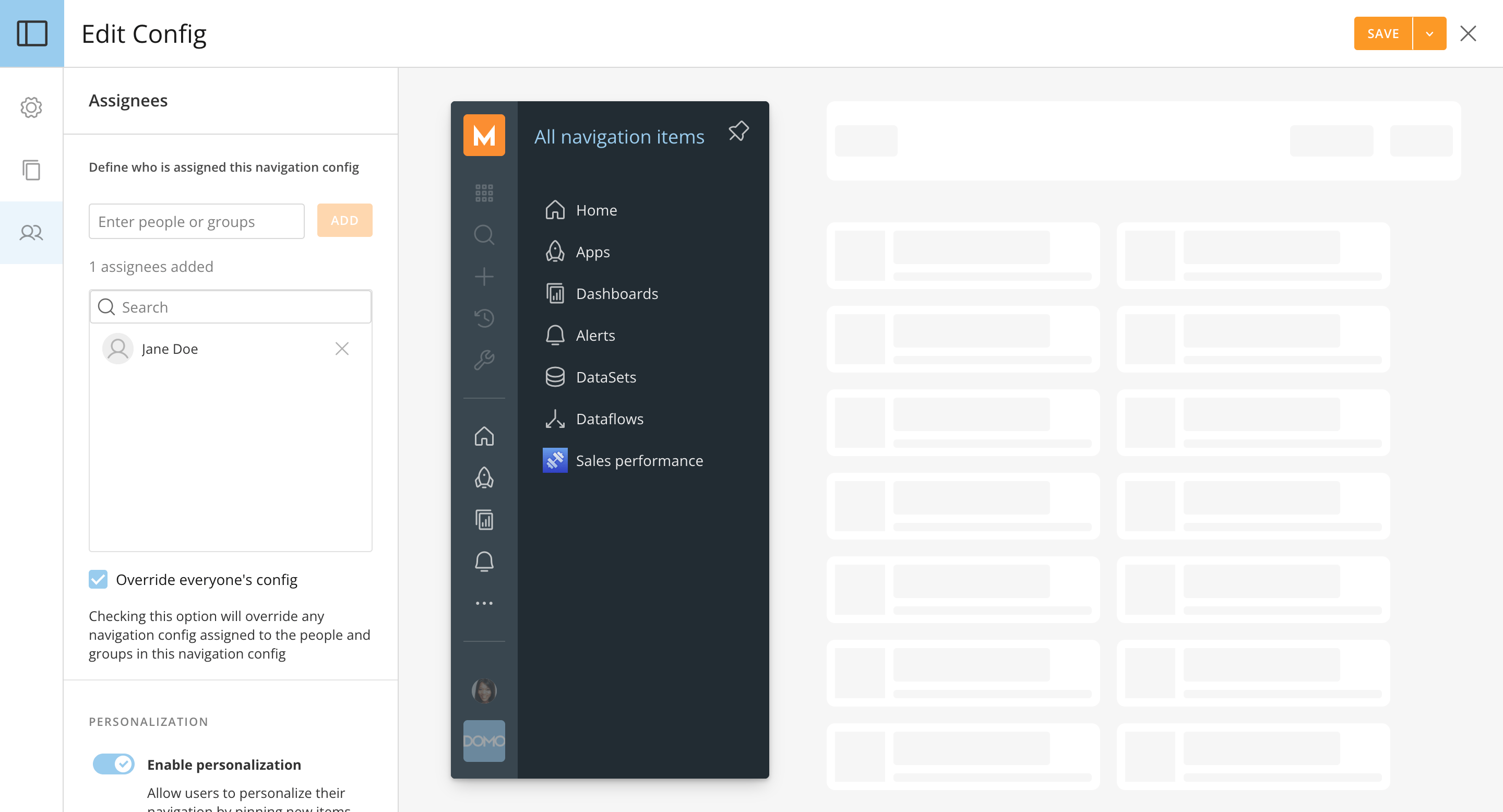
To assign a navigation config, follow these steps:- Open the navigation config, and go to the Assignees tab.
-
In the Enter people or groups field, type the name of a user or group, and select Add.
Repeat for each user or group who should use the config. The assignees you add appear in the list below the field. -
(Optional) Select Override everyone’s config to override any navigation config assigned to the people and groups in this navigation config.
-
(Optional) Under Personalization, turn on Enable personalization to allow users to personalize their navigation by pinning new items below the configured navigation.
When personalization is off, users’ own pins are hidden.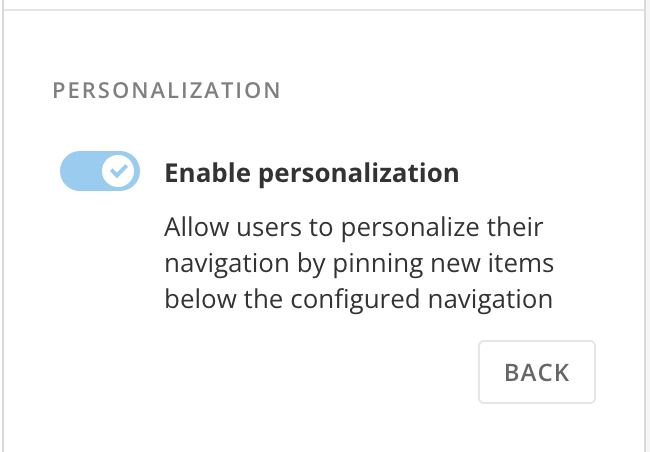
-
Select Save in the top-right corner.
The config’s navigation items are added to each assignee’s navigation.
Assign a Config from the Navigation Configs Page
To add people and groups to a config without opening it, follow these steps:- Open Navigation Configs.
- Select the more options menu (the three-dot icon) for the config.
- Select Manage Access.
- Add the people and groups who should use the config.
Manage Access works the same way as the Assignees tab. Learn how to assign a config to people and groups.
Assign a Config from the People Page
To assign a navigation config to several people at once, follow these steps:- Go to Admin > Governance > People.
-
In the grid, select the people you want to assign.
A toolbar appears at the top of the page. -
In the toolbar, select the Assign navigation config icon.
The Assign navigation config modal opens.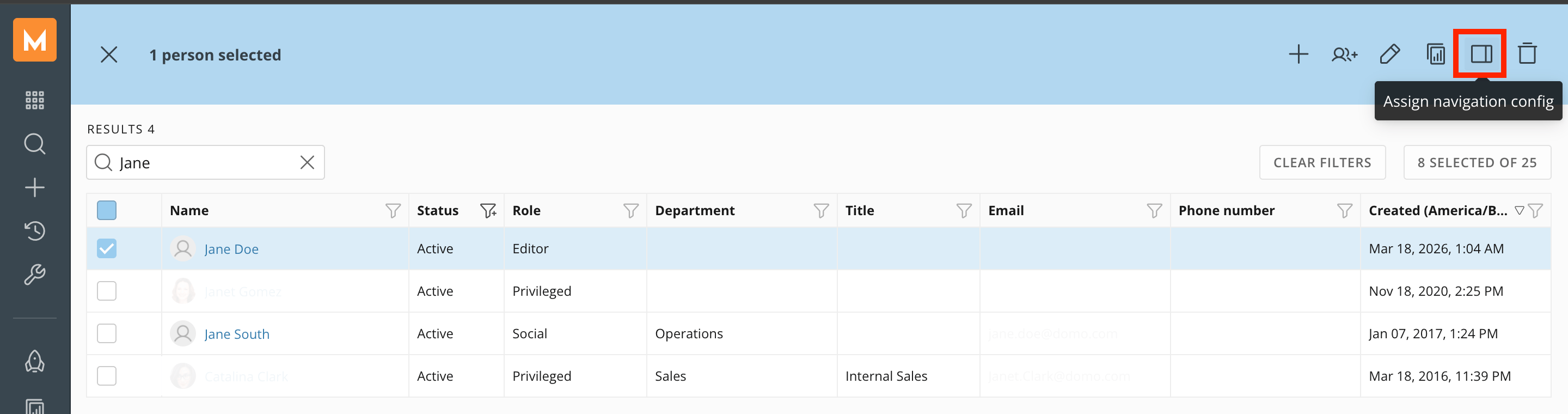
- In the Navigation Config field, select the config you want to assign.
-
Select Assign.
The selected people are assigned the config. This overrides any navigation config that’s already been assigned to them.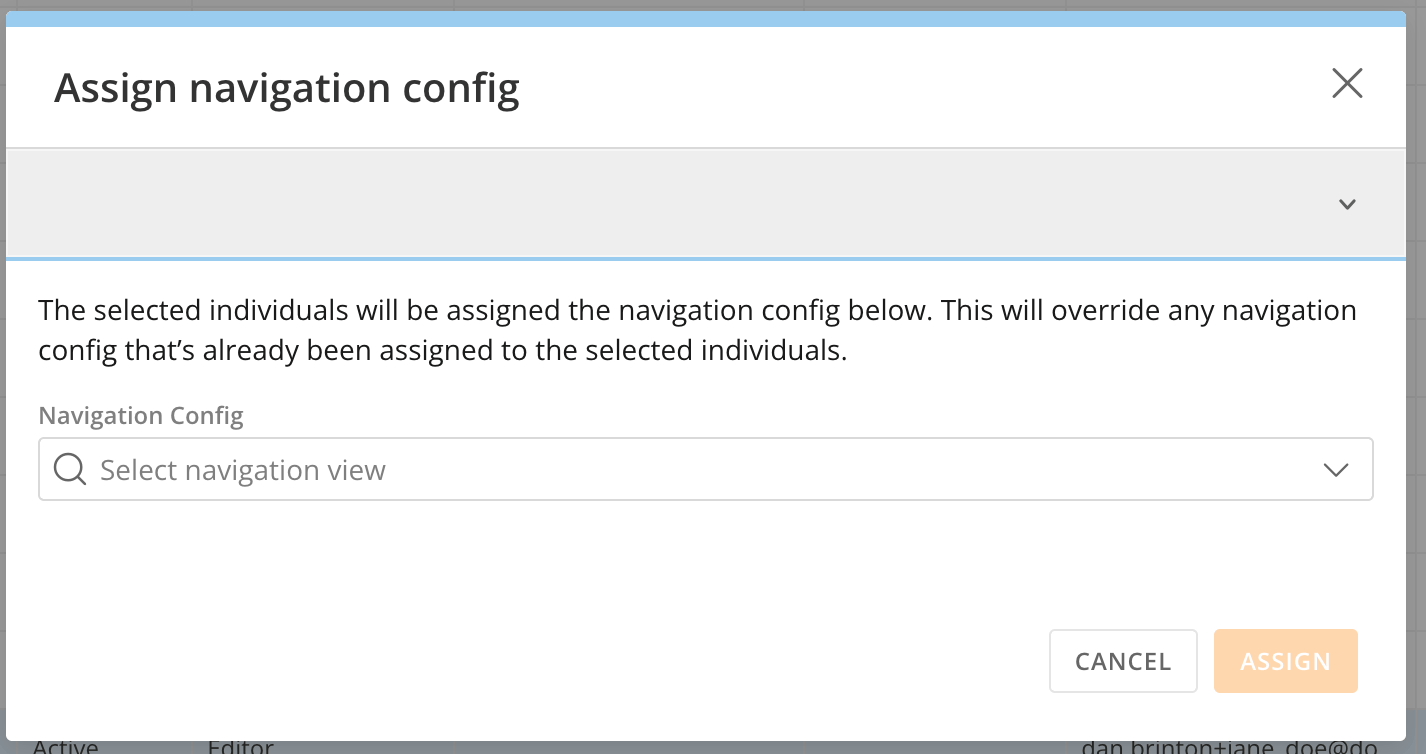
Assign a Config from a User’s Profile
To view or change the navigation config assigned to one user, follow these steps:-
Go to Admin > Governance > People, and select the user’s name.
The user’s profile opens. The Navigation Config field in Personal details shows the user’s current config. Default means no config is assigned.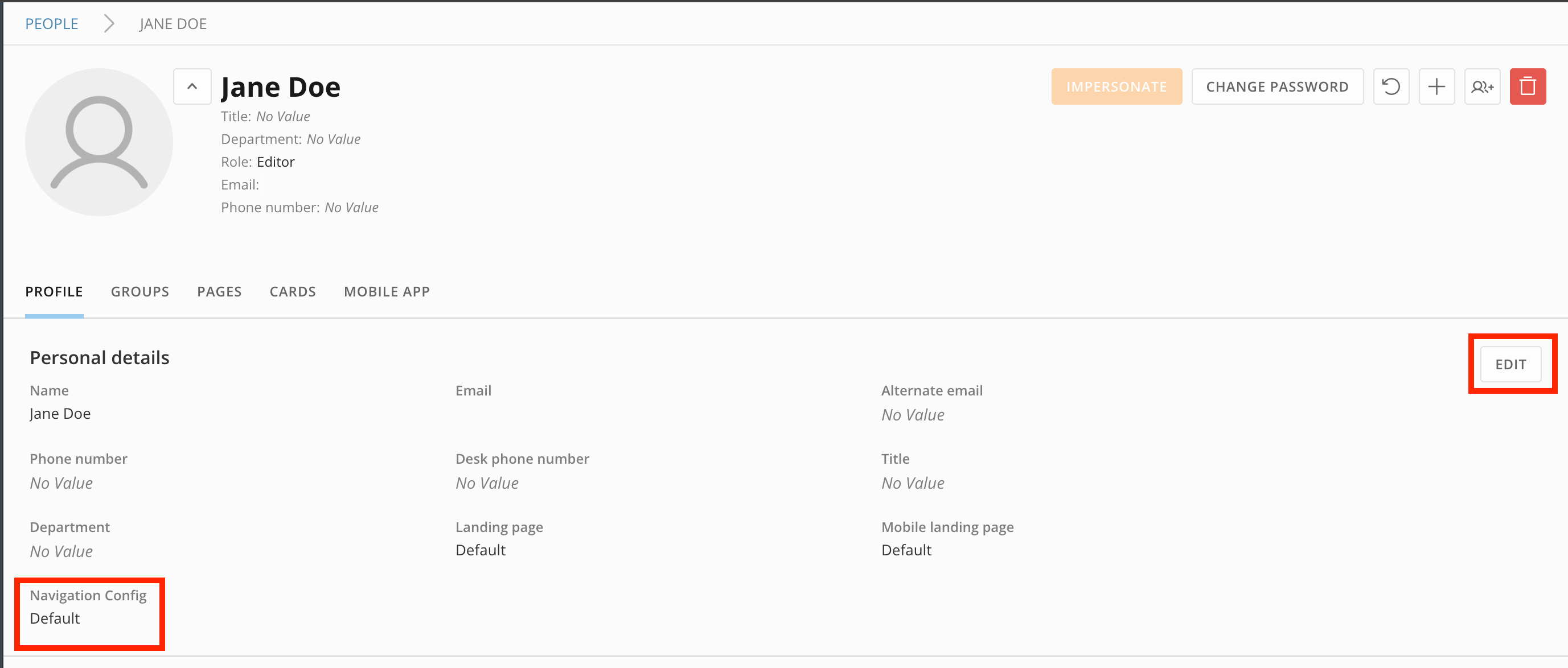
- In Personal details, select Edit.
-
Next to the Navigation Config field, select the pencil icon .
The Assign navigation config modal opens.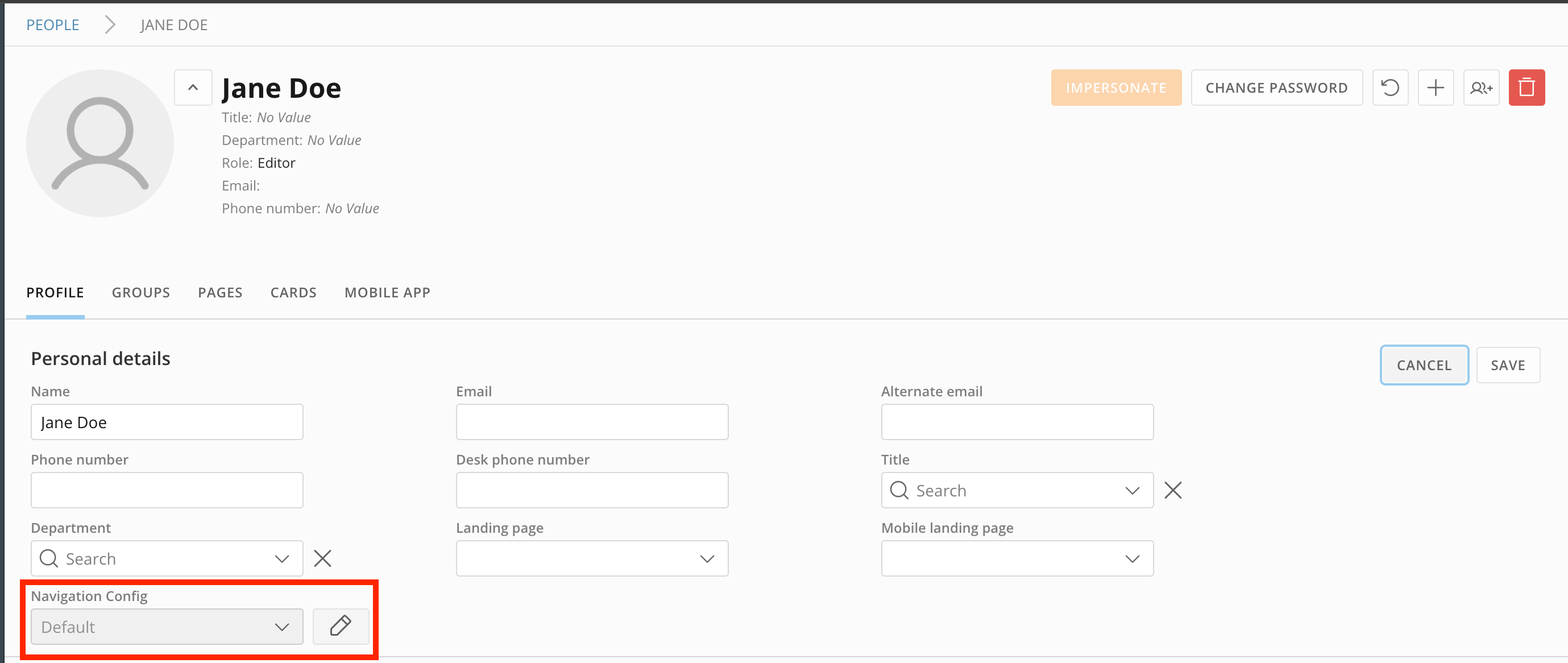
- In the Navigation Config field, select the config you want to assign.
-
Select Assign.
This overrides any navigation config that’s already been assigned to the user.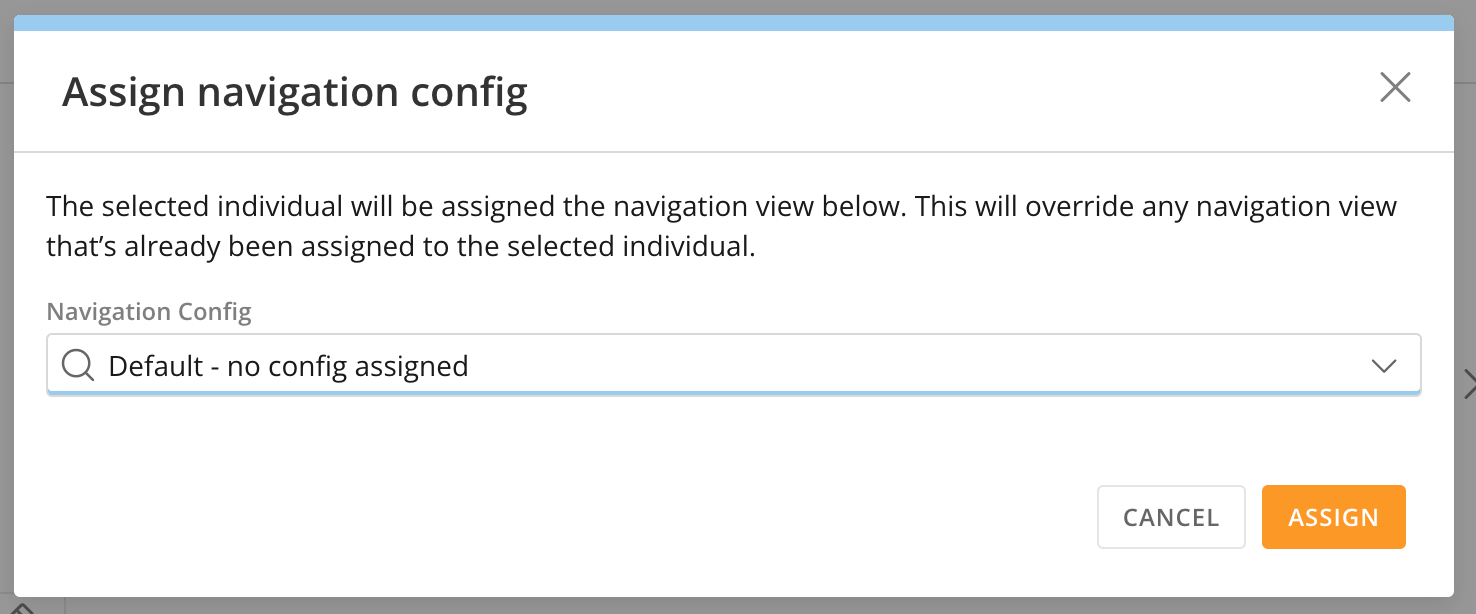
- In Personal details, select Save to save the configuration and exit edit mode.
Edit a Navigation Config
To edit a navigation config, follow these steps:- Open Navigation Configs.
-
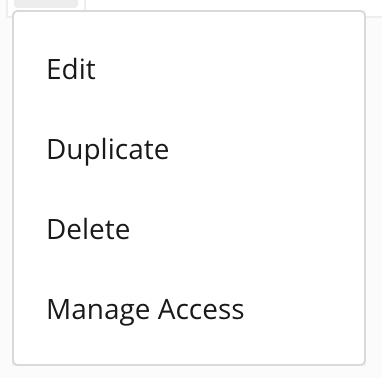
Select the more options menu (the three-dot icon) for the config you want to edit.
-
Select Edit.
The Edit Config editor opens to the Config Settings tab.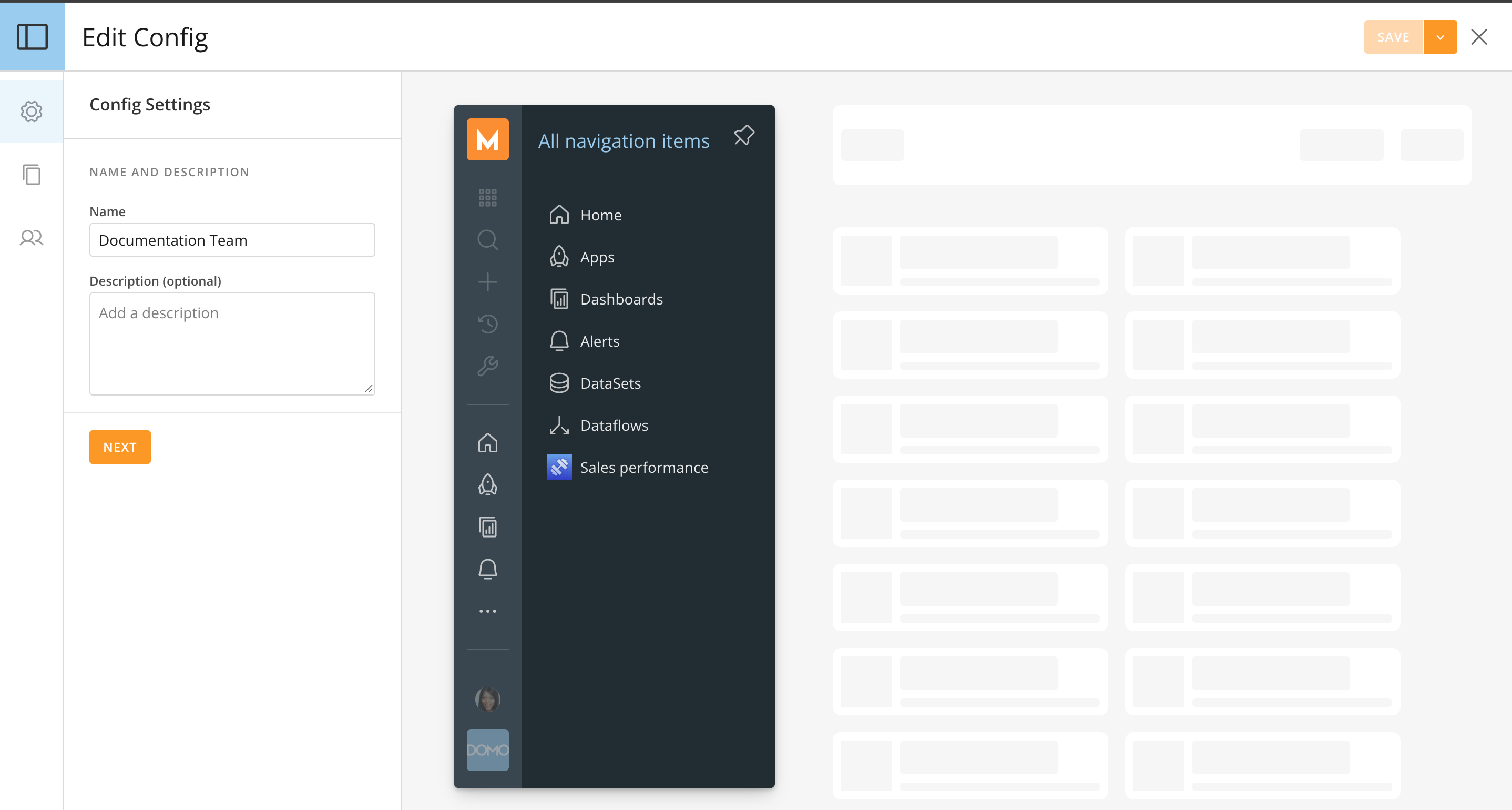
- Edit the name, description, navigation items, assignees, permission-aware content pins, or personalization.
- Select Save in the top-right corner.
Edit or Remove Navigation Items
To edit or remove an item in a navigation config, follow these steps:- Open the navigation config, and go to the Navigation tab.
- Select the gear icon on the navigation item.
- Select Edit to change the item, or select Remove to remove it from the config.
- Select Save in the top-right corner.
Duplicate a Navigation Config
To make a copy of a navigation config, follow these steps:- Open Navigation Configs.
- Select the more options menu (the three-dot icon) for the config you want to copy.
- Select Duplicate.
A copy of the navigation config is created.
Delete a Navigation Config
To delete a navigation config, follow these steps:- Open Navigation Configs.
- Select the more options menu (the three-dot icon) for the config you want to delete.
- Select Delete.
A confirmation modal opens. - Confirm the deletion.
FAQ
What happens to a user's own pins when I turn off personalization?
What happens to a user's own pins when I turn off personalization?
When personalization is off, the user’s own pins are hidden, and the user sees
only the pins in their navigation config.
What happens when a user is removed from a group?
What happens when a user is removed from a group?
The user loses the group’s config only if they don’t have access to it through
another source, such as a direct assignment or another group.