

Intro
A Snowflake semantic view captures the business logic a data team has already curated in the warehouse: which tables belong together, how they relate, what each column means, and how key metrics are defined. Domo can connect directly to a semantic view and bring that modeling into Domo as a Data Model, so you don’t have to recreate it manually in the Data Model Editor. This article explains what a Snowflake semantic view is, what comes across into Domo when you connect one, and how it behaves once it’s there.How It Works
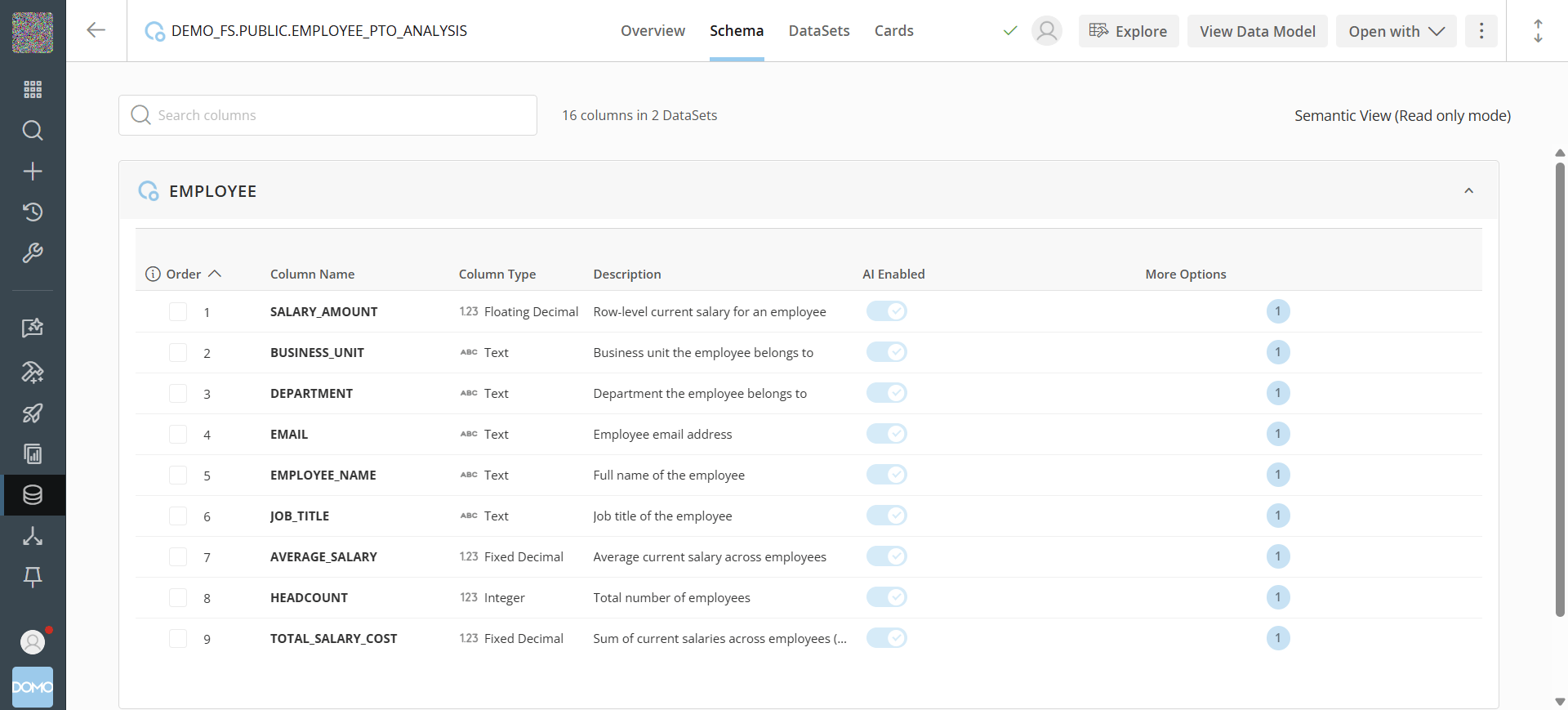
You connect a Snowflake semantic view the same way you connect any other table in a Cloud Integration—from the Connect Tables panel. Once connected, Domo does three things automatically:- Reads the metadata. Table and column names, comments, and synonyms sync from Snowflake and appear in the Domo Schema.
- Visualizes the relationships. The relationships already defined in the semantic view are drawn as a connected model—tables and the lines between them—directly in the Data Model Editor.
- Exposes metrics for analysis. The view’s dimensions, measures, and derived metrics become available in Analyzer and App Studio, the same way any other Data Model’s fields would be.
What Carries Over From Snowflake
Connecting a semantic view brings more than just column names into Domo:- Comments become descriptions. Column and table comments written in Snowflake populate the corresponding description fields in the Domo Schema, and feed Domo AI’s context for that data.
- Synonyms carry over. Alternate terms defined in Snowflake are available in Domo Schema, so the same field can be found under the names your team already uses.
- Relationships appear in a visual way. Instead of a list of joins, you see the tables and how they connect, laid out on the Data Model Editor canvas.
- Metrics and derived metrics are included. Measures and calculations defined in the semantic view come across as part of the model, so you can build with them right away instead of redefining them in Domo.
Read-Only by Design
A Data Model created from a semantic view is read-only in Domo. Snowflake is the source of truth for the structure, so you can’t edit the tables, relationships, or metric definitions from within Domo. If the underlying semantic view changes in Snowflake, reconnect or refresh the integration to bring those changes into Domo.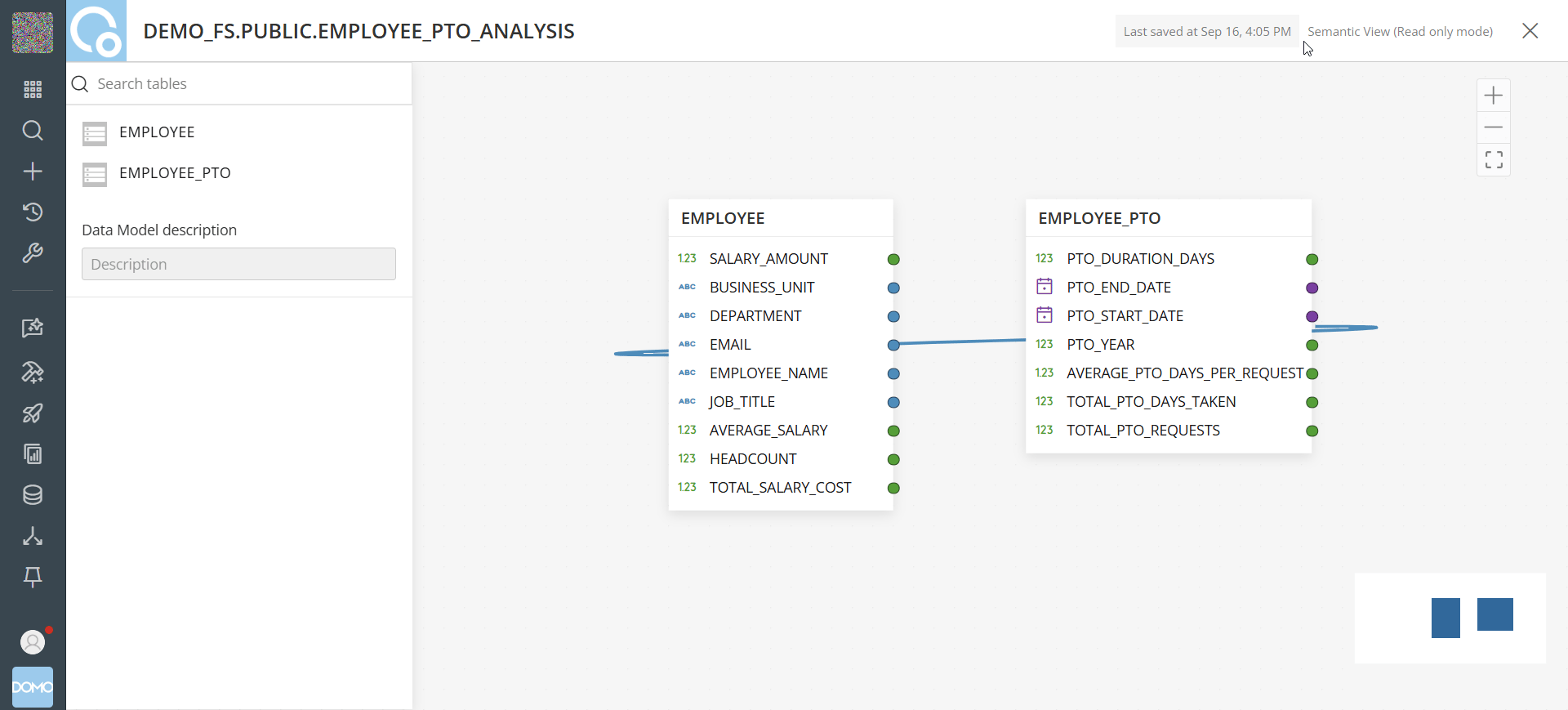
Where to Find It
- Connect a semantic view from the Connect Tables panel, as part of setting up a Snowflake Cloud Integration.
- View synced metadata in the Domo Schema, alongside your other DataSets.
- See the visualized structure in the Data Model Editor.
- Build with it in Analyzer or App Studio, the same way you would with any other Data Model.