Intro
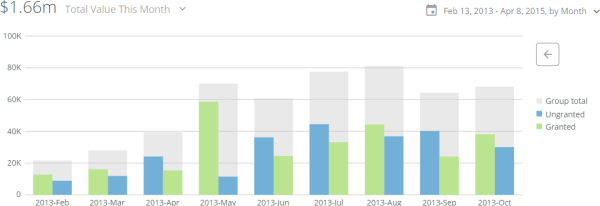
In a nested bar chart, the total values for all categories are represented as gray bars, and the values for all series are represented as smaller, colored bars and are shown side-by-side or stacked on top of each other within the bars for their respective categories. Vertical and horizontal subtypes are available for nested bar charts. Domo also includes a version of the nested bar chart with trendlines for comparison. For more information, see Nested bar with line chart.Powering nested bar charts
A nested bar chart requires three columns or rows of data from your DataSet—one for categories, one for the series in each category, and one for values. For information about value, category, and series data, see Understanding Chart Data. In the Analyzer, you choose the columns containing the data for your nested bar chart. For more information about choosing data columns, see Applying DataSet Columns to Your Chart. For more information about formatting charts in the Analyzer, see KPI Card Building Part 2: The Analyzer. The following graphic shows you how the data from a typical column-based spreadsheet is converted into a vertical nested bar chart: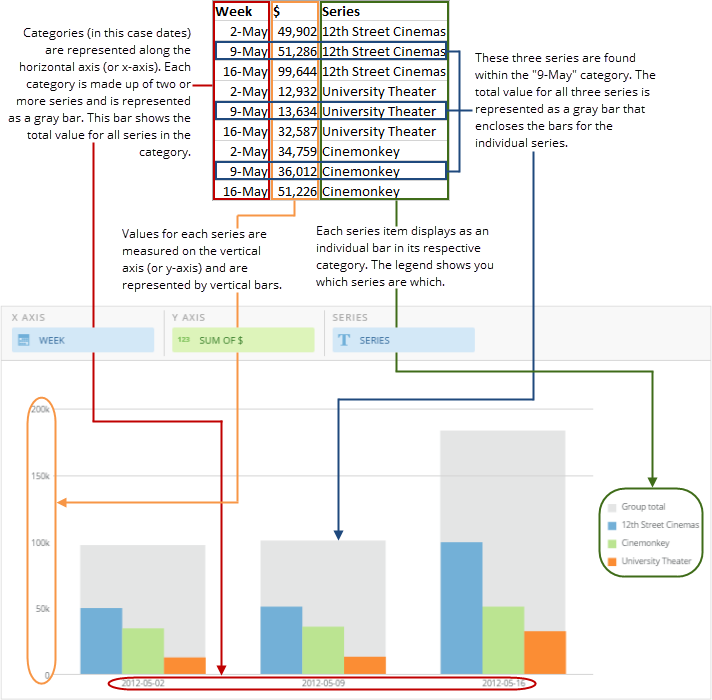

Customizing nested bar charts
You can customize the appearance of a nested bar chart by editing its Chart Properties. For information about all chart properties, see Chart Properties. Unique properties of nested bar charts include the following. You can click a thumbnail image to see a larger image.Property | Description | Example |
|---|---|---|
General > Sort Each Category | Allows you to sort the items in each individual category in most kinds of multi-series bar and lollipop charts. You can choose an ascending or descending sort. If you select Default , the default sort is applied. This option does not work when the Value Scale > Log Scale box is checked. In the example at right, bars within all categories are sorted in descending order. |
|
General > Sort on Totals | Allows you to sort categories in many kinds of bar and lollipop charts by their total values, in either ascending or descending order. If you select Default , the default sort is applied. This option does not work when the chart has automatic time scaling applied. (You can turn off automatic time scaling by checking the box for Category Scale > Never Use Time Scale . In the example at right, the categories are sorted by their totals in ascending order. |
|
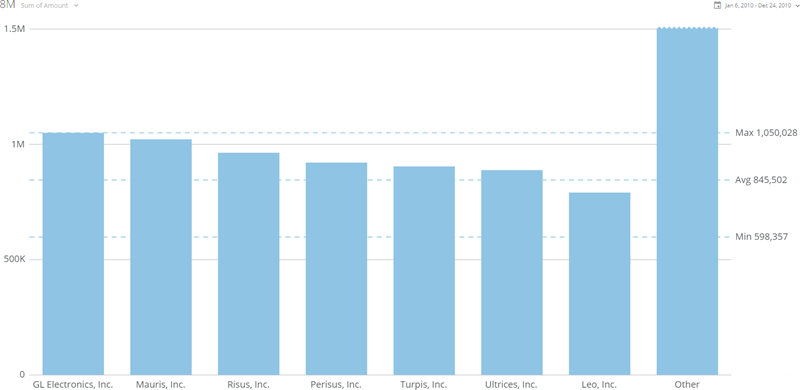
General > Maximum Bars | Allows you to specify the number of bars that appear in your bar chart. Data for all remaining bars is lumped into a single “Other” bar (unless you hide this bar using the Hide ‘Other’ Bar toggle. The example at right shows a bar chart in which the maximum number of bars has been set to 7. |
|
General > Hide ‘Other’ Bars | Hides or shows the “Other” bar that appears when you set a maximum number of bars using the Maximum Bars option. | — |
General > Group Legend Text | Lets you specify the legend text for the “group bars” (the vertical gray bars that show the totals for each category). In the example, the default group bar legend text has been replaced with the words “Grand Total.” |  |
General > Hide Group in Legend | Hides the legend text for the “group bars” (the vertical gray bars that show the total for each category. | — |
Data Label Settings > Show Group Total | Determines whether data labels appear over the gray “total” bars in nested bar charts. The chart at right shows an example of this. |
|