Intro
The Workflow Start Form Brick allows you to quickly start a workflow from a Domo Brick by gathering and passing customizable input values.
Learn more in the Domo Bricks | Overview.
-
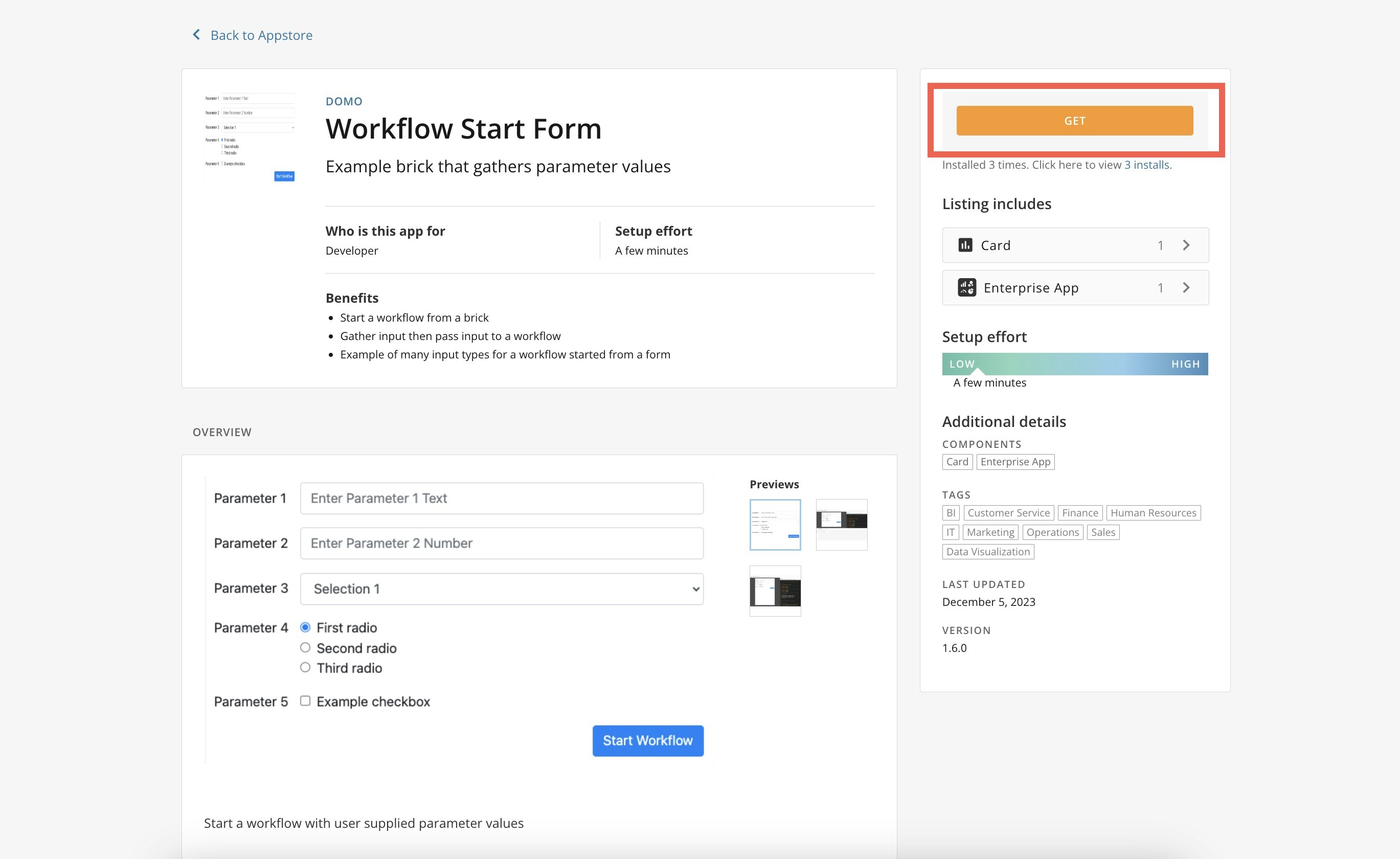
In the navigation header, select Appstore to open the Domo Appstore.
-
Use the search bar to locate the Workflow Start Form Brick and open its Details page.
-
Select Get.
-
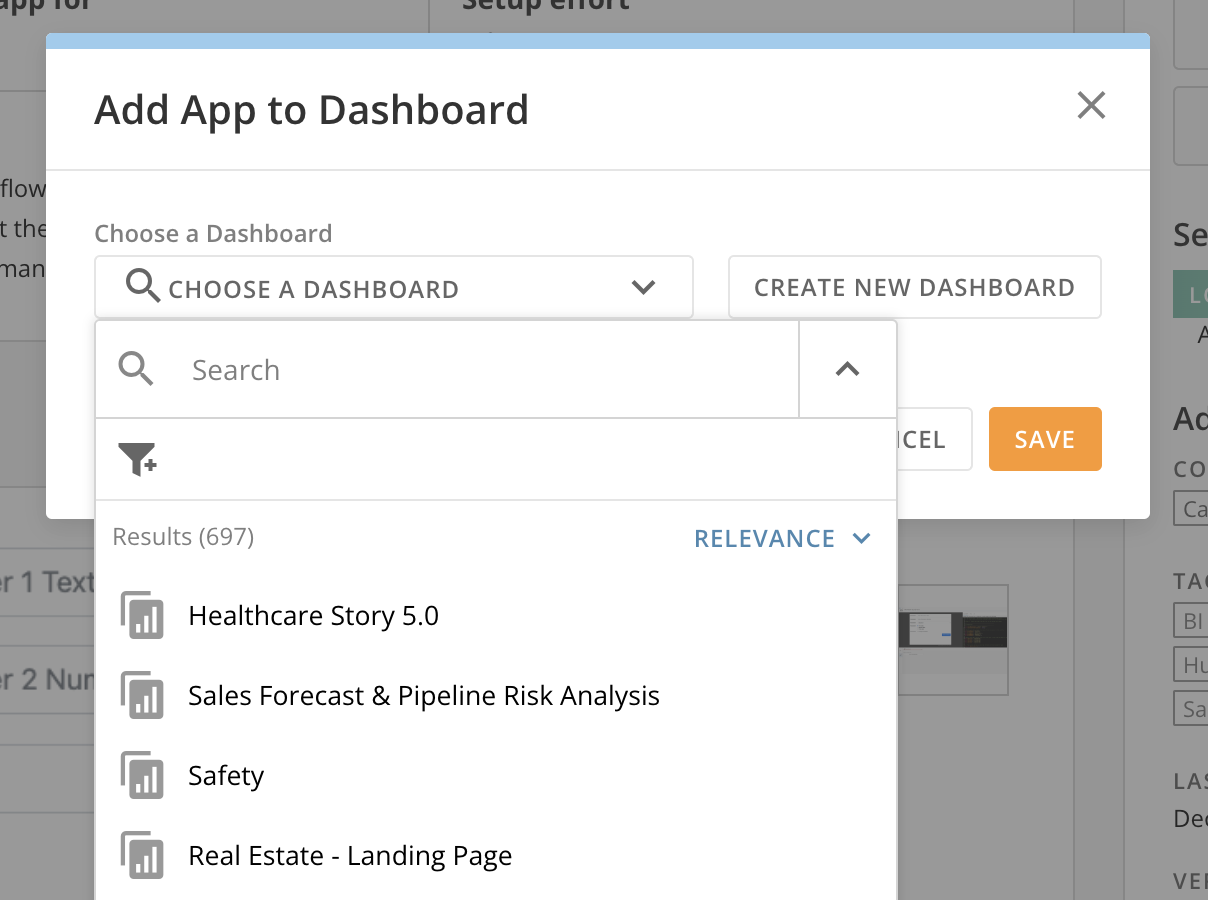
Save the brick to an existing dashboard or create a new one and select Save.
-
Go to the dashboard to begin developing your brick. Learn how to
get started with Domo Bricks in our developer portal.
Important: Before you can successfully use the brick, you must have an existing workflow.
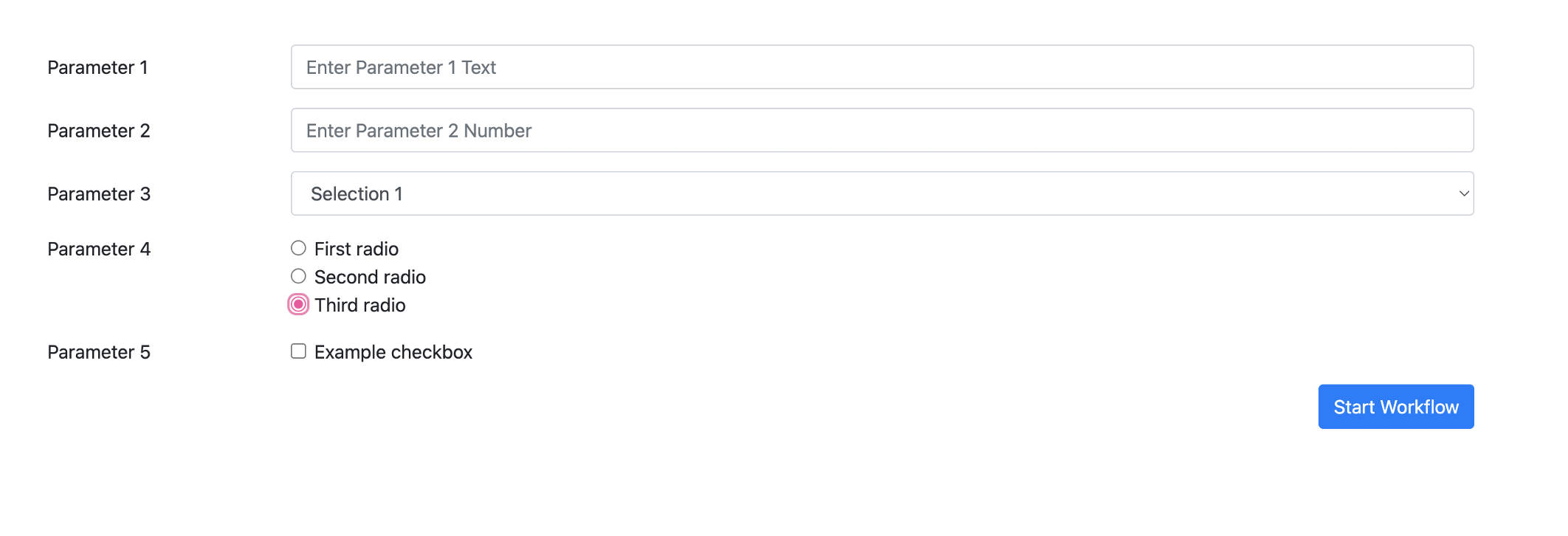
- Text
- Number
- Dropdown selector
- Single-select radio button
- Checkbox
Each of these can be configured and values passed through to the configured workflow.
Configuration
To configure your brick, hover over the card to display the Card options.
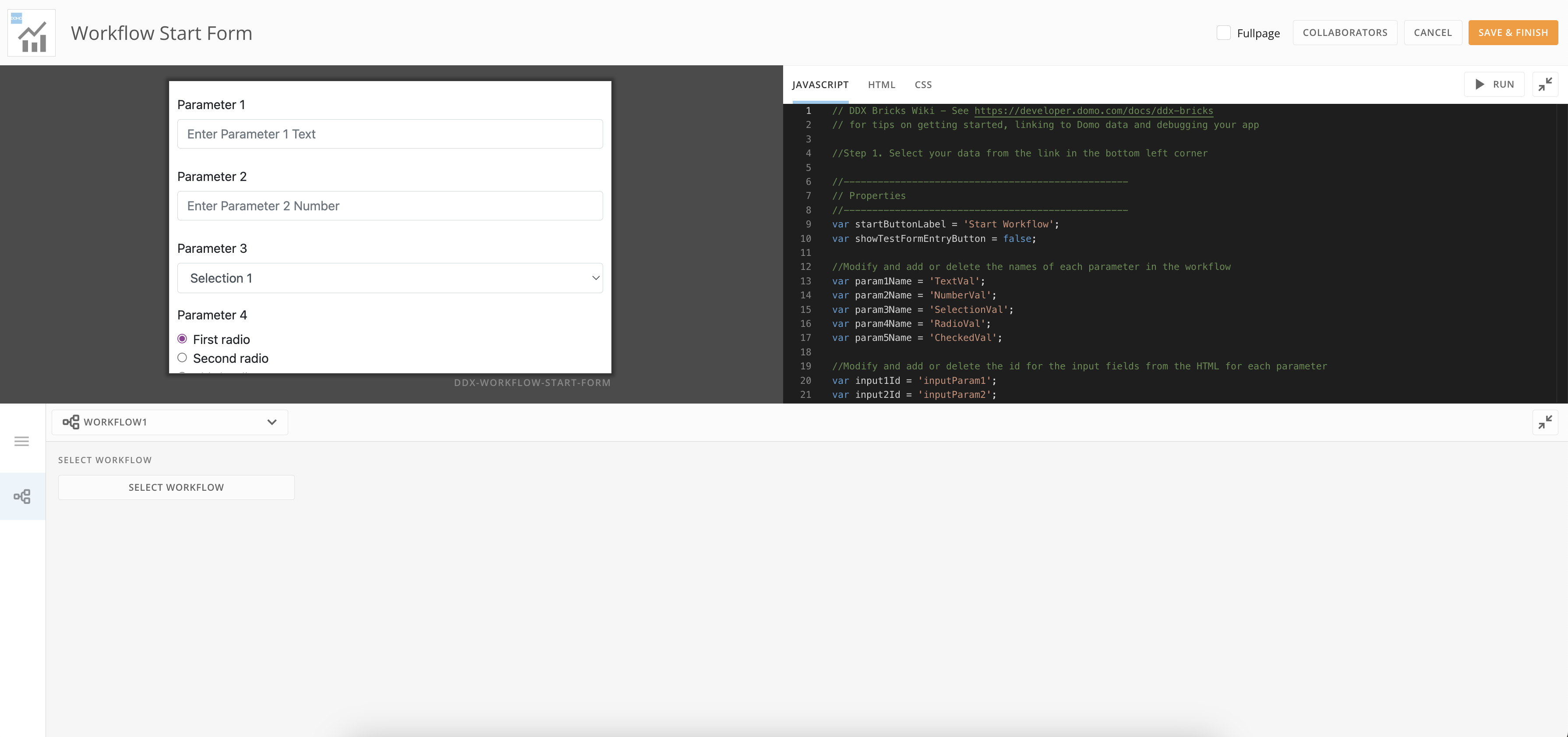
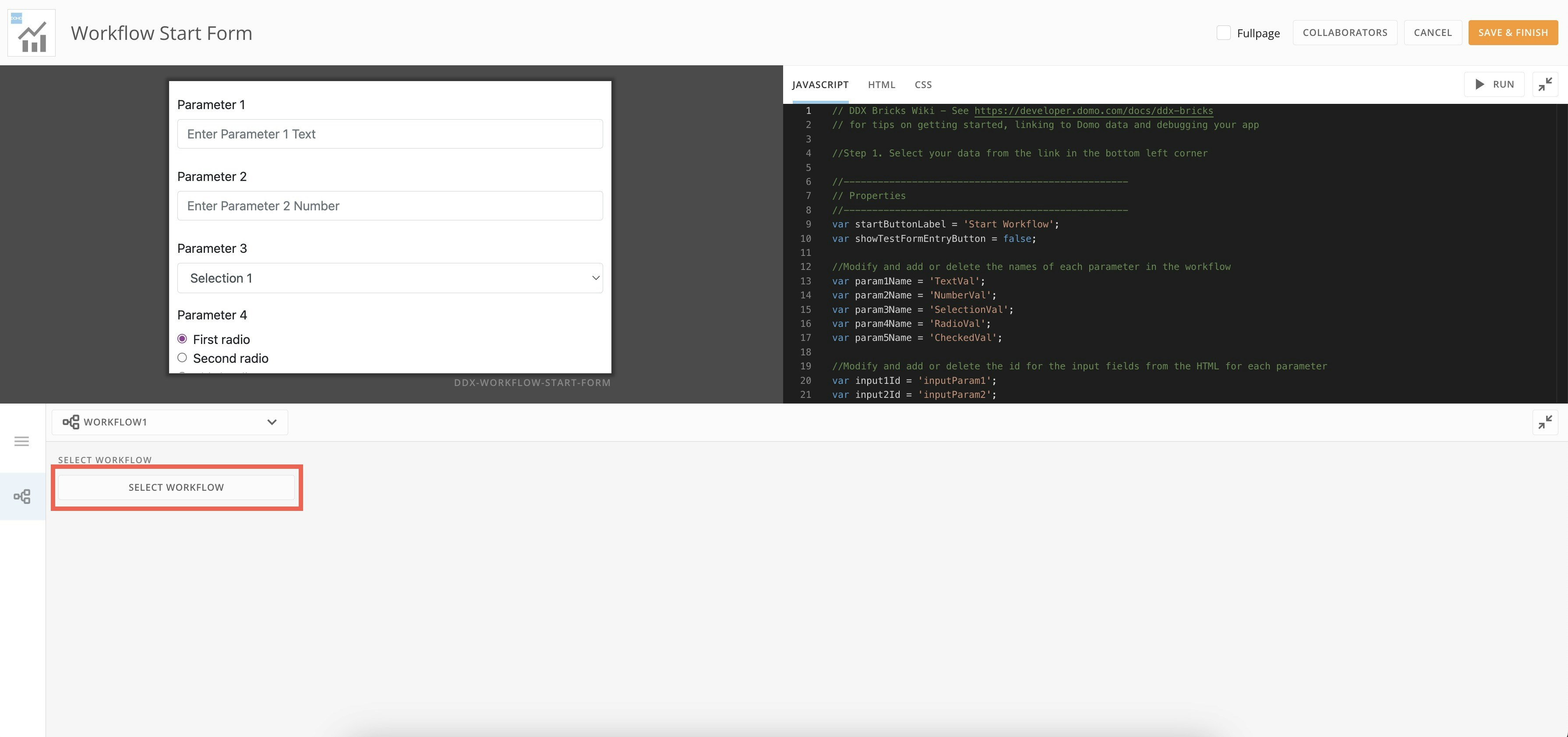
Select Card options > Edit Card to display the brick settings. Here you can view the code editor for JavaScript, HTML, and CSS.
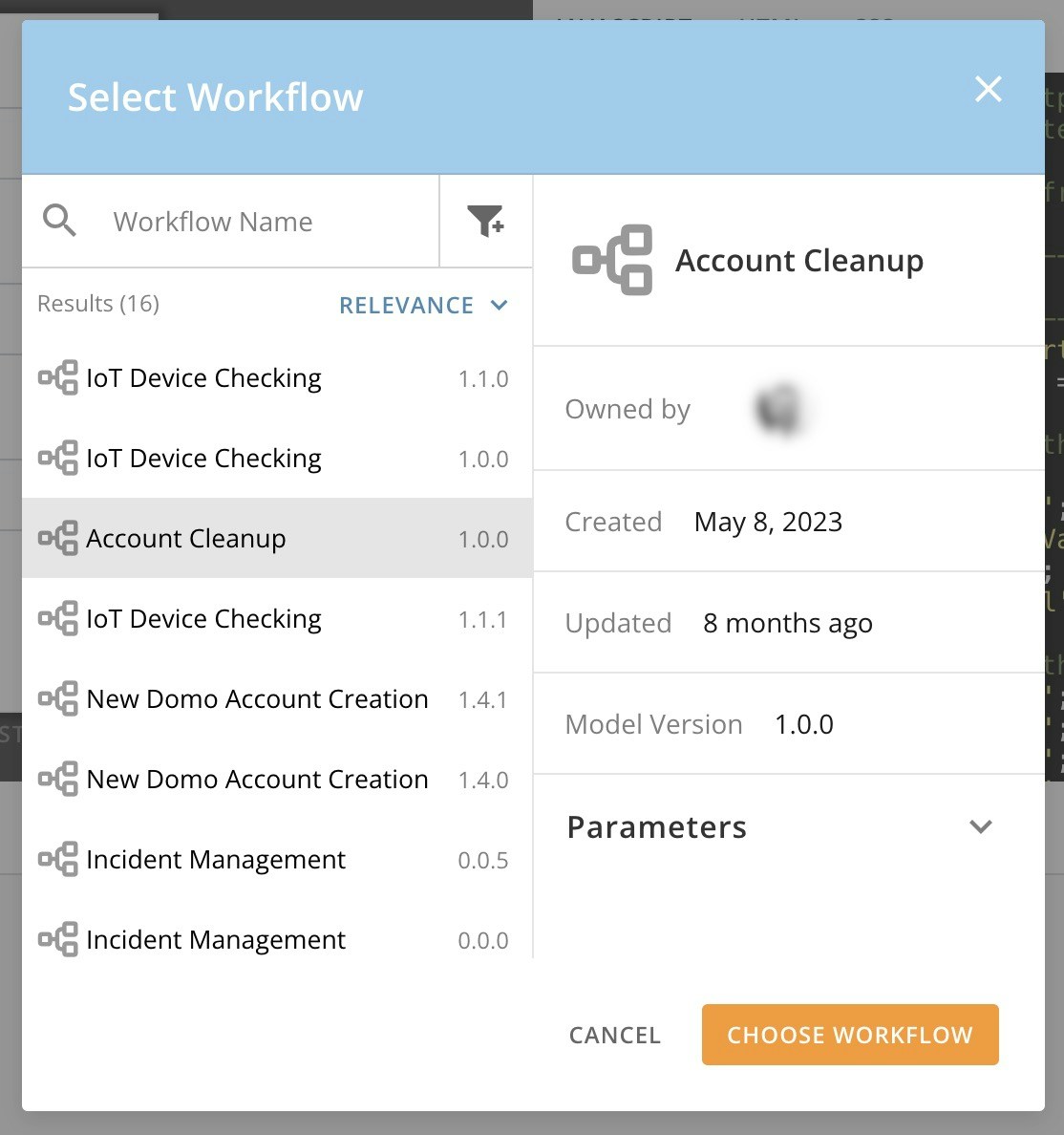
Use the Select Workflow option to search for the workflow you want to connect to your brick.
Locate your workflow and select Choose Workflow.
Edit Brick
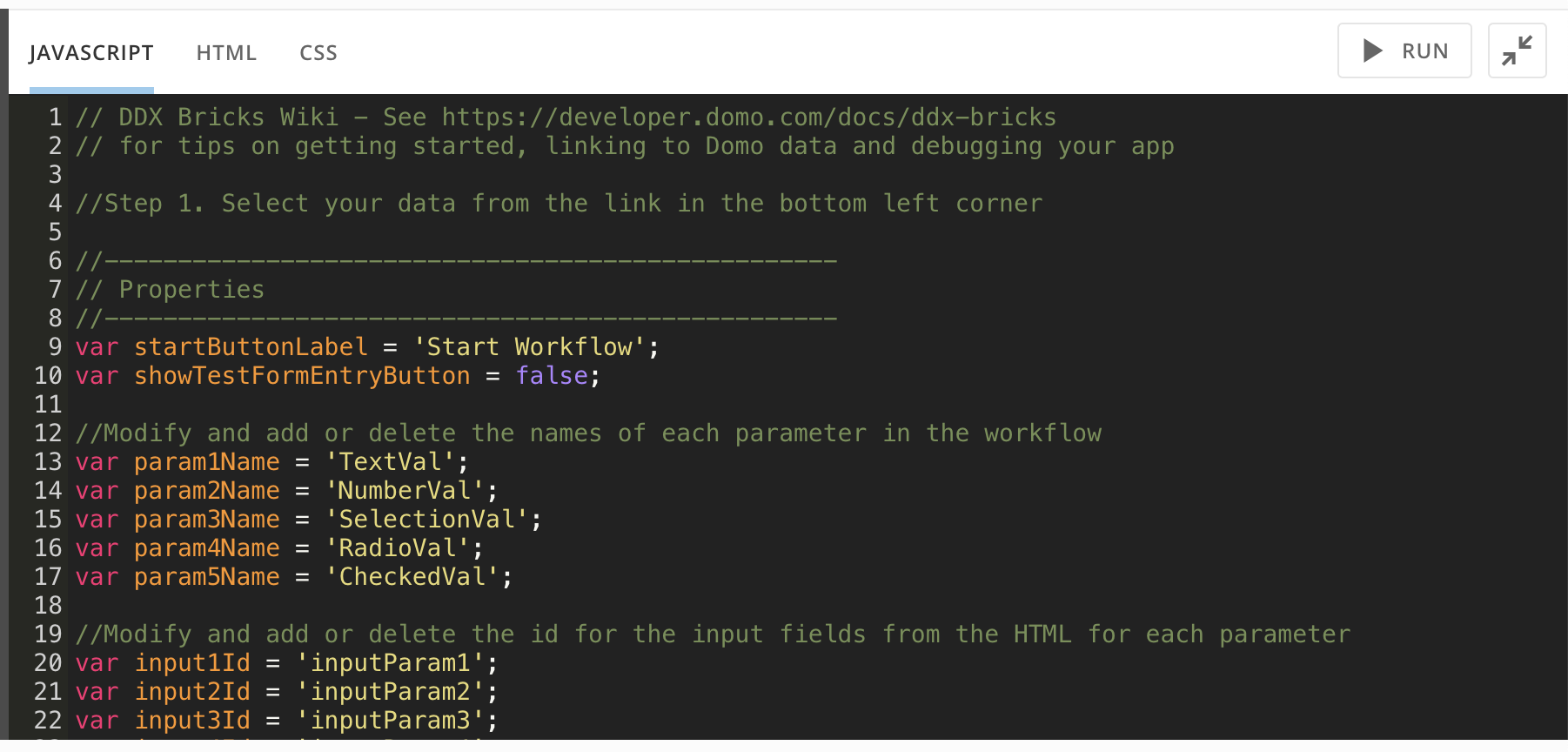
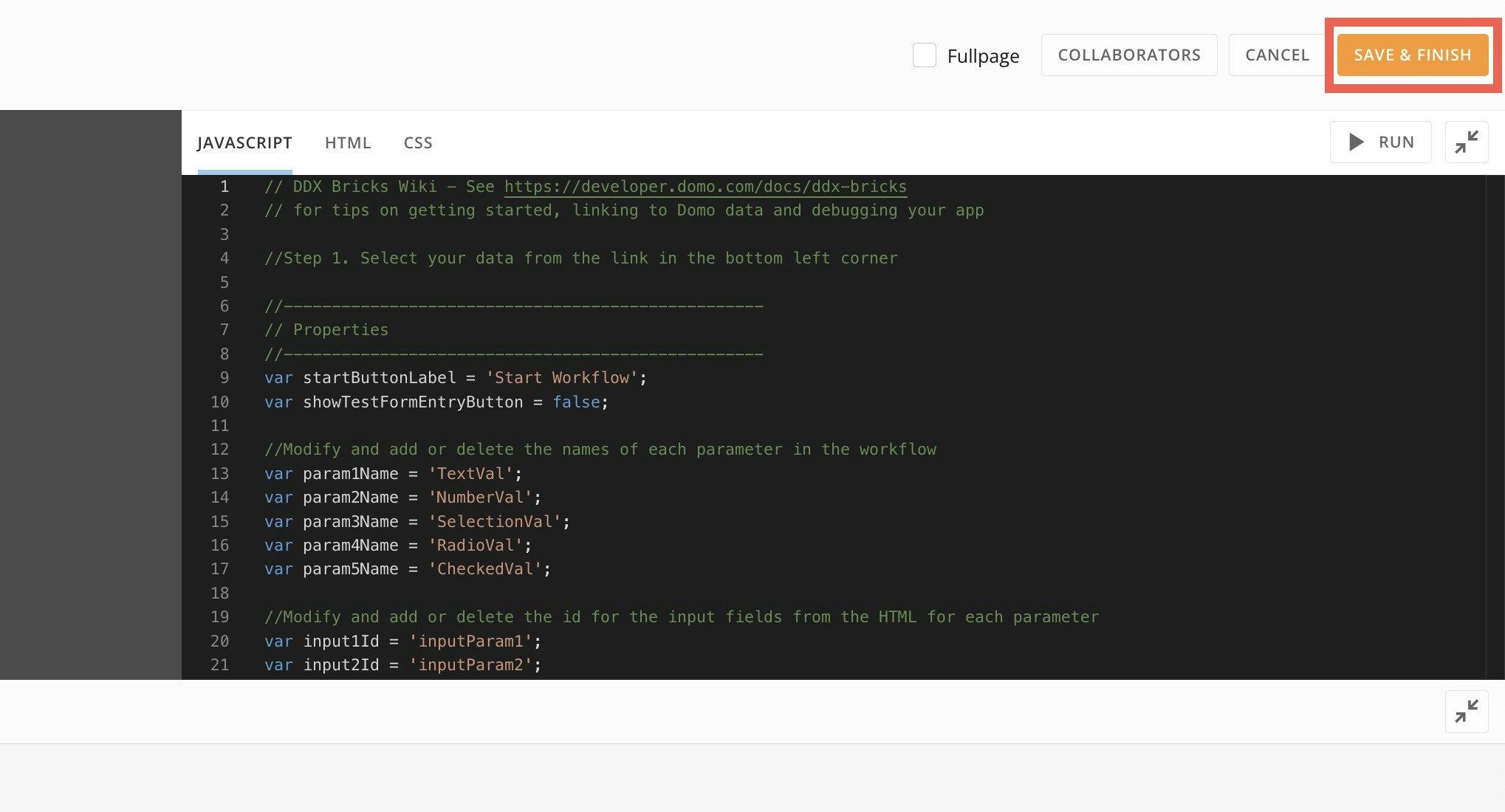
In the brick editor, follow the instructions in the JavaScript, HTML, and CSS tabs to configure the parameters of your workflow.
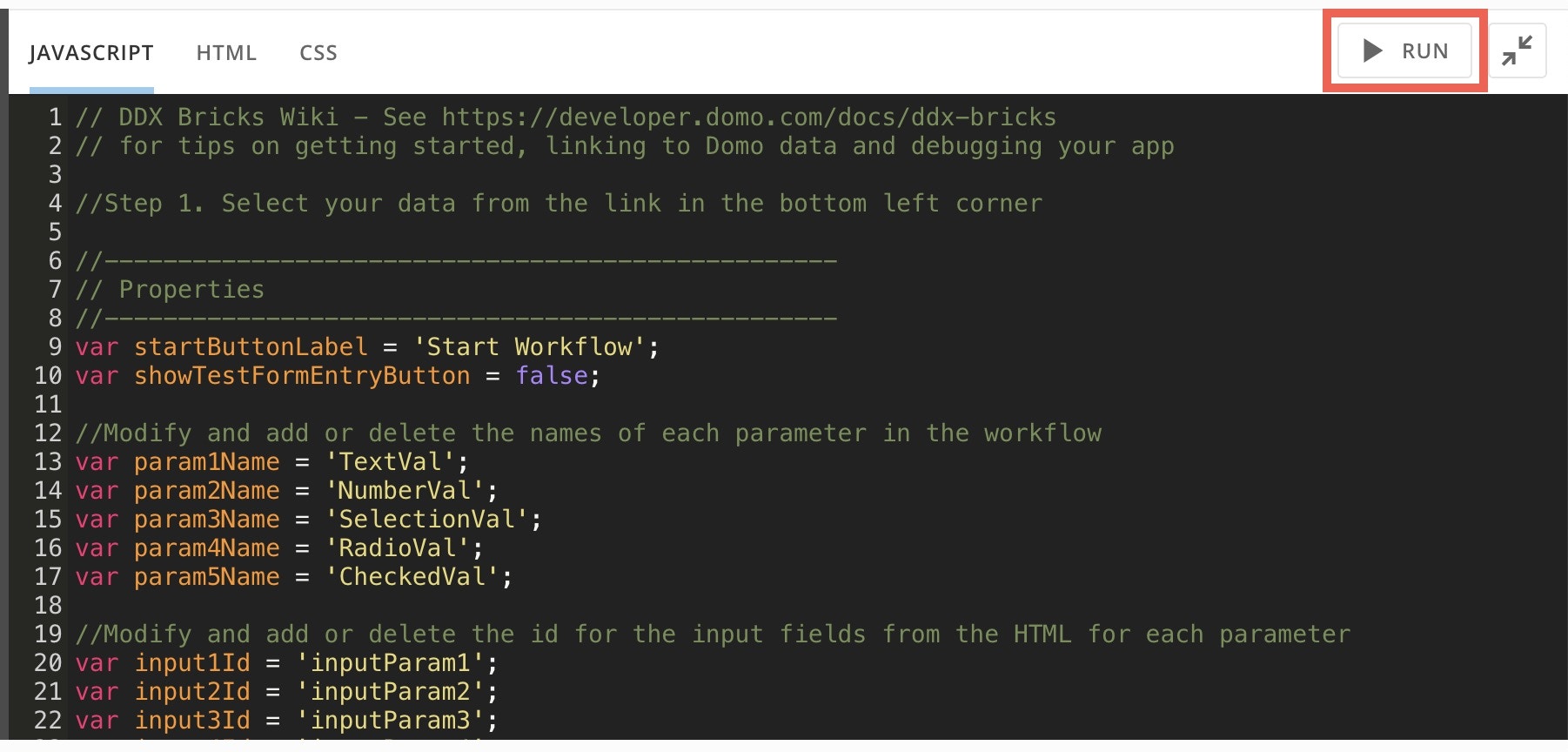
Select  Run to run the code in the app preview before saving and closing.
If the code runs correctly, select Save & Finish.
Run to run the code in the app preview before saving and closing.
If the code runs correctly, select Save & Finish.