

Intro
The Domo CLI (command line interface) tool allows you to perform many data management functions, such as uploading massive DataSets, renaming cards, managing users and groups, and exporting DataSets using text-based commands. Other available functions include importing/exporting from AWS S3 and DataFusion helpers. By automatically breaking large files into smaller parts, you can upload CSV or gzipped CSV files to your Domo instance more efficiently.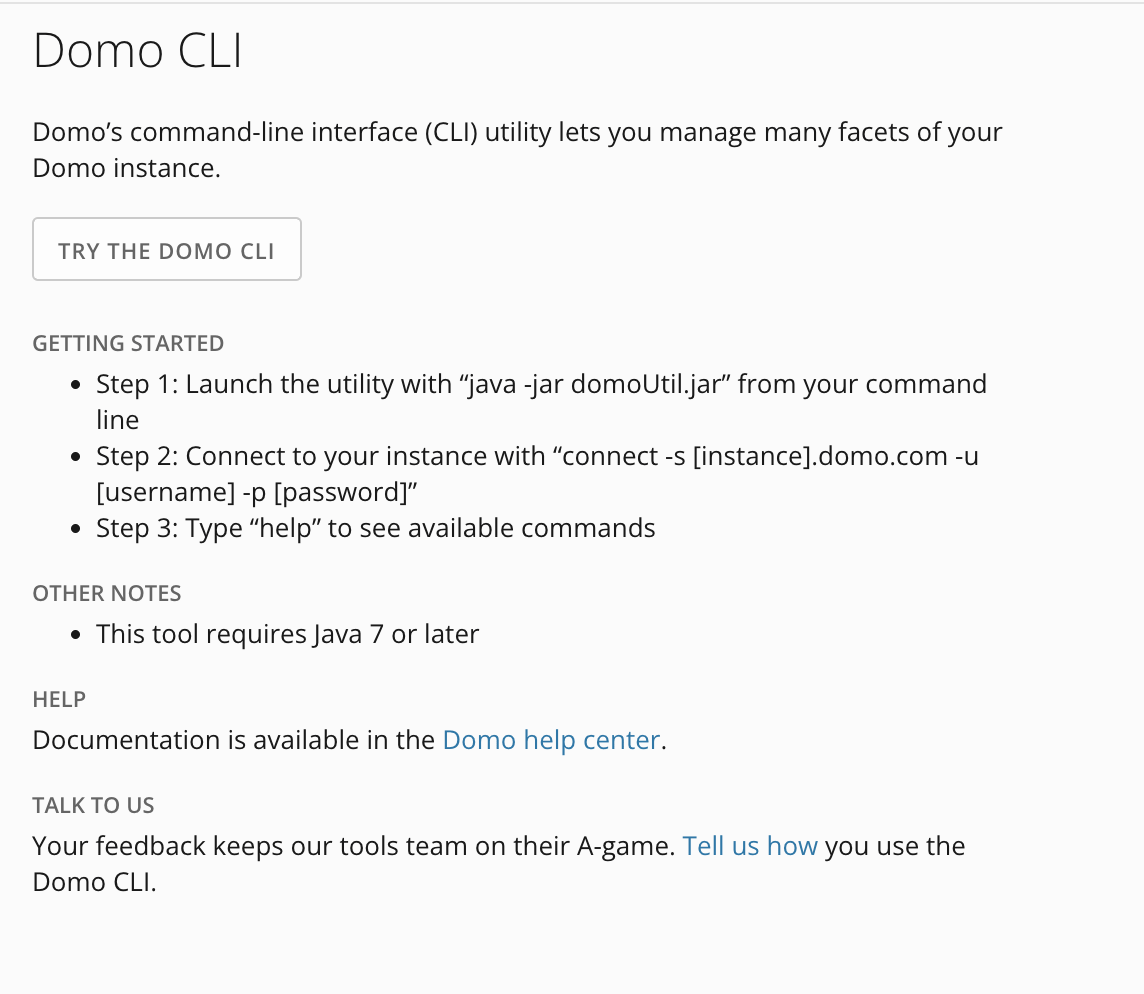
Install and Launch the CLI Tool
To use the Domo CLI tool, download and install it onto your own machine by following the instructions below.- In the navigation header, select More > Admin Settings.
- In the More menu, select Tool Downloads.
- Locate the Domo CLI tool and select Try the Domo CLI.
The utility file downloads to your machine. - Open a terminal application (Terminal on macOS or PowerShell on Windows).
- Run the CLI binary file using Java:
java -jar domoUtil.jar
View Available Commands
To view a list of available commands, enterhelp.
Enter help [command name] to view specific flags and parameters for that command.
Deprecated Commands
Some commands that may be listed as available in your version of the tool have been deprecated since you downloaded it. See the list of deprecated commands below.- backup
- backup-card
- convert-sql
- move-page
- set-dataset-retention-window
- restore card
Command Use Cases
This section describes some command use cases and provides needed or helpful information for using the command. You can scroll through or navigate to them from the following list:Connect to a Domo Instance
To connect to a Domo instance, run theconnectcommand and enter the following parameters:
Example
connect -u jim.smith@xyzcompany.com -p abc123 -s xyzcompany.domo.com
connect -s xyzcompany.domo.com -t mffde8e727f825ae23e1117070f0ad67cfeb40c607dddd
Disconnect From a Domo Instance
To disconnect from a Domo instance, run thedisconnectcommand without using any parameters.
Create a New DataSet
Follow these steps to create a new DataSet using the CLI Tool:- Create a Domo access token. For more information on how to create and manage access tokens, see Manage Access Tokens.
- Obtain the schema file in JSON format of the DataSet you want to upload to Domo by running the
derive-schemacommand.
Note: To derive the schema from an existing CSV file, use the following command, replacing ”filename.csv’ with your file name.
derive-schema -d 'C:\directory\[filename.csv]' -s 'C:\directory\schemafile.json'
3. Perform a pre-check on the data by generating a clean, true CSV with a small number of rows. Obtain the schema file and run thecreate-datasetcommand to validate the upload. You may then delete that DataSet from Domo at your discretion.Delete a DataSet
To delete a DataSet in Domo, use thedelete-datasetcommand, replacing [dataset id] with the ID of the DataSet you want to delete.
delete-dataset -id [dataset id]
You can get a list of DataSet ID’s by using thelist-datasetcommand.
Upload Data to a DataSet
To upload data to a DataSet after it has been created, use theupload-datasetcommand, replacing [dataset id] with the ID of the DataSet you want to update.
Parameters available for theupload-datasetcommand are:
Examples
upload-dataset -id [dataset id] -data "c:\directory\datafile.csv"
upload-dataset -i <dataset_id> -f <filename>
upload-dataset -i <dataset_id> -f <filename> -a
upload-dataset -i <dataset_id> -f <filename> -a -p <partition_name>
upload-dataset -i <dataset_id> -d <directory_name>
Upload Data from a Database via JDBC
Ensure the JDBC driver JAR file is in the current working directory. For example, if your domoUtil.jar is in ~/bin, but you are starting the utility from ~, your driver file needs to be in ~. ExampleCreate a User
Create a user using the CLI Tool by specifying an email, whether or not to send an email invitation, full name, and their access rights role. Currently, you can create users with the following access rights: Admin, Privileged, Editor, Particpant, and Social.create-user -n 'James Smith' -r Editor -i true -e [jim.smith@xyzcompany.com](mailto:jim.smith@xyzcompany.com)
Query (Export) Data
Thequery-datacommand exports the data from a specified DataSet ID to a CSV file. Either the-qor-qfparameters must be used with this command.
Note: The exported file respects any Personalized Data Permissions (PDP) that are set for the specified DataSet.
Example
Generate Card Image
Thegenerate-card-imagecommand generates a PNG image of the specified card ID.
generate-card-image -i <card id> -f <file name>
Export Card Data
Thedownload-card-datacommand downloads data from the specified card ID.
download-card-data -i <card id> -f <output_csv_file>
Move a Dashboard
Themove-pagecommand allows you to move a page up in the hierarchy as a top level page or down in the hierarchy to a subpage.
The parameters available for this command are:
Demote a Dashboard
move-page -a demote -c 1234567 -p 7654321
Promote a Dashboard
move-page -a promote -c 1234567
Move Data
The move-data command allows you to move data from one existing DataSet to another existing DataSet. The parameters available for this command are:
Example
move-data -a -s [DataSet ID of where the data is coming from] -d [DataSet ID of where the data will be moved to]
Note: To move data using a replace method, remove the -a parameter from the command line.
List DataSets
Thelist-datasetcommand will list all of the DataSets based on owner, a search term, or a specific DataSet ID.
The parameters available for this command are:
Example
list-dataset -o me -name-like "sales"
list-dataset -name-like "marketing"
Search Domo
Thesearch-domocommand searches and exports a list from Domo by entity type and search term.
The parameters available for this command are:
Example
search-domo -e "card,dataset" -t "sales"
Who am I?
The whoami command returns the username and user ID of the individual that is currently logged in. There are no parameters for this command.> whoami
John Smith (userid: 123456789)
End a Session
To end your CLI session, run both thedisconnectandquitcommands. There are no parameters for these commands.
Scripting
While you can type the commands shown above in the command prompt, you can also create a text file with the commands and execute it as a script file. Example script fileconnect -t [access token id] -s xyzcompany.domo.com upload-dataset -id [dataset id] -data "c:\directory\datafile.csv" -append quit
Example script file execution
java -jar domoUtil-2.31.jar -script c:\directory\<uploadfile.script>