
Intro
Smartsheet is an online project management, productivity, and team collaboration SaaS application. Use this connector to export your data from a Domo DataSet to a specified Smartsheet workspace or folder. To learn more about the Smartsheet API, visit their website ( https://smartsheet-platform.github.io/api-docs/ ). You export data to Smartsheet in the Data Center. This topic discusses the fields and menus that are specific to the Smartsheet Writeback connector user interface. General information for adding DataSets, setting update schedules, and editing DataSet information is discussed in Adding a DataSet Using a Data Connector.Prerequisites
To configure this connector, you will need a Domo Client ID and Client Secret. Learn how to get your Domo Client ID and Secret.Configuring the Connection
This section enumerates the options in the Credentials and Details panes in the Smartsheet Writeback Connector page. The components of the other panes in this page, Scheduling and Name & Describe Your DataSet, are universal across most connector types and are discussed in greater length in Adding a DataSet Using a Data Connector.Credentials Pane
This pane contains fields for entering credentials to connect to your Domo developer account. The following table describes what is needed for each field:Field | Description |
|---|---|
Domo Client ID | Enter your Domo client ID. For steps on obtaining your client ID and client secret, see “Prerequisites,” above. |
Domo Client Secret | Enter your Domo client ID. For steps on obtaining your client ID and client secret, see “Prerequisites,” above. |
Details Pane
This pane contains a number of fields for specifying your data and indicating where it’s going.Menu | Description |
|---|---|
Where would you like to write this file? | Select a location to write the file. If your account contains many folders and you do not find the required folder using other options, select Enter Folder ID Manually.
Follow these steps to locate the Folder ID in the Smartsheet UI:
|
Folder | Select the Smartsheet folder where you want to copy your data. |
Folder ID | Enter the Folder Id in which you want to store the data. To fetch the Folder Id for any folder, refer to the Retrieving a Folder ID from SmartSheet UI section. |
Workspace | Select the Smartsheet workspace where you want to copy your data. |
Overwrite settings | Select, if you want to create Smartsheet for each run or overwrite the existing Smartsheet for each run. |
Domo DataSet ID | Enter the DataSet ID (GUID) for the DataSet you want to copy to a Smartsheet folder or workspace. You can find the ID by opening the details view for the DataSet in the Data Center and looking at the portion of the URL following datasources/. For example, in the URL https://mycompany.domo.com/datasources/845305d8-da3d-4107-a9d6-13ef3f86d4a4/details/overview, the DataSet ID is 845305d8-da3d-4107-a9d6-13ef3f86d4a4. |
Select Filename | Select how you want to choose the file where data will be copied. - Use Input DataSet GUID. The filename will be the number you entered for Domo DataSet ID. - Use Input DataSet Name. The filename will be the same as that of the input DataSet. - Enter File Name. You will give the file a custom name in the File Name field. |
Primary Column | Enter the column name exactly as it appears in the Domo DataSet. The primary key must be a single column, and the DataType is not editable. |
Filename | Enter the desired output filename. |
Choose the Escape character | Select the escape character for the input dataset. |
Retrieving a Folder ID from SmartSheet UI
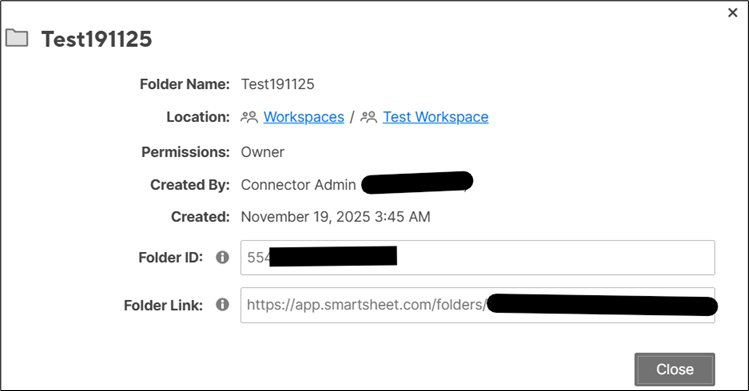
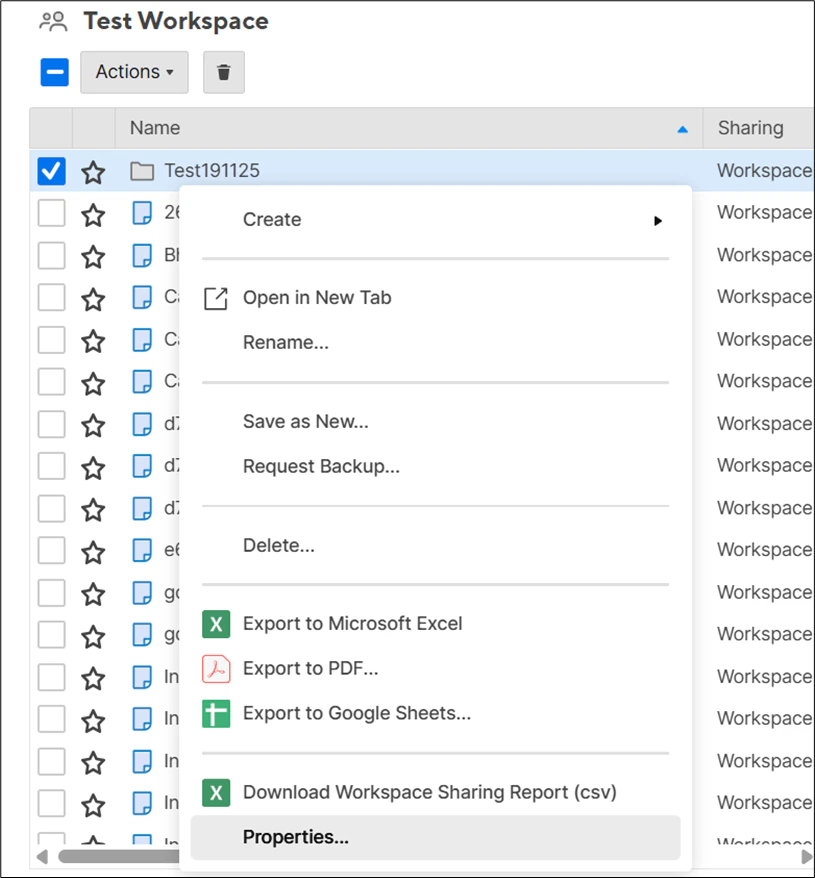
Follow the steps below to retrieve a Folder ID from SmartSheet UI:- Navigate to the folder for which you want to obtain the folder ID.
-
Right‑click the folder and select Properties from the menu.
-
In the window that opens, copy and save the Folder ID.