

Intro
DomoStats helps you discover how your team is using Domo. Because DomoStats is powered by a live Domo DataSet with no configuration, you can easily build cards, alerts, and workflows around the metrics you want to see and use the pre-built dashboard. The DomoStats Activity Log App provides key insights into how your organization is using Domo. See activities like how many people are logging in each day, the top favorited cards, and how many DataSets were created last week. Stay up to date and informed on all the activity happening in your Domo instance.Required Permissions
You must have admin-level access to download the DomoStats Activity Log App from the Domo Appstore .
.
Use the DomoStats - Activity Log App
You can use the pre-built dashboard or build any of your own content using the DomoStats DataSets in the Data Center. When you first download the app, a new page is created titled “DomoStats - Activity Log.” Follow these steps to power the dashboard:- Log into Domo.
-
In the Domo Appstore, navigate to the DomoStats Activity Log App
entry
 .
.
-
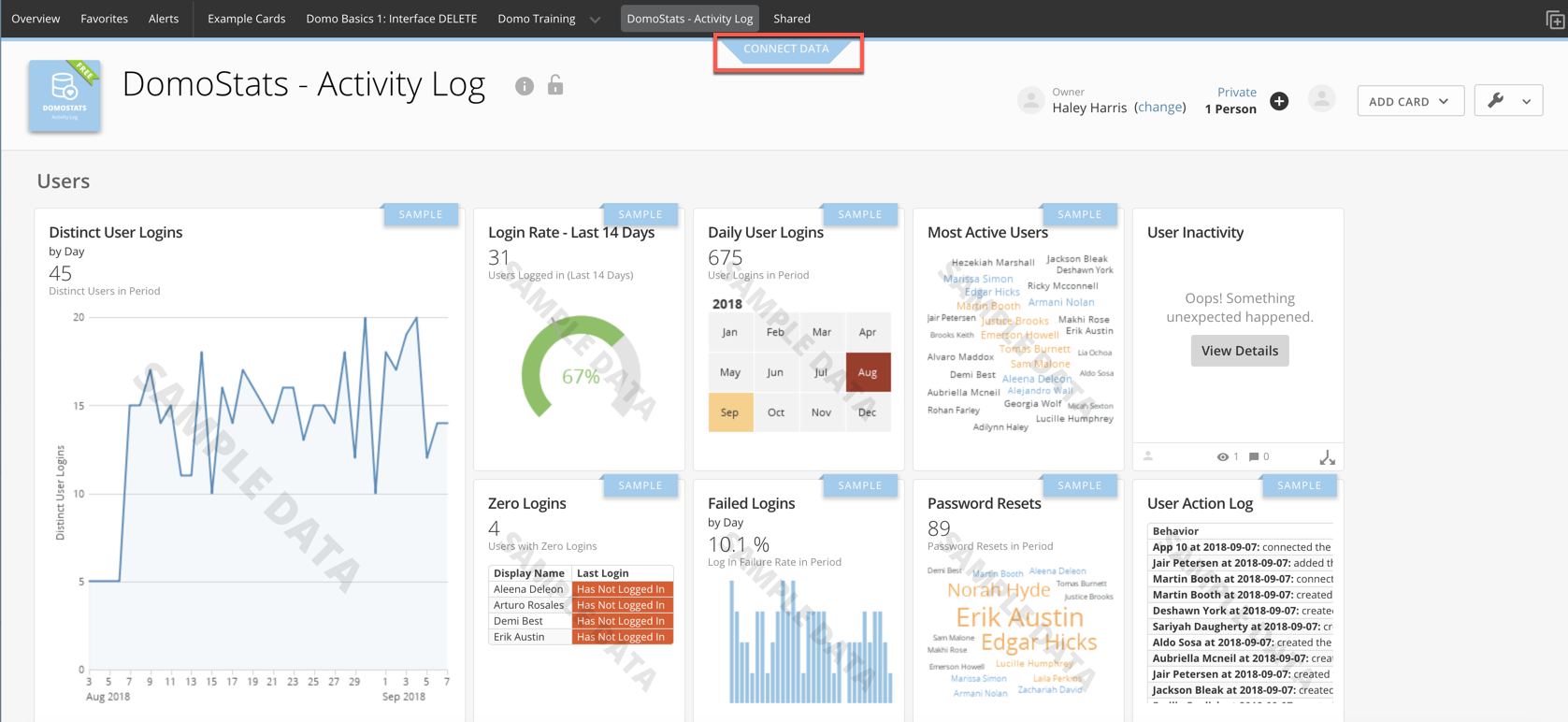
Select Connect Data.
-
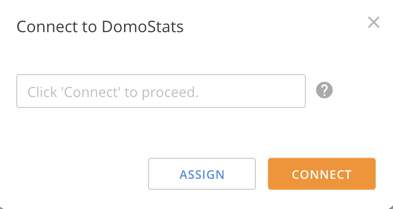
In the connection dropdown, select Connect to connect the page to the DomoStats DataSets or select Assign if you want to assign another Domo user to set up the data.

-
In the last window, select Connect.
- The pre-built dashboard is now powered by data and ready to use.
App Components
Data
The following DataSets are included with the download of the DomoStats - Activity Log app:- People
- Activity Log
- Activity Log - User Inactivity
Note: All DataSets powering the app run once a day. Runtime is every 24 hours from when the app is first deployed. While the run frequency cannot be changed, you can edit the runtime in the DataSet settings.
How to Find the DataSets
After downloading the app, navigate to DataSets. Then use the Add Filter option to select a Type > DomoStats filter.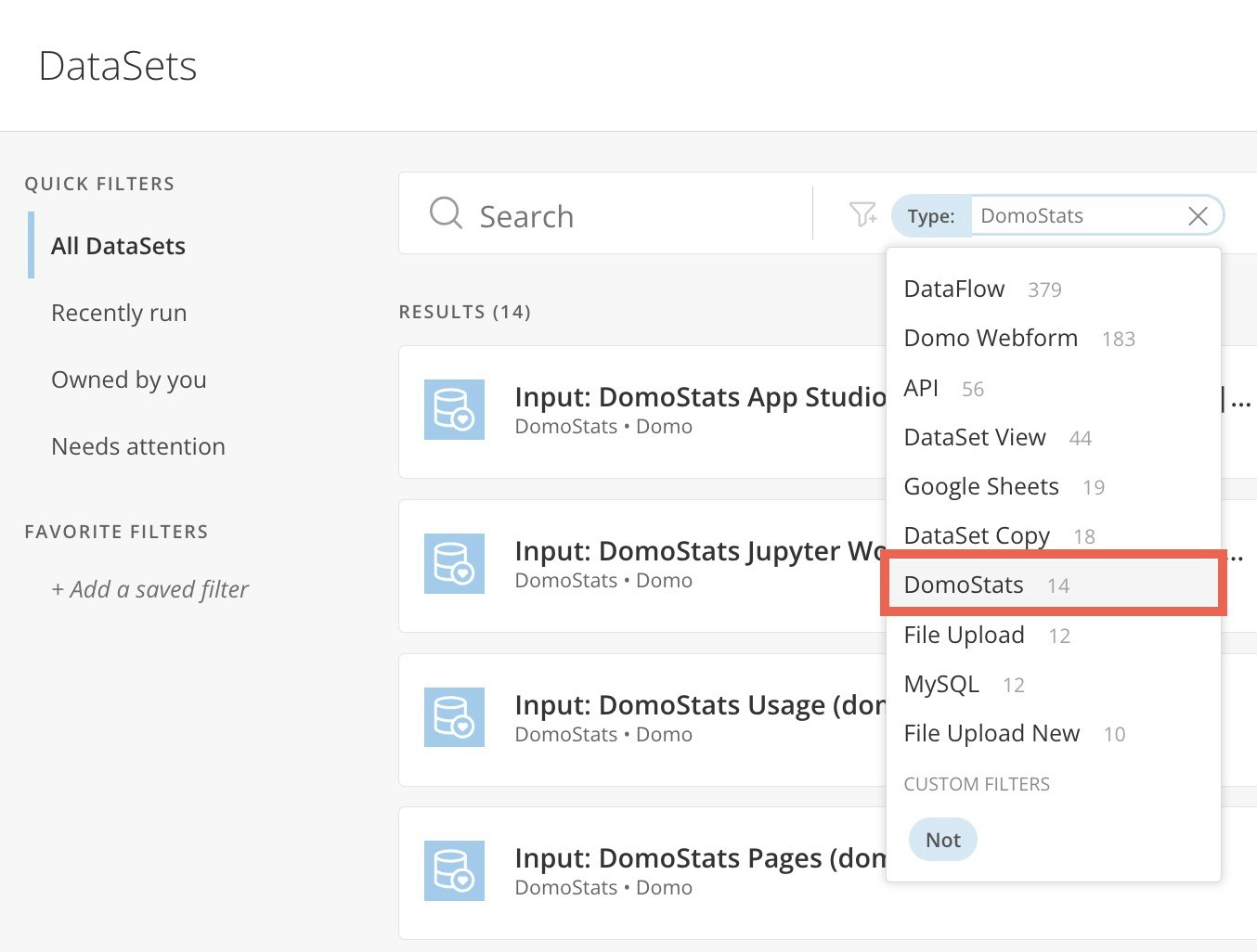
Cards
What counts as a card view?When you open the Details view of a card, a card view event is captured in the Activity Log.When you filter a card in the Details view, this is also captured as a card view event.If a Page Filter is in place when you open the card Details view, that Filter is applied to the card, and you see two card view events in the log: one for the view of the card Details and one for the filtering.Opening a card in full-screen mode from the dashboard, filtering or interacting with a card in full-screen mode, and using filter-in-place at the dashboard level are not captured as card view events.