Intro
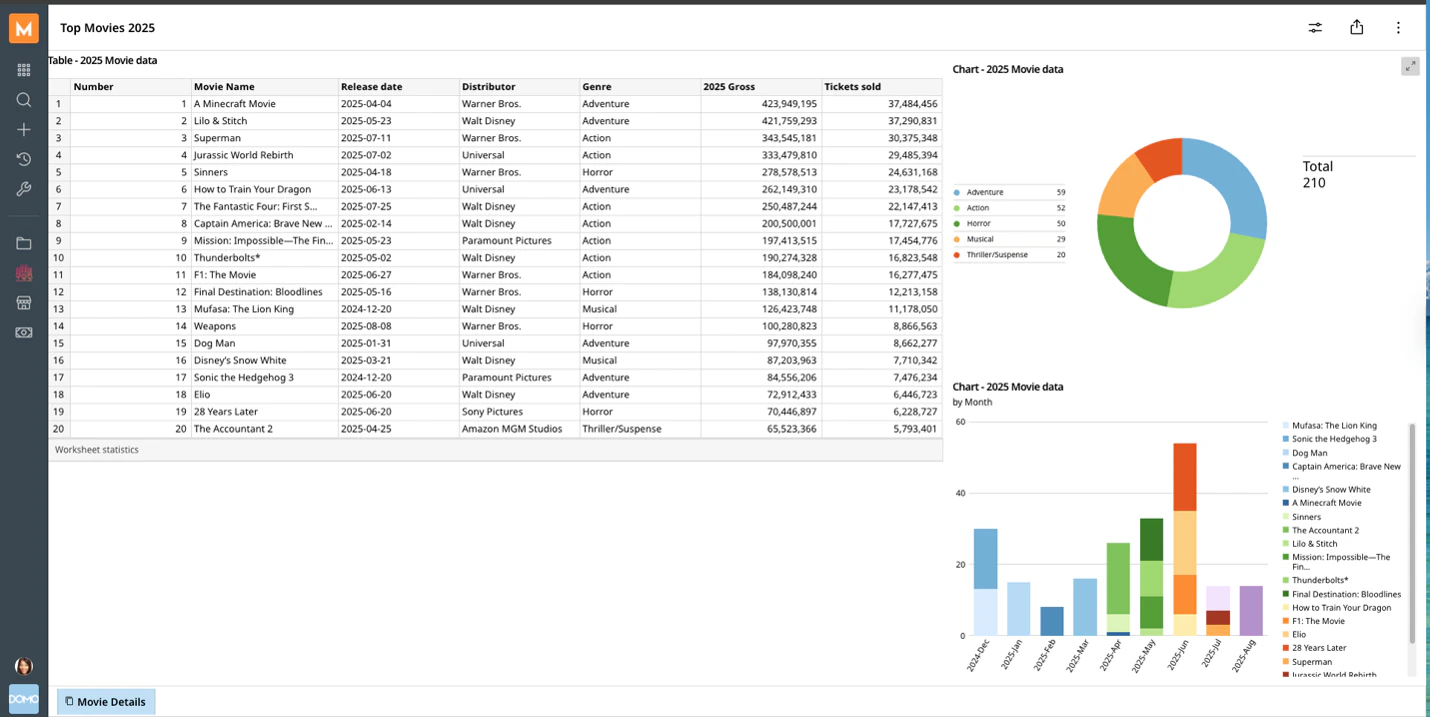
This article explains how to compose tables and visualizations with immediate feedback using Worksheets. When your analysis is ready for a wider audience, or requires formal governance, you can save your Worksheet to an App Studio App. Learn how to create an App Studio App.Required Grants
To access Worksheets, the following grant must be enabled for your role:- Edit Worksheet
Navigate Your Worksheets Home Page
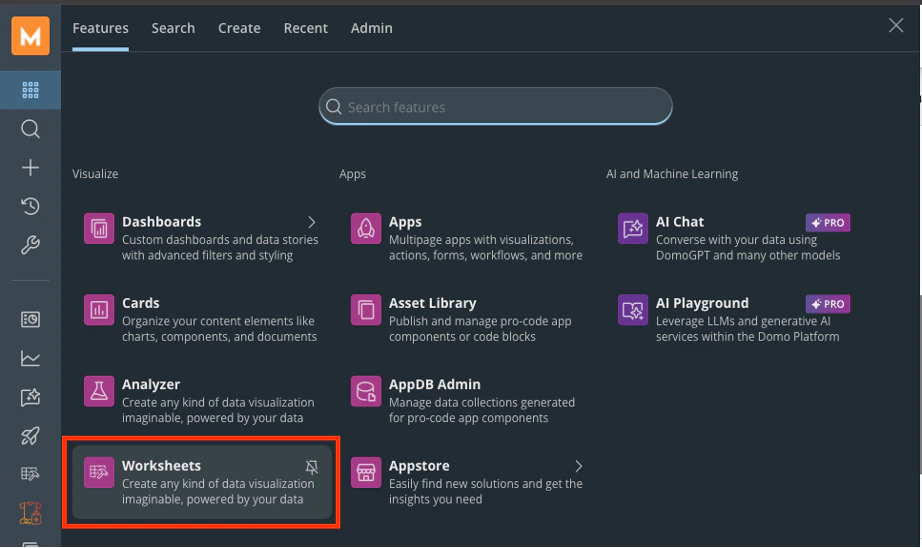
Follow these steps to navigate your Worksheets home page:- Go to your instance navigation bar.
- Select Features (tab). The Visualize menu opens.
- Go to Worksheets.
- To search, enter the file name or a keyword
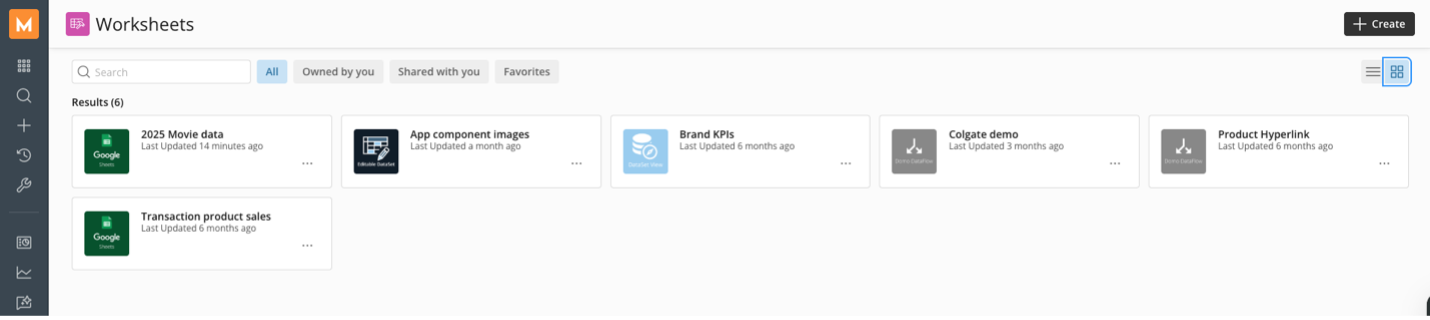
- The All section displays every file you’ve created or that has been shared with you
- Owned by you lists files that you have made yourself
- Shared with you includes all the files others have shared with you
- Favorites contains files you’ve marked as favorites.
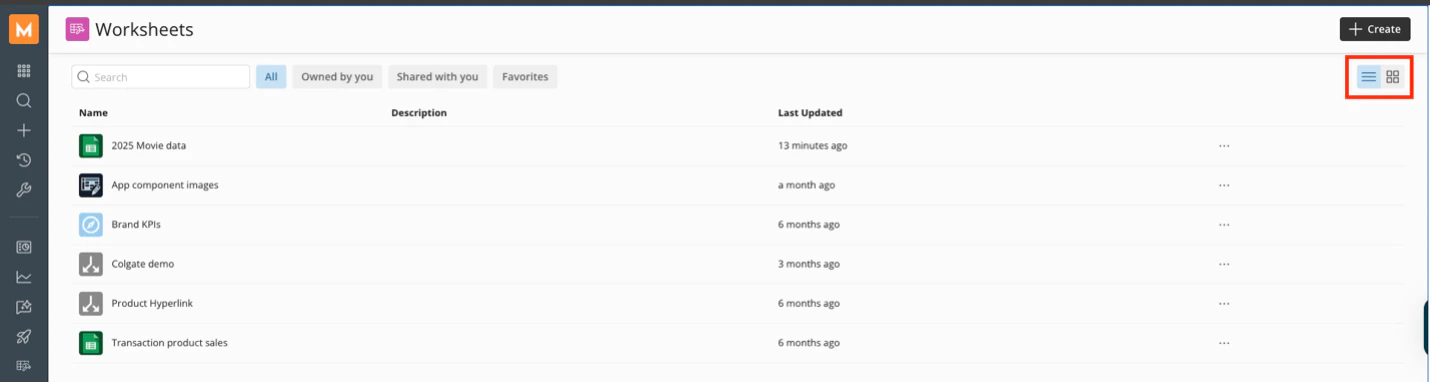
- View — Permits access to a Worksheet in view mode.
- Edit — Grants access to a Worksheet’s settings and the ability to make modifications as needed.
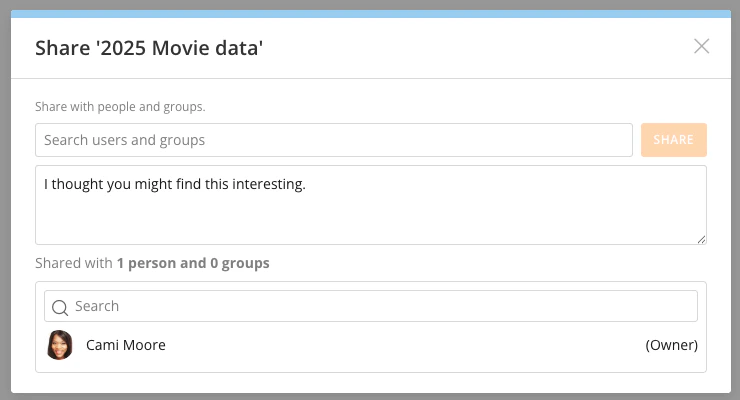
- Share — Enables users to distribute content to other individuals and groups.
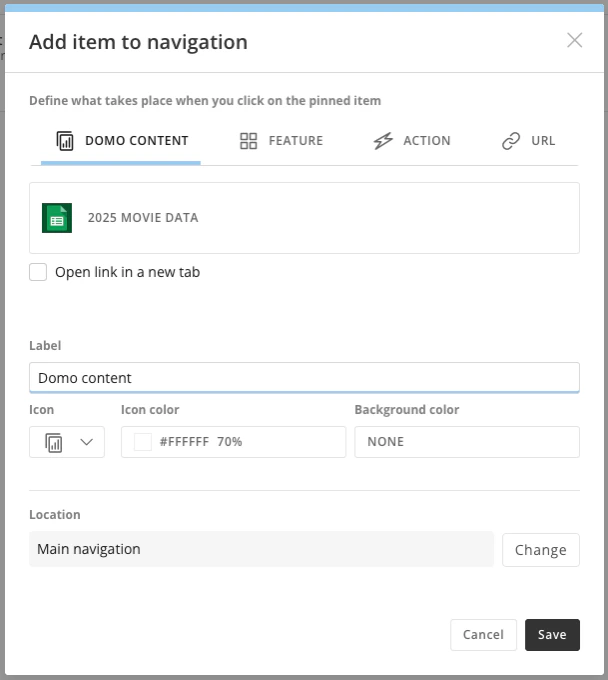
- Add to Navigation — This feature lets you pin your Worksheet to the navigation bar in your instance.
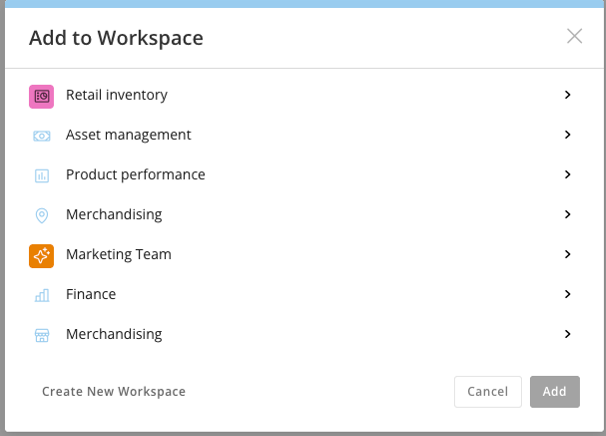
- Add to Workspace — Lets you share the Worksheet and add it to any Workspace you own or can access.
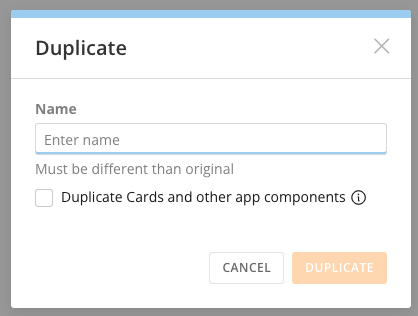
- Duplicate — Makes a copy of your Worksheet.
- Favorite — Marks your Worksheet as a favorite.
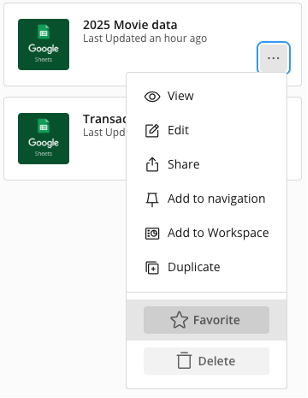
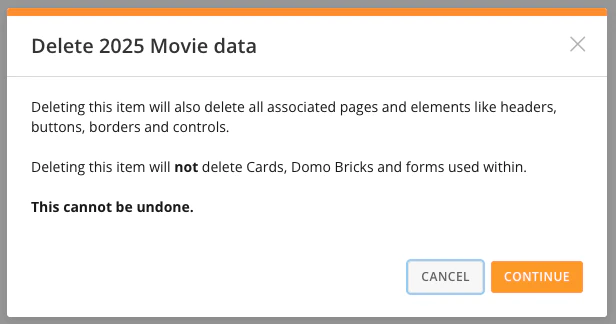
- Delete — Gives you the option to remove a Worksheet.
Create a Worksheet
Follow these steps to create a Worksheet:- Select the Create option located on the Worksheets home page.

- To create a Worksheet from a DataSet, select Power from DataSet. To start fresh, select Blank Spreadsheet.
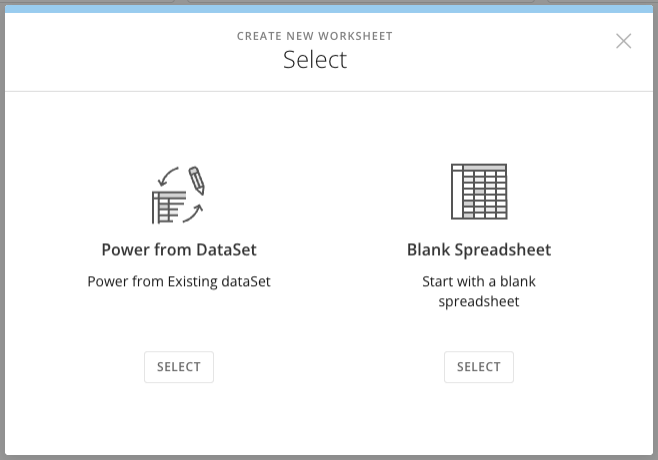
Power from DataSet
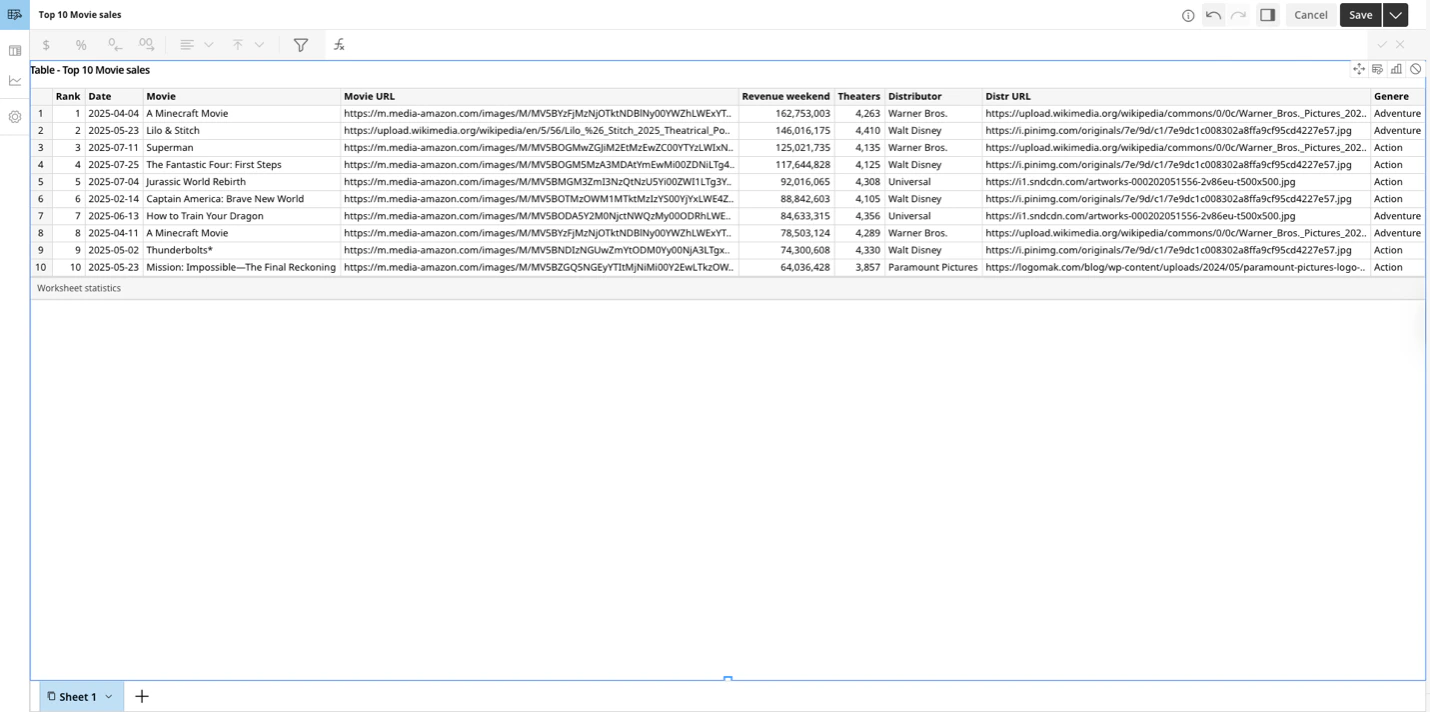
After selecting Power from DataSet, edit mode opens. Select a DataSet to bring into your Worksheet.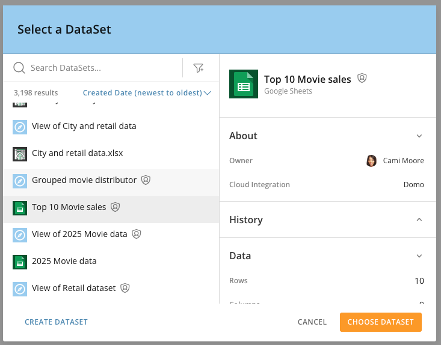
Blank Spreadsheet
By selecting Blank Spreadsheet, a new editable Worksheet opens. You can add your data for analysis.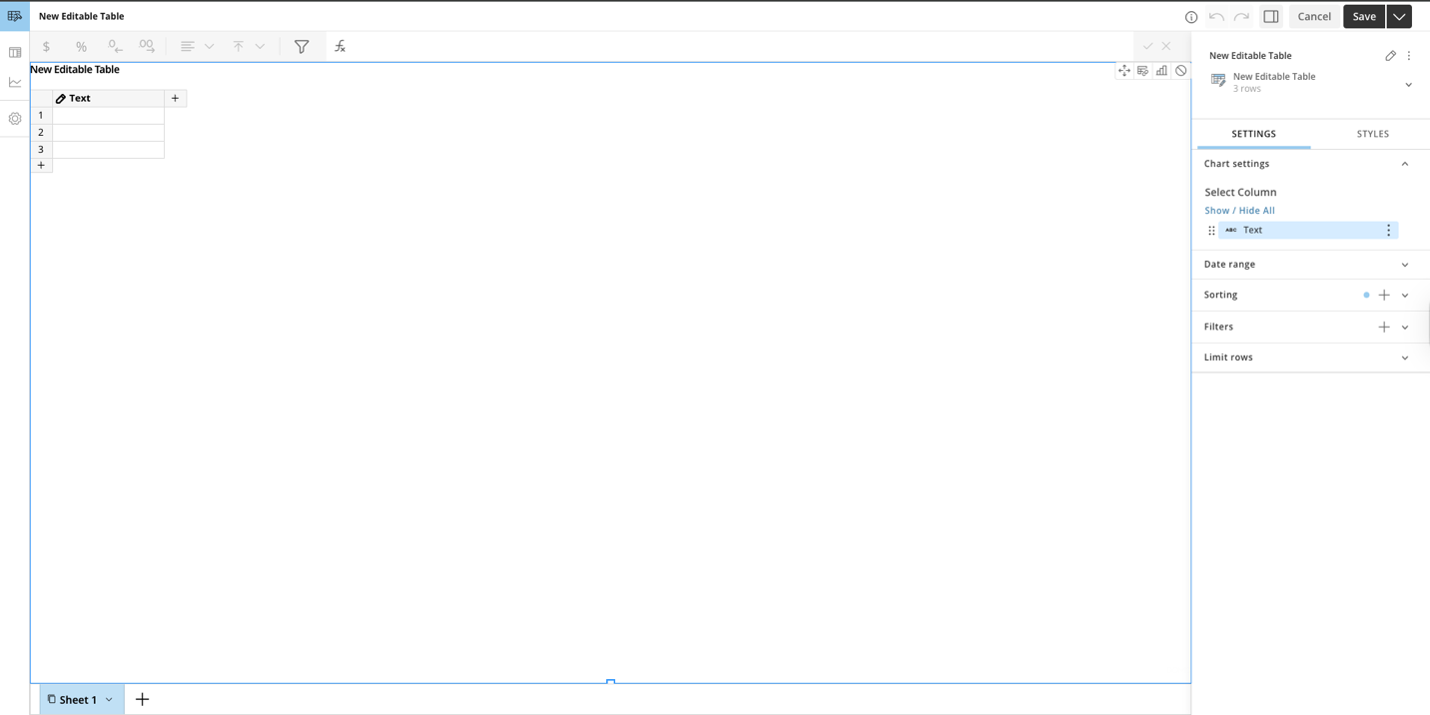
Edit Your Worksheet in Edit Mode
When you’re in edit mode, you can access the following features:- Rename your Worksheet
- Add a table to the canvas
- Add a chart/graph to the canvas
- Edit Worksheet Settings
- Add a new Sheet
- Undo/Redo changes
- Save and Export
Rename Your Worksheet
Keep your Worksheets organized by giving them clear, descriptive names. To rename a Worksheet:- Select the edit icon in the title section of your Worksheet.
A text box is enabled.
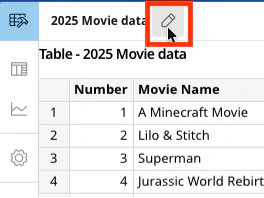
- Select directly on the text of your Worksheet name to enter edit mode.
- Create your new name.
- Press Enter to save.
Add a Table to the Canvas
Follow these steps to add a table to the canvas:- Go to the left navigation menu.
- Select the Tables icon.
A pop-up menu opens.
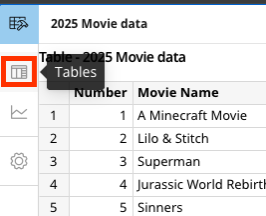
- Select one of the available table types.
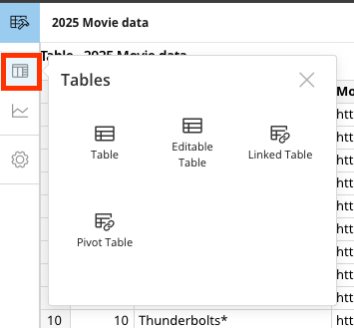
- Drag and drop your new table onto the canvas.
- (Optional) You can add multiple tables on the canvas and arrange them as desired.
 In the above example, the user has placed three distinct tables onto the canvas. Tables and charts may be organized as needed by selecting each item and moving it to the desired location, or by adjusting its dimensions using the square handles to modify both height and width.
Configure and Format Your Table Data
Use the right panel, the toolbar, and filters to configure your table data. You can format your table data using column formatting, as well as charts and graphs.Configure Your Table Data Using the Right Panel
The right panel is your command center for any selected object on the canvas.- Select a table or chart to activate the panel.
- Use the Settings tab to change column order, hide/display columns, change column names, set column types, configure group by aggregation, copy columns, set vertical alignment, set date ranges, filters, sort tables, and limit rows.
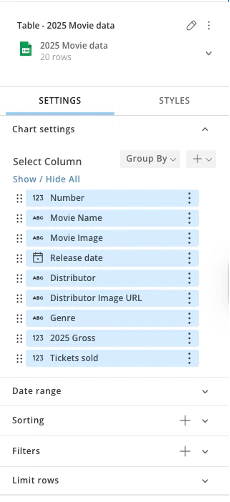
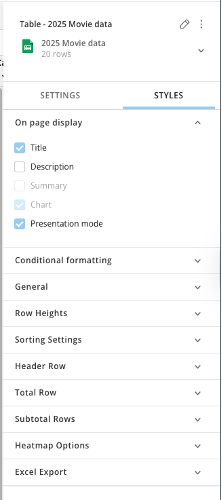
- Use the Styles tab to change/set colors, font types, font family, conditional formatting, general table formatting, sorting settings, row heights, add header, total and sub-total rows, and Excel export settings.
Format Your Columns
Ensure your data is readable by applying specific formatting to table columns.- Start by selecting a table on the canvas. Then use the right panel or table header toolbar to edit and format your columns.
Format Your Columns in the Right Panel
- In the right panel, select the specific field under the Select Columns list.
- Select the more options menu.
- Select desired formatting.
- Set the Data Label and the Data Type in the Display As option (Number, Currency, Percentage) and decimal places.
Format Your Columns in the Table Header Toolbar
Use the table header toolbar to quickly edit and format columns.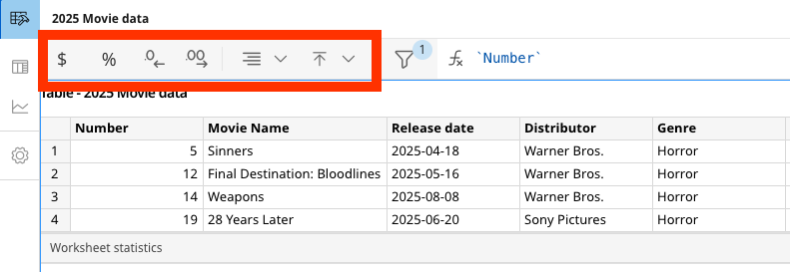
- Use the
 option to format values as currency.
 - Use the
 option to format column values as percentages.
 - Use the
 options to adjust the number of decimal points to increase or decrease precision.
 - Use
 to align values to the left, center, or right.
 - Use the
 to align values to the top, center, or bottom.
Filter Your Data
Narrow your focus by applying filters to your data.
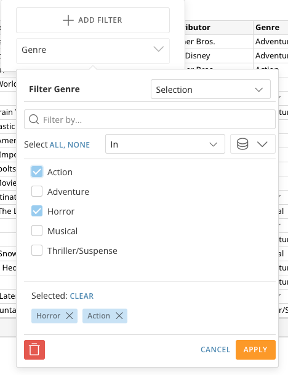
- Select the Filter
 icon.
icon. - Select + Add Filter to add a new filter.
- Search and select the column by which you want to filter.
- Select the values you want to include in your filter.
- Select Apply to save the filter.
Or select Cancel to discard your changes.
Select the Delete icon to remove the filter.
Use Functions and Beast Mode
Apply logic to your data without leaving the canvas.
-
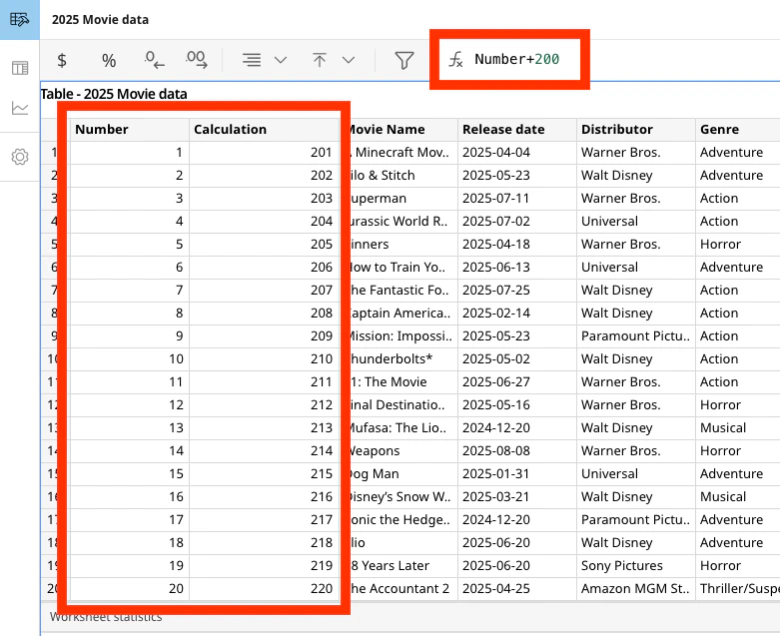
In the toolbar, select the Function
 icon.
A text box is enabled.
icon.
A text box is enabled.
-
Write your logic using standard Beast Mode (SQL-based) syntax.
Use familiar functions for quick aggregations, such as
SUM,AVG, orCOUNT. -
Press Enter to validate your function.
Use the
 buttons to save or cancel your function.
A new column is added to the table containing the function’s results.
buttons to save or cancel your function.
A new column is added to the table containing the function’s results.
Add Charts and Graphs
Worksheets allow you to add charts and graphs to your canvas. To add a chart or graph, follow these steps:- Select the Charts icon from the left menu.
A pop-up menu appears.
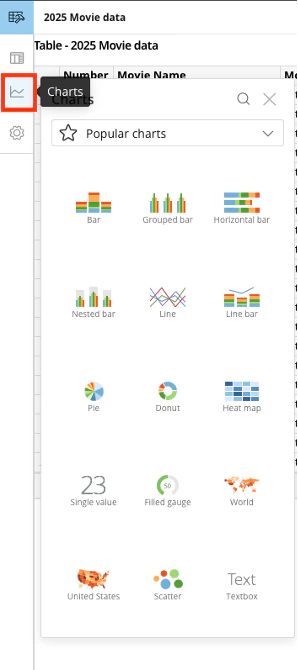
- Search for your desired chart or graph using the search button.
You can also select the drop-down menu to look at the list of chart types available.
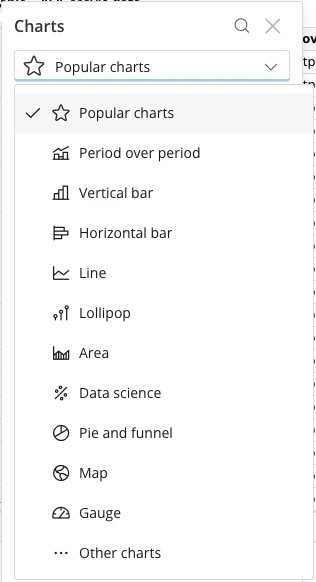
- Select your desired chart.
- Drag your desired chart onto the canvas.
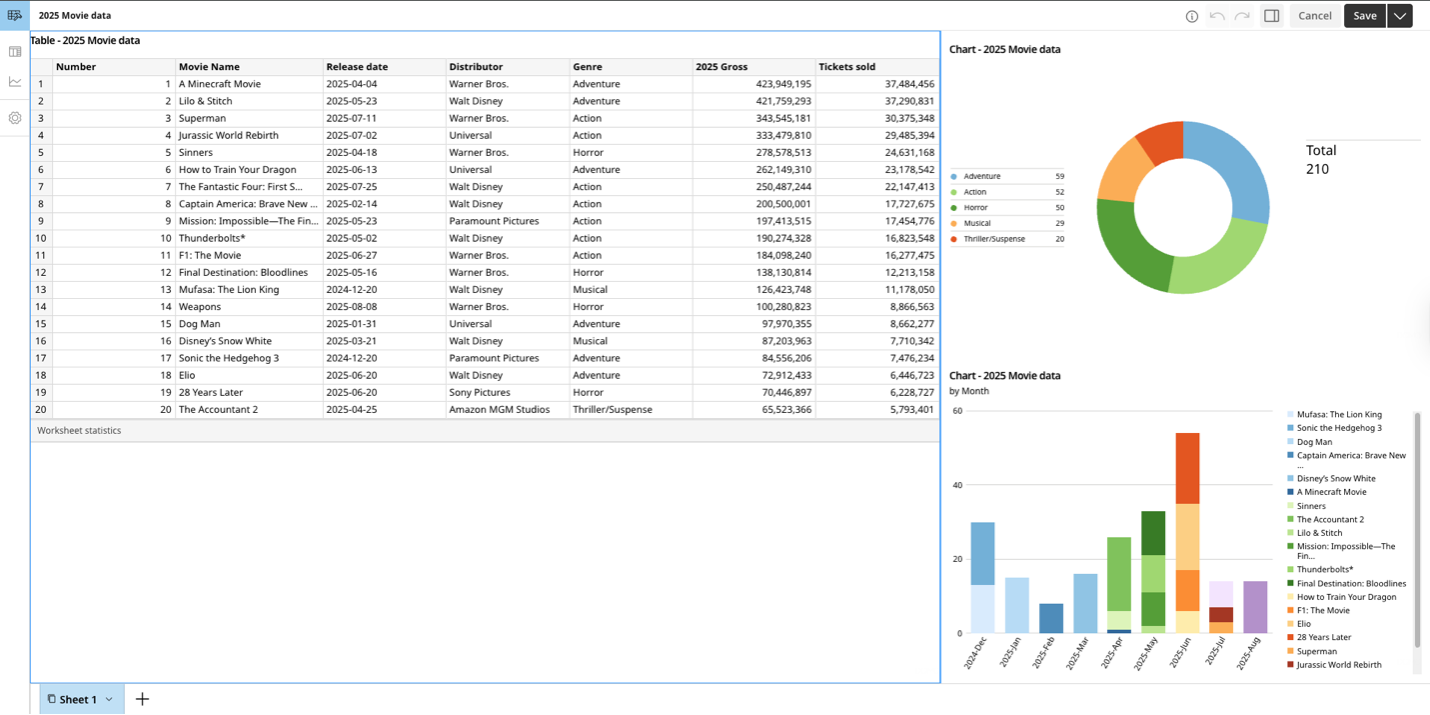
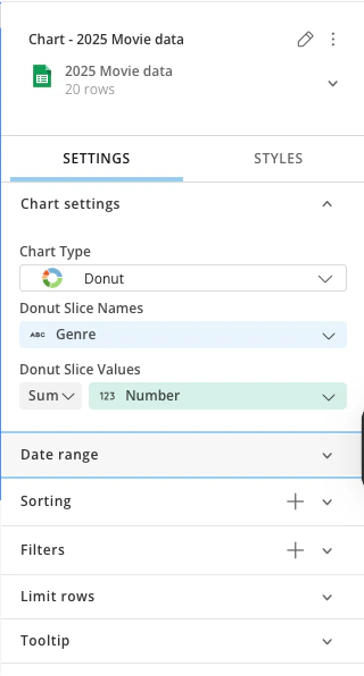
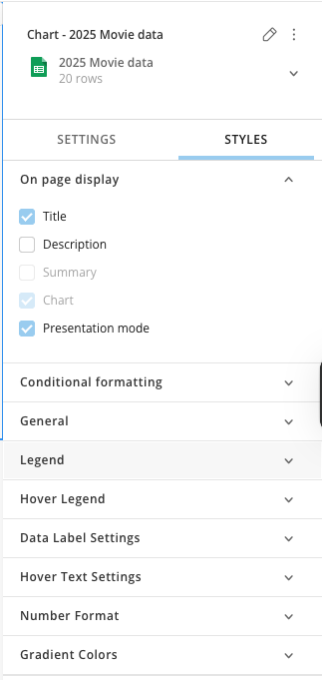
- Select the chart to configure your chart settings and styles.
A right panel appears. You can edit, configure, sort, filter, and add styles to your charts and graphs.
Edit Worksheet Settings
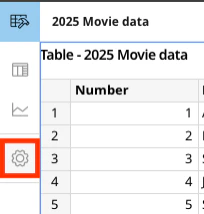
Configure general worksheet settings using the Settings option in the left toolbar.- Select the Settings icon in the left toolbar.
The Worksheet Settings panel opens in the right pane.
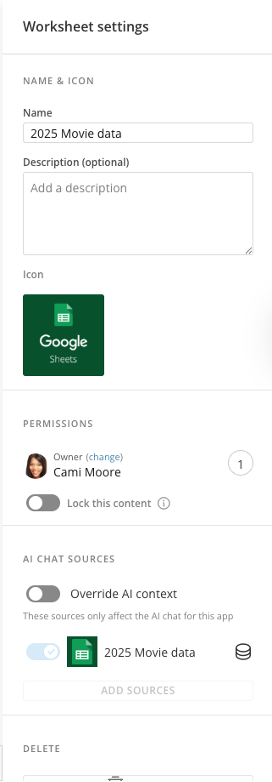
- Select the setting you would like to configure.
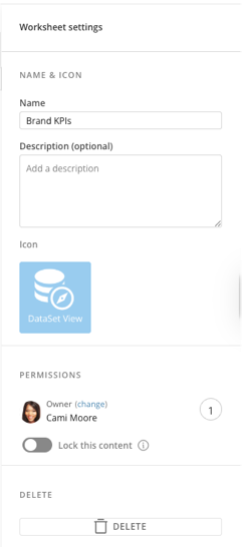
- Name — Change or edit the name of your Worksheet
- Description — Add or edit your Worksheet’s description
- Icon — Change your Worksheet’s icon
- Permissions
- Owner — Add or remove owners
- Lock this content — Toggle to allow admins and owners to make changes to your Worksheet
- AI Chat Sources — Select the specific data sources the AI should use to inform its responses within the app
- Delete — Allows you to delete the Worksheet
Deleting a Worksheet also removes all associated pages and elements, such as headers, buttons, borders, and controls. However, it does not delete Cards, Domo Bricks, or Forms used within the Worksheet. This action cannot be undone.
Add a New Sheet
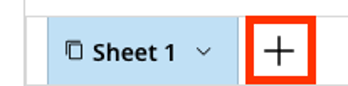
Worksheets support multi-tabbed analysis, similar to traditional spreadsheet workbooks. Follow these steps to add a new sheet to your Worksheet:- Look for the + (Plus) icon at the bottom of the canvas.
A new pop-up appears.
- Type the name of your new sheet.
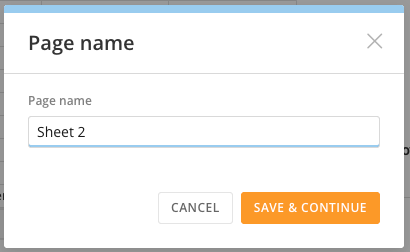
- Select Save & Continue to add the new sheet to your canvas. You can select Cancel to discard changes.
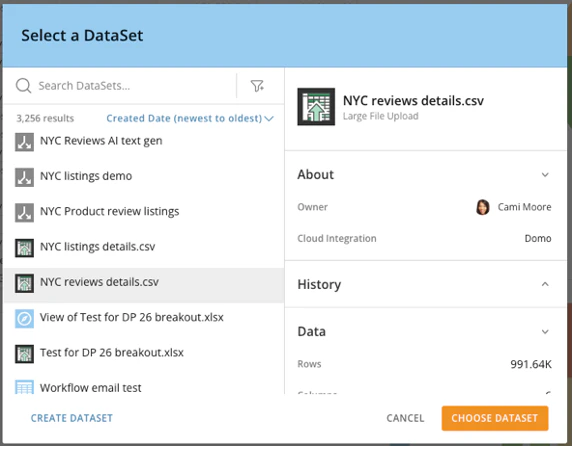
- Select a DataSet for the new sheet—or create a new one.
Select Choose DataSet to import the data into the new sheet.
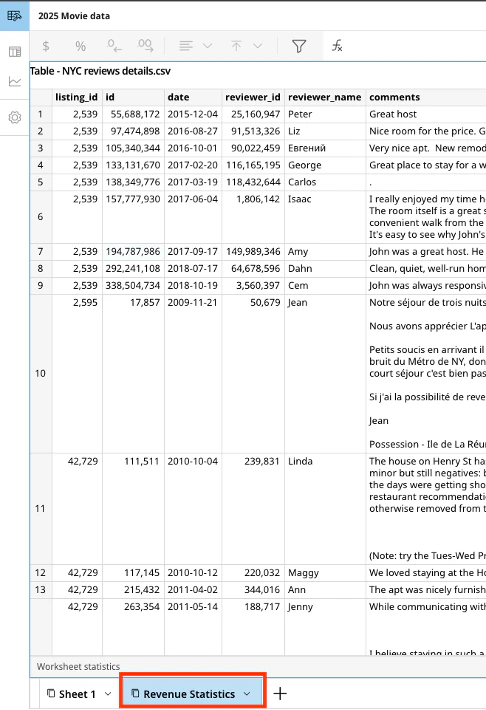
A new table is added to the canvas, and a new tab appears at the bottom.
Navigate the Sheet Menu
You can select the arrow next to your sheet’s name to open the sheet menu.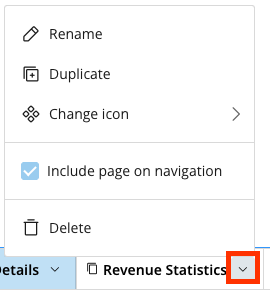
- Rename your sheet
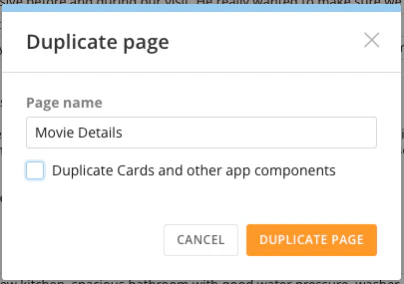
- Duplicate your sheet
- Add a name to your duplicate sheet
- Check the Duplicate Cards and other app components option to copy content to your new sheet
- Select Duplicate Page to save your changes. You can select Cancel to discard them.
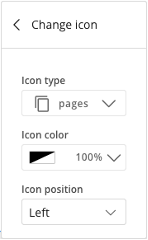
- Select Change icon to modify the icon’s color and position.
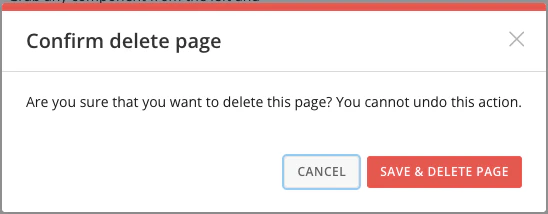
- Delete a sheet from the canvas.
This action cannot be undone.
Undo and Redo Changes
You can use the Left Arrow (Undo) and Right Arrow (Redo) icons in the top header to undo or redo any changes made to the Worksheet.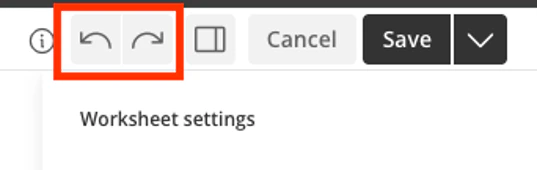
The undo and redo features only work on the page you are currently on. Any changes you make to other pages take effect after you save your progress.
Expand and Collapse the Right Panel
While working in edit mode, you can use the option to expand or collapse the settings and style configuration panel.

Save and Share a Worksheet
Follow these steps to save and share your Worksheet:- Save your Worksheet by selecting the Save button.
The save menu opens.
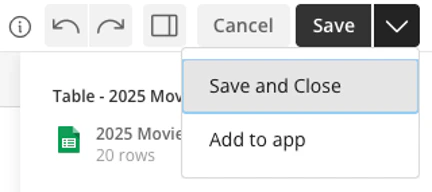
- Select Save and Close to save your progress and exit edit mode.
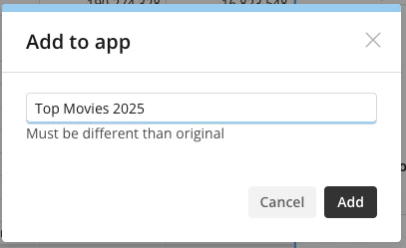
Select Add to app to move your Worksheet into an App Studio app for advanced layout and distribution.
Type a name for your app and select Add. Select Cancel to discard your changes.
 Your new app is created. You are redirected to the new App Studio App.