

Why Cloud Integrations?
Cloud Integrations addresses the following common data challenges:- IT limitations — IT alone cannot realize the full potential of data. A broad, inclusive approach across all lines of business (LOBs) is needed, and not all valuable data is under IT control.
- Increased stress and time constraints — Business users demand timely access to data products, increasing the pressure to deliver.
- Rigidity and friction in data processes — Rigid processes and tooling prevent the quick building of flexible databases, requiring too much time and effort.
Required Grants
After Cloud Integrations is enabled for your Domo environment, you can assign the following Cloud Integrations grants to manage access to these features:- Manage Cloud Accounts — Allows you to add or remove cloud accounts, manage the tables exposed by a cloud account, and choose which cloud integration a new DataSet uses (selected from Domo or any cloud integration that has been shared with you). This grant does not allow you to change the instance-wide default storage cloud in Admin > Features > Cloud Integrations. Requires the Manage DataSet grant.
- Override Default Cloud — Allows you to change the instance-wide default storage cloud in Admin > Features > Cloud Integrations. This grant does not allow you to change which cloud integration an individual new DataSet uses. Requires the Edit DataSet or Manage DataSet grant.
Setup
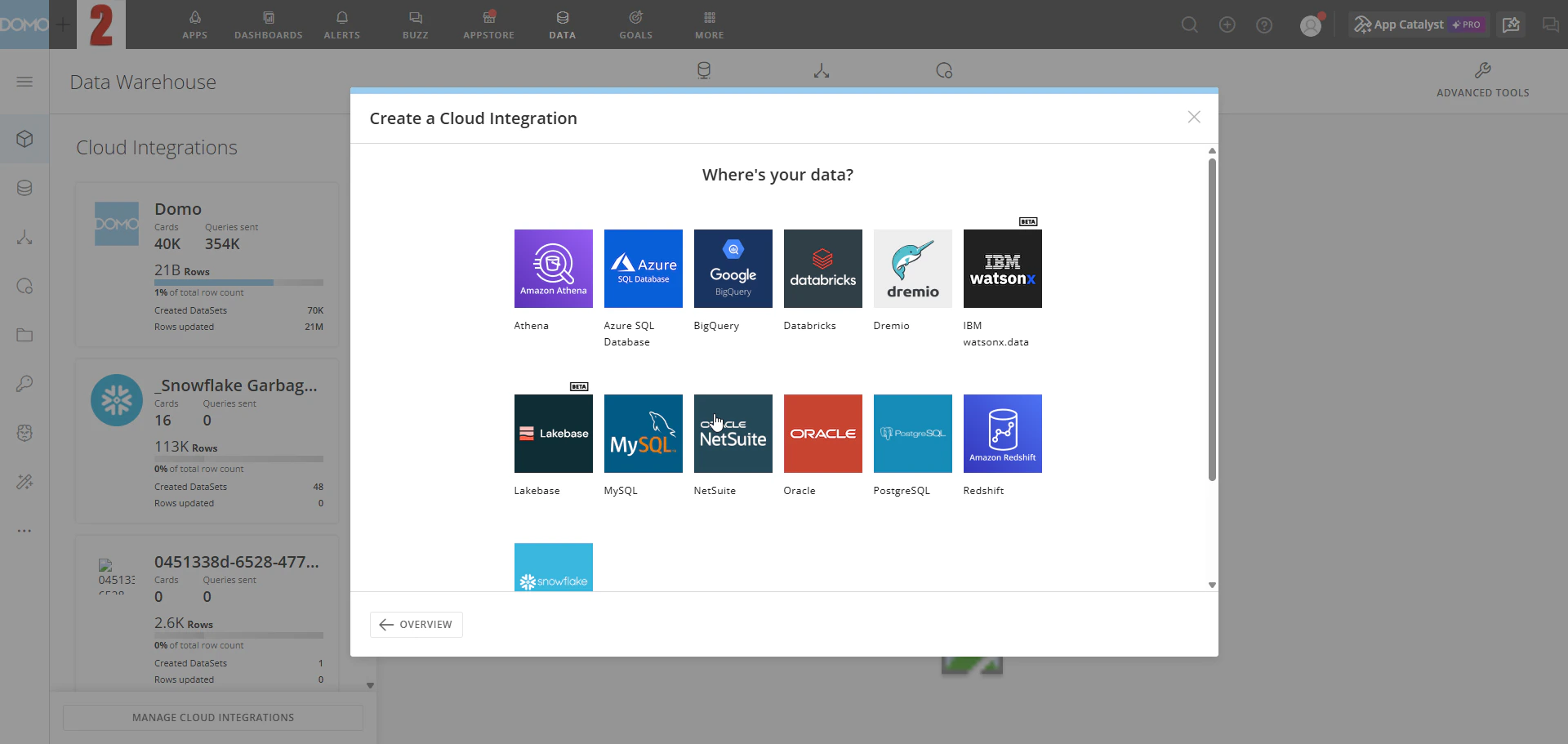
If you’re on a consumption agreement, you can access Cloud Integrations from the Data Center. If not, contact your Domo account team to enable it for your instance. Once enabled, an Admin can assign the grants described above to the appropriate users before they begin connecting providers. After Cloud Integrations is enabled for your account, you can connect your existing data warehouses. Select a provider in the table below for its setup documentation.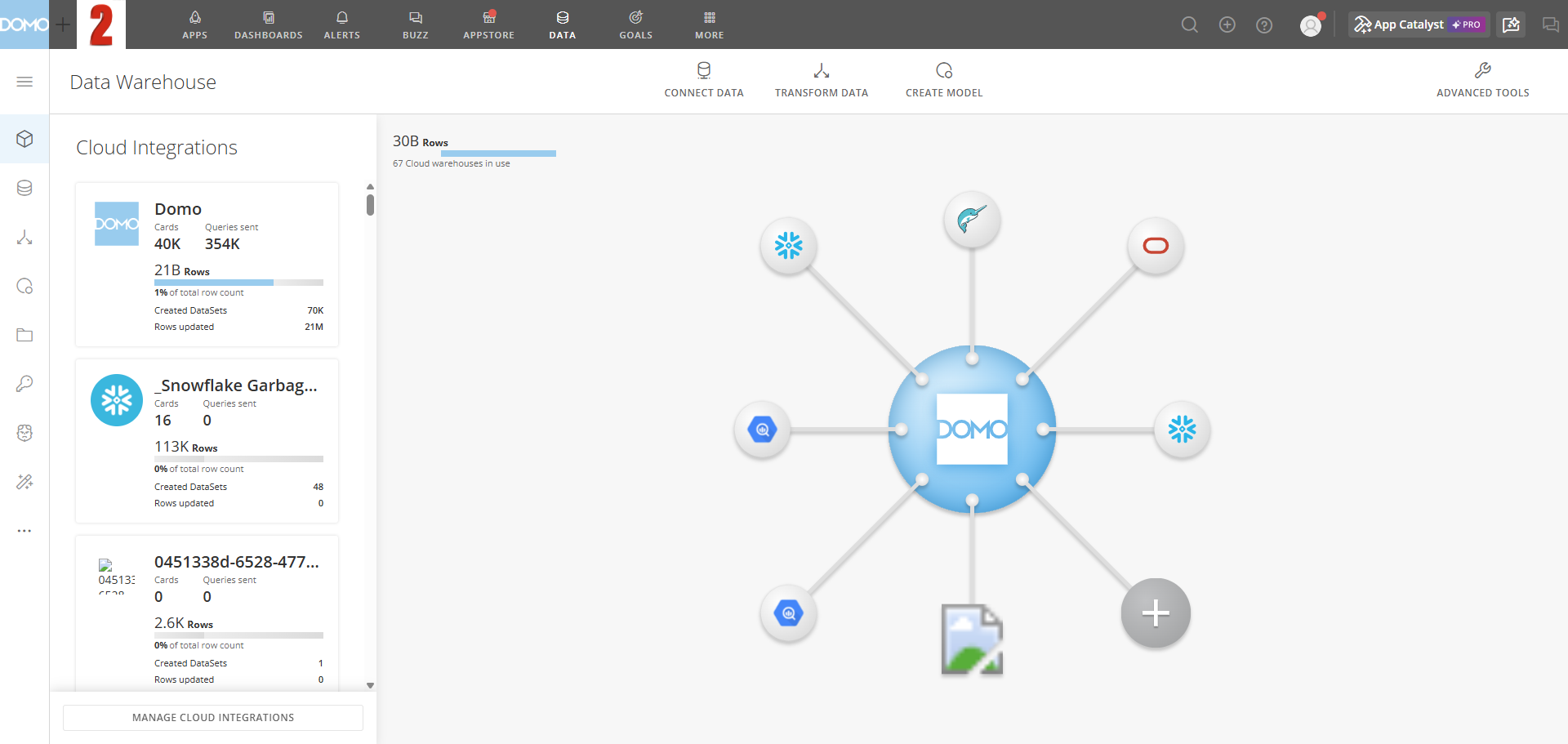
Set a Default Storage Cloud
You can specify a default storage account for all DataSets. Changing this setting does not affect existing DataSets or DataFlows — it applies only to new assets.- In the Domo navigation header, select More > Admin. The Admin Settings page opens.
- Under Features, select Cloud Integrations. The Cloud Integrations page opens.
- Select an option from the Select the default storage cloud dropdown.
Best Practices
Configure all connected databases to use UTC as their time zone. When a database uses a non-UTC time zone, Domo may apply an additional time zone shift on top of the database’s own offset, causing day-over-day, week-over-week, and year-over-year comparisons to return incorrect data. Databases using non-UTC time zones can also cause discrepancies between data viewed in Domo and data queried directly from the same source in other tools.Federated Data vs. Cloud Integrations
The table below compares federated data to Cloud Integrations read and read/write configurations:- ✅ Supported: DataSet Views (Standard Views and SQL Views) that join Cloud Integrations DataSets from the same cloud connection.
- ❌ Not supported: DataSet Views that join a Cloud Integrations DataSet with a Domo DataSet (a standard Domo DataSet) or with a Cloud Integrations DataSet from a different cloud connection.
Share a Cloud Integrations Account
If you own a Cloud Integrations connection, you can share access to the integration and associated account so that others can help with governance of the account and underlying data. There are different levels of access available, depending on your use case. The following table can help you determine the right level of access to grant:-
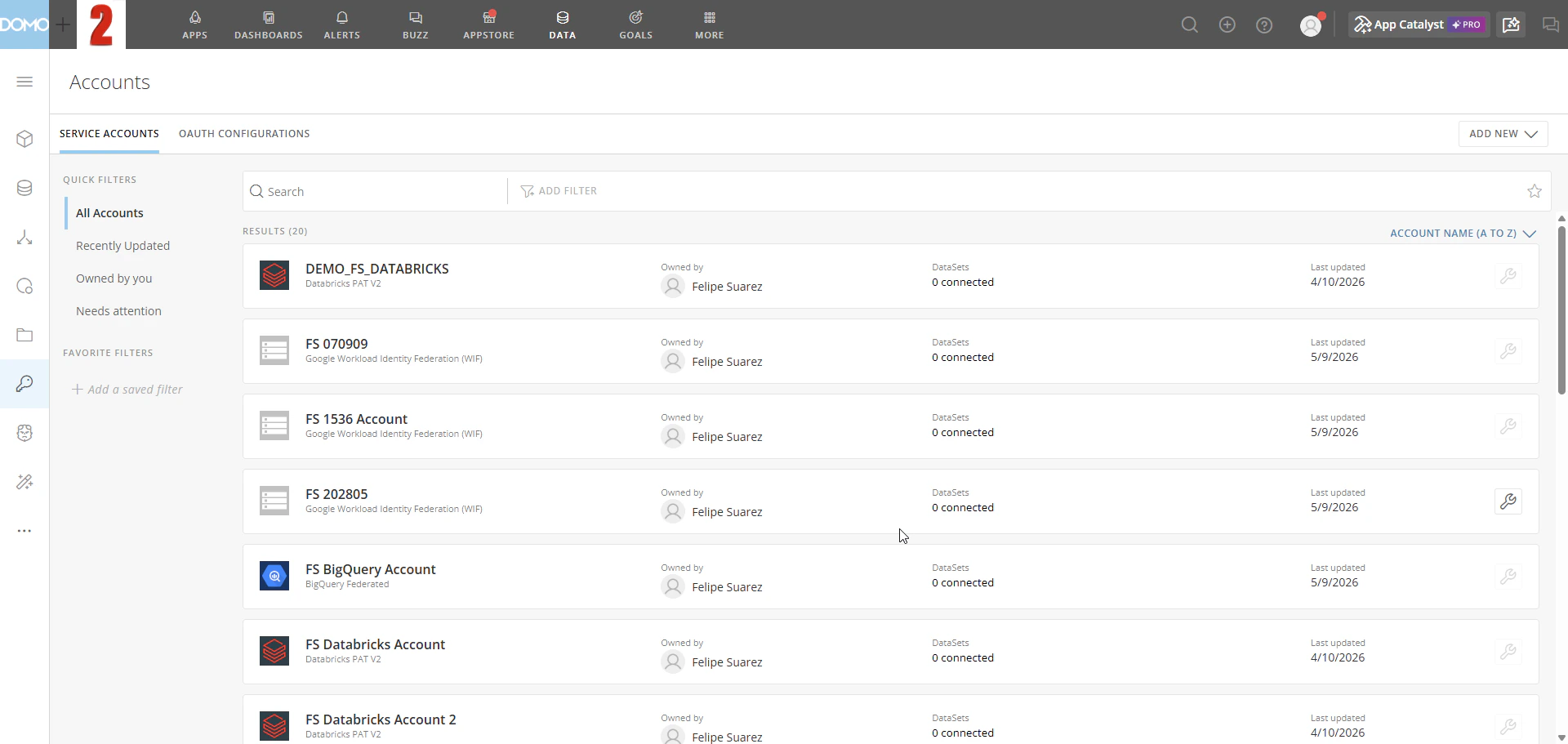
In the Domo navigation bar, select Data, then select Accounts from the left sidebar.
-
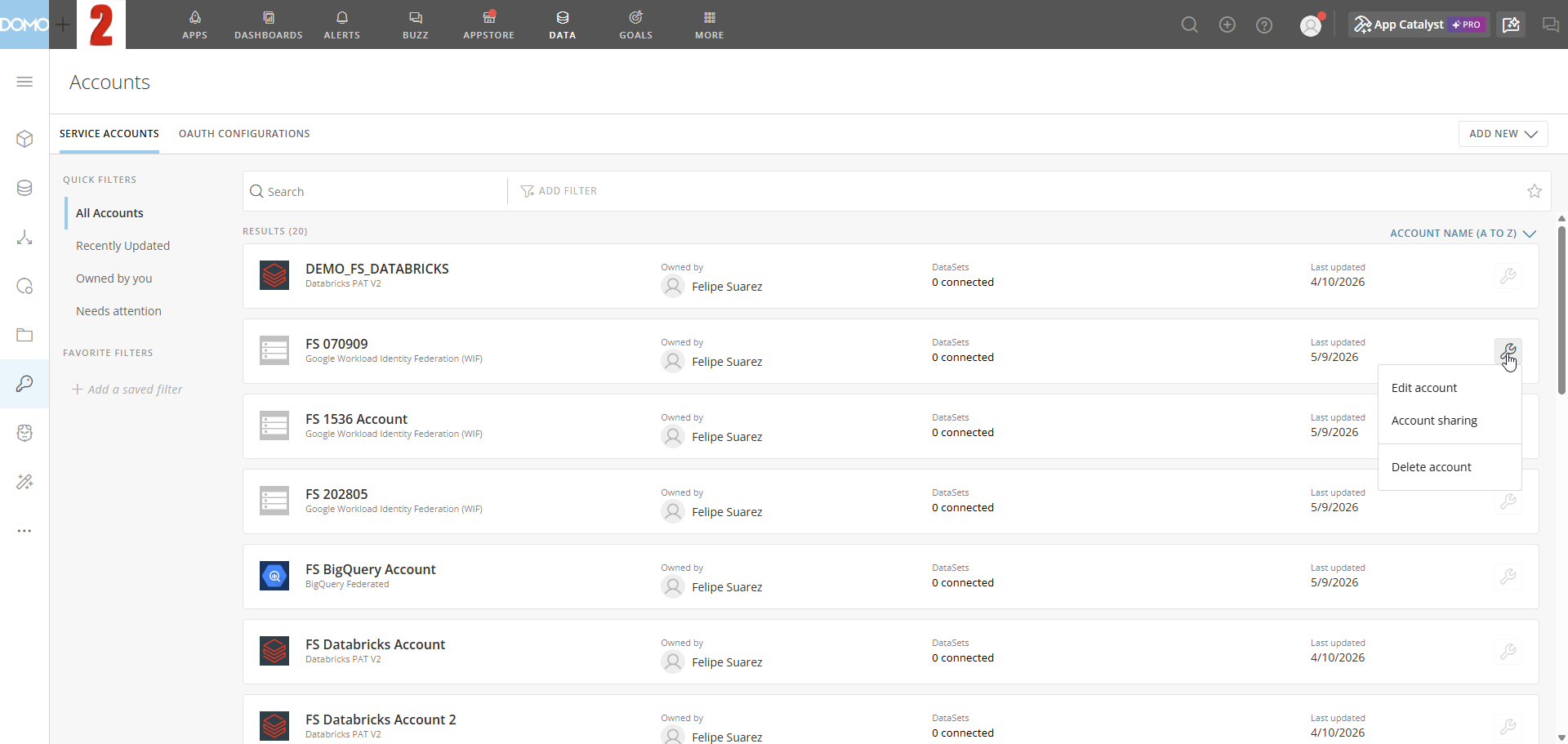
Find the account you want to share and select the Wrench icon on the right.
The options menu appears.
-
Select Account sharing.
The Manage [account name] access modal opens.
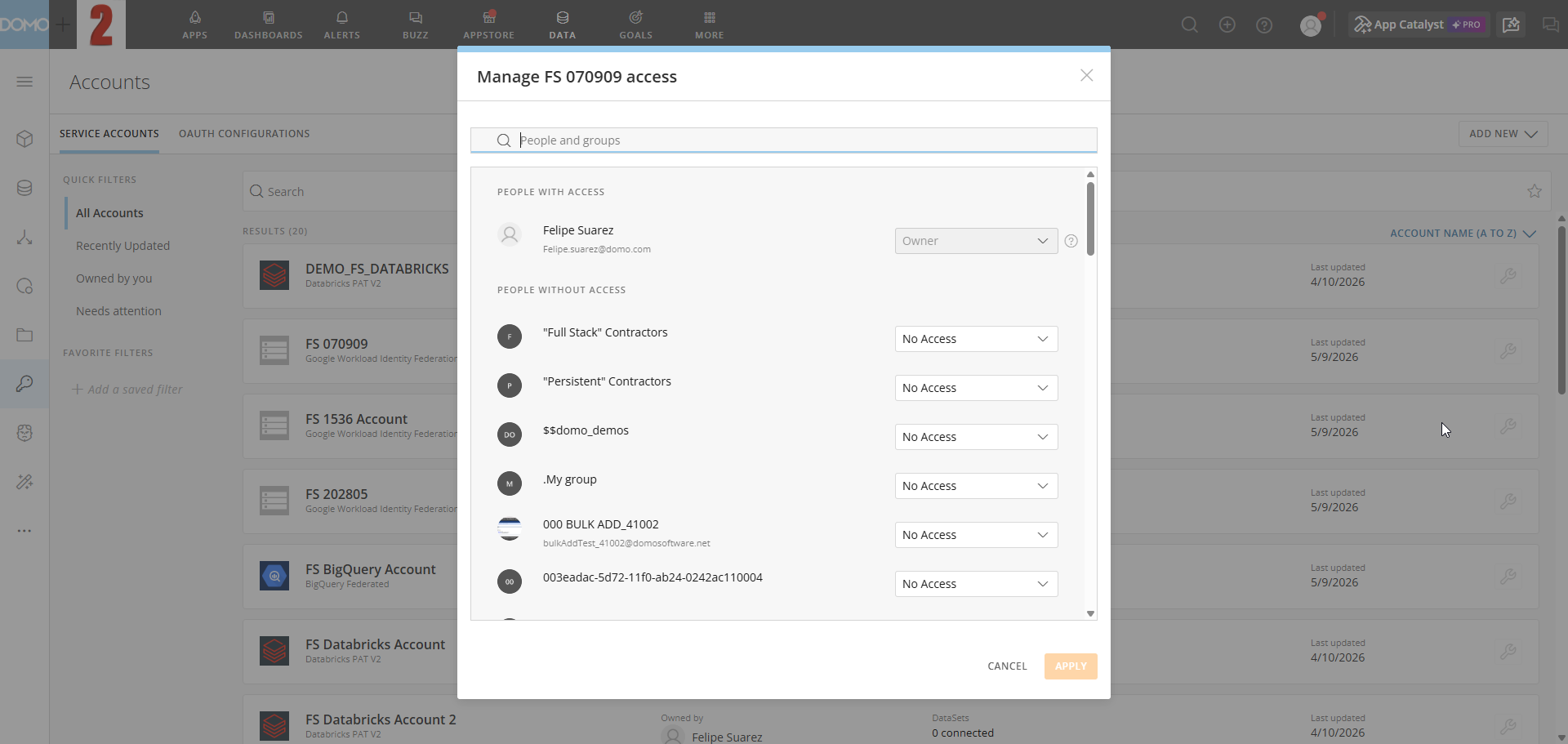
-
Find the person or group you want to share with and use the dropdown to choose the access level. The table above can help you decide the appropriate level.
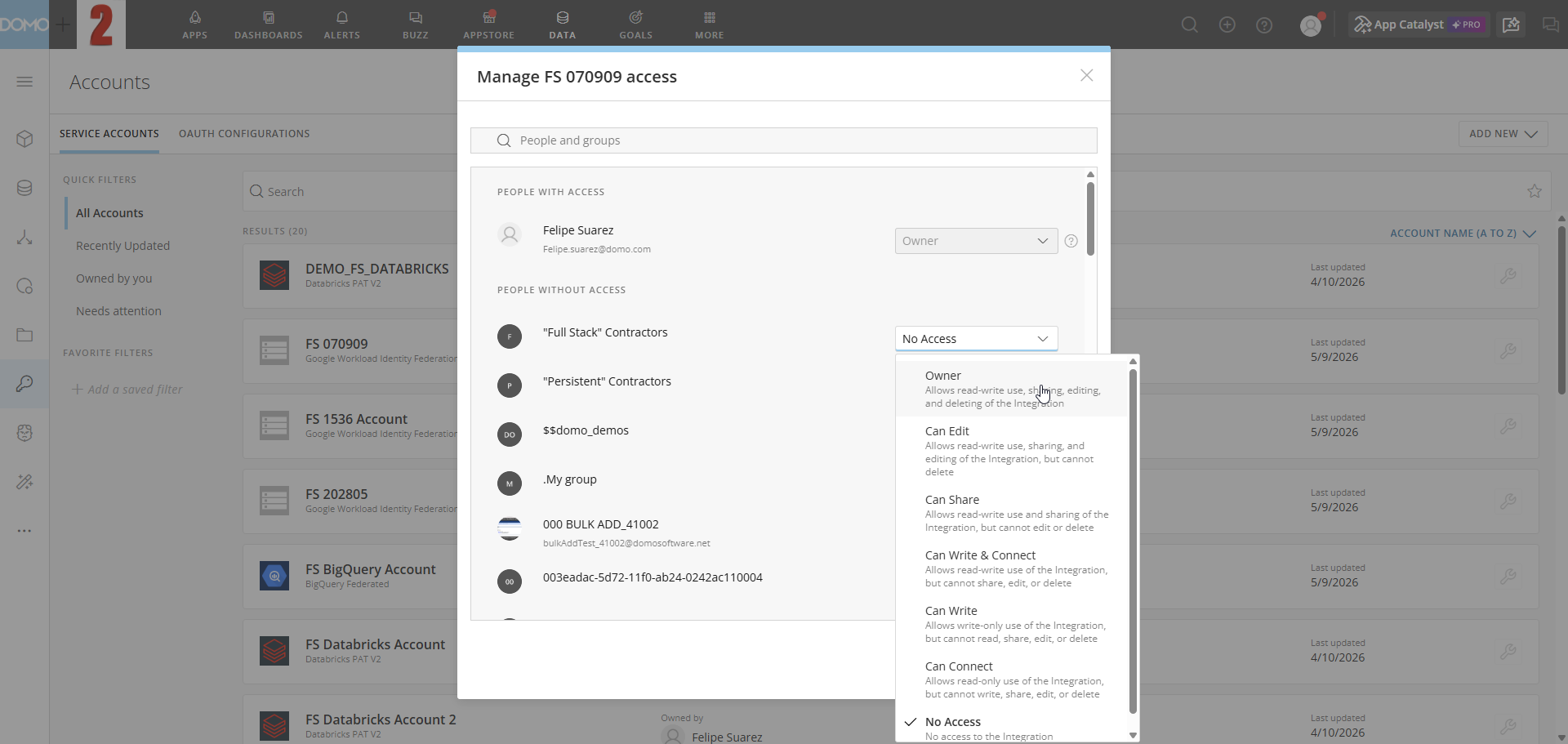
- Select Apply to save your changes.
Technical FAQ
Find answers to frequently asked questions about general topics and external cloud storage. For caching and data freshness questions, see Configure Data Freshness and Caching in Cloud Integrations.General
How do Cloud Integrations DataSets impact DataFlows scheduled to run when a DataSet refreshes?
How do Cloud Integrations DataSets impact DataFlows scheduled to run when a DataSet refreshes?
How are Cloud Integrations DataSets supported as inputs?
How are Cloud Integrations DataSets supported as inputs?
Can I use Cloud Integrations if I also use Domo Everywhere?
Can I use Cloud Integrations if I also use Domo Everywhere?
Does Cloud Integrations work with Bring Your Own Key (BYOK)?
Does Cloud Integrations work with Bring Your Own Key (BYOK)?
Does Cloud Integrations support locales other than en-US?
Does Cloud Integrations support locales other than en-US?
en-US when using Cloud
Integrations.Why are old dates in a DataSet shifting by one hour?
Why are old dates in a DataSet shifting by one hour?
Why doesn't my Cloud Integrations DataSet show a row count or a last updated date?
Why doesn't my Cloud Integrations DataSet show a row count or a last updated date?
External Cloud Storage
Find answers to frequently asked questions about using Cloud Integrations with external cloud storage accounts.Can I create DataSet Views or DataFusions that are materialized and then stored in an external cloud (outside of Domo)?
Can I create DataSet Views or DataFusions that are materialized and then stored in an external cloud (outside of Domo)?
Can I use Domo to define a DataSet View and have it create a View in my database?
Can I use Domo to define a DataSet View and have it create a View in my database?
Does Domo cache data on DataSets that are stored in an external cloud?
Does Domo cache data on DataSets that are stored in an external cloud?
Does Cloud Integrations use my cloud warehouse account?
Does Cloud Integrations use my cloud warehouse account?
How does Domo access my cloud warehouse account?
How does Domo access my cloud warehouse account?
Can I use both 'traditional' Domo and Cloud Integrations in parallel?
Can I use both 'traditional' Domo and Cloud Integrations in parallel?
Can I move existing DataSets from Domo to my cloud provider using Cloud Integrations?
Can I move existing DataSets from Domo to my cloud provider using Cloud Integrations?
Does Cloud Integrations work with Domo's DataSet APIs?
Does Cloud Integrations work with Domo's DataSet APIs?