> ## Documentation Index
> Fetch the complete documentation index at: https://www.domo.com/docs/llms.txt
> Use this file to discover all available pages before exploring further.
# Connect Documents to Domo Using Microsoft SharePoint
## Intro
This article explains how to set up a connection to Microsoft SharePoint and create a Document Collection in Domo.
***
## Prerequisites
To connect to your Microsoft SharePoint Online Rest Enterprise OAuth account and create a Document Collection, you must select the OAuth Configuration. See [Microsoft SharePoint Online Rest Enterprise OAuth Connector](/docs/s/article/Microsoft-SharePoint-Online-Rest-Enterprise-OAuth-Connector) for details.
## Create a SharePoint Connection
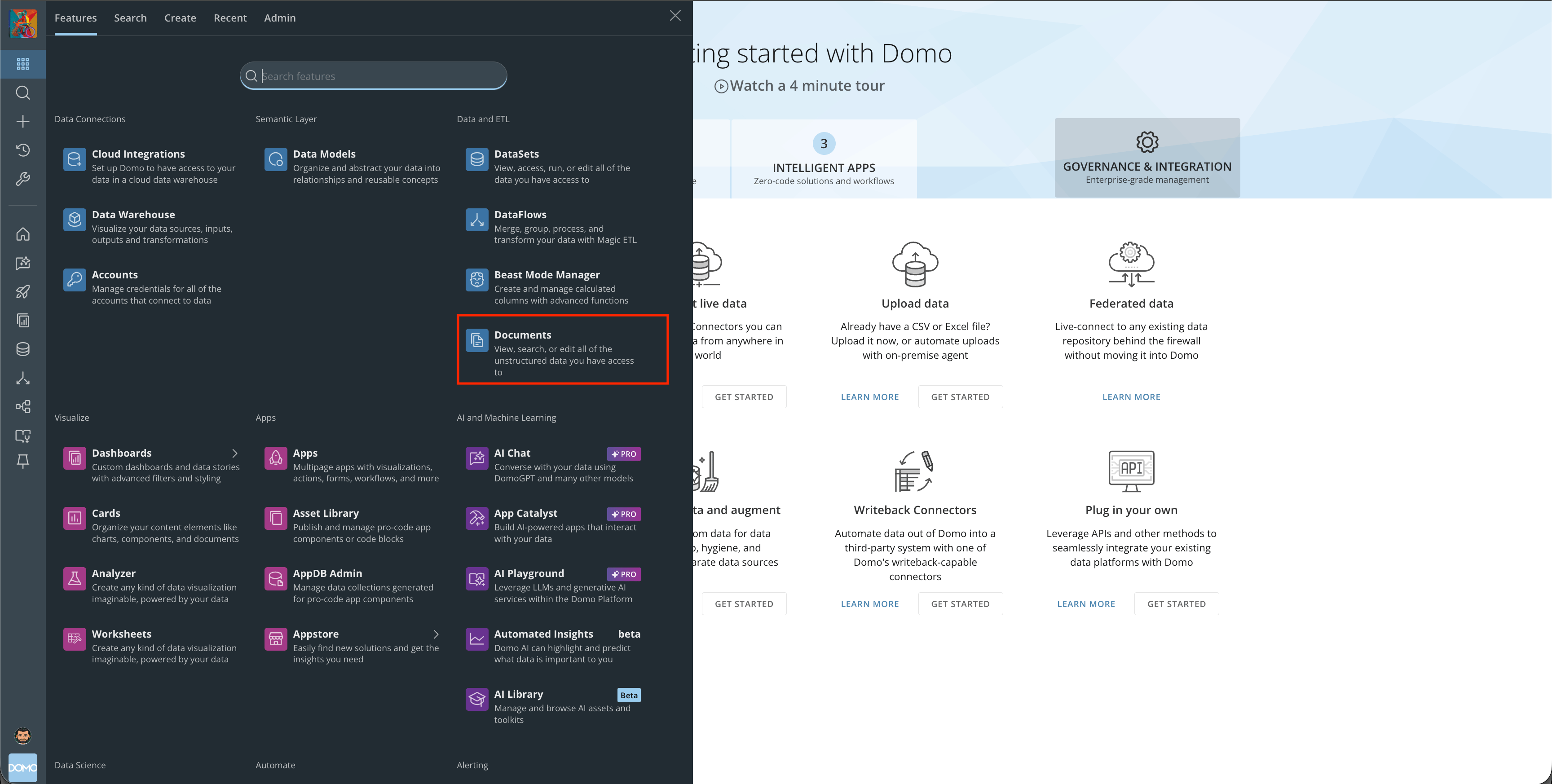
1. Navigate to **Domo Documents**.
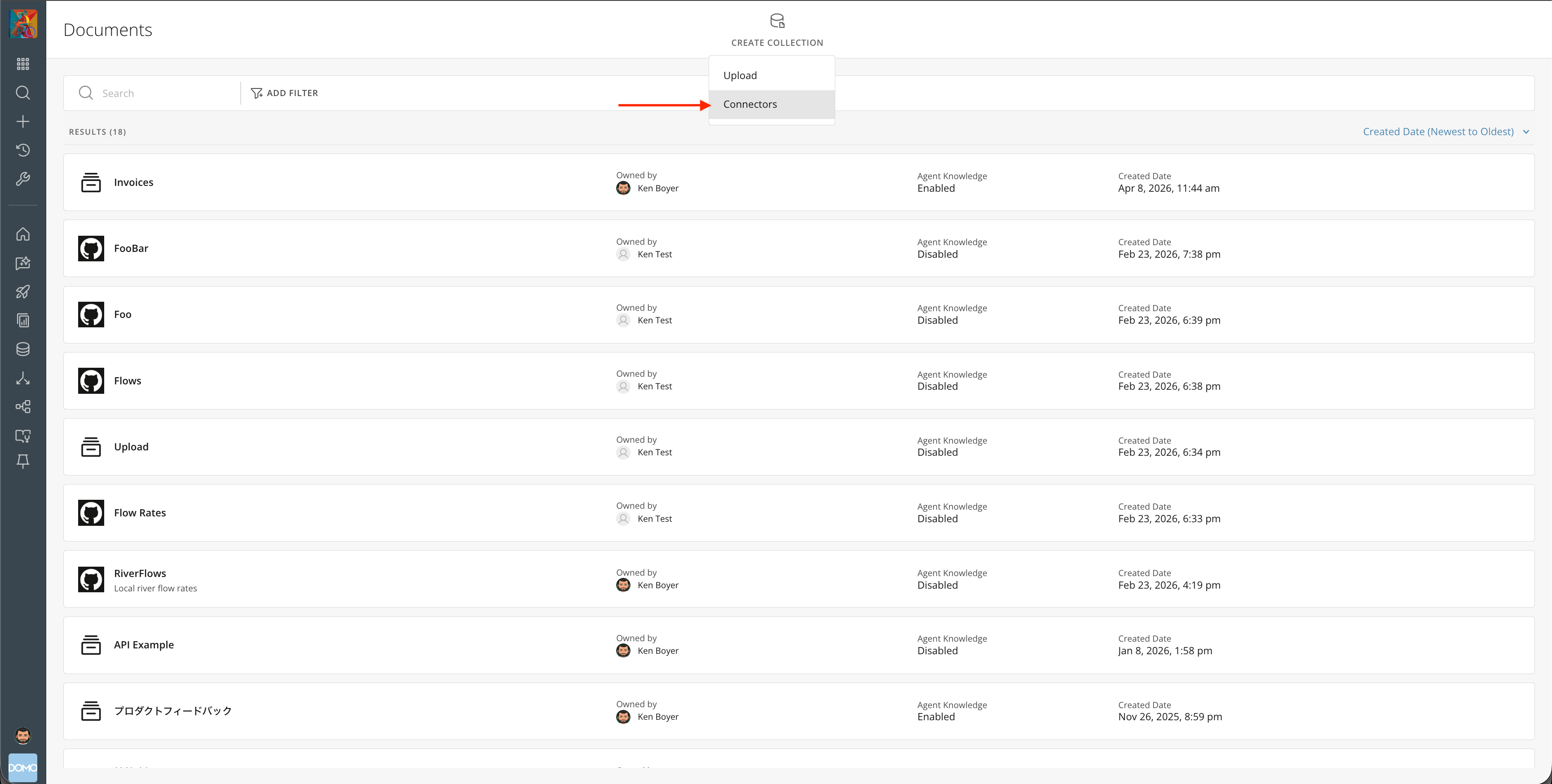
 2. Select **Create Collection**, then select **Connectors**.
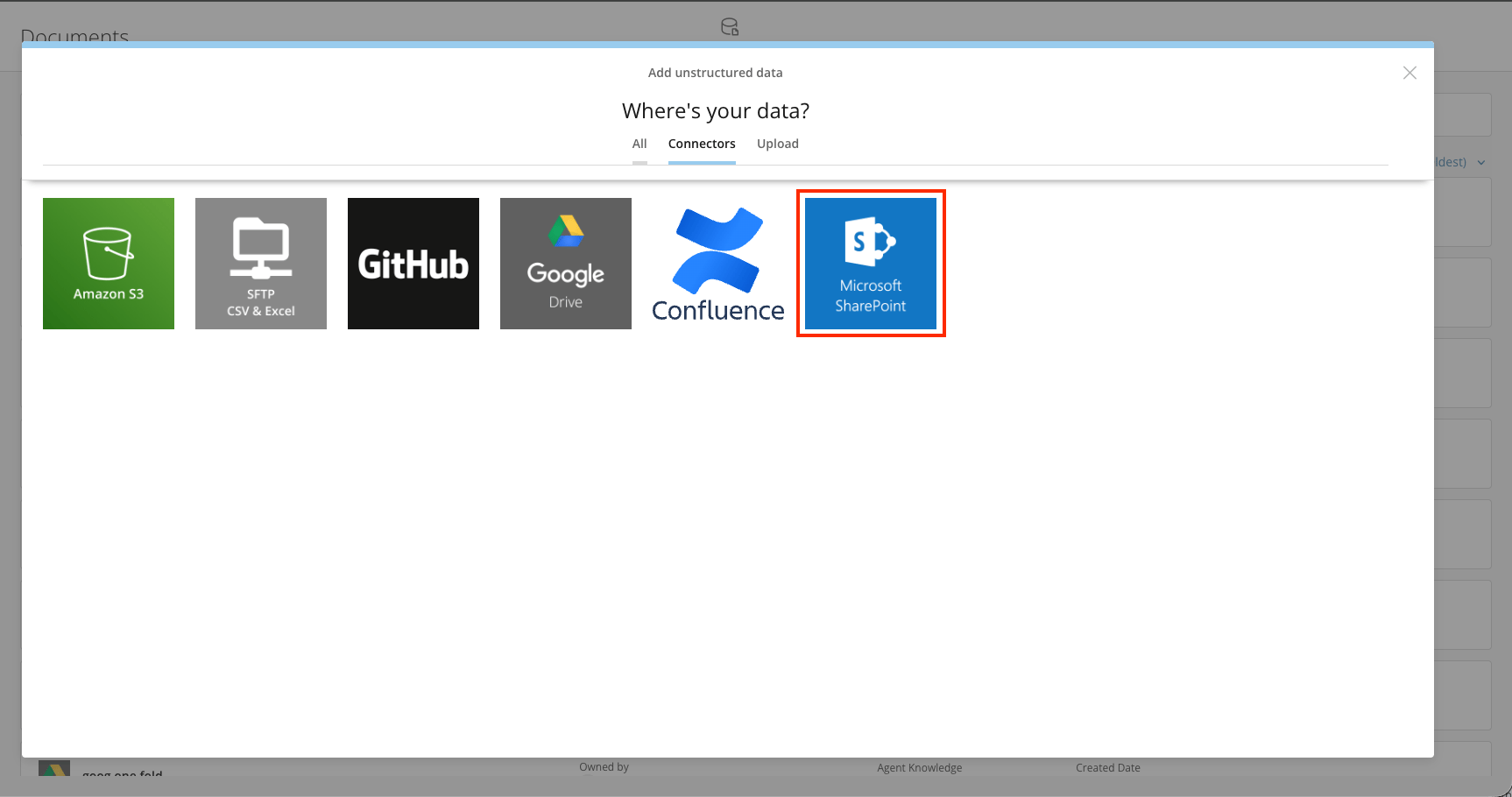
 3. Choose **Microsoft SharePoint**.
 4. Choose a Microsoft SharePoint account or create a new one.
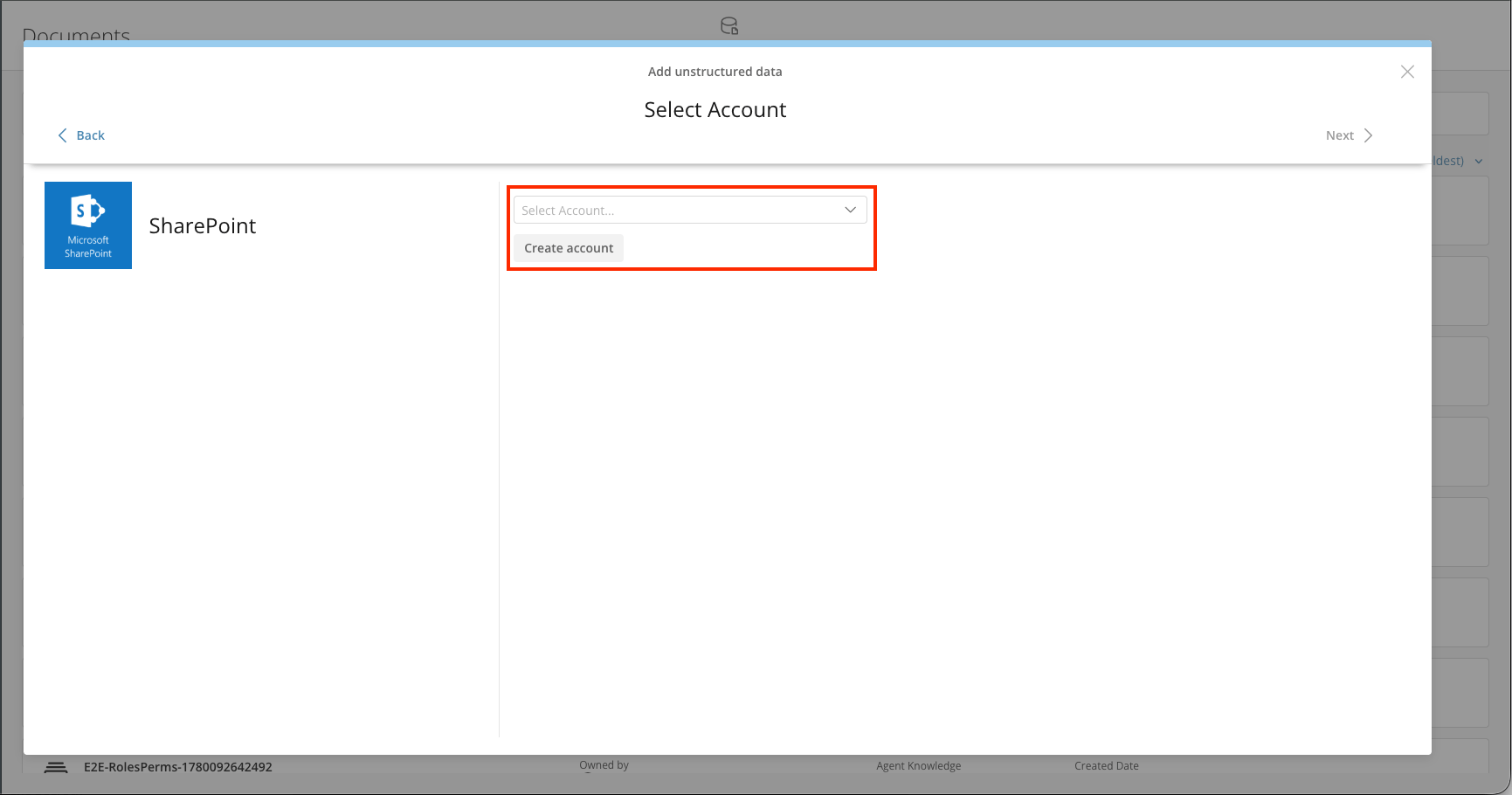 5. Select the **Microsoft SharePoint Online Rest Enterprise OAuth** account type.
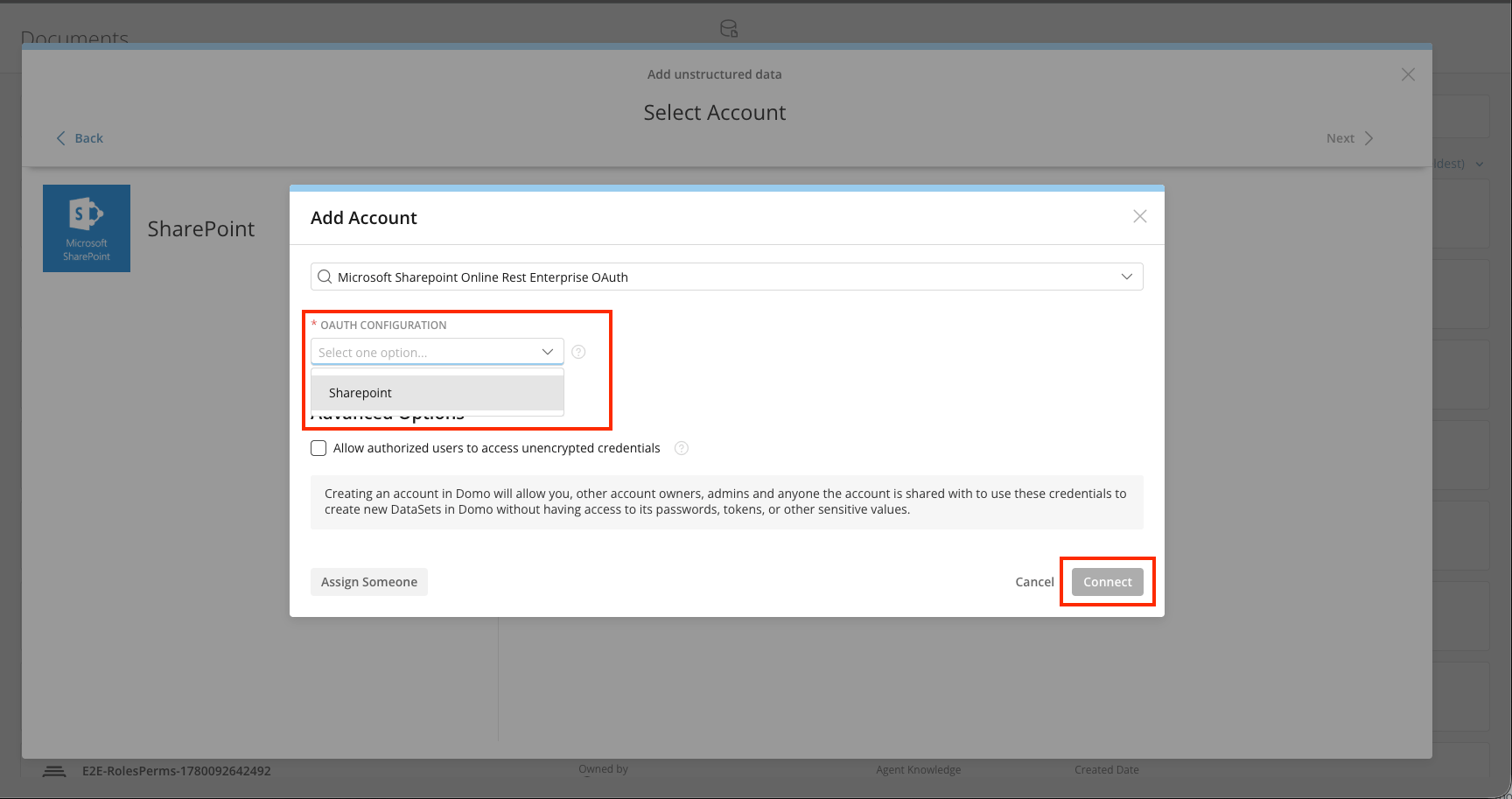
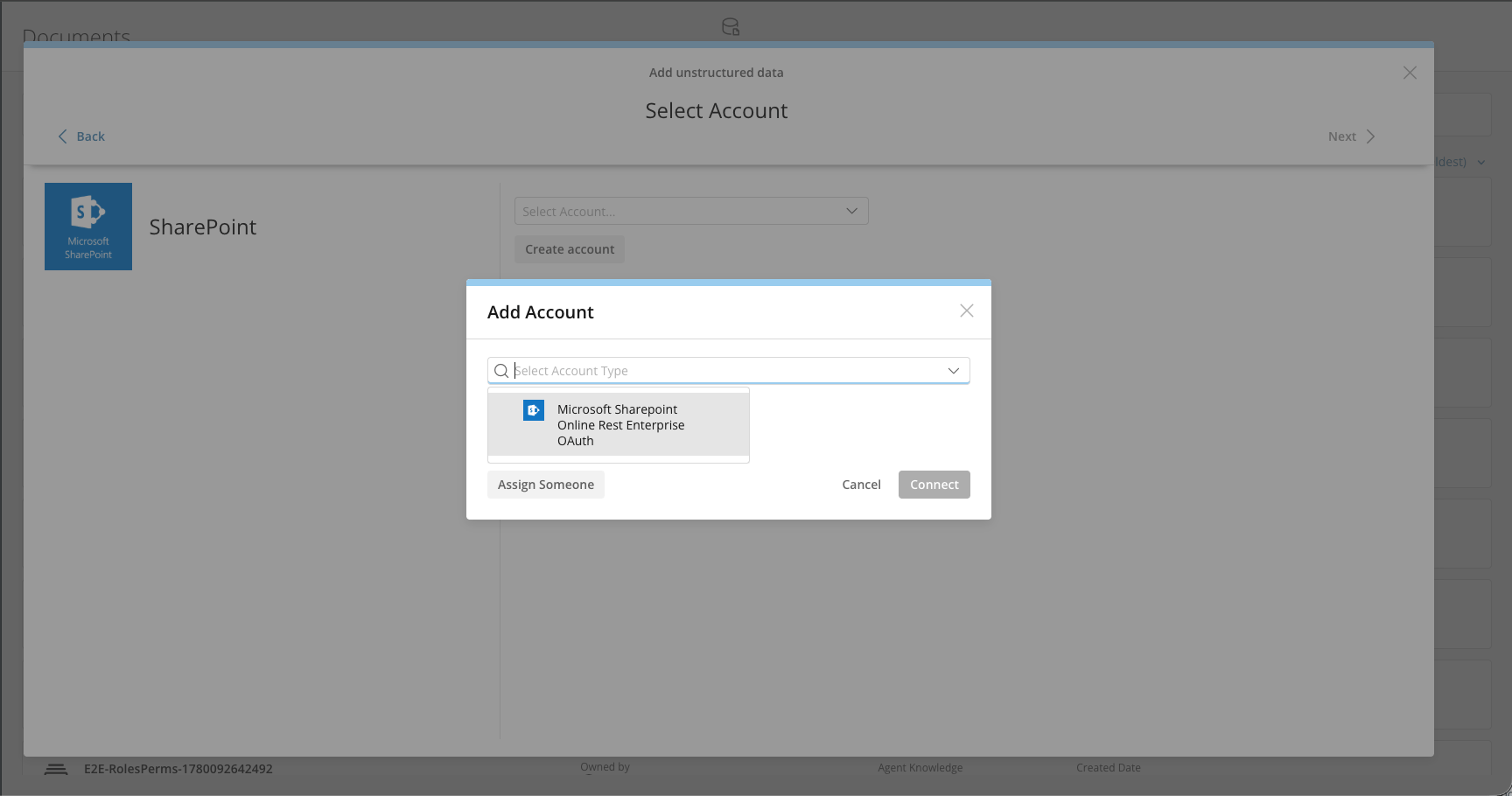 6. Choose a Microsoft SharePoint OAuth connection and select **Connect**.
**Note:** OAuth Configurations have service credentials stored by your administrator that automatically log you in, so only your personal OAuth login is required. Your administrator can create and edit configurations in the Data Center under the **Accounts** tab.
6. Choose a Microsoft SharePoint OAuth connection and select **Connect**.
**Note:** OAuth Configurations have service credentials stored by your administrator that automatically log you in, so only your personal OAuth login is required. Your administrator can create and edit configurations in the Data Center under the **Accounts** tab.
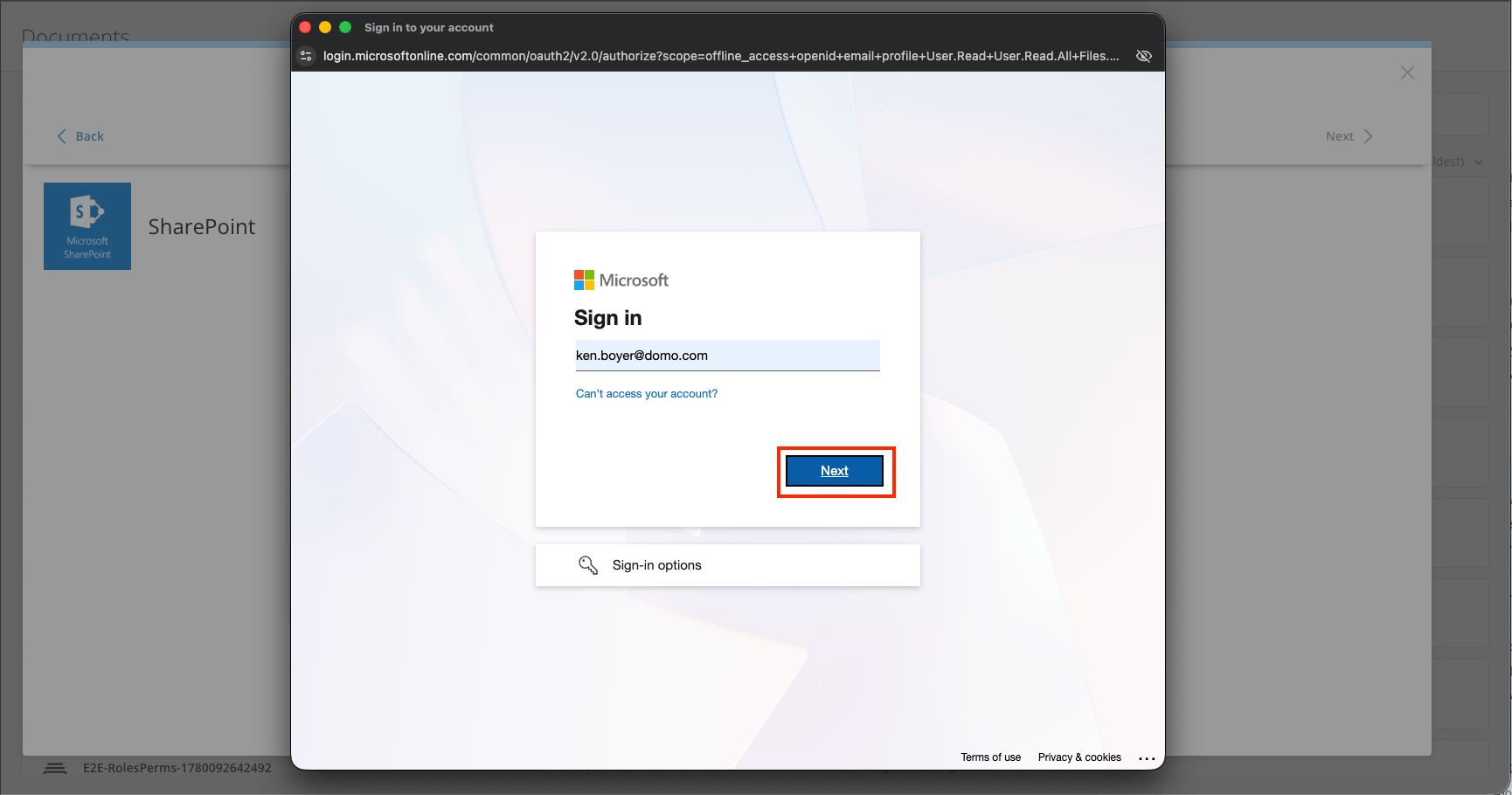
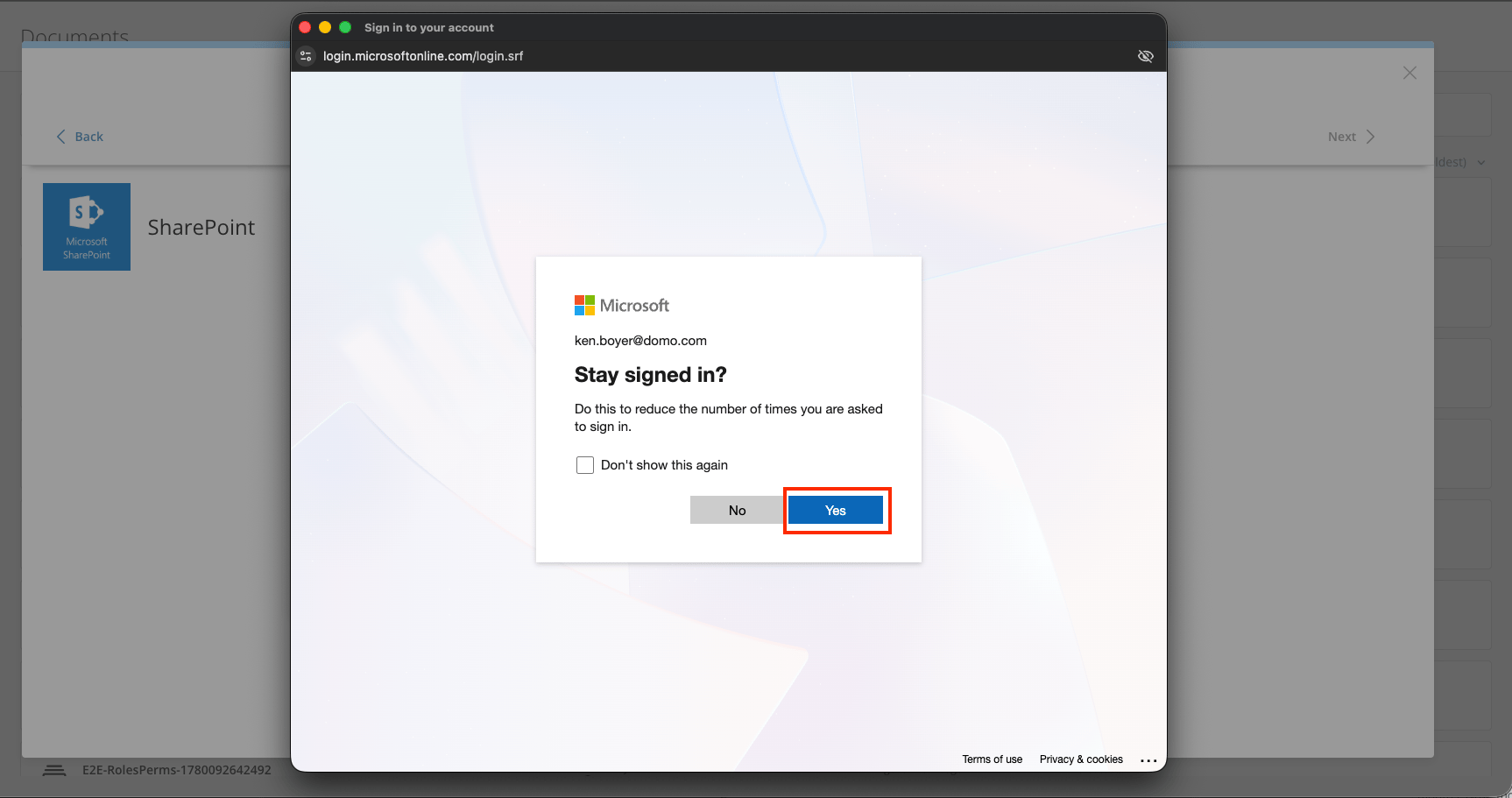
 7. Follow the OAuth sign-in flow.
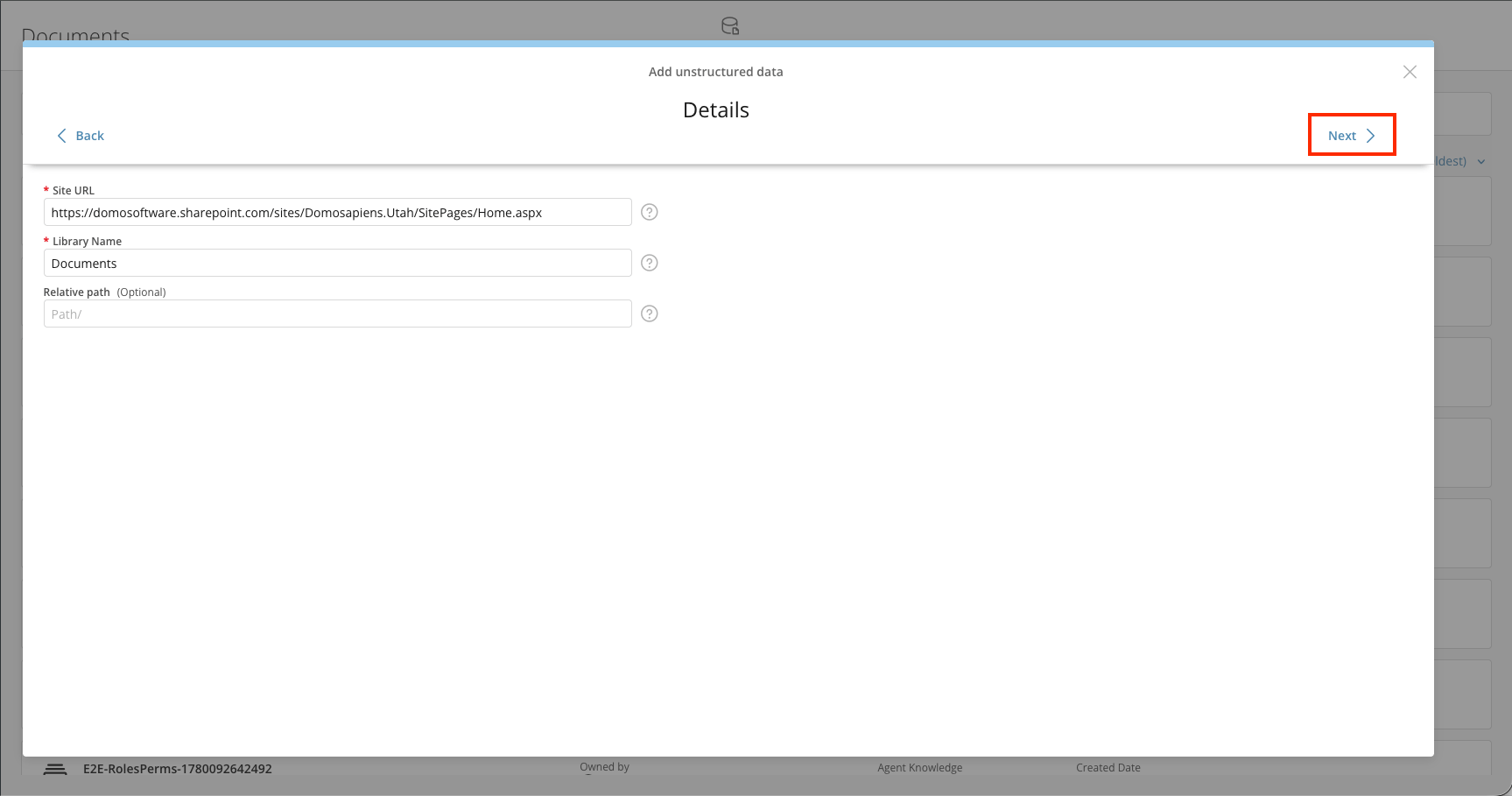
 8. Specify the **Site URL** and **Library Name**.
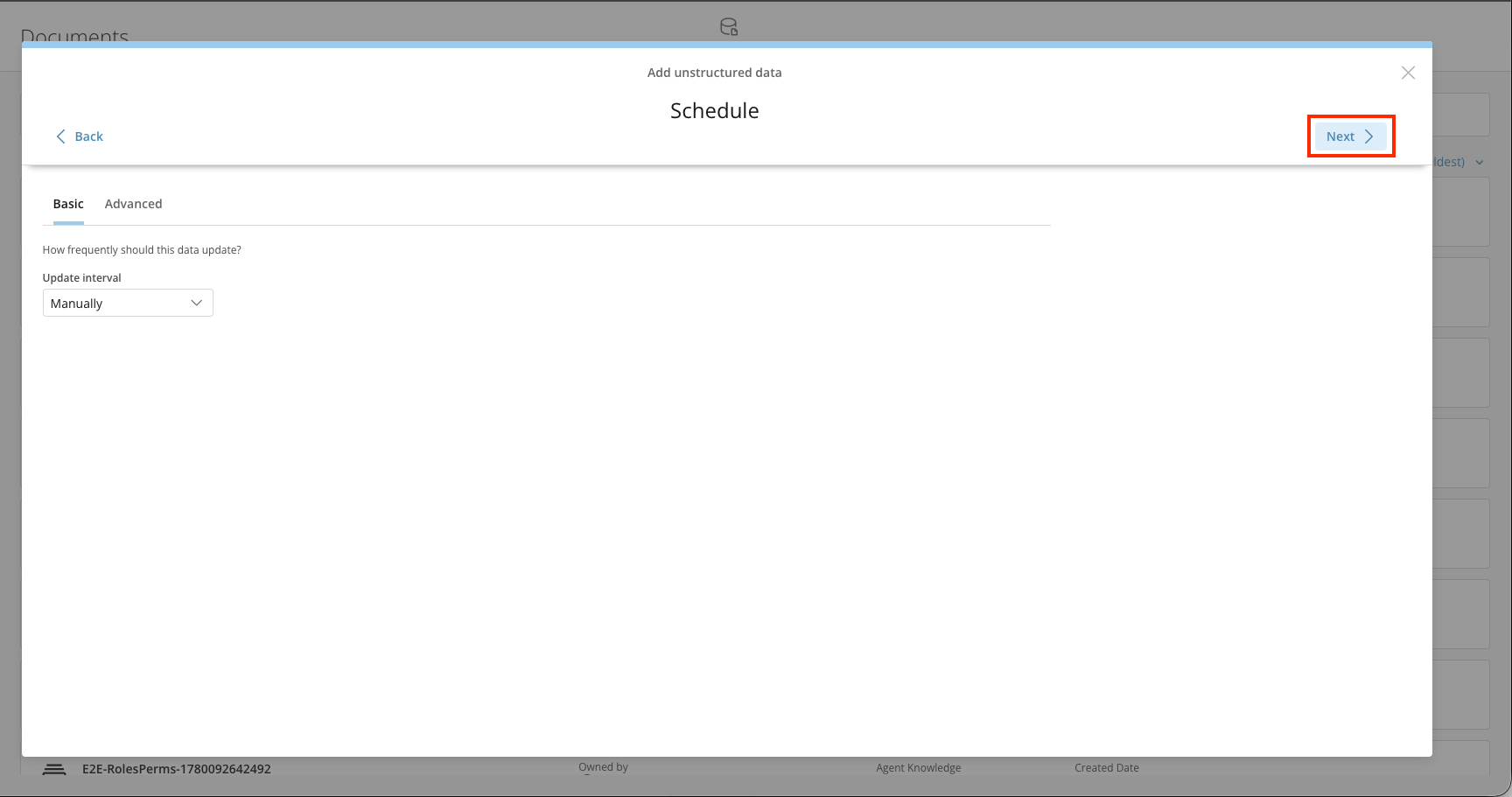
 9. Configure the update schedule.
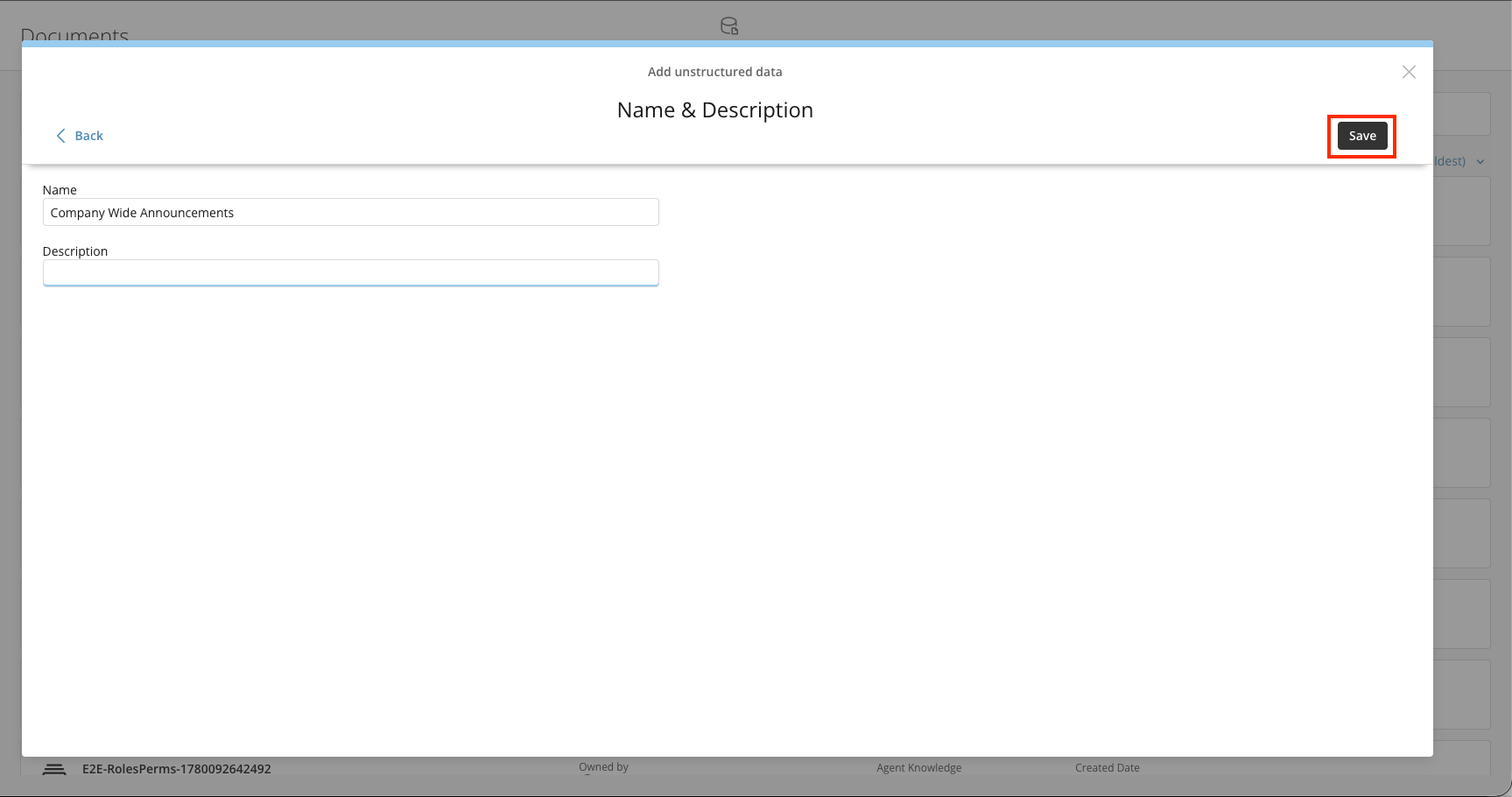
 10. Specify the **Name** and **Description** of this Document Collection.
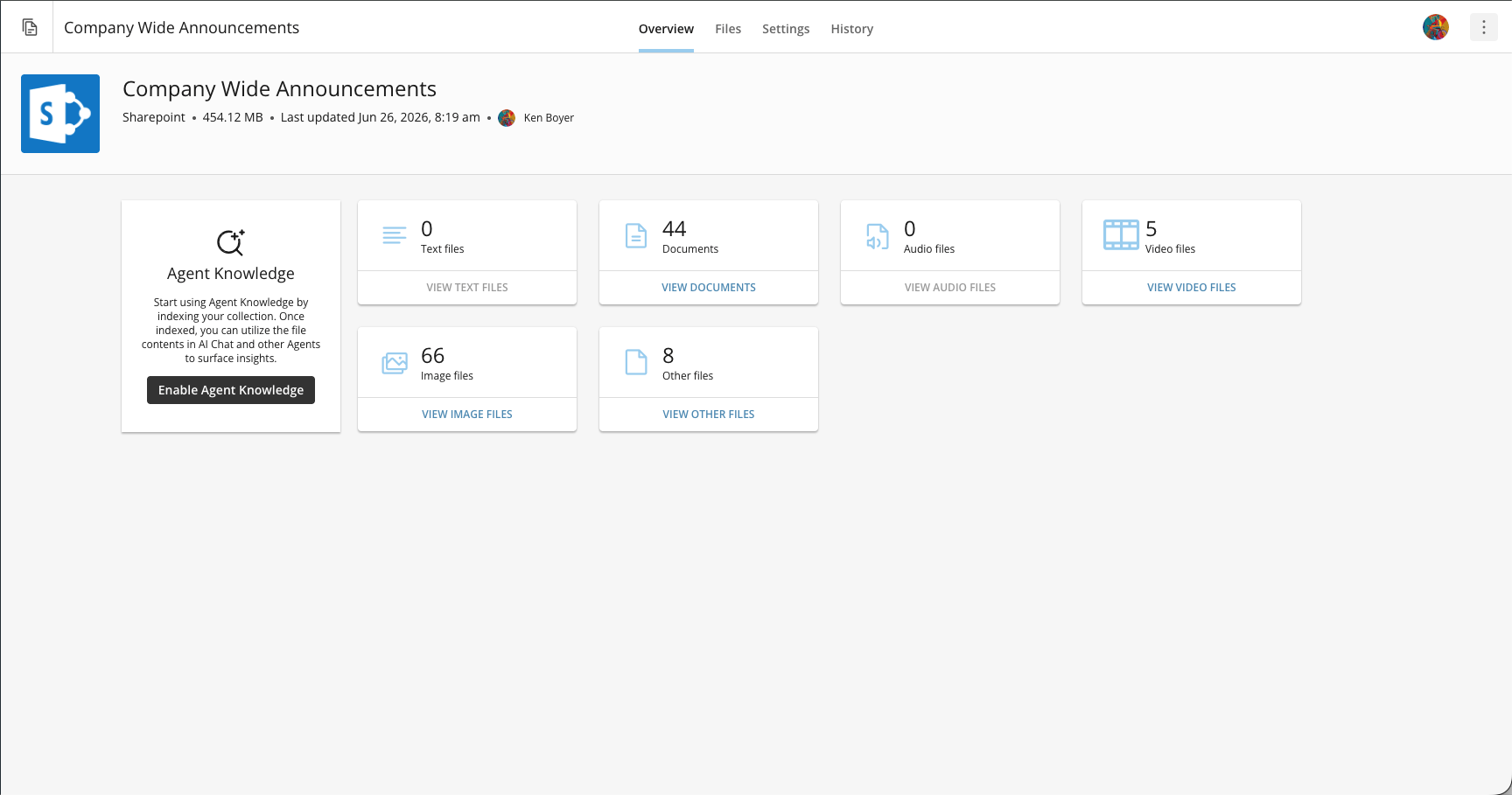
 Give the Collection some time to load the files. Select the **Files** tab to view a listing of the referenced files. Select the **Overview** tab to enable **Agent Knowledge**.