> ## Documentation Index
> Fetch the complete documentation index at: https://www.domo.com/docs/llms.txt
> Use this file to discover all available pages before exploring further.
# Magic ETL Tiles: Documents
## Intro
This article describes how to use the Documents tiles in Magic ETL.
Learn how to [create a Magic ETL DataFlow](/docs/s/article/360055259234).
**Note:** This feature is in beta. Beta Program participants can enable
features [here](https://embed.domo.com/embed/pages/DQ8Ek). To join the Beta
Program, fill out [this form](https://embed.domo.com/embed/pages/K8GMx). For beta questions or feedback, email
[beta.admin@domo.com](mailto:beta.admin@domo.com).
***
## Required Grants
To access the **Collection Input** tile in Magic ETL, the following grants must be enabled for your role:
* **Manage Documents —** View, edit, and delete any Document Collections in this instance.
* **Edit Documents —** Create and edit Document Collections to which you have access.
* **View Documents —** View only for any Document Collections to which you have access.
To generate alt text descriptions with the **Text Generation** tile, the following grants must also be enabled:
* Use AI Services
Learn more about [grants](/docs/s/article/360043438973).
## Admin Settings
Generative AI must be enabled for your instance before you can use the **Text Generation** tile. Go to **Admin** > **AI Service Layer** > **AI Settings** and turn on **Generative AI Enabled for Instance**. Learn more about [AI Admin Settings](/docs/s/article/AI-Admin-Settings).
## Collection Input Tile
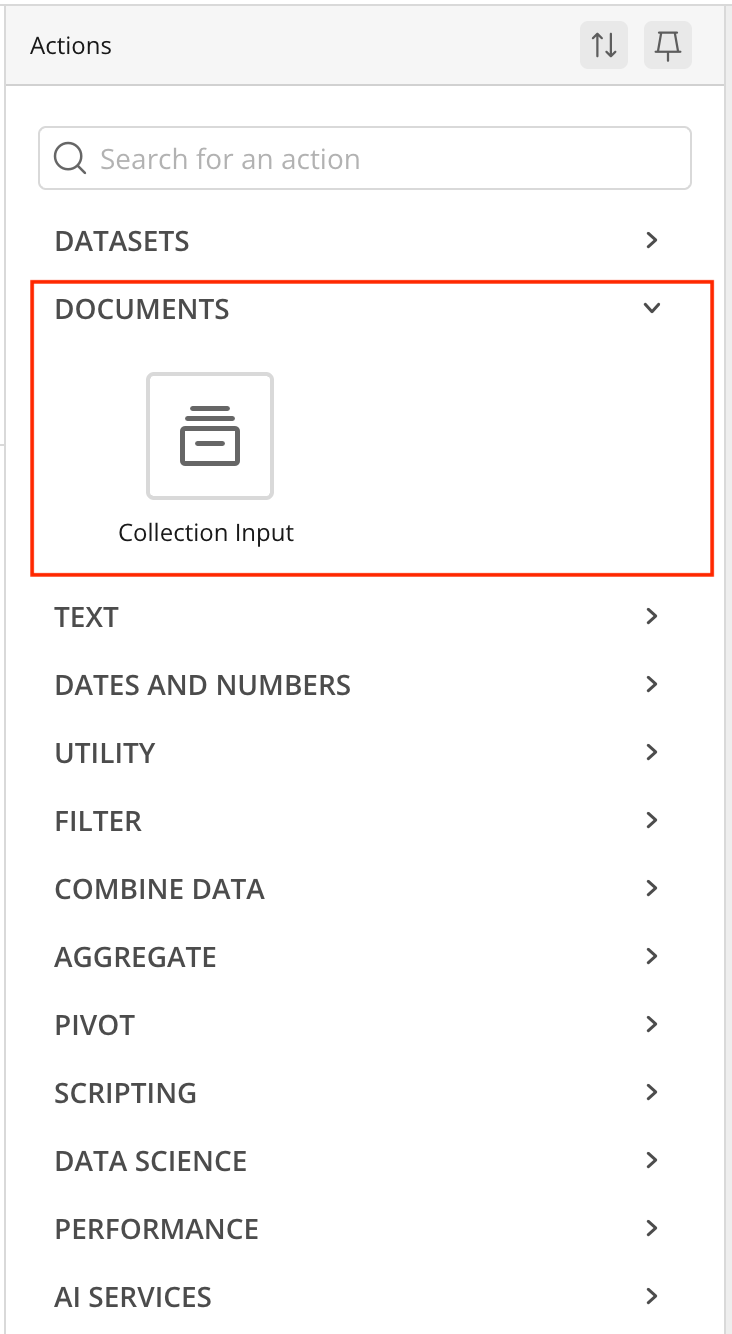
The **Collection Input** tile lets you select a Document Collection as an input to your ETL.
 ### Configure the Collection Input Tile
Follow these steps to configure the **Collection Input** tile:
1. Inside Magic ETL, drag a **Collection Input** tile to the canvas from the **Documents** section in the left panel. The tile editor opens below the canvas.
### Configure the Collection Input Tile
Follow these steps to configure the **Collection Input** tile:
1. Inside Magic ETL, drag a **Collection Input** tile to the canvas from the **Documents** section in the left panel. The tile editor opens below the canvas.
 2. Select a Document Collection from the **Source Collection** selector. The **Output Column Names** auto-populate; adjust them as needed.
## Use Cases
### Generate Alt Text Descriptions from Images
2. Select a Document Collection from the **Source Collection** selector. The **Output Column Names** auto-populate; adjust them as needed.
## Use Cases
### Generate Alt Text Descriptions from Images
 Follow these steps to generate alt text descriptions for images using a **Collection Input** tile together with a **Text Generation** tile:
1. Inside Magic ETL, drag a **Collection Input** tile to the canvas from the **Documents** section in the left panel.
2. Select a Document Collection from the **Source Collection** selector. The **Output Column Names** auto-populate; adjust them as needed.
3. Drag a **Text Generation** tile to the canvas from the **AI Services** section in the left panel.
4. For **Model**, select **Domo GPT-Small v2.1**.
5. For **Execution Preference**, select **Batch**.
6. Set the **Instructions** field to "Create an alt text description."
7. Set the **Prompt** field to "Create an alt text description for this image that I want to put on my blog."
8. For the optional file input, select `collection_id` and `path`.
9. Configure the output: set the output column name to `output`, the type to **Text**, and the description to "alt text description."
10. Drag an **Output DataSet** tile to the canvas from the **Datasets** section in the left panel to configure an output DataSet.
11. Set the name to "alt text description."
12. Select **Close and Run**.
## Related Articles
* [Magic ETL Tiles: AI Services](/docs/s/article/000005741)
* [Documents](/docs/s/article/Documents)
* [Create a Magic ETL DataFlow](/docs/s/article/360055259234)
Follow these steps to generate alt text descriptions for images using a **Collection Input** tile together with a **Text Generation** tile:
1. Inside Magic ETL, drag a **Collection Input** tile to the canvas from the **Documents** section in the left panel.
2. Select a Document Collection from the **Source Collection** selector. The **Output Column Names** auto-populate; adjust them as needed.
3. Drag a **Text Generation** tile to the canvas from the **AI Services** section in the left panel.
4. For **Model**, select **Domo GPT-Small v2.1**.
5. For **Execution Preference**, select **Batch**.
6. Set the **Instructions** field to "Create an alt text description."
7. Set the **Prompt** field to "Create an alt text description for this image that I want to put on my blog."
8. For the optional file input, select `collection_id` and `path`.
9. Configure the output: set the output column name to `output`, the type to **Text**, and the description to "alt text description."
10. Drag an **Output DataSet** tile to the canvas from the **Datasets** section in the left panel to configure an output DataSet.
11. Set the name to "alt text description."
12. Select **Close and Run**.
## Related Articles
* [Magic ETL Tiles: AI Services](/docs/s/article/000005741)
* [Documents](/docs/s/article/Documents)
* [Create a Magic ETL DataFlow](/docs/s/article/360055259234)