> ## Documentation Index
> Fetch the complete documentation index at: https://www.domo.com/docs/llms.txt
> Use this file to discover all available pages before exploring further.
# Fiscal and Standard Calendar Configuration for Cloud Integrations
export const BetaNote = ({generic = false}) =>
Note:{" "}
{generic ? "" : "This feature is in beta. "}
Beta Program participants can enable features{" "}
here. To join the
Beta Program, fill out{" "}
this form. For beta
questions or feedback, email{" "}
beta.admin@domo.com.
;
## Intro
This article explains how to register a fiscal calendar, register a localized standard calendar, and edit or disable a registered calendar for a Snowflake or Databricks Cloud Integration.
This is available for Snowflake and Databricks Cloud Integrations. You configure it once per integration, and every card and DataSet connected to that integration can use it.
***
**Note:** You need Owner or Admin access to the Snowflake or Databricks integration to configure calendars for it. If you're not sure what access level you have, or need to request Owner or Admin access, contact the integration's current owner or your Domo administrator.
## Review the Calendar Types
You can register two independent calendar types on the same integration, side by side:
| Calendar type | What it's for | Example |
| --------------------- | ------------------------------------------------------------------------------------------- | ---------------------------------------------- |
| **Fiscal Calendar** | A financial year that doesn't start in January | Fiscal year starting April 1 |
| **Standard Calendar** | The regular Jan–Dec calendar, with month and period labels translated into another language | Month and quarter names in Japanese or Spanish |
Registering both is optional and independent — you might set up only a **Fiscal Calendar**, only a **Standard Calendar**, or both.
## Prerequisites
Before you register a calendar, you need a calendar table in your Snowflake or Databricks warehouse that matches Domo's expected schema: 25 columns with specific names, covering every date in the years you want to report on. Row values (day and month names) can be in any language, but the column names themselves must always be in English.
If you already have a table like this, you can register it directly (see [Register an Existing Calendar Table](#register-an-existing-calendar-table)). If you don't have a Fiscal Calendar table, use the built-in generator to create one (see [Generate a New Fiscal Calendar](#generate-a-new-fiscal-calendar)). The generator only builds Fiscal Calendar tables — a Standard Calendar table must be built manually before you can register it.
### Reference the 25-Column Schema
Example values assume a fiscal year starting in March.
| Column | Example value | Description |
| -------------------- | ------------- | --------------------------------------- |
| "DOMO\_Key" | `1990-01-01` | Unique key for the row (matches "Date") |
| "Date" | `1990-01-01` | Calendar date |
| "DayOfWeek" | `Monday` | Day name |
| "DayNumberInWeek" | `1` | Day's position in the week |
| "DayNumberInMonth" | `1` | Day's position in the month |
| "DayNumberInQuarter" | `32` | Day's position in the quarter |
| "DayNumberInYear" | `307` | Day's position in the fiscal year |
| "WeekNumberInYear" | `45` | Week's position in the fiscal year |
| "MonthName" | `January` | Full month name |
| "MonthAbrv" | `Jan` | Abbreviated month name |
| "MonthNumberInYear" | `11` | Month's position in the fiscal year |
| "Quarter" | `Q4` | Fiscal quarter |
| "Year" | `1989` | Fiscal year |
| "CalendarMonth" | `1990-Jan` | Calendar-year month label |
| "CalendarQuarter" | `1989-Q4` | Calendar-year quarter label |
| "WeekStart" | `1990-01-01` | First date of the week |
| "QuarterStart" | `1989-12-01` | First date of the quarter |
| "DaySinceEpoch" | `7306` | Sequential day count |
| "WeekSinceEpoch" | `1043` | Sequential week count |
| "MonthSinceEpoch" | `241` | Sequential month count |
| "QuarterSinceEpoch" | `83` | Sequential quarter count |
| "YearSinceEpoch" | `20` | Sequential year count |
| "MonthStart" | `1990-01-01` | First date of the month |
| "YearStart" | `1989-03-01` | First date of the fiscal year |
| "QuarterOfYear" | `4` | Quarter's position in the fiscal year |
## Access Calendar Settings
1. Open the Snowflake or Databricks integration whose calendar you want to configure.
2. Select the **wrench** icon. A menu opens.
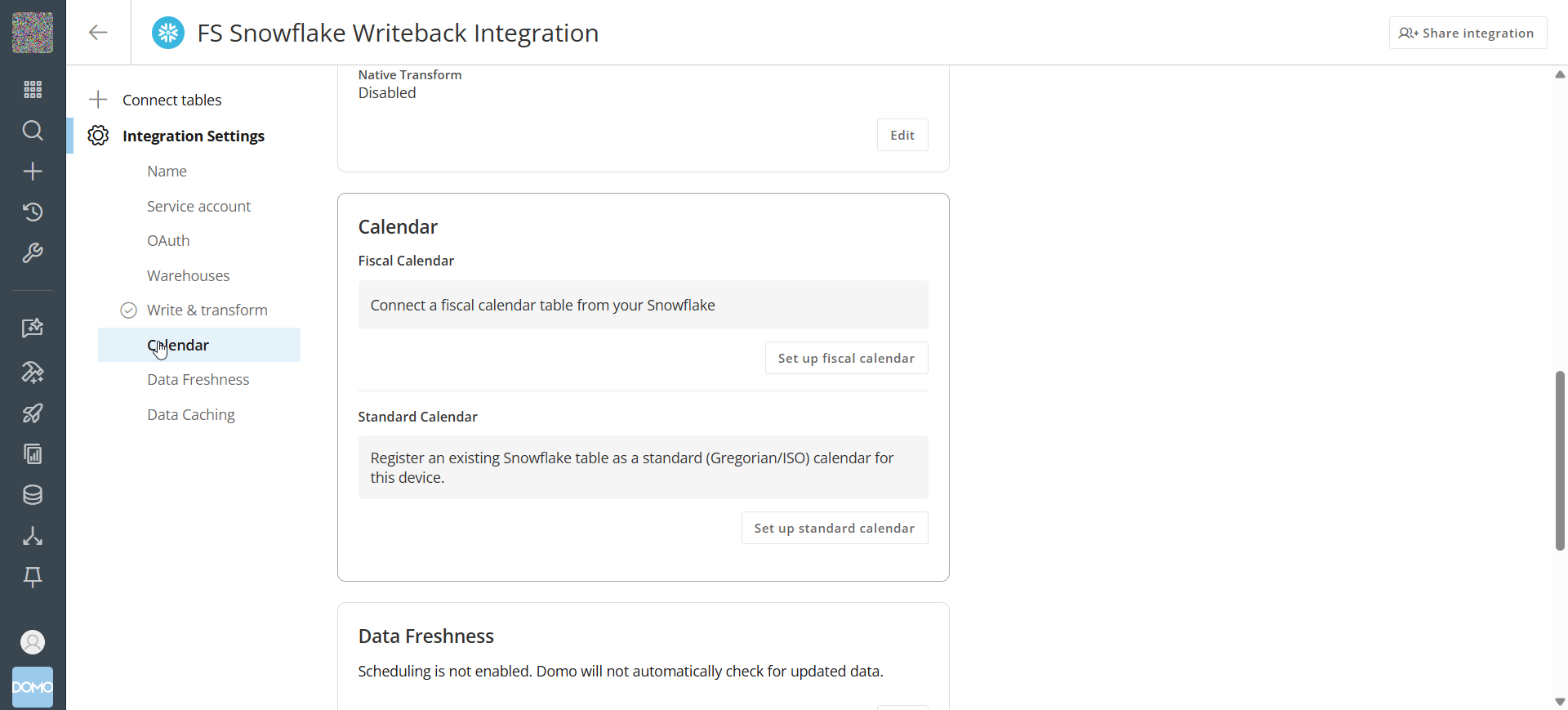
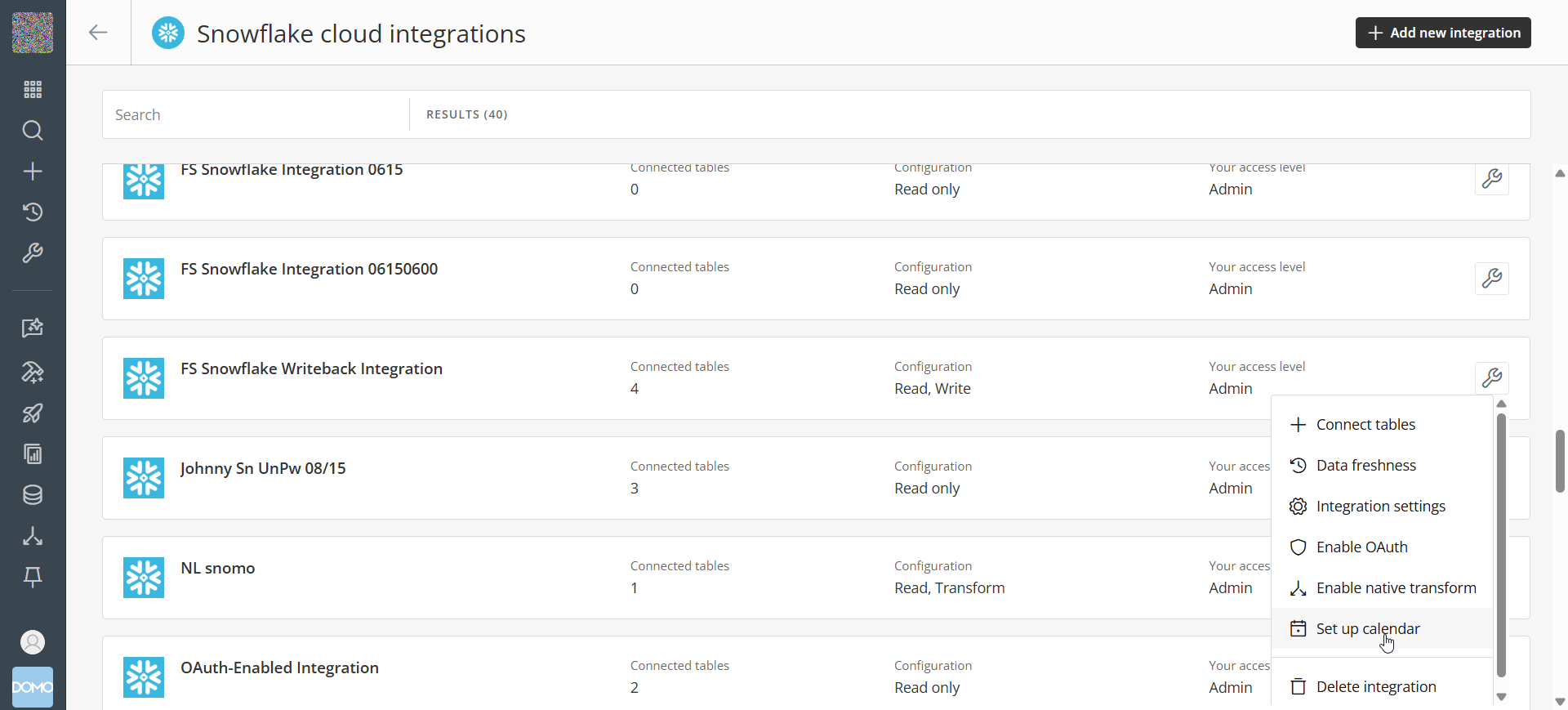 3. Select **Set up calendar**. The **Calendar** section of the integration's settings opens, showing **Fiscal Calendar** and **Standard Calendar** subsections.
 ## Generate a New Fiscal Calendar
If you don't already have a fiscal calendar table, Domo can generate one for you as a downloadable CSV that already matches the required schema. You then load that CSV into a table in your own warehouse before registering it.
1. In the **Calendar** section, under **Fiscal Calendar**, select **Set up fiscal calendar**. A menu opens.
2. Select **Generate a new fiscal calendar**. The fiscal calendar generator opens to the **Select Type** step.
## Generate a New Fiscal Calendar
If you don't already have a fiscal calendar table, Domo can generate one for you as a downloadable CSV that already matches the required schema. You then load that CSV into a table in your own warehouse before registering it.
1. In the **Calendar** section, under **Fiscal Calendar**, select **Set up fiscal calendar**. A menu opens.
2. Select **Generate a new fiscal calendar**. The fiscal calendar generator opens to the **Select Type** step.
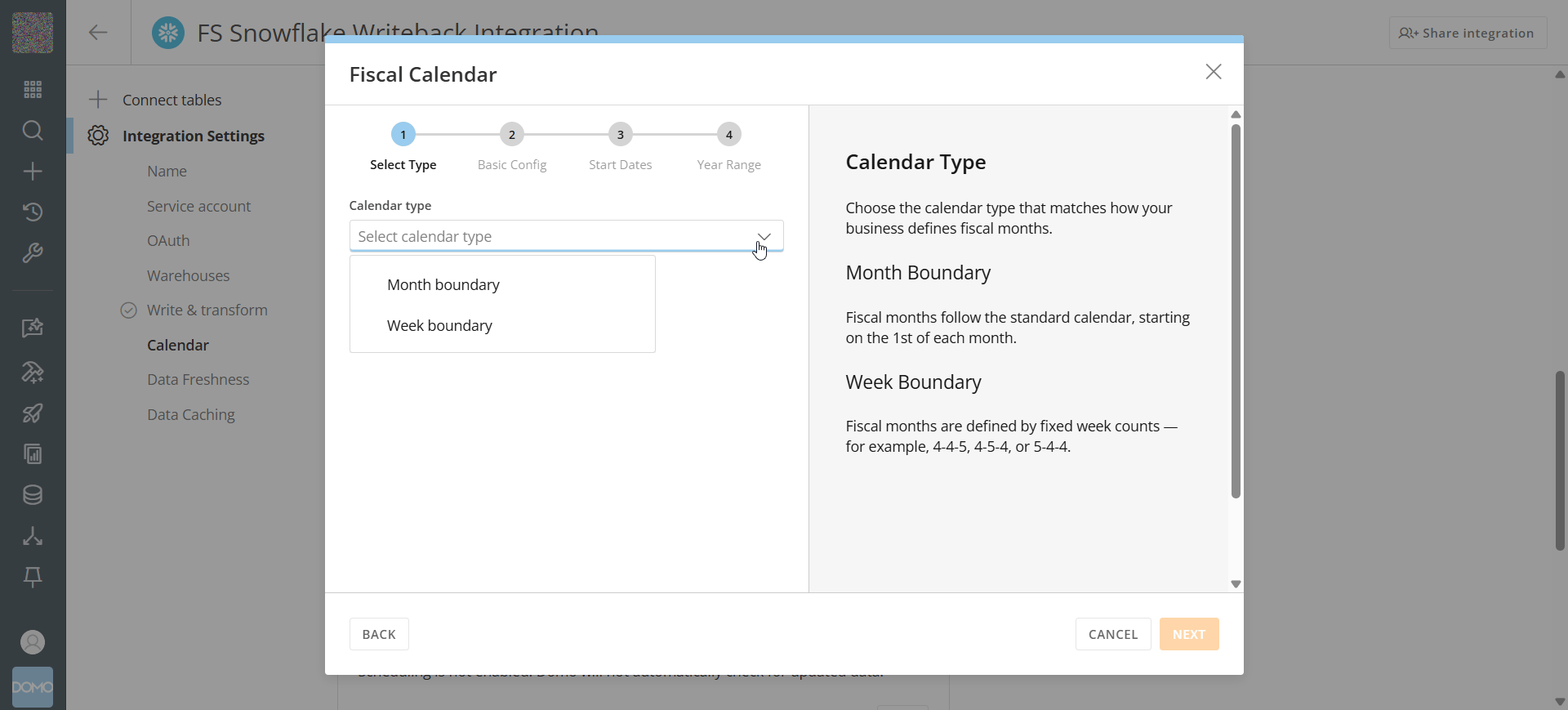
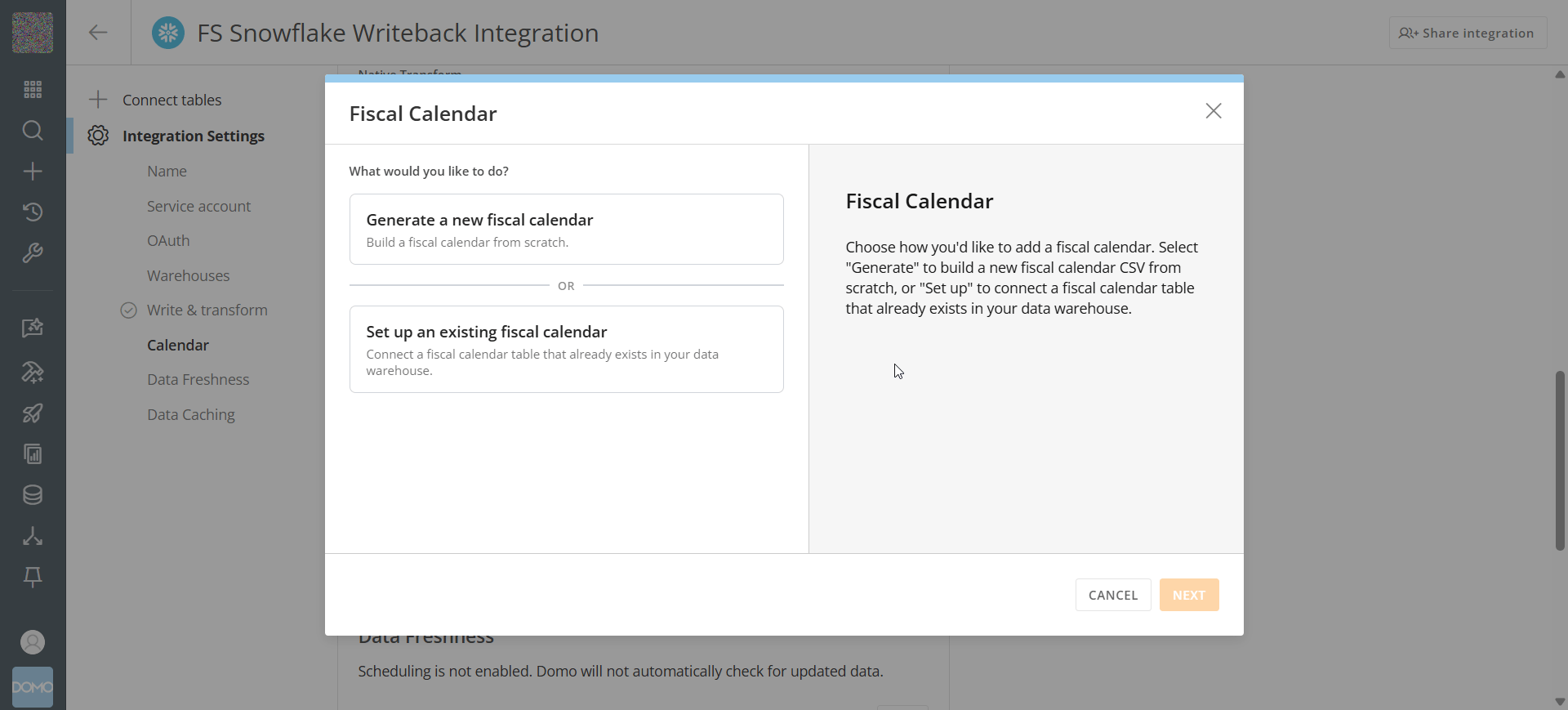 3. Choose how your fiscal year is structured, then select **Next**:
* **Month Boundary** — fiscal months follow the standard calendar, starting on the first of each month.
* **Week Boundary** — fiscal months are defined by fixed week counts (for example, 4-4-5, 4-5-4, or 5-4-4).
3. Choose how your fiscal year is structured, then select **Next**:
* **Month Boundary** — fiscal months follow the standard calendar, starting on the first of each month.
* **Week Boundary** — fiscal months are defined by fixed week counts (for example, 4-4-5, 4-5-4, or 5-4-4).
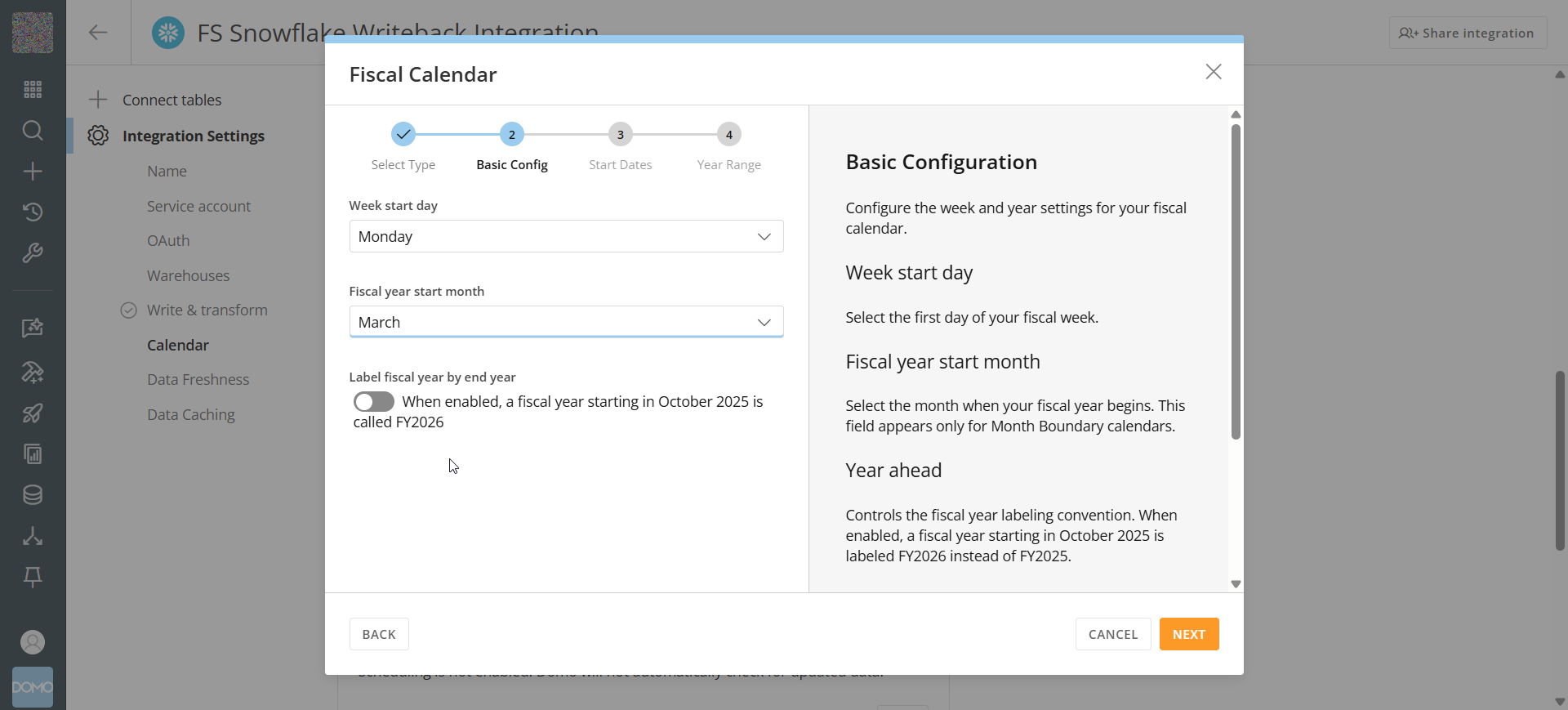
 4. Select your **Week start day**.
5. (Conditional) If you selected **Month Boundary**, select your **Fiscal year start month**. This field only appears for **Month Boundary** calendars.
6. (Optional) Enable **Label fiscal year by end year** if you want a fiscal year that starts in, for example, October 2025 to be labeled FY2026 instead of FY2025.
4. Select your **Week start day**.
5. (Conditional) If you selected **Month Boundary**, select your **Fiscal year start month**. This field only appears for **Month Boundary** calendars.
6. (Optional) Enable **Label fiscal year by end year** if you want a fiscal year that starts in, for example, October 2025 to be labeled FY2026 instead of FY2025.
 7. Select **Next**.
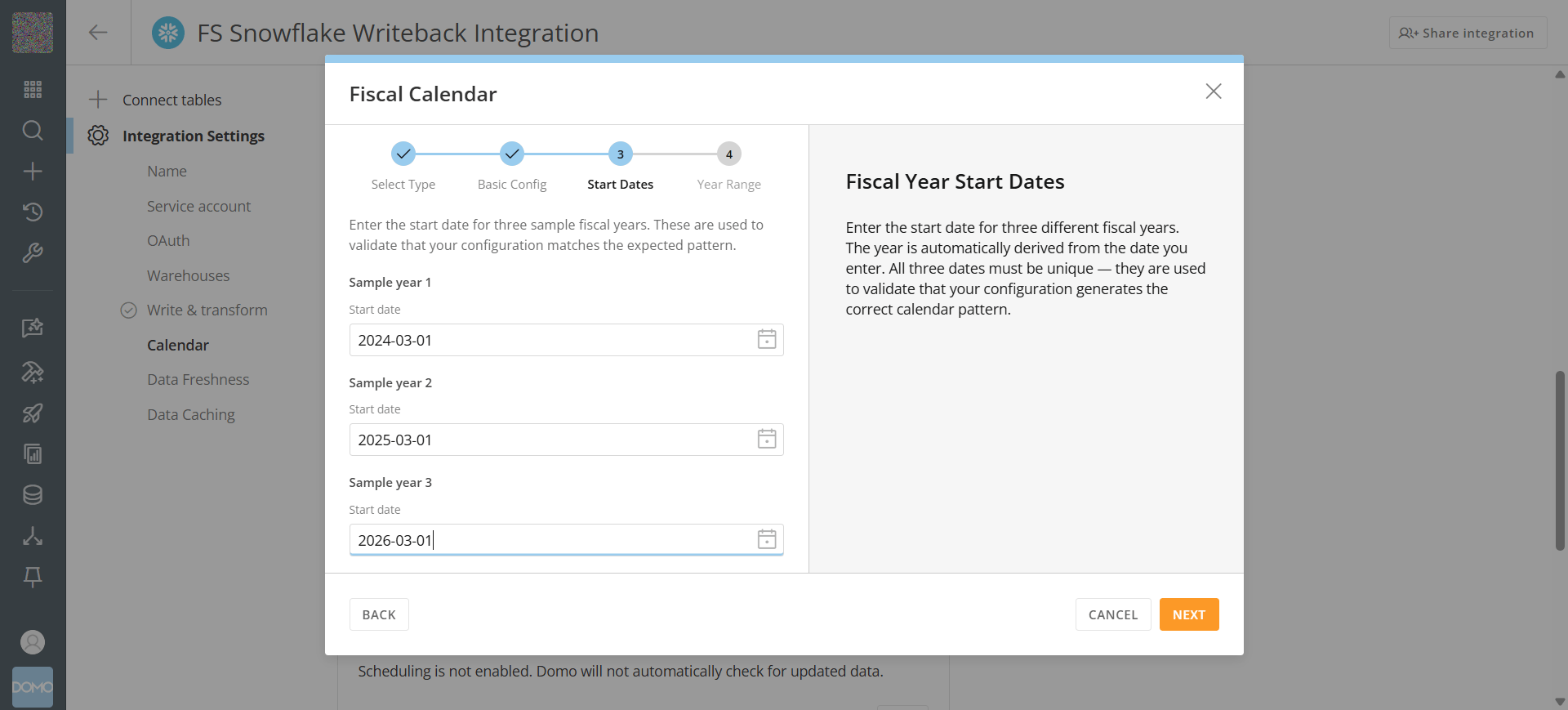
8. Enter the start date for three sample fiscal years, using the same month and day with different years, then select **Next**. Domo uses these dates to validate that the calendar it generates matches the pattern you described.
7. Select **Next**.
8. Enter the start date for three sample fiscal years, using the same month and day with different years, then select **Next**. Domo uses these dates to validate that the calendar it generates matches the pattern you described.
 9. Set the range of calendar years to generate. The default range, 1990 to 2099, covers most business needs.
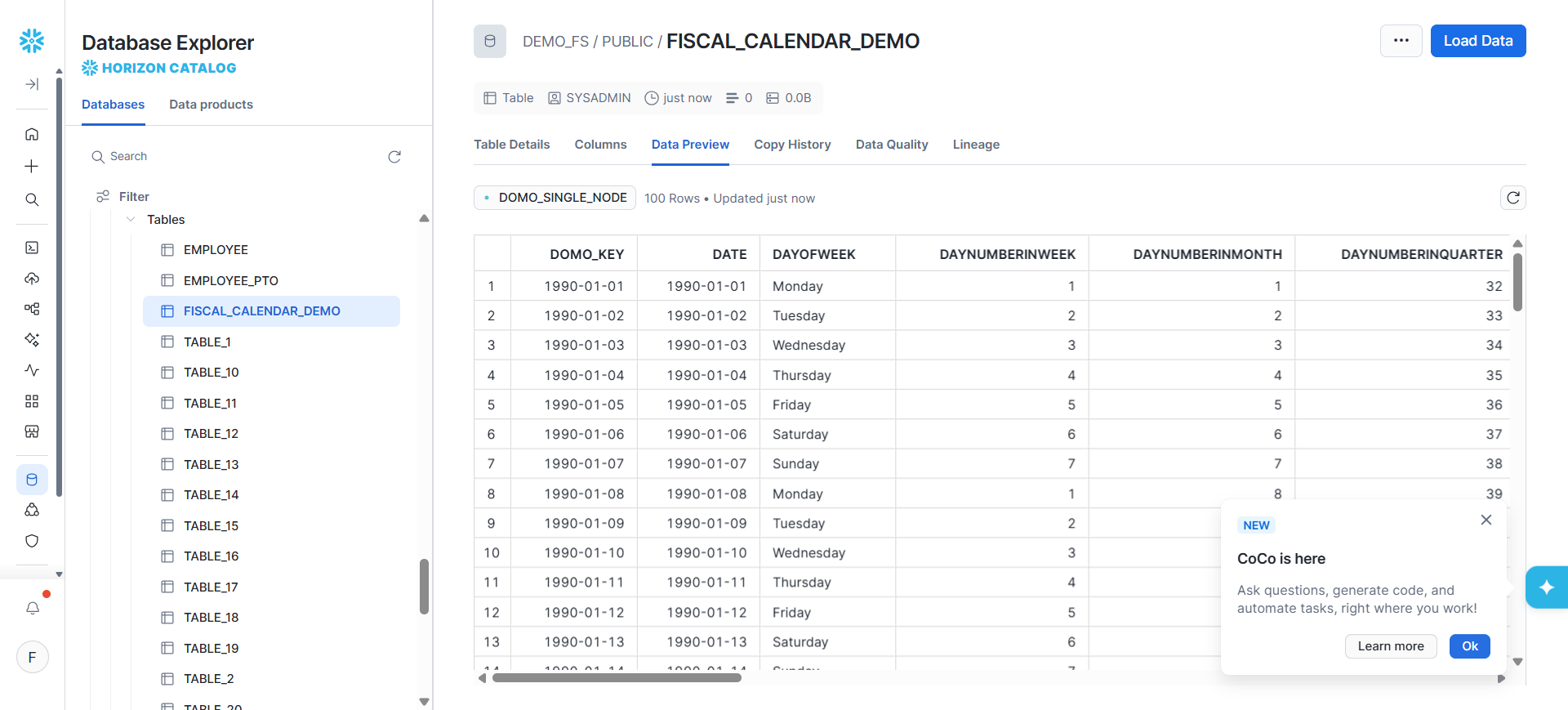
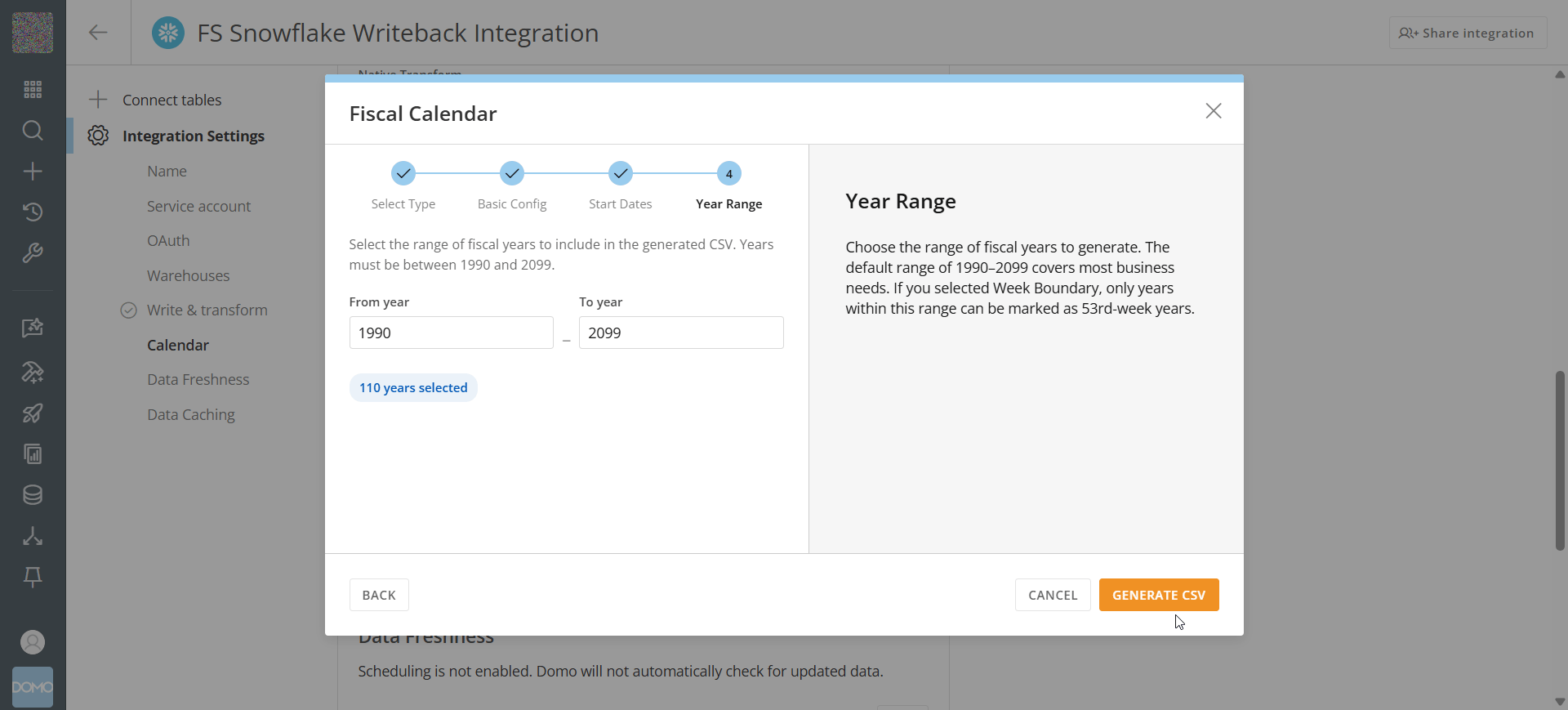 10. Select **Generate CSV**. Domo downloads a CSV file matching the 25-column schema.
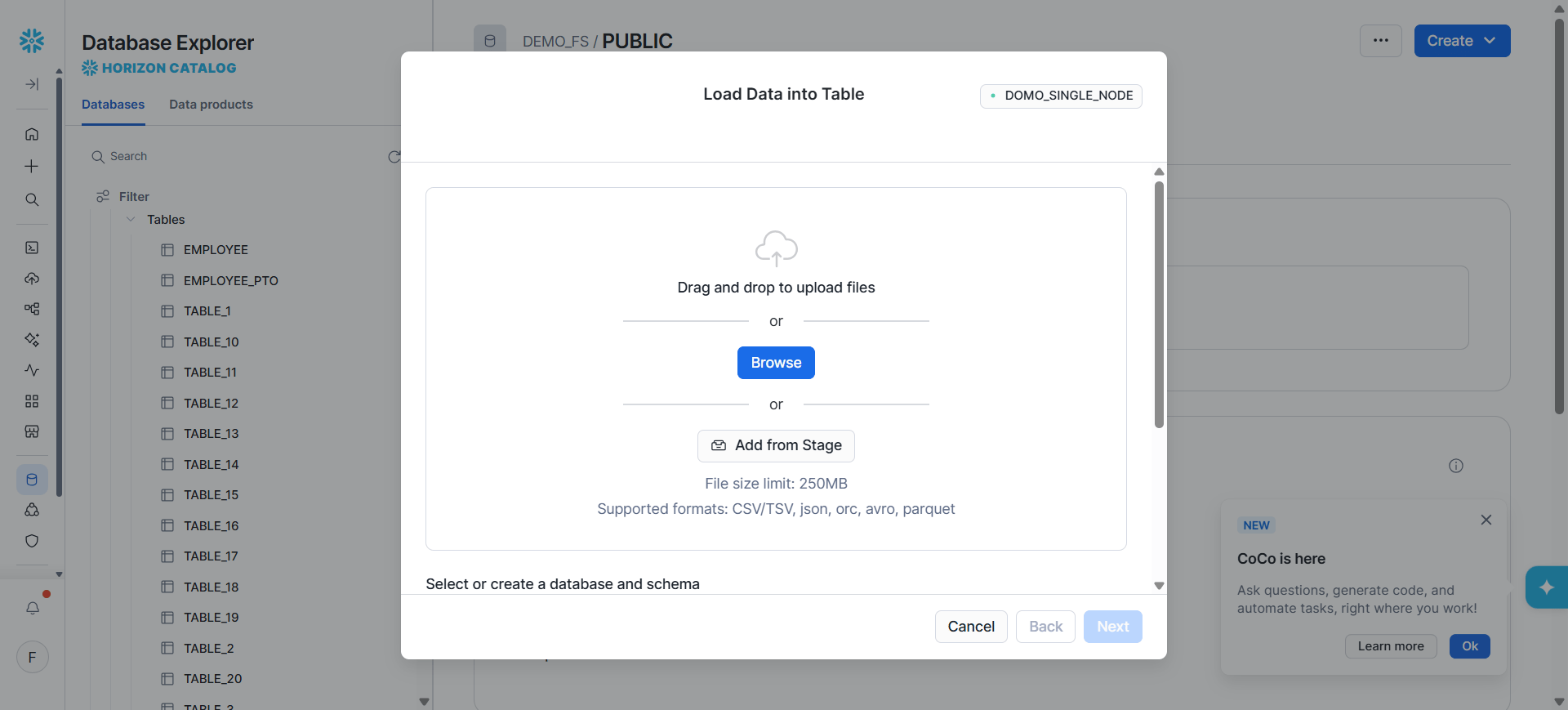
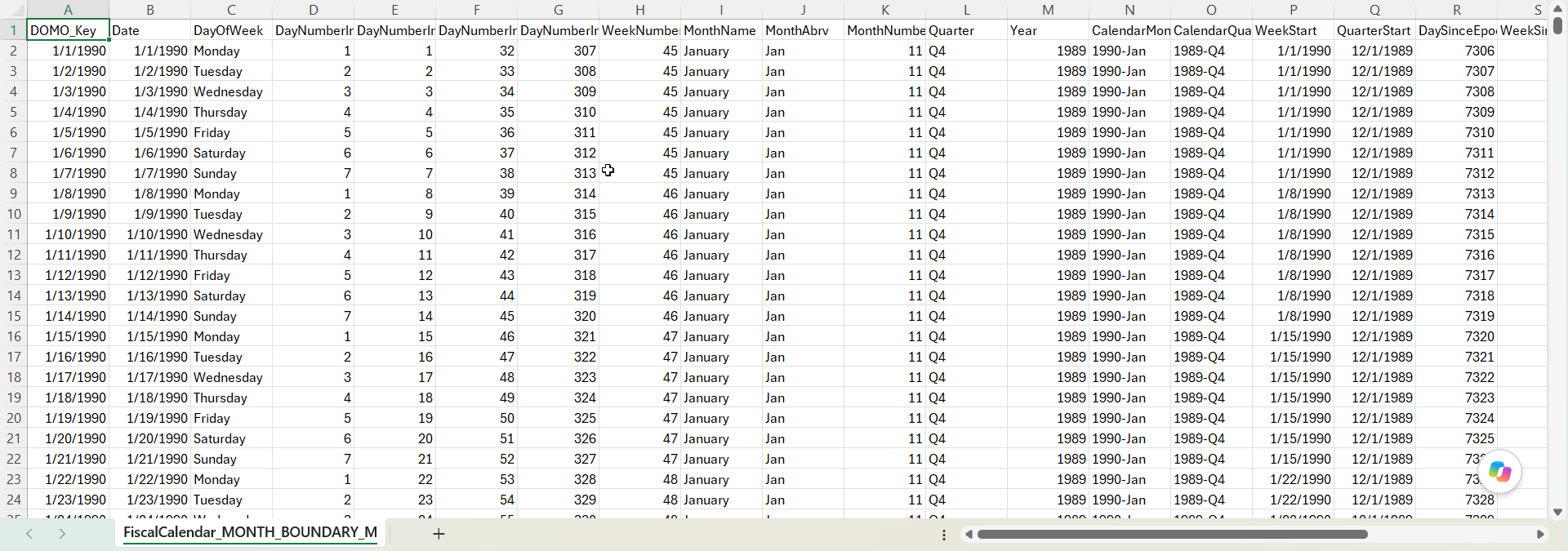 11. Load the downloaded CSV into a new table in your warehouse, using your warehouse's standard CSV import process (for example, Snowflake's **Load Data into Table** wizard, shown below, or Databricks' table creation from a file upload).
 12. Register the table you just created (see [Register an Existing Calendar Table](#register-an-existing-calendar-table)).
## Register an Existing Calendar Table
Use this flow if you already have a fiscal or standard calendar table in your warehouse, including one generated in the previous section.
1. In the **Calendar** section, select **Set up fiscal calendar** or **Set up standard calendar**, depending on which you're registering. A menu opens.
2. Select **Set up an existing calendar**. The database, schema, and table pickers appear.
3. Select the **database**, **schema**, and **table** that contain your calendar.
12. Register the table you just created (see [Register an Existing Calendar Table](#register-an-existing-calendar-table)).
## Register an Existing Calendar Table
Use this flow if you already have a fiscal or standard calendar table in your warehouse, including one generated in the previous section.
1. In the **Calendar** section, select **Set up fiscal calendar** or **Set up standard calendar**, depending on which you're registering. A menu opens.
2. Select **Set up an existing calendar**. The database, schema, and table pickers appear.
3. Select the **database**, **schema**, and **table** that contain your calendar.
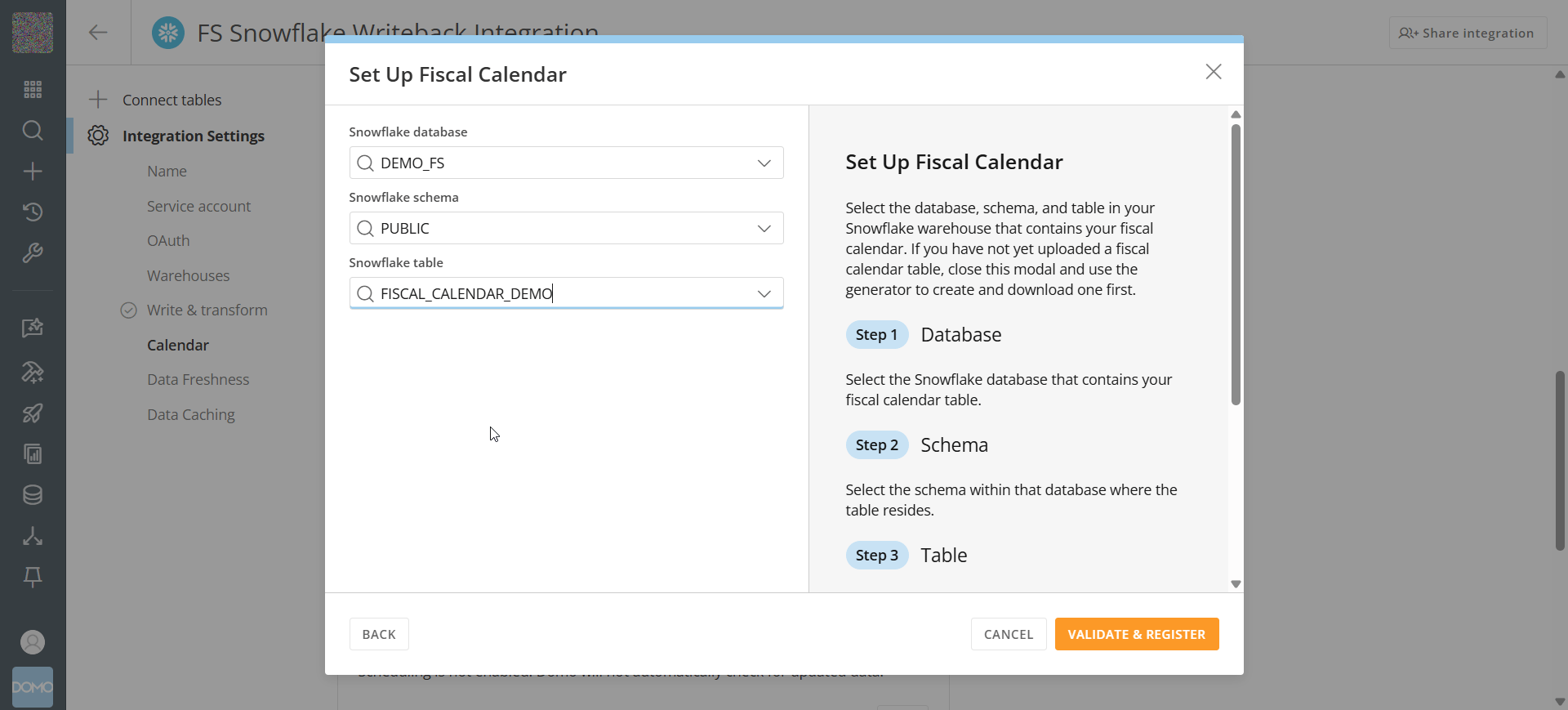 4. Select **Validate & Register**. Domo checks that the table has all 25 required columns with the correct names and types, then registers it.
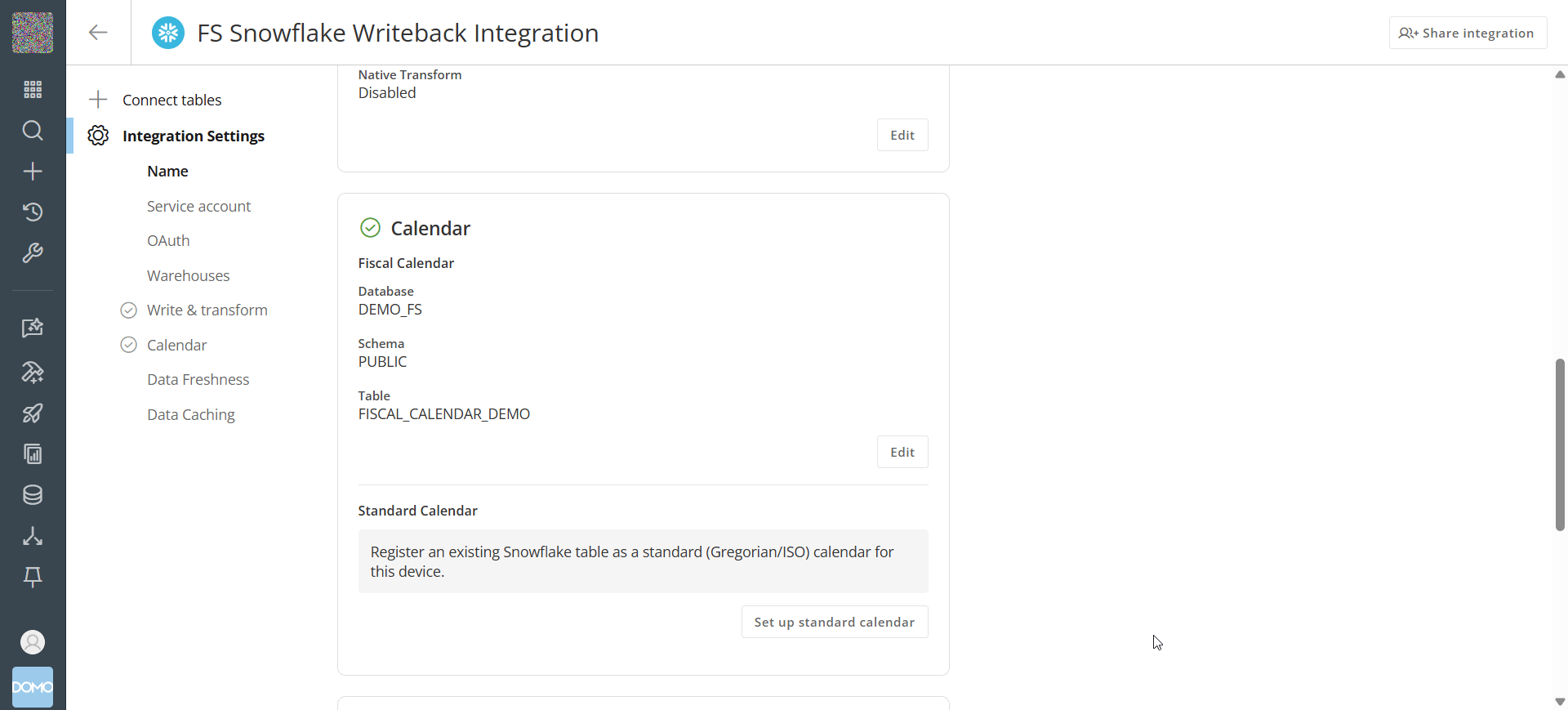 If validation fails, Domo shows an error identifying the problem (for example, a missing column or an inaccessible table) so you can correct it in your warehouse and try again.
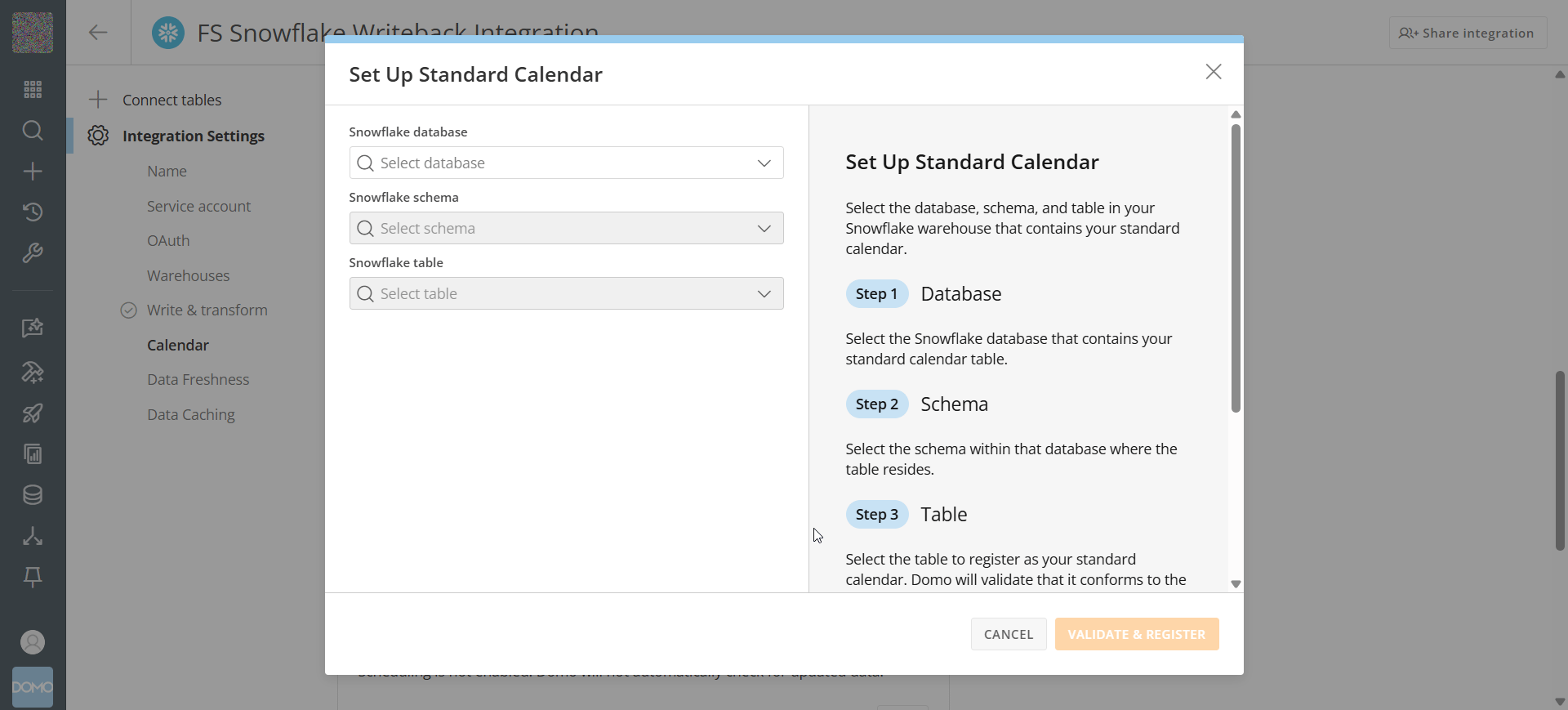
You can repeat this process to register a Standard Calendar independently of a Fiscal Calendar — both can be registered on the same integration at the same time. Selecting **Set up standard calendar** opens the same database, schema, and table pickers used for a Fiscal Calendar:
If validation fails, Domo shows an error identifying the problem (for example, a missing column or an inaccessible table) so you can correct it in your warehouse and try again.
You can repeat this process to register a Standard Calendar independently of a Fiscal Calendar — both can be registered on the same integration at the same time. Selecting **Set up standard calendar** opens the same database, schema, and table pickers used for a Fiscal Calendar:
 ## Edit, Update, or Disable a Registered Calendar
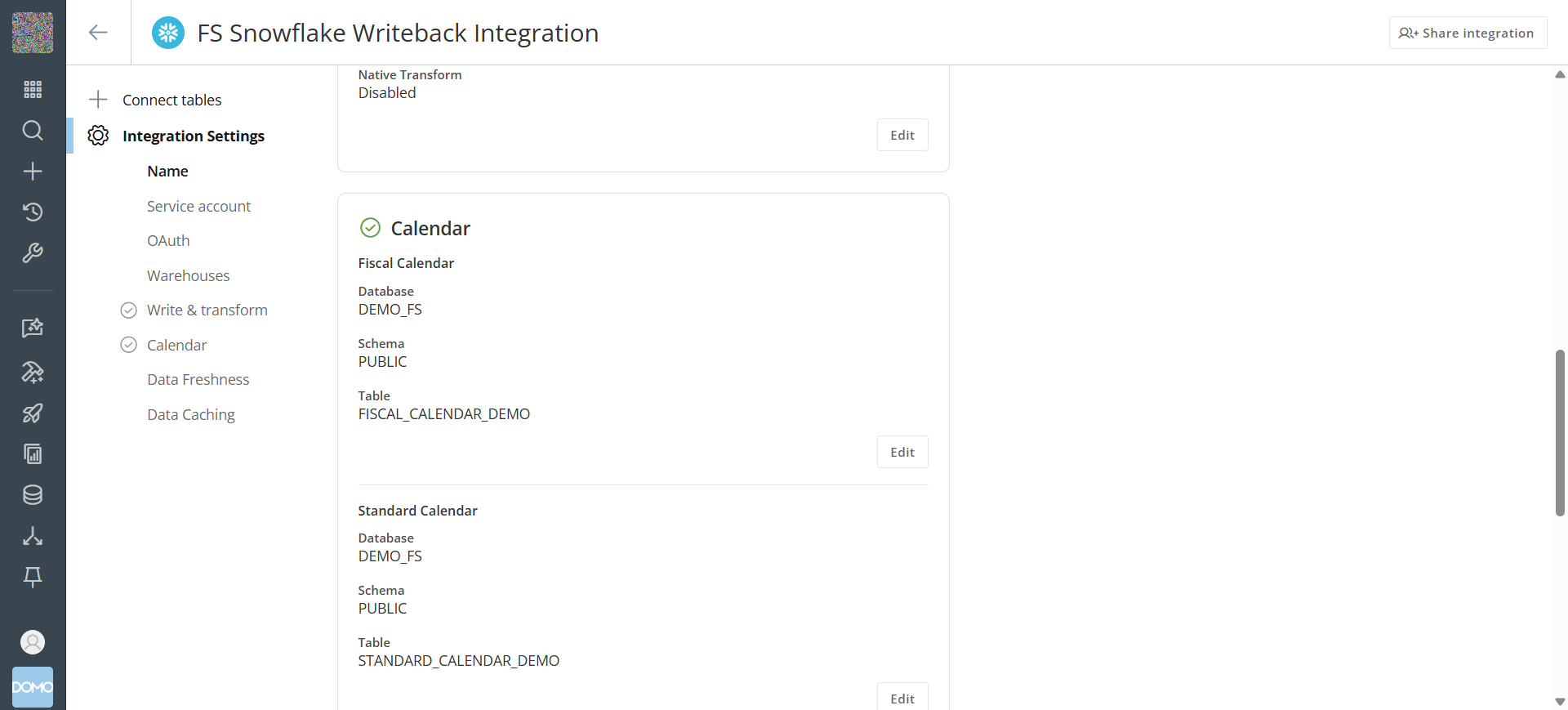
After you register a calendar, its section in the integration settings shows the registered database, schema, and table, with an **Edit** option.
To change which table a calendar points to:
1. Select **Edit** next to the registered calendar.
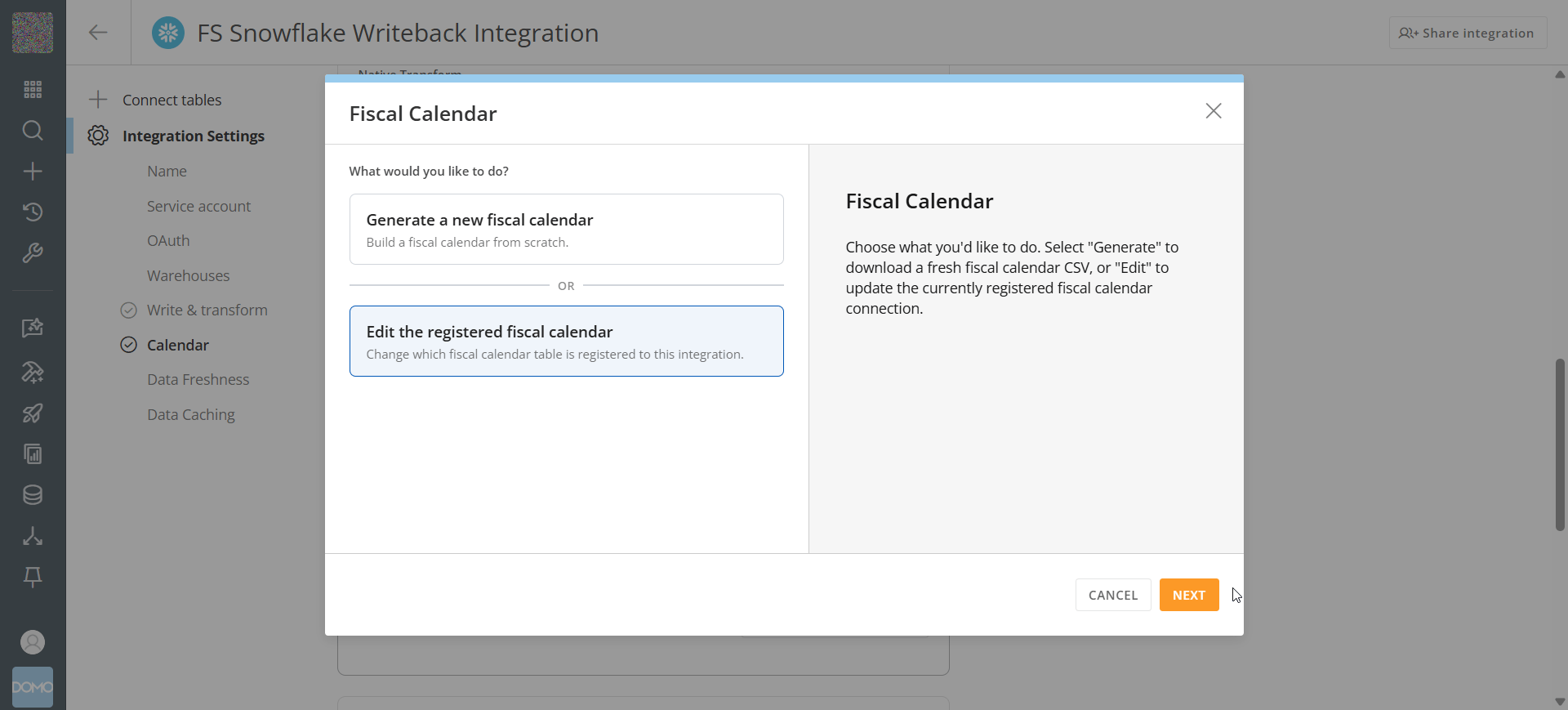
2. Select a different table. If you're editing a Fiscal Calendar and don't already have a replacement, you can instead select **Generate a new fiscal calendar** to build one from scratch (Standard Calendars don't have a generate option — select a different existing table).
## Edit, Update, or Disable a Registered Calendar
After you register a calendar, its section in the integration settings shows the registered database, schema, and table, with an **Edit** option.
To change which table a calendar points to:
1. Select **Edit** next to the registered calendar.
2. Select a different table. If you're editing a Fiscal Calendar and don't already have a replacement, you can instead select **Generate a new fiscal calendar** to build one from scratch (Standard Calendars don't have a generate option — select a different existing table).
 3. Select **Update**. Domo replaces the currently registered table; it does not affect the underlying table in your warehouse.
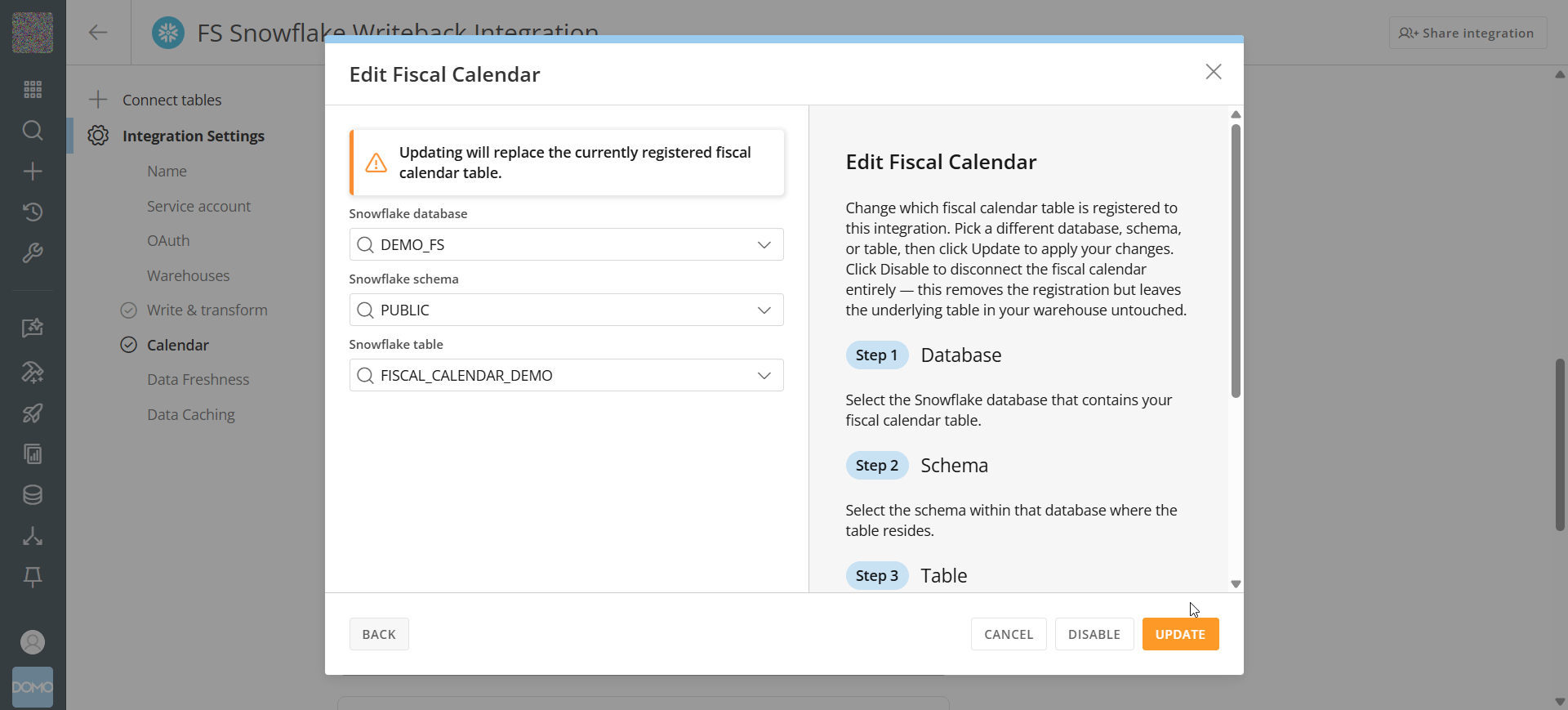 To remove a calendar entirely, select **Disable**. This does not delete the underlying table, only Domo's reference to it.
To apply a registered calendar to a card in Analyzer, see [Using a Fiscal Calendar](/docs/s/article/360042924254).
To remove a calendar entirely, select **Disable**. This does not delete the underlying table, only Domo's reference to it.
To apply a registered calendar to a card in Analyzer, see [Using a Fiscal Calendar](/docs/s/article/360042924254).
 ## FAQ
This feature is currently available only for Snowflake and Databricks Cloud Integrations. If your integration uses a different engine (for example, BigQuery or Redshift), the **Calendar** section won't appear yet.
No. Each integration supports one Fiscal Calendar and one Standard Calendar at a time. You can register both together, but not multiple calendars of the same type.
No. Column names must always be in English, matching the 25-column schema. Only the row values you want displayed to users (month names, day names, and so on) need to be in the target language.
## Related Articles
* [Cloud Integrations Overview](/docs/s/article/4412849158167)
* [Using a Fiscal Calendar](/docs/s/article/360042924254)
## FAQ
This feature is currently available only for Snowflake and Databricks Cloud Integrations. If your integration uses a different engine (for example, BigQuery or Redshift), the **Calendar** section won't appear yet.
No. Each integration supports one Fiscal Calendar and one Standard Calendar at a time. You can register both together, but not multiple calendars of the same type.
No. Column names must always be in English, matching the 25-column schema. Only the row values you want displayed to users (month names, day names, and so on) need to be in the target language.
## Related Articles
* [Cloud Integrations Overview](/docs/s/article/4412849158167)
* [Using a Fiscal Calendar](/docs/s/article/360042924254)