> ## Documentation Index
> Fetch the complete documentation index at: https://www.domo.com/docs/llms.txt
> Use this file to discover all available pages before exploring further.
# Configure Data Freshness and Caching in Cloud Integrations
## Intro
This article explains how to open the **Data Freshness** tab for a Cloud Integration, configure scheduled data freshness checks, and configure data caching for card query results.
***
## Overview
Cloud Integrations DataSets stay current through two mechanisms that you configure per integration:
* **Data freshness checks —** Domo polls your source cloud warehouse on a schedule to detect when the underlying data has changed. When an update is detected, connected cards, alerts, and DataFlows reflect the new data on their next load. Domo also performs on-demand freshness checks when a query is executed and the configured cache duration (TTL) has expired, providing more responsive data without relying solely on scheduled polling.
* **Data caching —** Domo stores the results of card queries temporarily. When a user opens a card, Domo returns the cached result if one exists rather than sending a new query to the warehouse. This reduces query load on your warehouse.
Both settings are configured at the integration level and apply to all DataSets within that integration.
## Open the Data Freshness Tab
To configure data freshness and caching for an existing integration:
1. Navigate to **Data Warehouse** > **Connect Data** > **Manage existing integrations**.
2. Select the tile for your integration type, such as BigQuery.
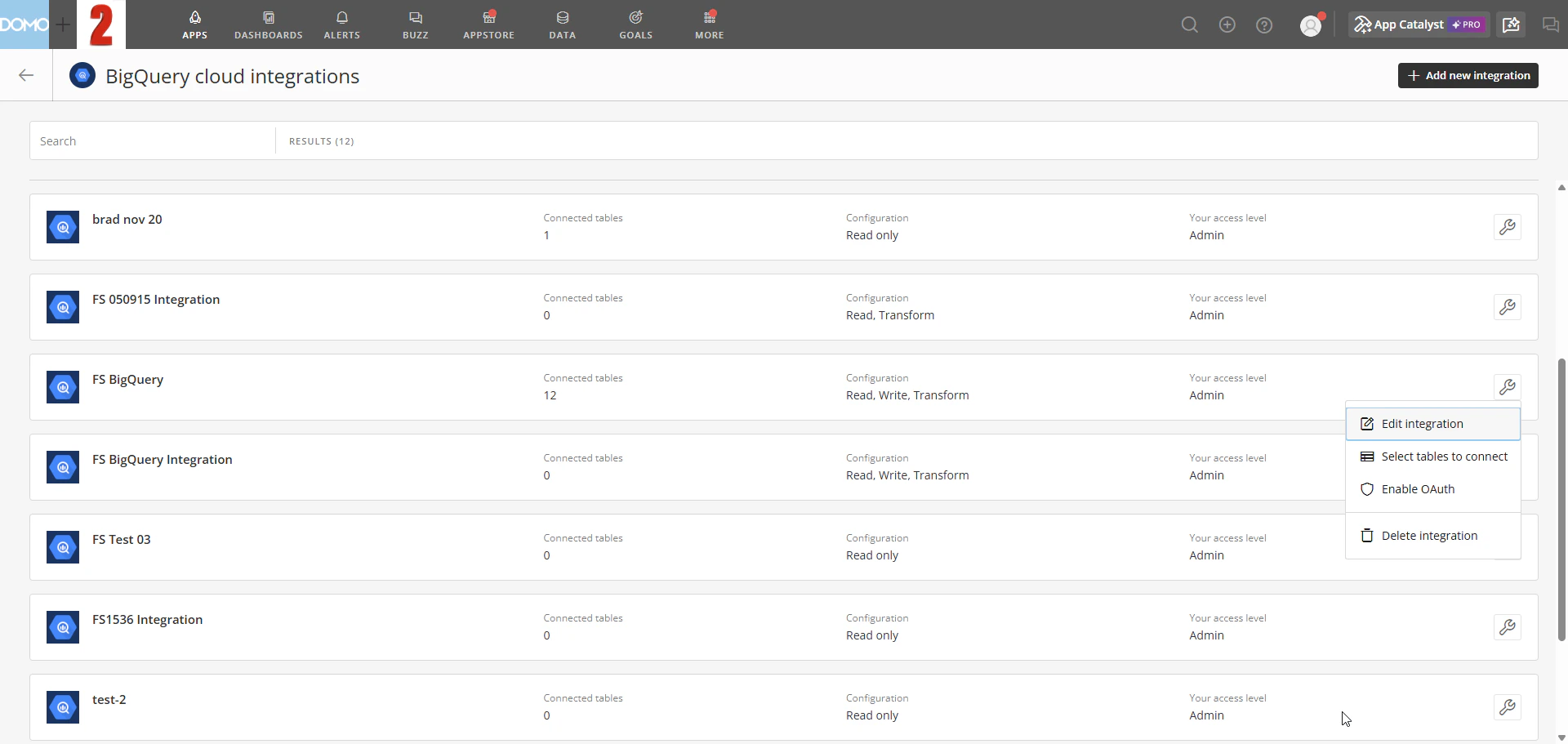 3. Hover over the integration you want to configure and select the wrench icon that appears, then select **Edit integration**.
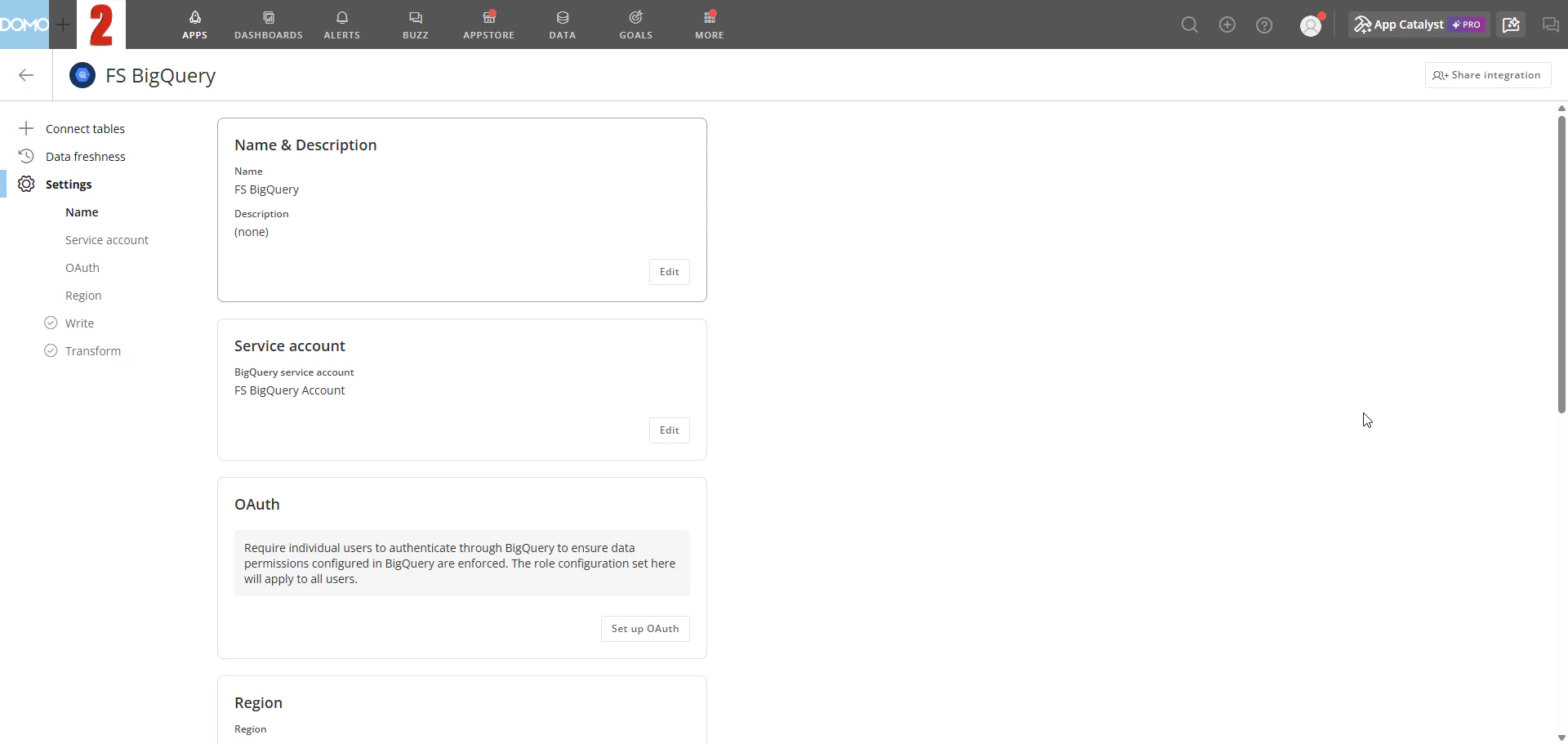 4. Select the **Data Freshness** tab.
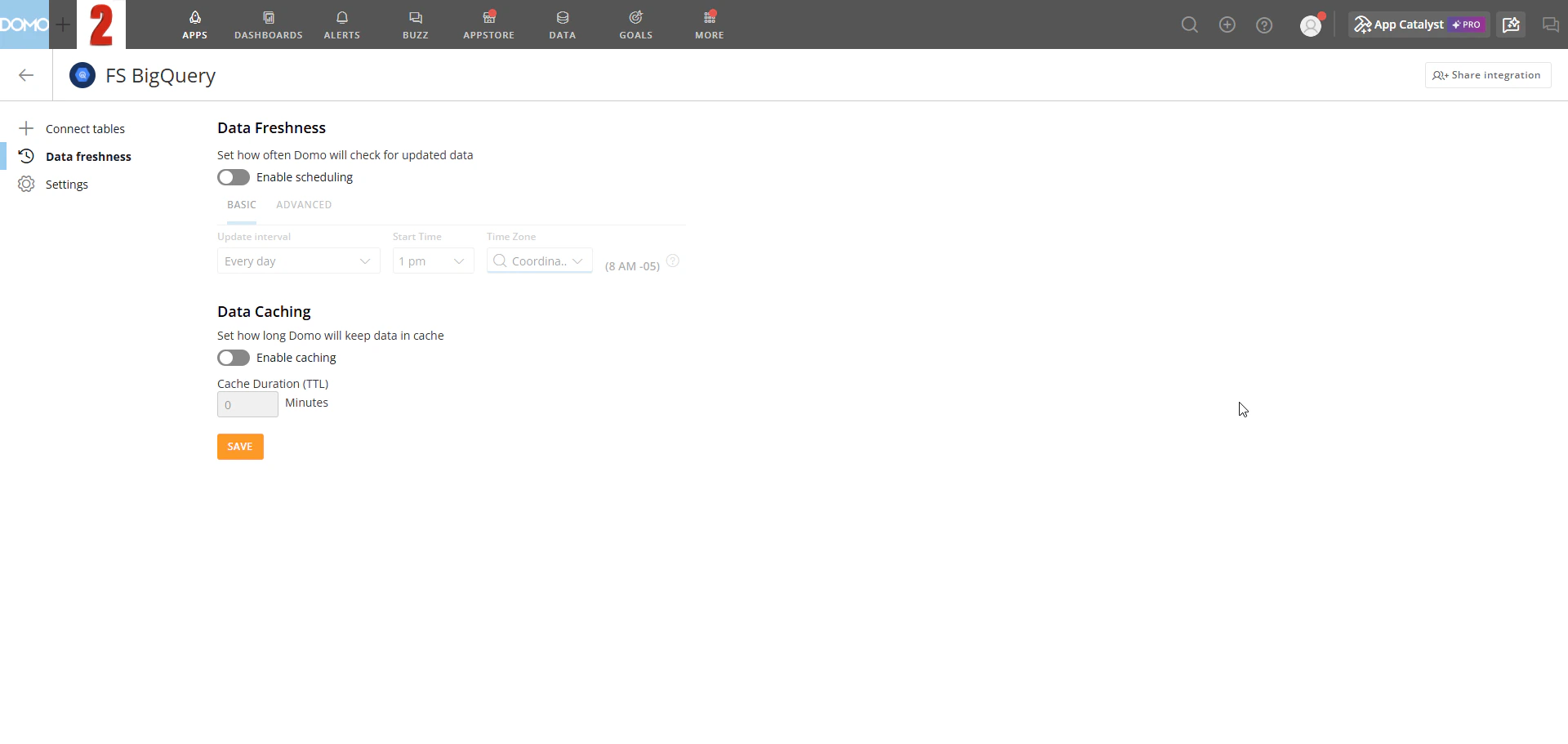
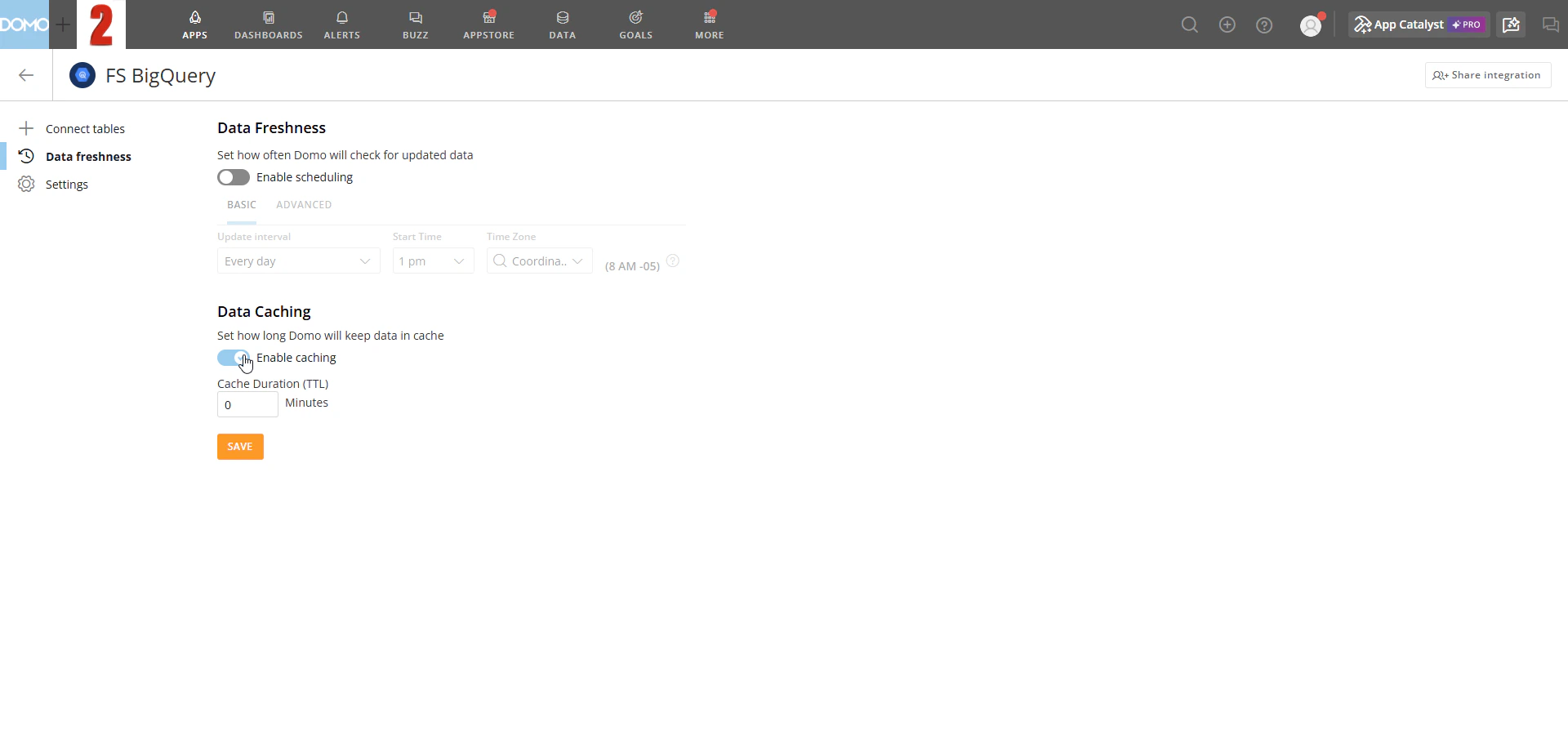
By default, data freshness scheduling and caching are both disabled.
4. Select the **Data Freshness** tab.
By default, data freshness scheduling and caching are both disabled.
 ## Configure Data Freshness Checks
1. Enable the **Schedule data freshness checks** toggle.
2. Select the **Basic** or **Advanced** tab to set when Domo checks for updates.
### Basic
Basic mode lets you choose a preset update interval from a dropdown. Set the **Start Time** and **Time Zone** to control when within the interval checks begin. For sub-daily intervals (every 15 minutes, every 30 minutes, every hour), you can also enable **Active hours** to restrict checks to a defined time window.
## Configure Data Freshness Checks
1. Enable the **Schedule data freshness checks** toggle.
2. Select the **Basic** or **Advanced** tab to set when Domo checks for updates.
### Basic
Basic mode lets you choose a preset update interval from a dropdown. Set the **Start Time** and **Time Zone** to control when within the interval checks begin. For sub-daily intervals (every 15 minutes, every 30 minutes, every hour), you can also enable **Active hours** to restrict checks to a defined time window.
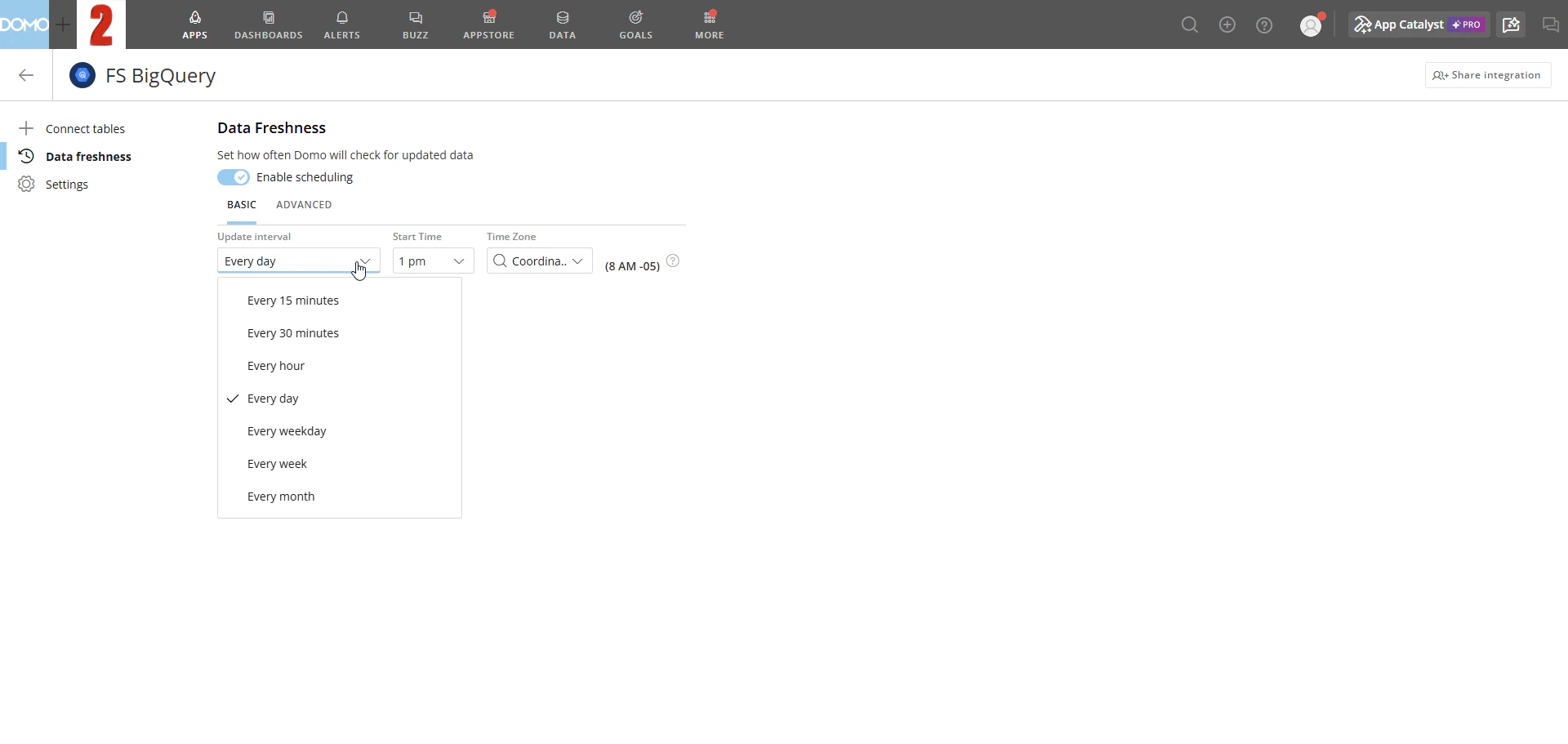 | Update interval | Description |
| ---------------- | ----------------------------------------------------------------------- |
| Every 15 minutes | Checks every 15 minutes, all day or during the configured active hours. |
| Every 30 minutes | Checks every 30 minutes, all day or during the configured active hours. |
| Every hour | Checks every hour, all day or during the configured active hours. |
| Every day | Checks once per day at the specified time, including weekends. |
| Every weekday | Checks once per day at the specified time, excluding weekends. |
| Every week | Checks once per week on the selected day at the specified time. |
| Every month | Checks once per month on the selected date at the specified time. |
### Advanced
Advanced mode gives you granular control over check frequency, day of the week, and monthly schedule. Configure all three settings to define exactly when checks run.
| Update interval | Description |
| ---------------- | ----------------------------------------------------------------------- |
| Every 15 minutes | Checks every 15 minutes, all day or during the configured active hours. |
| Every 30 minutes | Checks every 30 minutes, all day or during the configured active hours. |
| Every hour | Checks every hour, all day or during the configured active hours. |
| Every day | Checks once per day at the specified time, including weekends. |
| Every weekday | Checks once per day at the specified time, excluding weekends. |
| Every week | Checks once per week on the selected day at the specified time. |
| Every month | Checks once per month on the selected date at the specified time. |
### Advanced
Advanced mode gives you granular control over check frequency, day of the week, and monthly schedule. Configure all three settings to define exactly when checks run.
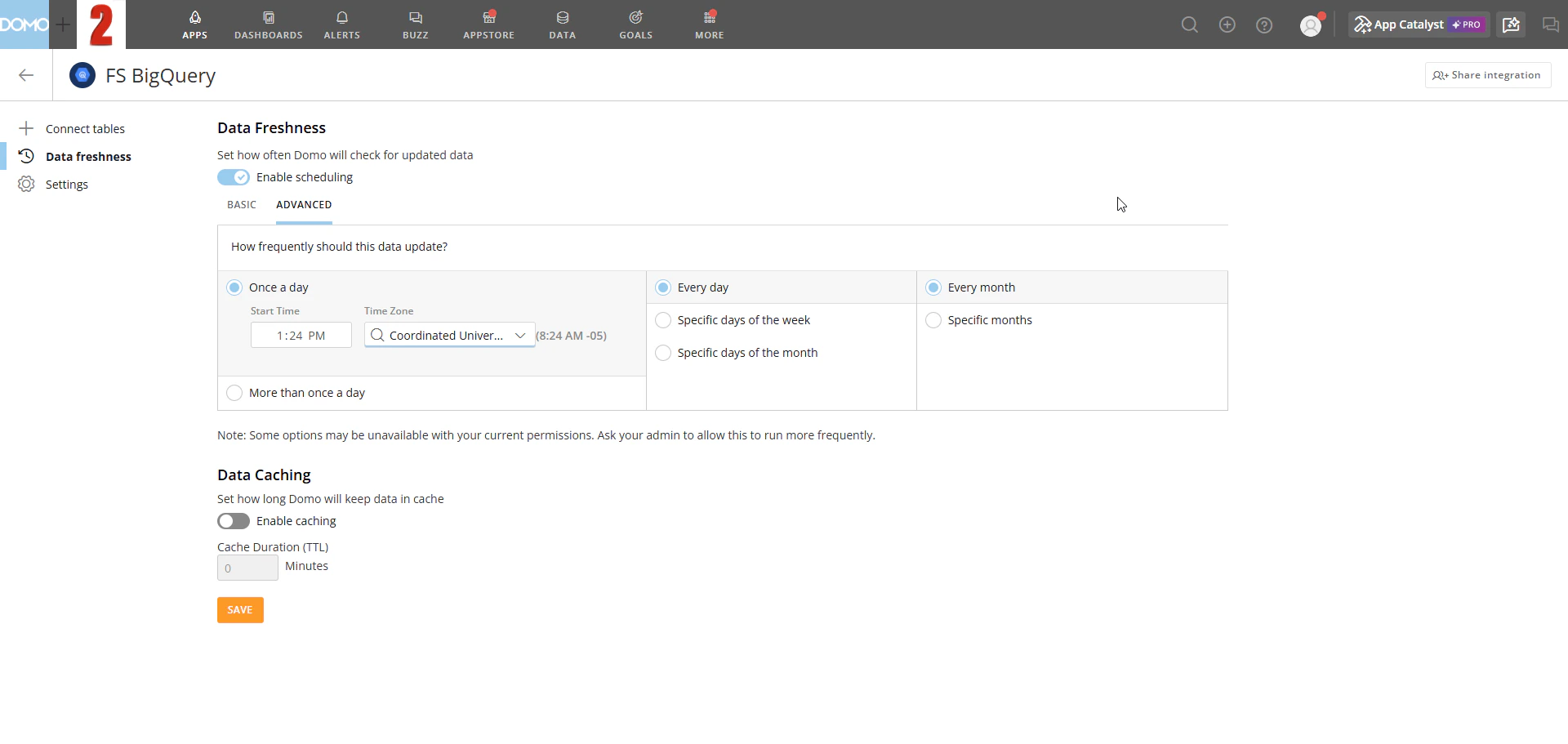 **How frequently?**—How often within a day checks run:
* **Once a day —** Checks run once per day at the time and time zone you specify.
* **More than once a day —** Checks repeat throughout the day at the interval you specify. Enable **Active hours** to restrict checks to a defined window, such as 8 AM–6 PM.
**How frequently?**—How often within a day checks run:
* **Once a day —** Checks run once per day at the time and time zone you specify.
* **More than once a day —** Checks repeat throughout the day at the interval you specify. Enable **Active hours** to restrict checks to a defined window, such as 8 AM–6 PM.
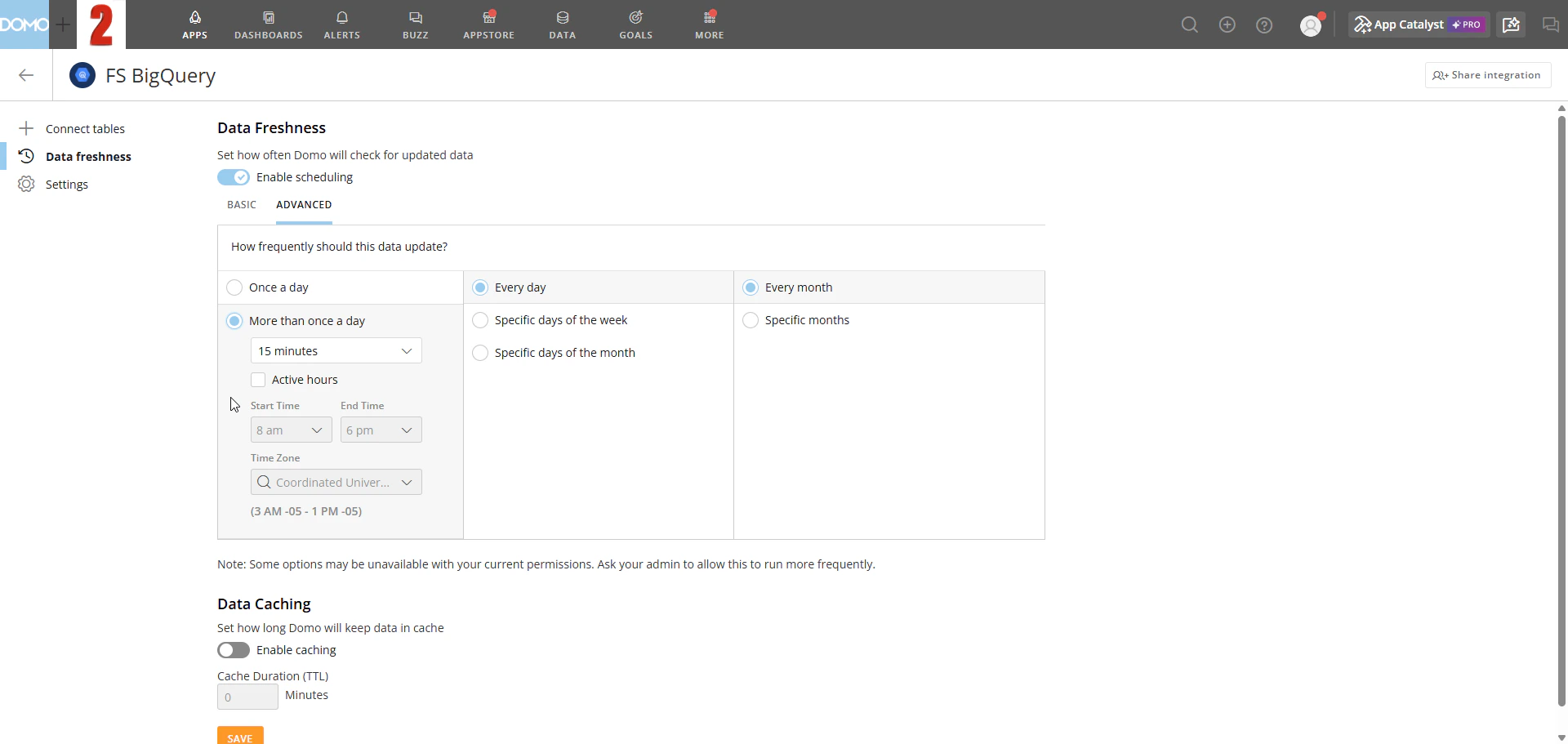 **Day frequency**—Which days checks run:
* **Every day —** Checks run every day of the week.
* **Specific days of the week —** Checks run only on the days you select.
* **Specific days of the month —** Checks run only on the calendar dates you select.
**Month frequency**—Which months checks run:
* **Every month —** Checks run every month.
* **Specific months —** Checks run only in the months you select.
## Configure Data Caching
1. In the **Data Caching** section of the **Data Freshness** tab, turn on the **Enable caching** toggle.
2. Set **Cache Duration (TTL)** to control how long Domo retains cached card query results before discarding them. The maximum cache duration is 24 hours.
**Day frequency**—Which days checks run:
* **Every day —** Checks run every day of the week.
* **Specific days of the week —** Checks run only on the days you select.
* **Specific days of the month —** Checks run only on the calendar dates you select.
**Month frequency**—Which months checks run:
* **Every month —** Checks run every month.
* **Specific months —** Checks run only in the months you select.
## Configure Data Caching
1. In the **Data Caching** section of the **Data Freshness** tab, turn on the **Enable caching** toggle.
2. Set **Cache Duration (TTL)** to control how long Domo retains cached card query results before discarding them. The maximum cache duration is 24 hours.
 ## FAQ
### Data Freshness
Make sure data freshness is enabled and configured to an interval that suits your use case. If data freshness is disabled, card query results may be cached for up to 24 hours.
No. Data freshness checks and caching depend on the service account used to connect your integration. These features are disabled when using OAuth.
### Caching
Domo bypasses the cache and always sends a fresh query in these situations:
* Viewing the DataSet preview on the DataSet's Details page
* Loading a DataSet View
* Loading a DataSet into Magic ETL
* **Dynamic SQL functions**: Queries that include functions such as NOW(), CURRENT\_DATE(), or CURRENT\_TIMESTAMP() generate a unique SQL string on each execution. Caching is keyed on the exact SQL query, so these queries will not reuse cached results regardless of TTL setting.
No. When you view a card, Domo first checks for a cached result. If one exists, Domo returns the cached data. If none exists, Domo queries the warehouse.
Yes. When building or editing a card in Analyzer, each change triggers a new query if **Auto Preview** is enabled.
Domo caches card query results for up to 24 hours or until the Cache Duration (TTL) expires—whichever comes first.
No. There is no explicit limit on the number of cached query results.
No. There is no row or data size limit on what is saved in the card cache.
No. The cache duration is set at the integration level and applies to all DataSets within that integration.
## FAQ
### Data Freshness
Make sure data freshness is enabled and configured to an interval that suits your use case. If data freshness is disabled, card query results may be cached for up to 24 hours.
No. Data freshness checks and caching depend on the service account used to connect your integration. These features are disabled when using OAuth.
### Caching
Domo bypasses the cache and always sends a fresh query in these situations:
* Viewing the DataSet preview on the DataSet's Details page
* Loading a DataSet View
* Loading a DataSet into Magic ETL
* **Dynamic SQL functions**: Queries that include functions such as NOW(), CURRENT\_DATE(), or CURRENT\_TIMESTAMP() generate a unique SQL string on each execution. Caching is keyed on the exact SQL query, so these queries will not reuse cached results regardless of TTL setting.
No. When you view a card, Domo first checks for a cached result. If one exists, Domo returns the cached data. If none exists, Domo queries the warehouse.
Yes. When building or editing a card in Analyzer, each change triggers a new query if **Auto Preview** is enabled.
Domo caches card query results for up to 24 hours or until the Cache Duration (TTL) expires—whichever comes first.
No. There is no explicit limit on the number of cached query results.
No. There is no row or data size limit on what is saved in the card cache.
No. The cache duration is set at the integration level and applies to all DataSets within that integration.