> ## Documentation Index
> Fetch the complete documentation index at: https://www.domo.com/docs/llms.txt
> Use this file to discover all available pages before exploring further.
# Access Tokens
export const BetaNote = ({generic = false}) =>
Note:{" "}
{generic ? "" : "This feature is in beta. "}
Beta Program participants can enable features{" "}
here. To join the
Beta Program, fill out{" "}
this form. For beta
questions or feedback, email{" "}
beta.admin@domo.com.
;
## Intro
This article explains how to generate, view, and revoke access tokens in Domo.
***
## Required Grants
To generate access tokens, you need one of the following:
* An Admin security role
* A custom role with at least one of the following grants:
* The **Create Access Tokens** grant
* The **Manage all access tokens and API clients** grant
Users with the **Create Access Tokens** grant can generate, list, and revoke access tokens they own without administrator involvement. This grant does not allow listing or revoking tokens owned by other users.
Users with the **Manage all access tokens and API clients** grant can generate access tokens and list and revoke any access token owned by any user.
For more information about security roles and grants, see [Managing Custom Roles](/docs/s/article/360043438973).
**Important:** Treat access tokens like a password: Do not share them, hard-code them in scripts, or commit them to version control. Access tokens grant the same level of access as the user account they belong to. If the user's permissions change, the token's access level changes accordingly; revoking or restricting a user's access also limits what their tokens can do.
## Generate an Access Token
**Note:** Generating an access token requires [elevation](/docs/s/article/000005831). You are prompted to confirm your identity before proceeding.
Follow these steps to generate an access token:
1. From the navigation header, select **More** > **Admin**.
The Admin Settings display.
2. Under **Authentication**, select **Access tokens**.
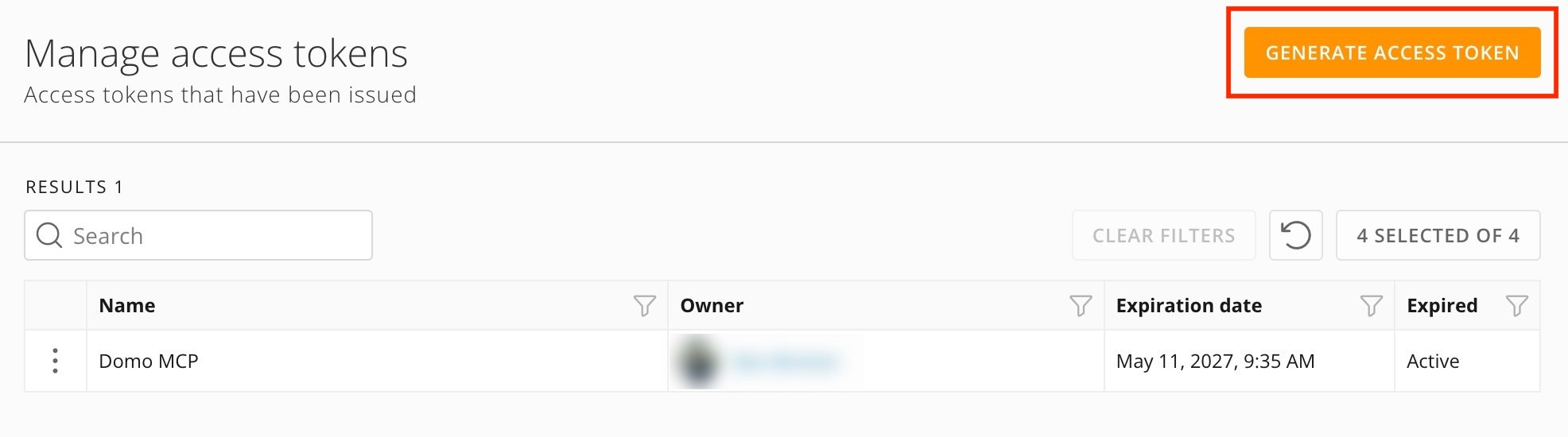
The **Manage access tokens** page displays.
3. Select **+ Generate access token**.
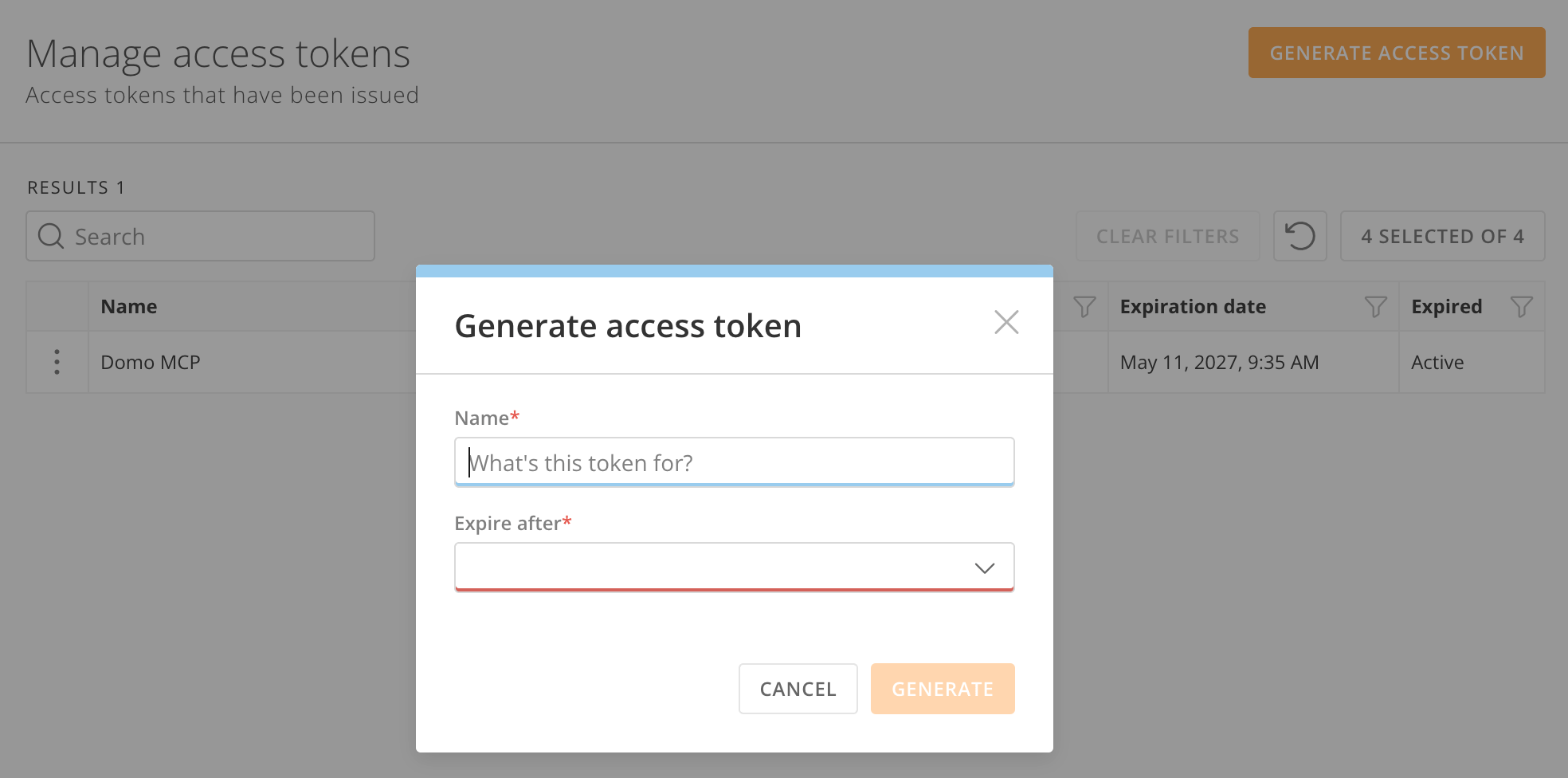
 4. In the **Name** field, enter a name for the token. Use a name that helps you identify the token's purpose later.
5. In the **Expire after** field, select the lifespan of the token.
6. Select **Generate**.
4. In the **Name** field, enter a name for the token. Use a name that helps you identify the token's purpose later.
5. In the **Expire after** field, select the lifespan of the token.
6. Select **Generate**.
 7. Copy the token and store it somewhere secure. The token does not display again after you close this dialog.
**Note:** Each user is limited to 50 active access tokens.
## View Your Access Tokens
Follow these steps to see your access tokens:
1. From the navigation header, select **More** > **Admin**.
The Admin Settings display.
2. Under **Authentication**, select **Access tokens**.
The **Manage access tokens** page displays.
The **Manage access tokens** page lists each token's description, creation date, expiration date, and status.
If you have the **Manage all access tokens and API clients** grant or the Admin system role, you can view all tokens issued on the Domo instance. You can search by user name or token name.
## Revoke an Access Token
Follow these steps to revoke an access token:
1. From the navigation header, select **More** > **Admin**.
The Admin Settings display.
2. Under **Authentication**, select **Access tokens**.
The **Manage access tokens** page displays.
3. Locate the token you want to revoke. You can search by user name or token name.
4. Select **Revoke**.
**Note:** There is no confirmation dialog after selecting **Revoke**. Verify you are revoking the correct token before proceeding.
If you have the **Manage all access tokens and API clients** grant or the Admin system role, you can revoke any access token in the Domo instance.
## FAQ
Yes. Treat access tokens like a password: Do not share them, hard-code them in scripts, or commit them to version control. Revoke any token you believe may have been compromised. Users with the ability to create access tokens can also revoke tokens they own. Administrators of your Domo instance can revoke any access token.
No. Each user creates and manages their own tokens. Previously, Domo administrators were able to generate access tokens on behalf of other users.
Yes. Each user is limited to 50 active access tokens at a time.
Elevation is an identity confirmation step Domo requires before performing sensitive actions. When you generate an access token, you are prompted to confirm your identity before proceeding. For more information, see [Elevation](/docs/s/article/000005831).
7. Copy the token and store it somewhere secure. The token does not display again after you close this dialog.
**Note:** Each user is limited to 50 active access tokens.
## View Your Access Tokens
Follow these steps to see your access tokens:
1. From the navigation header, select **More** > **Admin**.
The Admin Settings display.
2. Under **Authentication**, select **Access tokens**.
The **Manage access tokens** page displays.
The **Manage access tokens** page lists each token's description, creation date, expiration date, and status.
If you have the **Manage all access tokens and API clients** grant or the Admin system role, you can view all tokens issued on the Domo instance. You can search by user name or token name.
## Revoke an Access Token
Follow these steps to revoke an access token:
1. From the navigation header, select **More** > **Admin**.
The Admin Settings display.
2. Under **Authentication**, select **Access tokens**.
The **Manage access tokens** page displays.
3. Locate the token you want to revoke. You can search by user name or token name.
4. Select **Revoke**.
**Note:** There is no confirmation dialog after selecting **Revoke**. Verify you are revoking the correct token before proceeding.
If you have the **Manage all access tokens and API clients** grant or the Admin system role, you can revoke any access token in the Domo instance.
## FAQ
Yes. Treat access tokens like a password: Do not share them, hard-code them in scripts, or commit them to version control. Revoke any token you believe may have been compromised. Users with the ability to create access tokens can also revoke tokens they own. Administrators of your Domo instance can revoke any access token.
No. Each user creates and manages their own tokens. Previously, Domo administrators were able to generate access tokens on behalf of other users.
Yes. Each user is limited to 50 active access tokens at a time.
Elevation is an identity confirmation step Domo requires before performing sensitive actions. When you generate an access token, you are prompted to confirm your identity before proceeding. For more information, see [Elevation](/docs/s/article/000005831).