> ## Documentation Index
> Fetch the complete documentation index at: https://www.domo.com/docs/llms.txt
> Use this file to discover all available pages before exploring further.
# Duplicating a Job in Workbench 5.2
## Intro
Sometimes you may want to create many jobs in Workbench that are mostly similar but have a few unique details. It can be time-consuming and tedious to create each job individually. With the job duplication option, you can duplicate a job, keeping most of the details the same, and update only the details that need to be changed: the job name and the schedule.
**Note:** You must duplicate jobs one by one; bulk duplication is not supported.
## Duplicating a Job
1. Open the latest version of Workbench. You can download it in the Appstore.
The homepage displays.
2. In the left navigation rail, select
** DataSet Jobs**.
The DataSet Jobs page displays.
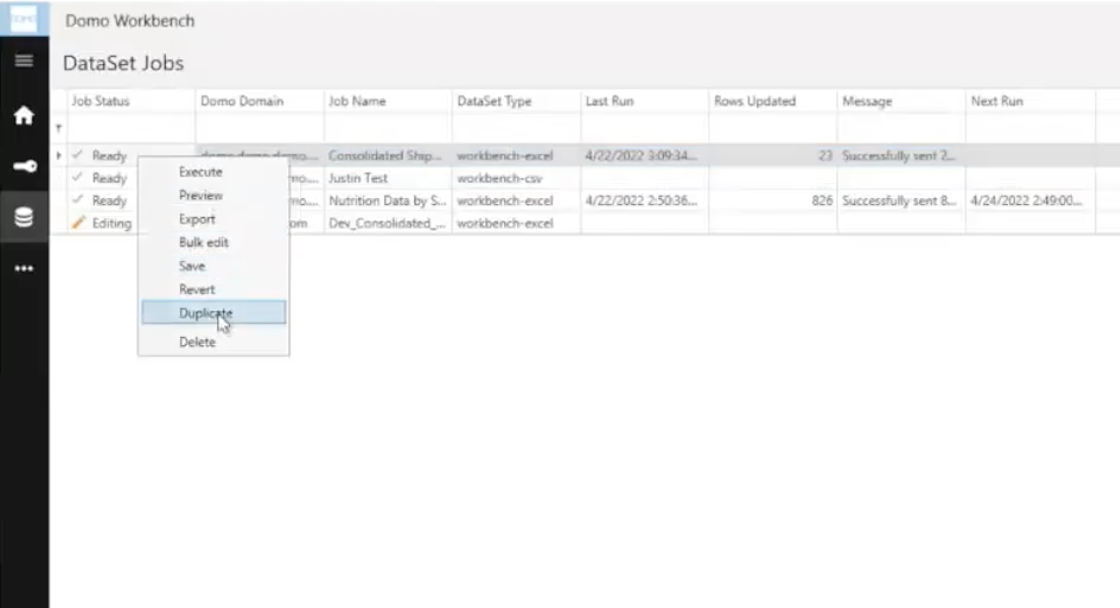
3. Right-click on the
**Job Status** of the job you want to duplicate.
The job options menu displays.
4. Select
**Duplicate**.
A dialog displays, confirming that you want to duplicate the job and stating that you are required to create a unique job name and set a new schedule for the duplicated job.
DataSet Jobs**.
The DataSet Jobs page displays.
3. Right-click on the
**Job Status** of the job you want to duplicate.
The job options menu displays.
4. Select
**Duplicate**.
A dialog displays, confirming that you want to duplicate the job and stating that you are required to create a unique job name and set a new schedule for the duplicated job.
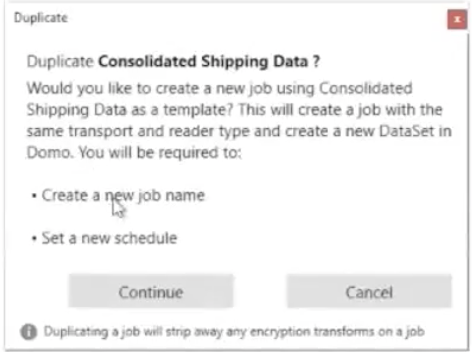 **Important:** Duplicating a job strips away any encryption transforms on a job.
5. Select
**Continue** or **Cancel**.
* If you select
**Continue**, you are redirected to the **Duplicate Job** workflow.
* If you select
**Cancel**, you return to the jobs page.
6. In the
**Overview** tab of the Duplicate Job workflow, enter a name in the **Job Name** field. This same name displays in the **DataSet Name** field and is how the DataSet displays in Domo.
**Important:** Duplicating a job strips away any encryption transforms on a job.
5. Select
**Continue** or **Cancel**.
* If you select
**Continue**, you are redirected to the **Duplicate Job** workflow.
* If you select
**Cancel**, you return to the jobs page.
6. In the
**Overview** tab of the Duplicate Job workflow, enter a name in the **Job Name** field. This same name displays in the **DataSet Name** field and is how the DataSet displays in Domo.
 7. Confirm that the other details in the
**Overview** tab are correct, and select **Create**.
The **Configure**, **Schedule**, **Schema**, and **Notifications** tabs display.
8. In the
**Schedule** tab, set the schedule for the duplicated job.
7. Confirm that the other details in the
**Overview** tab are correct, and select **Create**.
The **Configure**, **Schedule**, **Schema**, and **Notifications** tabs display.
8. In the
**Schedule** tab, set the schedule for the duplicated job.
 9. Verify the details in the other tabs.
10. Select
9. Verify the details in the other tabs.
10. Select  **Save**.
Your duplicated job runs according to the set schedule.
**Save**.
Your duplicated job runs according to the set schedule.