> ## Documentation Index
> Fetch the complete documentation index at: https://www.domo.com/docs/llms.txt
> Use this file to discover all available pages before exploring further.
# Changing a Job from Upsert to Replace in Workbench 5
## Intro
Sometimes you need to update an Upsert Job to Replace. Follow these simple steps to update:
1. Un-protect the DataSet.
* For newer versions of Workbench 5.
 * For older versions of Workbench 5.

 2. Update the job to Replace.
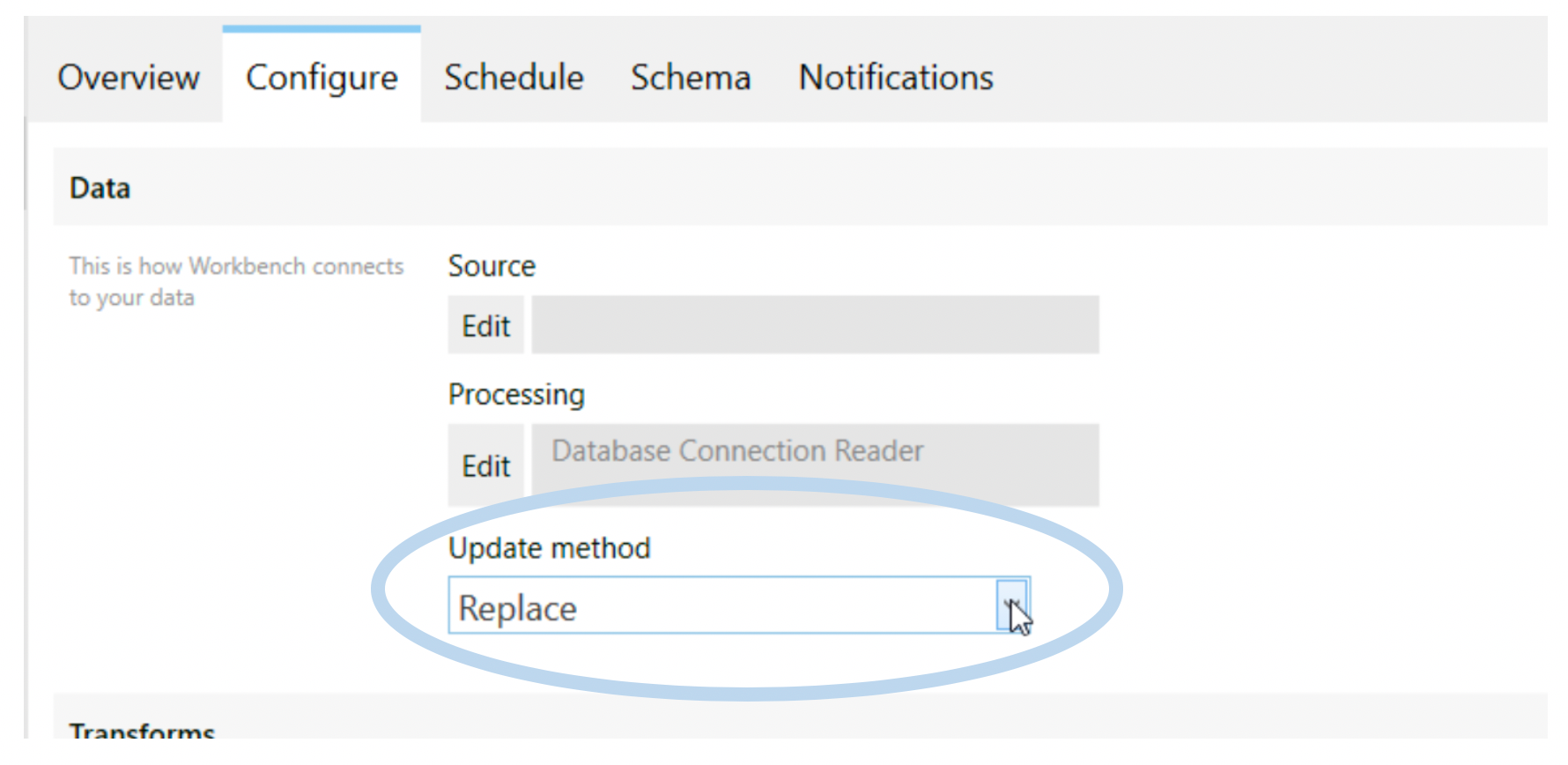
In the Configure Tab, change the Update method to **Replace**.
2. Update the job to Replace.
In the Configure Tab, change the Update method to **Replace**.
 3. Run the job.
Once the DataSet has been updated to Replace, run the job.
4. Re-protecting Columns
To protect columns from future changes:
* For newer versions of Workbench 5: Re-protect the columns in the Schema tab and update the Schema Update options to your desired preferences.
* For older versions of Workbench 5: Uncheck
**Allow changes**.
3. Run the job.
Once the DataSet has been updated to Replace, run the job.
4. Re-protecting Columns
To protect columns from future changes:
* For newer versions of Workbench 5: Re-protect the columns in the Schema tab and update the Schema Update options to your desired preferences.
* For older versions of Workbench 5: Uncheck
**Allow changes**.