> ## Documentation Index
> Fetch the complete documentation index at: https://www.domo.com/docs/llms.txt
> Use this file to discover all available pages before exploring further.
# Publish Content to a Subscriber Instance
## Intro
You can publish dashboard and App Studio content and DataSet Views to another organization via subscription. A subscriber instance can [subscribe to publications individually](#subscribe-to-a-single-publication) (as invited) or [auto-subscribe](#auto-subscribe-to-all-publications-from-an-instance) to receive all publications from a trusted publishing organization.
This article describes how to configure a subscriber and establish a publication/subscription connection.
**Looking for Embed?** To learn more about embedding, see [Embed Content
Outside of Domo](/docs/s/article/360043437993).
***
## Access Publications
To create a publication and view the list of publications from your Domo environment, go to the Publications page by following these steps:
1. Navigate to **Domo Everywhere**.
2. Select **Publications**.
## Permissions and PDP
Anyone can publish as long as they have access to the content (dashboard, app, or DataSet) they want to publish.
People with admin-level access in the publishing Domo environment can configure filters before publishing content so subscribers only see the appropriate data for their organization. To learn more, see [Dynamic PDP](#dynamic-pdp) below.
## Publishing Tasks
### Prerequisite
Before configuring a publication, you must create your subscriber instance(s). Learn how to [create a subscriber instance](/docs/s/article/6523741250455#create-a-subscriber-instance).
**Tip:** Have you already configured the look and feel of your instance? Learn
how with [Brand Kit](/docs/s/article/5428851518999).
### Create a Publication
1. [Access](#access-publications) Publications.
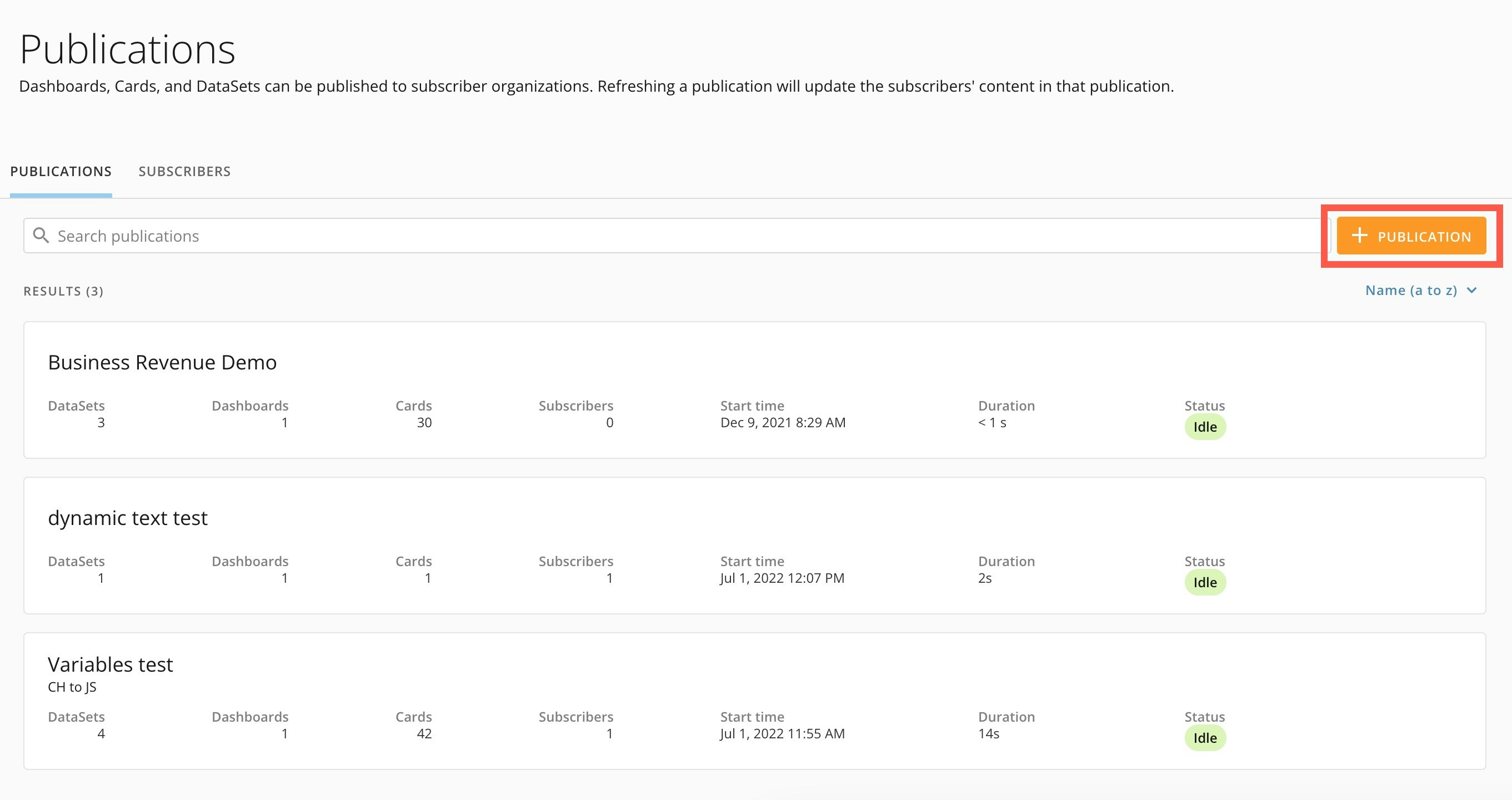
2. In the **Publications** tab, select **+ Publication** to open the creation modal.
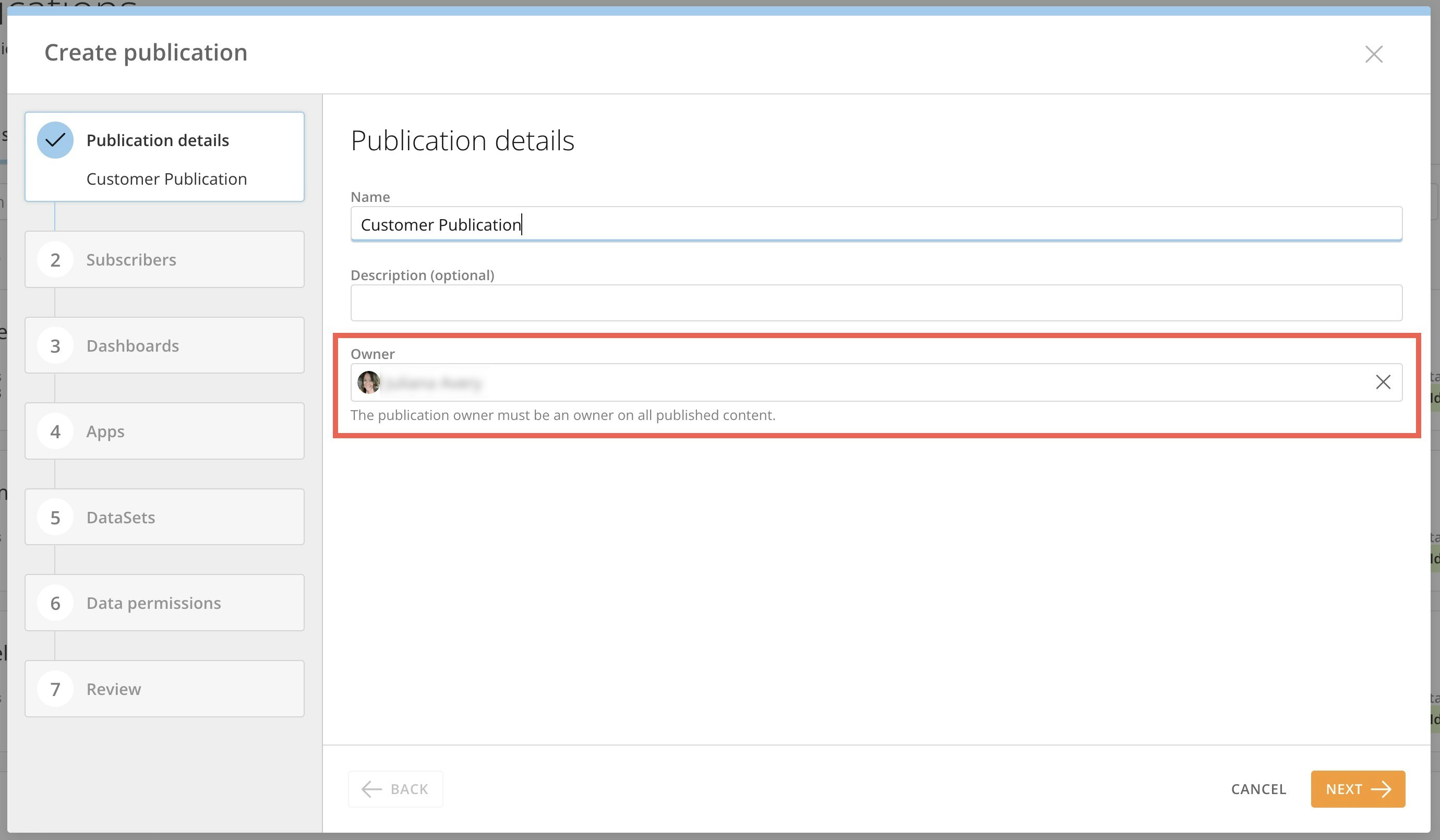
 3. Enter a name and optional description for the publication in the appropriate fields.
**Tip:** You can use the description to document which content you are publishing and to whom.
4. Assign a publication owner. The owner must have access to all the content included in this publication. By default, the person creating the publication is the owner. On the subscriber end, the individual who accepts the subscription invitation to the published content is the subscription owner.
For example, Farah from Organization A publishes the content to Organization B. Farah is the publication owner. John in Organization B accepts the subscription invitation and becomes the subscription owner.
3. Enter a name and optional description for the publication in the appropriate fields.
**Tip:** You can use the description to document which content you are publishing and to whom.
4. Assign a publication owner. The owner must have access to all the content included in this publication. By default, the person creating the publication is the owner. On the subscriber end, the individual who accepts the subscription invitation to the published content is the subscription owner.
For example, Farah from Organization A publishes the content to Organization B. Farah is the publication owner. John in Organization B accepts the subscription invitation and becomes the subscription owner.
 5\. In the **Subscribers** section of the modal, check the boxes for all the
subscribers you want to add to this publication. You can use the search bar and
sort menu to filter the list of subscribers. If a subscriber you want to include
doesn't display in the list, complete the step below.
If a subscriber you want to publish to doesn't display in the list, follow these steps:
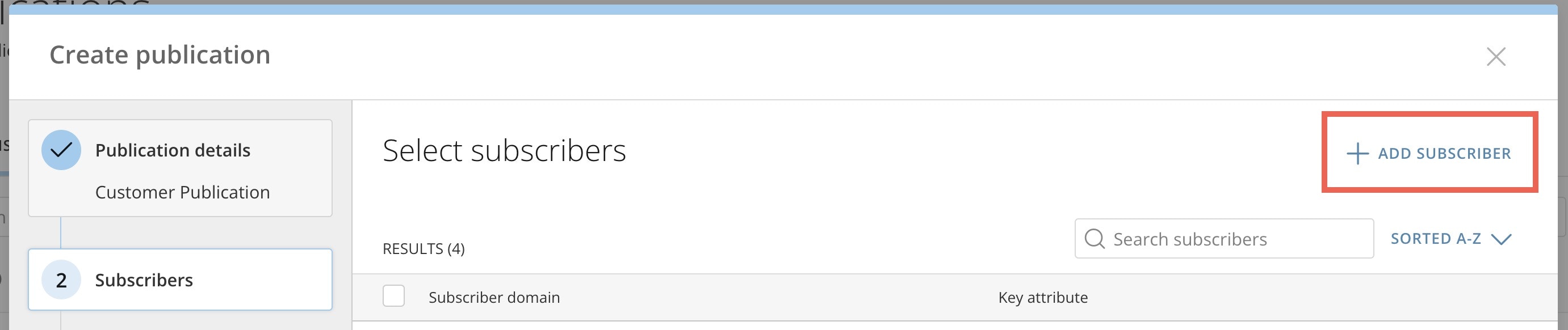
1. Select **+ Add Subscriber**.
5\. In the **Subscribers** section of the modal, check the boxes for all the
subscribers you want to add to this publication. You can use the search bar and
sort menu to filter the list of subscribers. If a subscriber you want to include
doesn't display in the list, complete the step below.
If a subscriber you want to publish to doesn't display in the list, follow these steps:
1. Select **+ Add Subscriber**.
 2. Enter the URL for the subscriber domain in the **Subscriber Organization** field in this format: ``.domo.com.
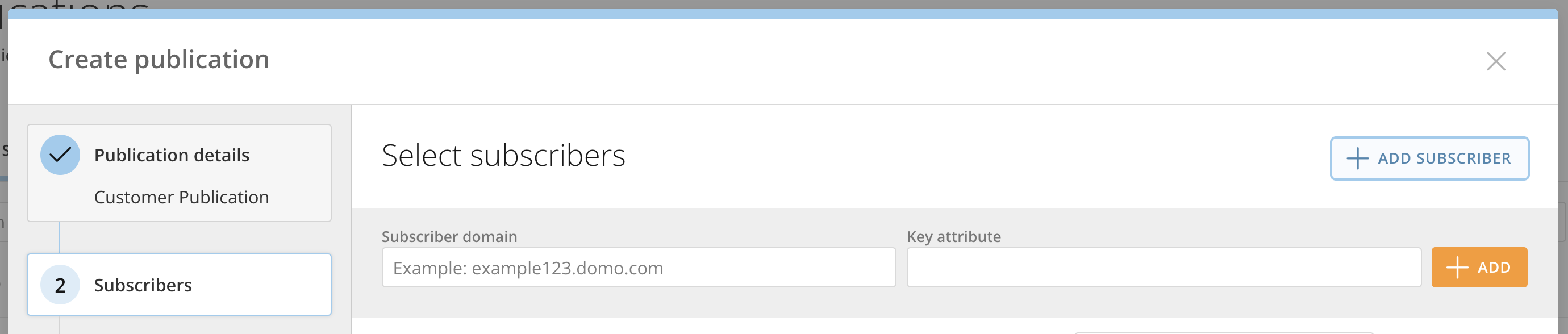 3. Enter the Key attribute. This is the same as the key attribute used when creating the subscriber organization. Learn where to find the [key attribute](/docs/s/article/6523741250455).
4. Select **+ Add**. The subscriber organization displays in the list of subscribers.
5. Check the box to choose this subscriber.
6. Use the next sections of the modal to choose the dashboards, apps, or DataSets that you want to include in the publication.
3. Enter the Key attribute. This is the same as the key attribute used when creating the subscriber organization. Learn where to find the [key attribute](/docs/s/article/6523741250455).
4. Select **+ Add**. The subscriber organization displays in the list of subscribers.
5. Check the box to choose this subscriber.
6. Use the next sections of the modal to choose the dashboards, apps, or DataSets that you want to include in the publication.
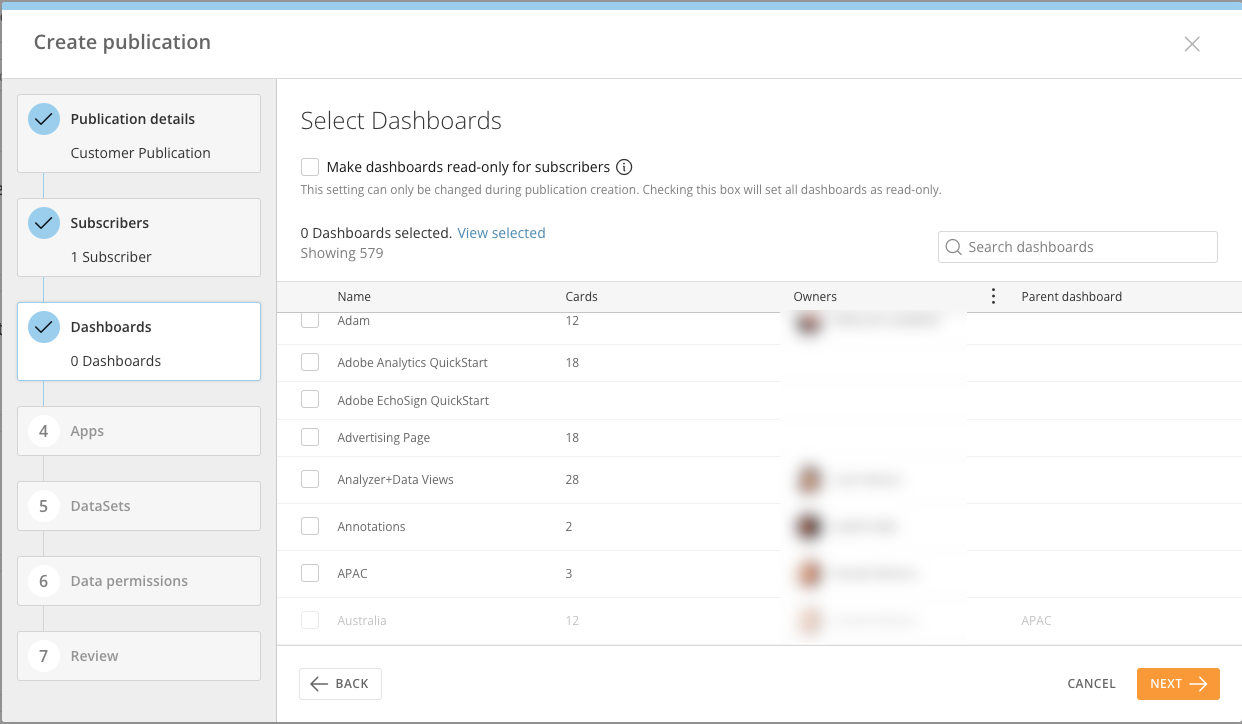 **Important**
* You must have access to any dashboards, apps, or DataSets that you select for publication. Selecting an item you don't have access to displays an error.
* When you add a dashboard to a publication, its sub-dashboards are automatically included.
* You can choose to make all dashboards read-only. Learn more about [publishing read-only content](#publish-read-only-content) below.
7. After adding all publication content, configure Personalized Data Permissions (PDP) for each DataSet. See [PDP Policies for Published Content](#pdp-policies-for-published-content) below or learn about [PDP](https://domo-support.domo.com/s/topic/0TO5w000000Zao2GAC/personalized-data-permissions-pdp?language=en_US) in the Knowledge Base.
**Important:** You must choose one policy for each DataSet. To send the data
unfiltered, select the **All Rows** policy. *DataSet permissions apply
universally to each subscriber. This means that changing a DataSet's
permissions in this publication affects the current subscribers in all other
publications with that DataSet.*
**Important**
* You must have access to any dashboards, apps, or DataSets that you select for publication. Selecting an item you don't have access to displays an error.
* When you add a dashboard to a publication, its sub-dashboards are automatically included.
* You can choose to make all dashboards read-only. Learn more about [publishing read-only content](#publish-read-only-content) below.
7. After adding all publication content, configure Personalized Data Permissions (PDP) for each DataSet. See [PDP Policies for Published Content](#pdp-policies-for-published-content) below or learn about [PDP](https://domo-support.domo.com/s/topic/0TO5w000000Zao2GAC/personalized-data-permissions-pdp?language=en_US) in the Knowledge Base.
**Important:** You must choose one policy for each DataSet. To send the data
unfiltered, select the **All Rows** policy. *DataSet permissions apply
universally to each subscriber. This means that changing a DataSet's
permissions in this publication affects the current subscribers in all other
publications with that DataSet.*
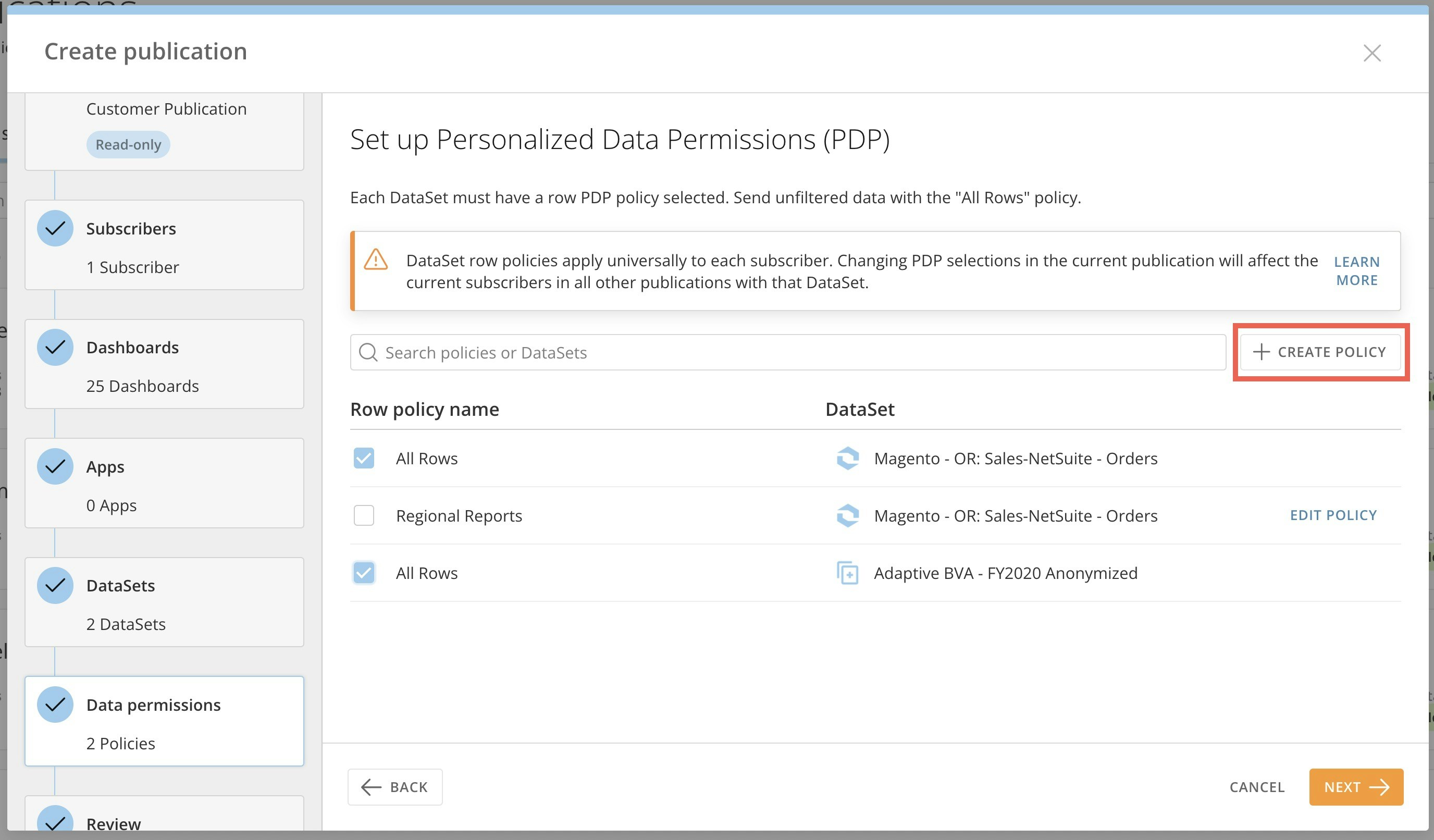
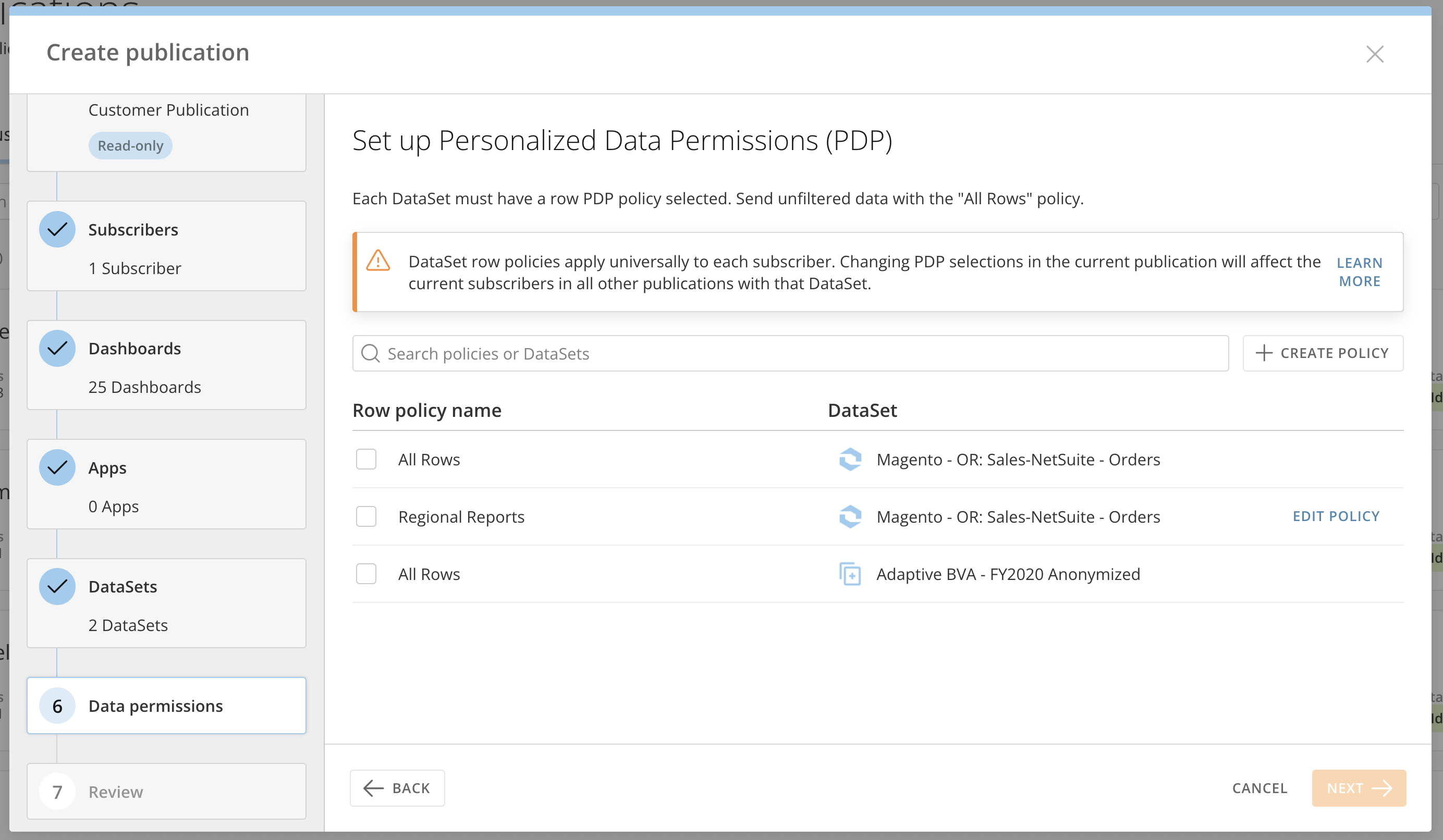 * To publish all rows in a given DataSet, check the **All Rows** box.
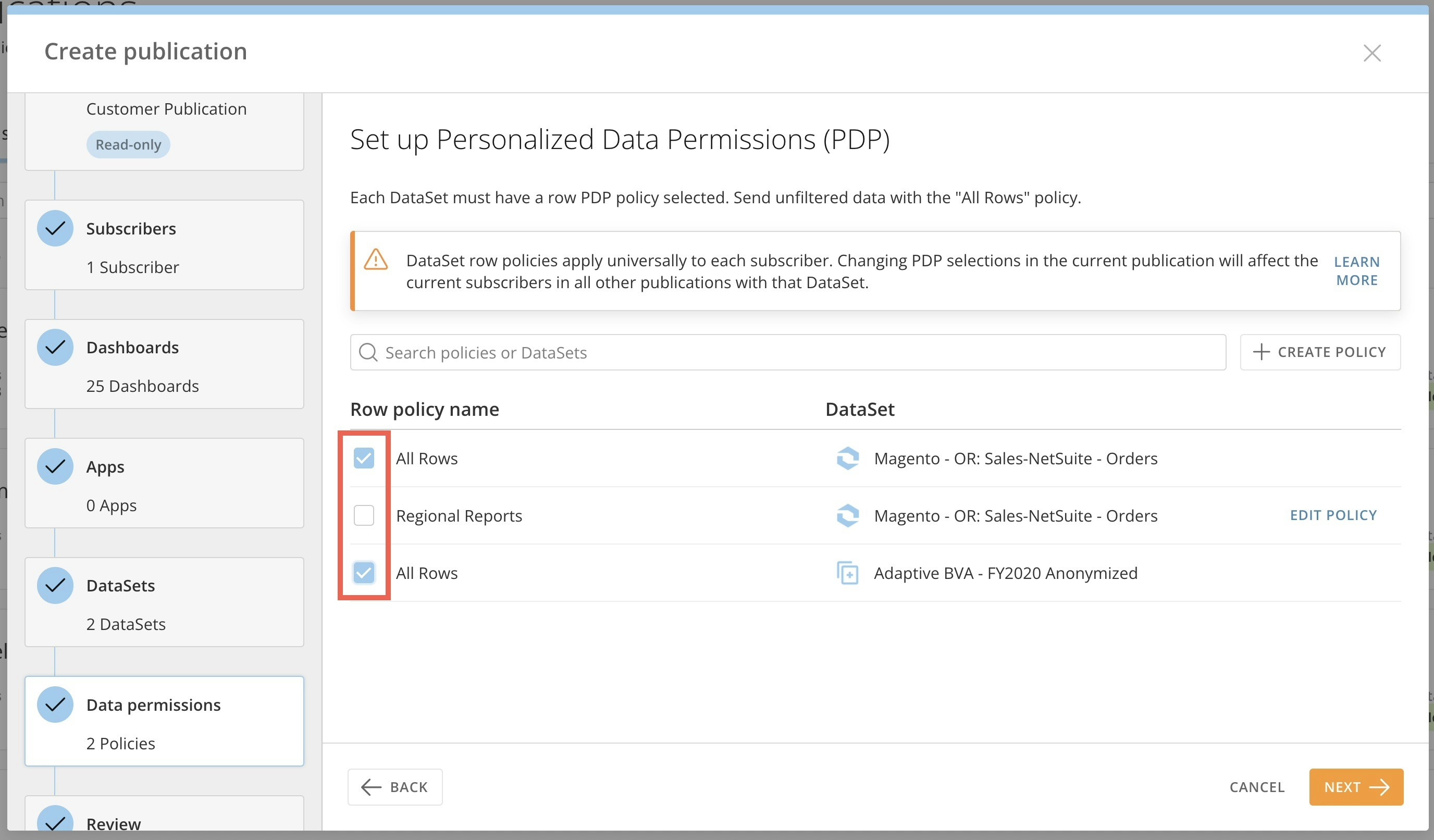 * To share a filtered version of the data, select **+ Create Policy**. The **New Permission** modal displays. Follow the instructions below to [create a PDP policy](#create-a-pdp-policy).
8. Review all the publication details, and save to close.
* To share a filtered version of the data, select **+ Create Policy**. The **New Permission** modal displays. Follow the instructions below to [create a PDP policy](#create-a-pdp-policy).
8. Review all the publication details, and save to close.
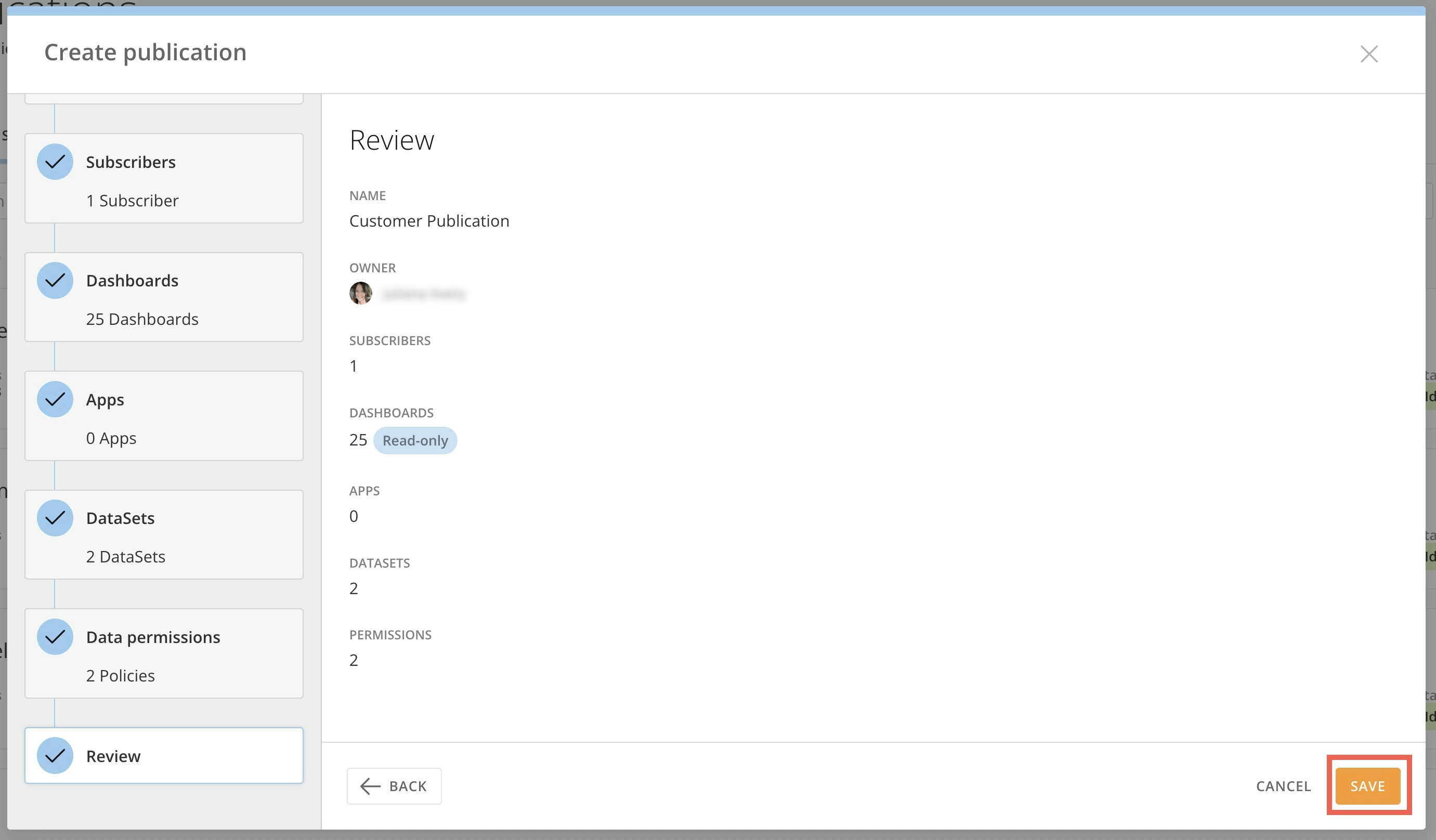 **Important:** Saving makes the publication available for subscription in
subscriber environments. Subscribers must accept the invitation inside their
Domo environment before they can view the published content.
### Publish Read-Only Content
You can publish read-only content to your subscribers when creating publications. Read-only content behaves like embedded content, meaning that:
* Subscribers cannot alter or make copies of content.
* Dashboards in a read-only publication are embedded and do not have PDP (Personalized Data Permissions) applied on the subscriber side. The dashboards will reflect whatever PDP are applied to the publication owner. By default, the DataSets are not accessible to subscribers.
* If you manually add DataSets to the publication, those DataSets will be shared separately with subscribers, and PDP will be applied based on each subscriber's permissions.\
However, even if shared, these DataSets do not power the dashboards themselves—the dashboards continue to display data via the embedded content, without subscriber-specific PDP filtering.
* Changes to dashboard content propagate immediately to the subscriber with no refresh required.
**Important:** You must refresh the publication to add or remove dashboards or make changes to the content.
**Important:** Saving makes the publication available for subscription in
subscriber environments. Subscribers must accept the invitation inside their
Domo environment before they can view the published content.
### Publish Read-Only Content
You can publish read-only content to your subscribers when creating publications. Read-only content behaves like embedded content, meaning that:
* Subscribers cannot alter or make copies of content.
* Dashboards in a read-only publication are embedded and do not have PDP (Personalized Data Permissions) applied on the subscriber side. The dashboards will reflect whatever PDP are applied to the publication owner. By default, the DataSets are not accessible to subscribers.
* If you manually add DataSets to the publication, those DataSets will be shared separately with subscribers, and PDP will be applied based on each subscriber's permissions.\
However, even if shared, these DataSets do not power the dashboards themselves—the dashboards continue to display data via the embedded content, without subscriber-specific PDP filtering.
* Changes to dashboard content propagate immediately to the subscriber with no refresh required.
**Important:** You must refresh the publication to add or remove dashboards or make changes to the content.
 ### Create a PDP Policy
Follow these steps to add a PDP policy while creating a publication:
1. In the **Data permissions** section of the modal, select **+ Create Policy** to open the new policy modal.
### Create a PDP Policy
Follow these steps to add a PDP policy while creating a publication:
1. In the **Data permissions** section of the modal, select **+ Create Policy** to open the new policy modal.
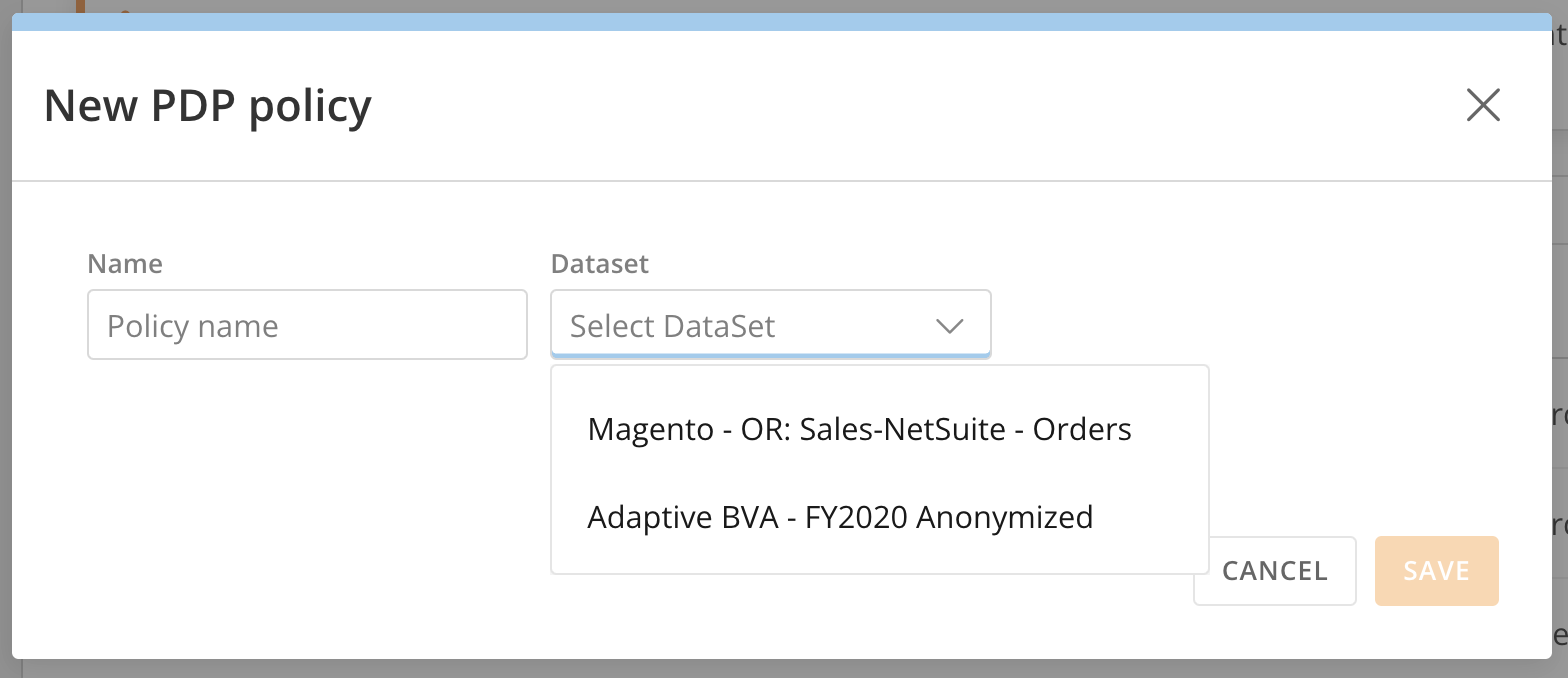
 2. In the modal, enter a name for the policy.
3. From the **Dataset** dropdown, select the DataSet to which to apply the permission.
2. In the modal, enter a name for the policy.
3. From the **Dataset** dropdown, select the DataSet to which to apply the permission.
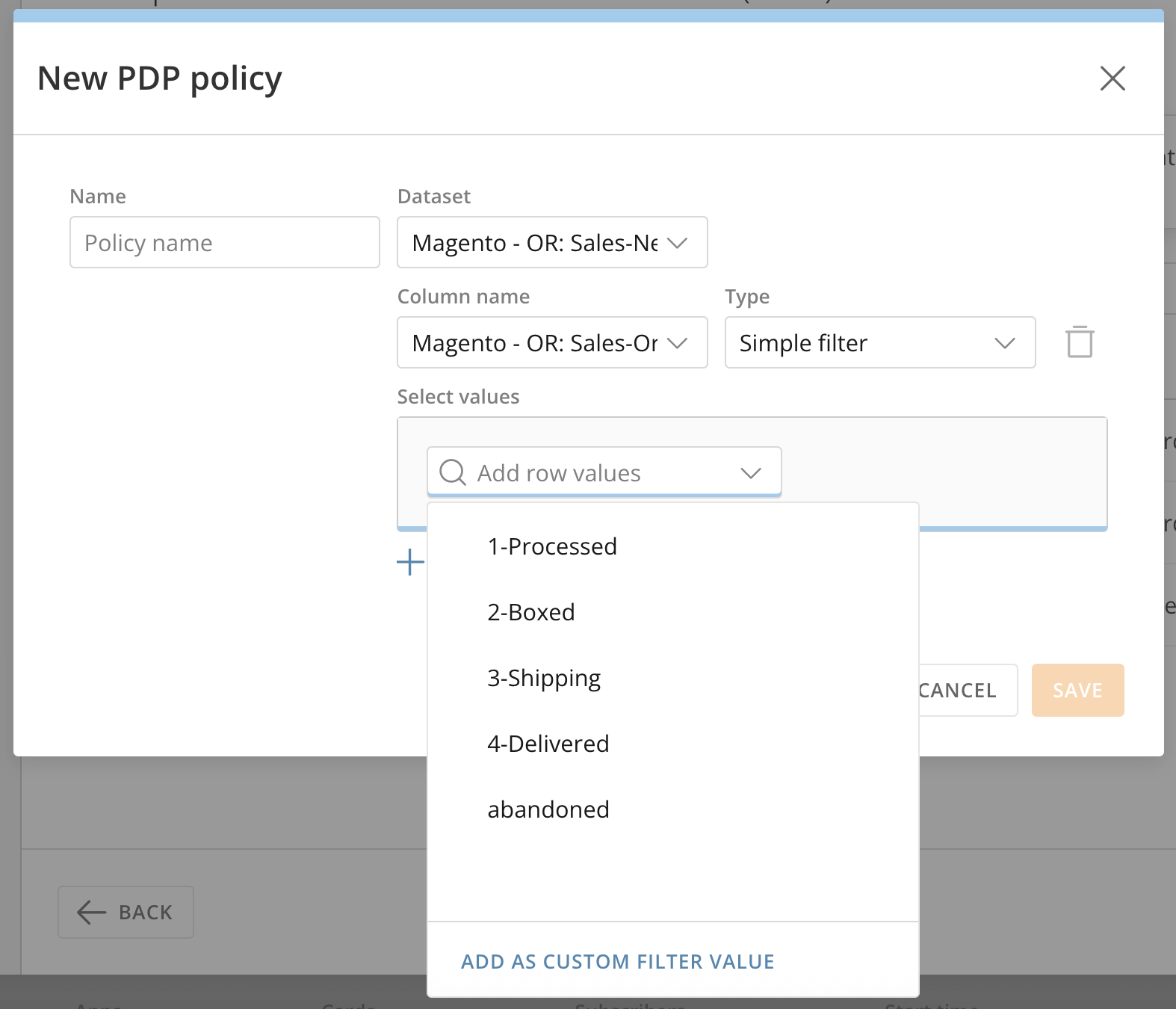
 4. Select **+ Add Filter**.
5. Select a column from the dropdown.
6. Choose the filter type. If you are using Dynamic PDP, select **Dynamic PDP by Org ID**. See [PDP Policies for Published Content](#pdp-policies-for-published-content) to learn more.
7. Select values.
4. Select **+ Add Filter**.
5. Select a column from the dropdown.
6. Choose the filter type. If you are using Dynamic PDP, select **Dynamic PDP by Org ID**. See [PDP Policies for Published Content](#pdp-policies-for-published-content) to learn more.
7. Select values.
 8. Select **Save** to save and close the modal.
### Update Publication Owner
If a publication owner ever changes their permissions or is no longer an active Domo user, their publications may not receive live data. To ensure that data for subscribing organizations is kept current, publication owners may be changed. Admins can follow the steps below to update a publication owner.
1. [Access](#access-publications) Publications.
2. Hover over the publication where you want to change the owner and select
8. Select **Save** to save and close the modal.
### Update Publication Owner
If a publication owner ever changes their permissions or is no longer an active Domo user, their publications may not receive live data. To ensure that data for subscribing organizations is kept current, publication owners may be changed. Admins can follow the steps below to update a publication owner.
1. [Access](#access-publications) Publications.
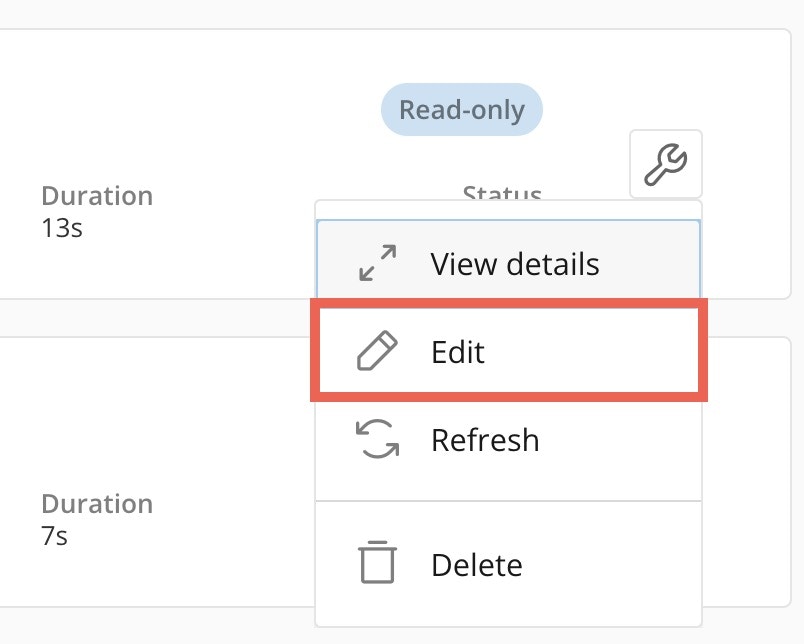
2. Hover over the publication where you want to change the owner and select  **Publication Options > Edit**
 3. In the **Publication Name** section, locate the **Owner** field. Find and select the new publication owner.
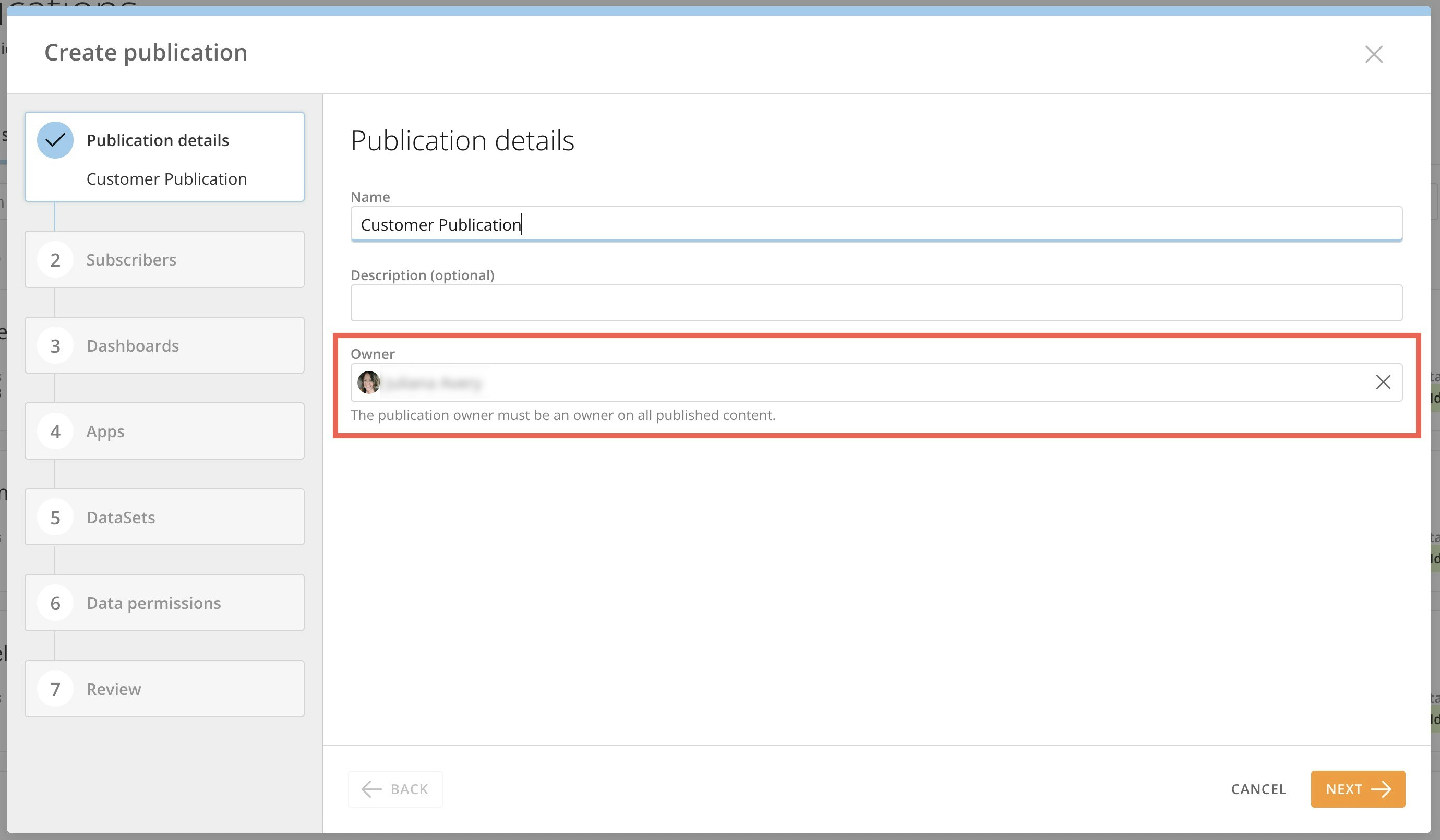 4. Move through the modal, making any other changes to the publication.
5. In the **Review** section of the modal, review your changes and select **Save** to close the modal and update the publication owner.
### Manage Subscribers
You can add more subscribers to a publication by following these steps:
1. [Access](#access-publications) Publications.
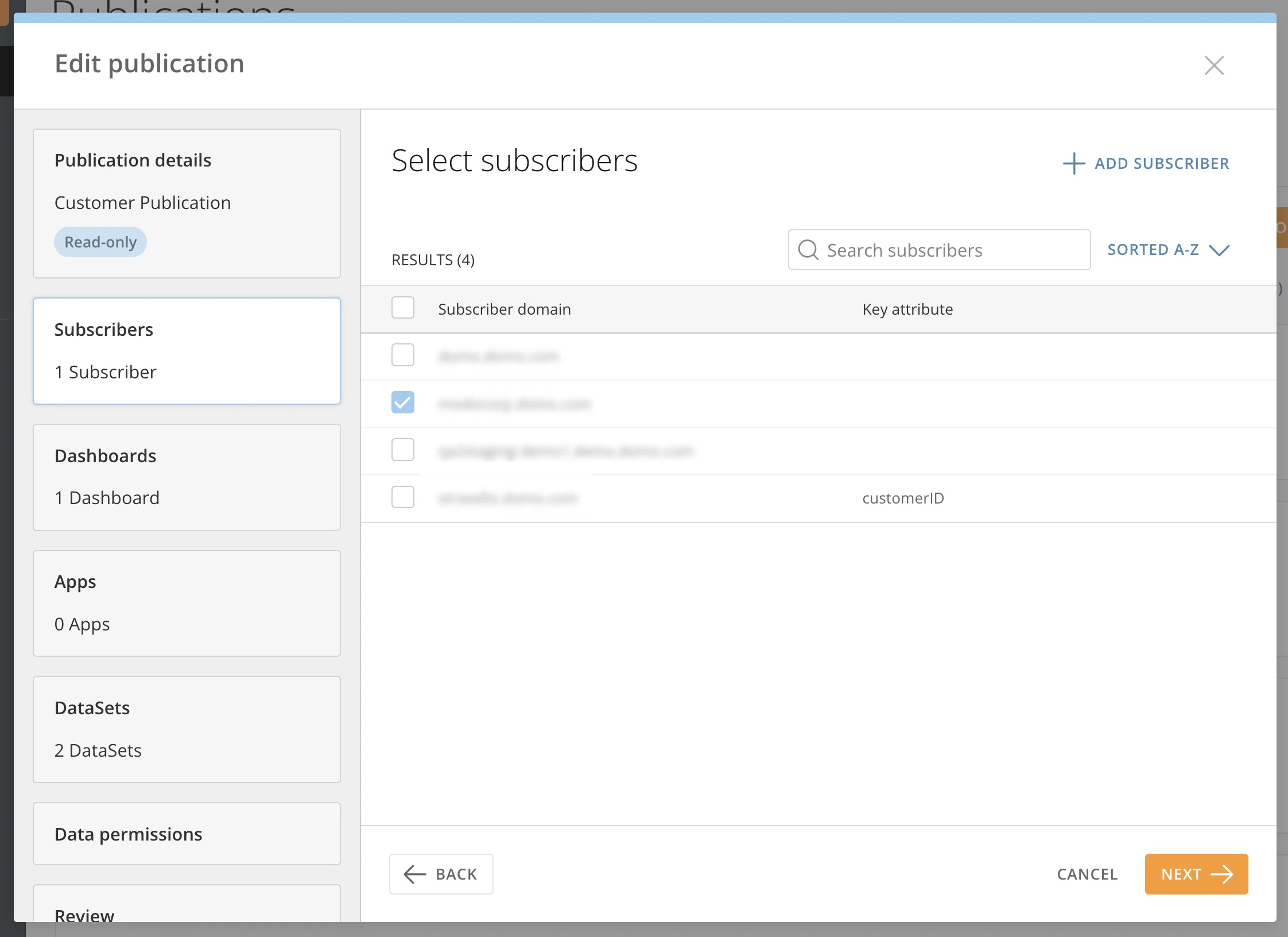
2. Hover over the publication where you want to change the owner and select **Publication Options > Edit**
3. In the **Subscribers** section of the modal, you can add subscribers to your publication.
4. Move through the modal, making any other changes to the publication.
5. In the **Review** section of the modal, review your changes and select **Save** to close the modal and update the publication owner.
### Manage Subscribers
You can add more subscribers to a publication by following these steps:
1. [Access](#access-publications) Publications.
2. Hover over the publication where you want to change the owner and select **Publication Options > Edit**
3. In the **Subscribers** section of the modal, you can add subscribers to your publication.
 ### Refresh a Publication
If you change a published dashboard or a card on a published dashboard, you must refresh the publication to display the changes for a subscribing organization.
**Important:** Do not modify the source dashboards while the job is
refreshing. This changes the layout of the dashboard and corrupts the card
layout for the subscriber.
1. [Access](#access-publications) Publications.
2. In the publications list, locate the publication you want to refresh.
3. Hover over the publication and select **Publication Options > Refresh** to display the publication details.
### Refresh a Publication
If you change a published dashboard or a card on a published dashboard, you must refresh the publication to display the changes for a subscribing organization.
**Important:** Do not modify the source dashboards while the job is
refreshing. This changes the layout of the dashboard and corrupts the card
layout for the subscriber.
1. [Access](#access-publications) Publications.
2. In the publications list, locate the publication you want to refresh.
3. Hover over the publication and select **Publication Options > Refresh** to display the publication details.
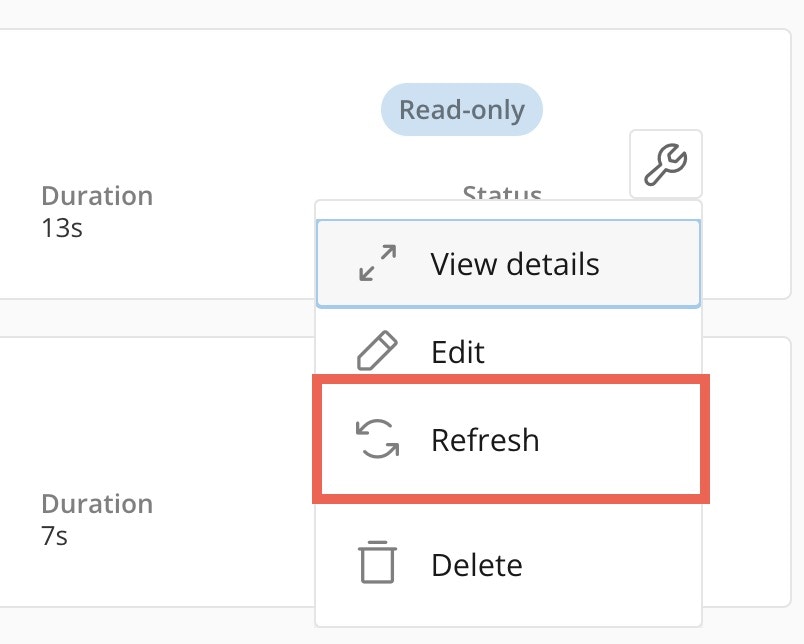 4. Check the boxes to perform a targeted refresh for the subscribers you select. You can sort the publications by status to see which subscribers have an error.
5. Select **Refresh**.
4. Check the boxes to perform a targeted refresh for the subscribers you select. You can sort the publications by status to see which subscribers have an error.
5. Select **Refresh**.
 ### Delete a Publication
1. [Access](#access-publications) Publications.
2. In the publications list, locate the publication you want to delete.
3. Hover over the publication and select **Publication Options > Delete**.
### Delete a Publication
1. [Access](#access-publications) Publications.
2. In the publications list, locate the publication you want to delete.
3. Hover over the publication and select **Publication Options > Delete**.
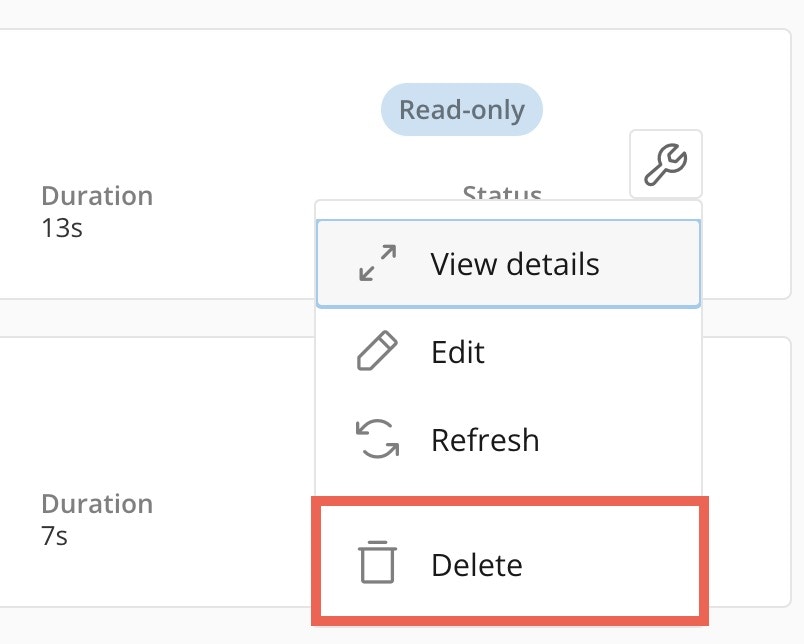 The **Delete Publication** dialog displays a warning and the amount of content you are removing. You must acknowledge the removal of the content before you can proceed.
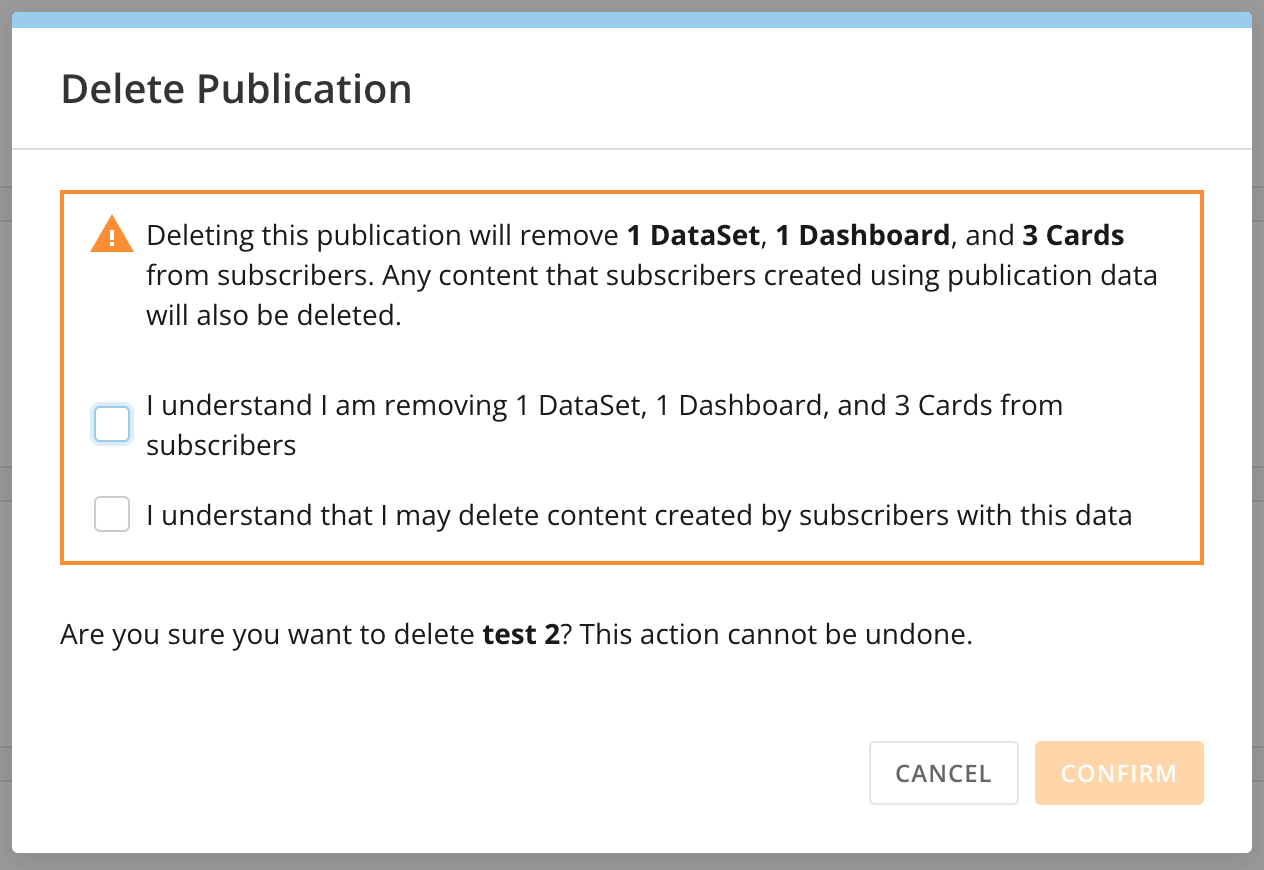 4. Check both boxes to confirm the content you are removing from subscribers and that you understand you may delete content created by subscribers with this data.
5. Select **Confirm** to delete the publication.
**Important:** Confirming deletion immediately removes the dashboards, cards, and
DataSets included in this publication from all subscriber instances.
### Remove a Dashboard from a Publication
**Warning:** If you remove a dashboard from an existing publication, the
DataSets powering the dashboard are also automatically removed. If the
subscriber is using any of those DataSets to power any custom-built cards
within their Domo environment, the cards are also deleted at the same time.
To preserve the DataSets powering a dashboard in a publication while removing the dashboard itself from the publication, confirm that all of the DataSets you want to keep are reselected in the **DataSets** section of the **Publication Creation** modal before saving the publication.
### Publish the Same DataSet in Two Publications
Each publication pushes all of the DataSets it contains to the subscribers, even if any of the DataSets already exist in the subscriber's Domo environment due to an existing publication containing the DataSet(s).
Within the subscriber instance, each copy of the DataSet has the same name, but different values for `DataSet ID`. Each copy of the DataSet is tied to the specific publication it was published with.
**Tip:** We recommend only publishing a given DataSet to a subscriber one time
and in one publication.
## Subscription Tasks
Configured subscribers can subscribe to an existing publication by invitation. With [auto-subscription](#auto-subscribe-to-all-publications-from-an-instance), a subscribing organization can trust and accept all subscriptions from a specific publishing organization rather than individually accepting every subscription.
### Subscribe to a Single Publication
The individual in the subscribing organization who accepts a subscription invitation from the publisher becomes the subscription owner. They own all the content that is published in that subscription.
For example, Farah from Organization A publishes the content to Organization B. Farah is the publication owner. John in Organization B accepts the subscription invitation and is now the subscription owner.
To receive the published content, an individual in the subscribing organization must follow the steps below:
**Note:** Content must have already been
[published](#create-a-publication) to the subscriber before the subscriber can
follow these steps.
1. Navigate to **Domo Everywhere**.
2. Select **Subscriptions**.
3. Go to the **Invitations** tab and select **Subscribe** for the invitation you want to accept.
4. Check both boxes to confirm the content you are removing from subscribers and that you understand you may delete content created by subscribers with this data.
5. Select **Confirm** to delete the publication.
**Important:** Confirming deletion immediately removes the dashboards, cards, and
DataSets included in this publication from all subscriber instances.
### Remove a Dashboard from a Publication
**Warning:** If you remove a dashboard from an existing publication, the
DataSets powering the dashboard are also automatically removed. If the
subscriber is using any of those DataSets to power any custom-built cards
within their Domo environment, the cards are also deleted at the same time.
To preserve the DataSets powering a dashboard in a publication while removing the dashboard itself from the publication, confirm that all of the DataSets you want to keep are reselected in the **DataSets** section of the **Publication Creation** modal before saving the publication.
### Publish the Same DataSet in Two Publications
Each publication pushes all of the DataSets it contains to the subscribers, even if any of the DataSets already exist in the subscriber's Domo environment due to an existing publication containing the DataSet(s).
Within the subscriber instance, each copy of the DataSet has the same name, but different values for `DataSet ID`. Each copy of the DataSet is tied to the specific publication it was published with.
**Tip:** We recommend only publishing a given DataSet to a subscriber one time
and in one publication.
## Subscription Tasks
Configured subscribers can subscribe to an existing publication by invitation. With [auto-subscription](#auto-subscribe-to-all-publications-from-an-instance), a subscribing organization can trust and accept all subscriptions from a specific publishing organization rather than individually accepting every subscription.
### Subscribe to a Single Publication
The individual in the subscribing organization who accepts a subscription invitation from the publisher becomes the subscription owner. They own all the content that is published in that subscription.
For example, Farah from Organization A publishes the content to Organization B. Farah is the publication owner. John in Organization B accepts the subscription invitation and is now the subscription owner.
To receive the published content, an individual in the subscribing organization must follow the steps below:
**Note:** Content must have already been
[published](#create-a-publication) to the subscriber before the subscriber can
follow these steps.
1. Navigate to **Domo Everywhere**.
2. Select **Subscriptions**.
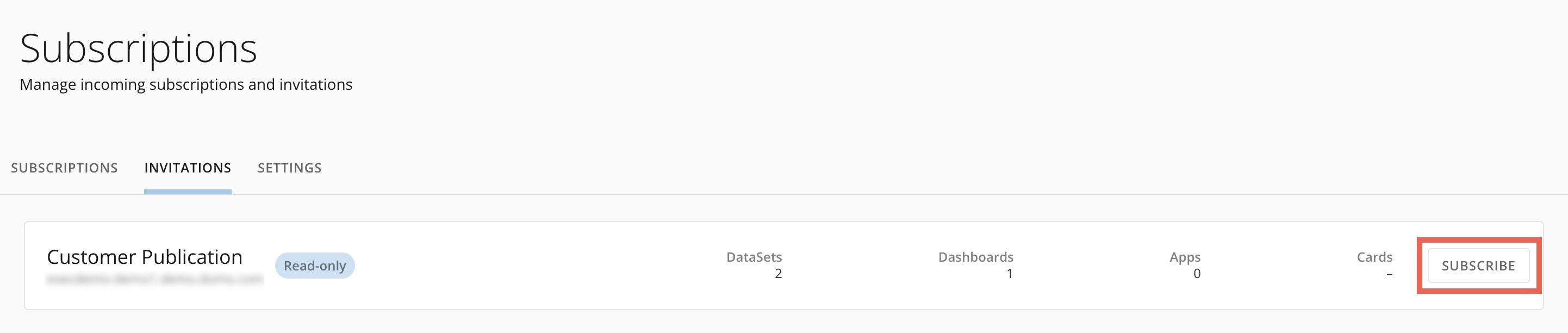
3. Go to the **Invitations** tab and select **Subscribe** for the invitation you want to accept.
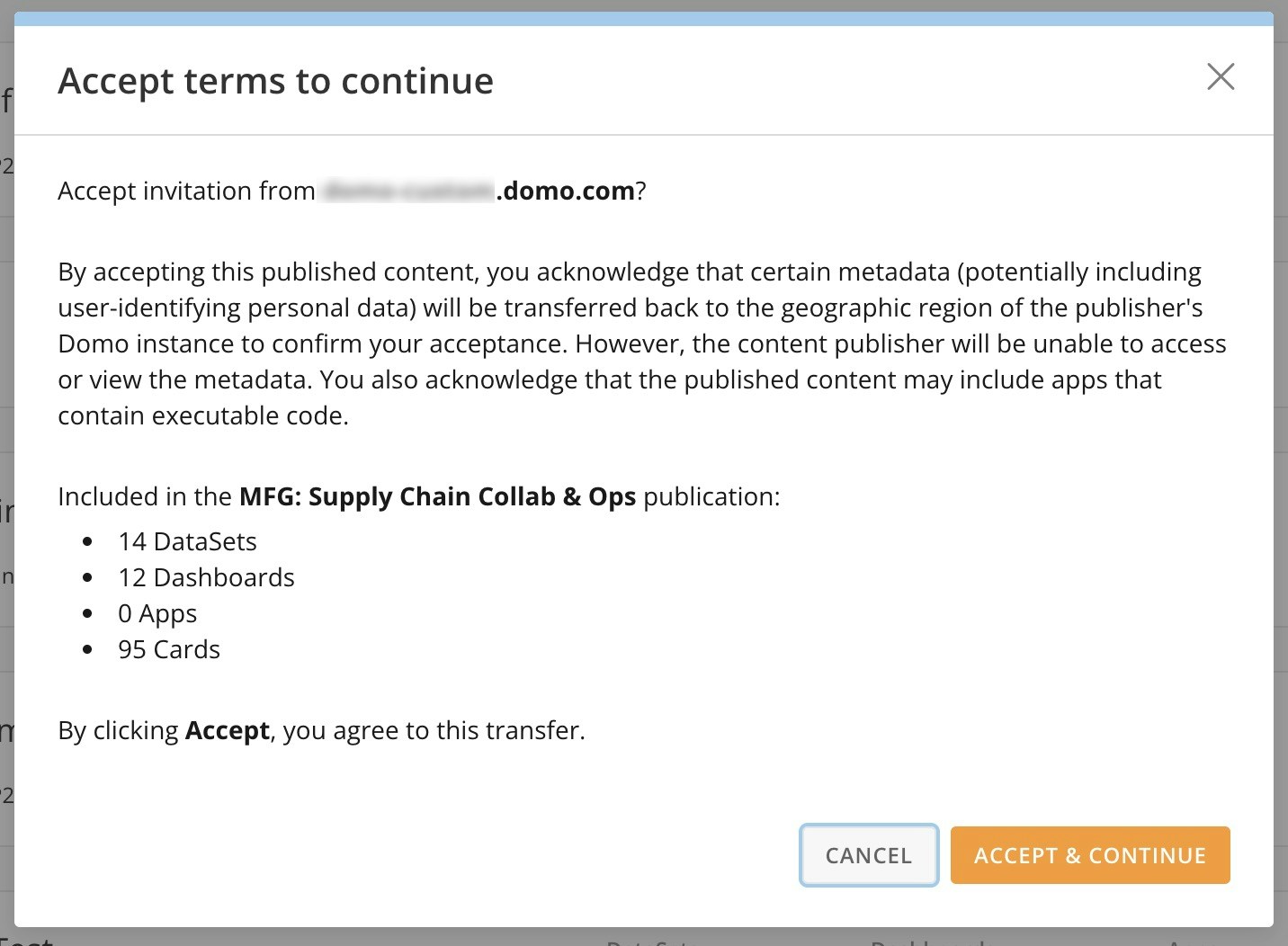
 A dialog displays to confirm acceptance. Select **Accept & Continue** to confirm the subscription.
 4. Choose the subscription owner. This individual owns all the content that is published in the subscription.
5. (Optional) Share the subscription with other individuals and groups.
6. Select **Complete**.\
The published data populates in the subscriber instance. The process is complete when the invitation disappears from the **Invitations** tab and the new publication appears in the **Subscriptions** tab.
**Note:** The DataSets are available as soon as you accept the
invitation, but you must refresh your browser to view the visualizations.
### Auto-subscribe to All Publications From an Instance
Follow these steps to auto-subscribe to publications from a specific instance:
1. Navigate to **Domo Everywhere**.
2. Select **Subscriptions** and go to the **Settings** tab.
3. Select **+ Add Auto-Subscription** to open the new auto-subscription modal.
4. Choose the subscription owner. This individual owns all the content that is published in the subscription.
5. (Optional) Share the subscription with other individuals and groups.
6. Select **Complete**.\
The published data populates in the subscriber instance. The process is complete when the invitation disappears from the **Invitations** tab and the new publication appears in the **Subscriptions** tab.
**Note:** The DataSets are available as soon as you accept the
invitation, but you must refresh your browser to view the visualizations.
### Auto-subscribe to All Publications From an Instance
Follow these steps to auto-subscribe to publications from a specific instance:
1. Navigate to **Domo Everywhere**.
2. Select **Subscriptions** and go to the **Settings** tab.
3. Select **+ Add Auto-Subscription** to open the new auto-subscription modal.
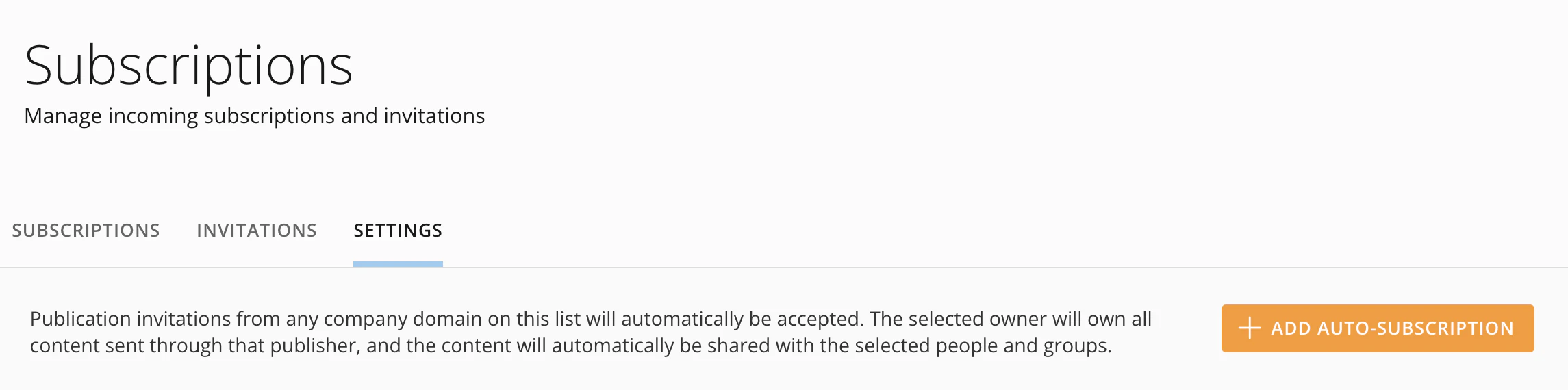 4. In the modal's **Domain name** field, enter the Domo domain name for the publishing organization. The format is *\*.domo.com.
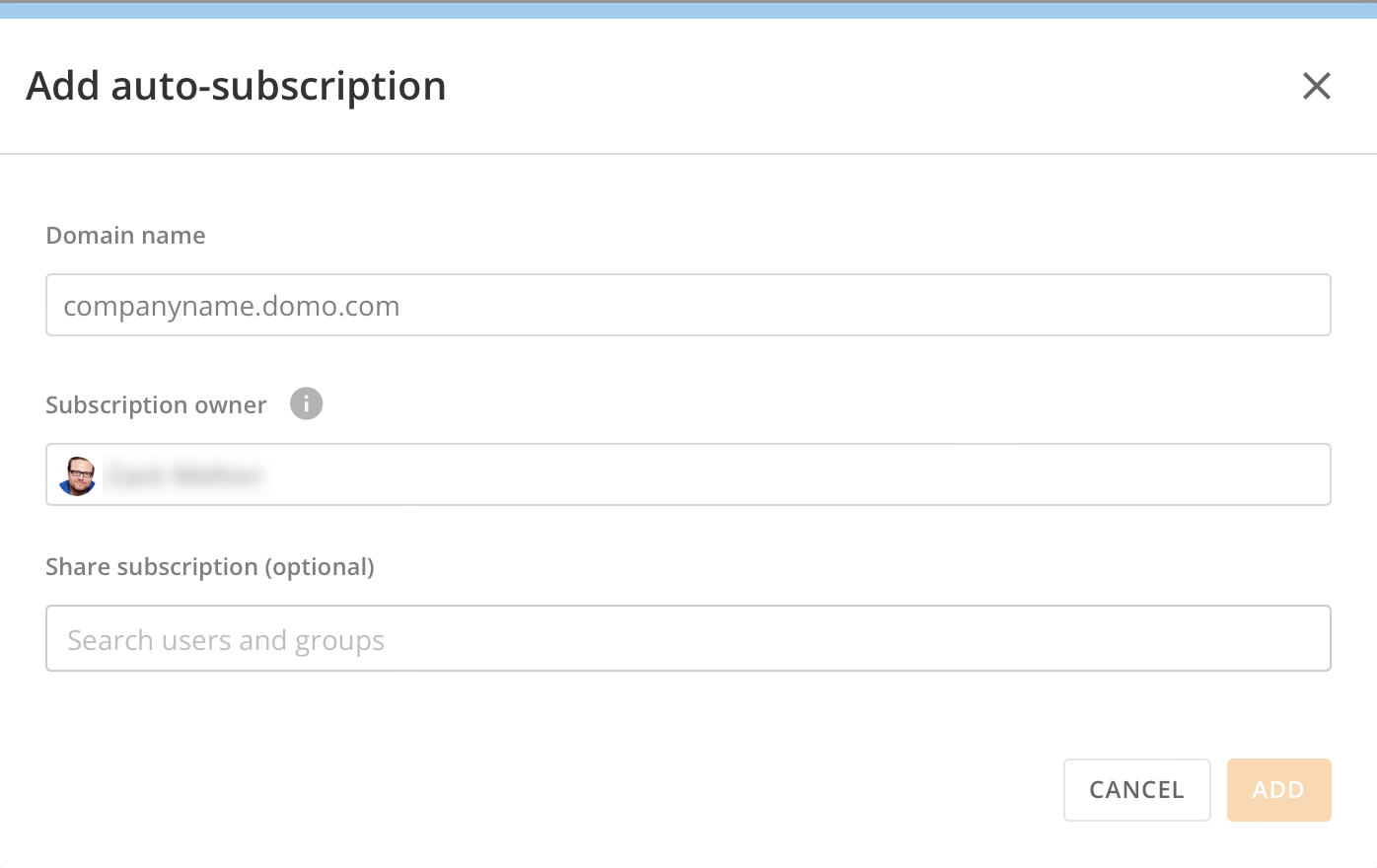 5. In the **Subscription owner** field, enter a name for the subscription owner. By default, the subscription owner is the individual adding the auto-subscription. We recommend that the owner be a service account.
6. (Optional) In the **Share subscription** field, search for and add individuals or groups to this auto-subscription. While this step is optional, this field is where you can configure [Default Sharing](#default-sharing), as described below.
7. Select **Add** to add the auto-subscription.
The auto-subscription now displays in the **Settings** tab and the list in the **Subscriptions** tab.
**Note:** You can edit or remove the auto-subscription from the **Settings**
tab. You cannot remove the auto-subscription from the subscriptions list in
the **Subscriptions** tab.
### Default Sharing
Default Sharing allows subscribers to automatically share all publications from a specified publishing instance to any number of individuals or groups.
1. In the **Add auto-subscription** modal, accessed while [adding an auto-subscription](#auto-subscribe-to-all-publications-from-an-instance), enter the Domo domain for the publishing instance you want to share publications from automatically.
2. In the **Share subscription** field, enter any individuals or groups to push publications automatically.
### Lock a Published Dashboard
We recommend that subscribers lock published dashboards after successfully subscribing to a publication. The reason is that if the publisher updates the visualizations on their side, those changes automatically override any changes made by subscribers.
Lock a dashboard by selecting **Lock** at the top of the dashboard.
5. In the **Subscription owner** field, enter a name for the subscription owner. By default, the subscription owner is the individual adding the auto-subscription. We recommend that the owner be a service account.
6. (Optional) In the **Share subscription** field, search for and add individuals or groups to this auto-subscription. While this step is optional, this field is where you can configure [Default Sharing](#default-sharing), as described below.
7. Select **Add** to add the auto-subscription.
The auto-subscription now displays in the **Settings** tab and the list in the **Subscriptions** tab.
**Note:** You can edit or remove the auto-subscription from the **Settings**
tab. You cannot remove the auto-subscription from the subscriptions list in
the **Subscriptions** tab.
### Default Sharing
Default Sharing allows subscribers to automatically share all publications from a specified publishing instance to any number of individuals or groups.
1. In the **Add auto-subscription** modal, accessed while [adding an auto-subscription](#auto-subscribe-to-all-publications-from-an-instance), enter the Domo domain for the publishing instance you want to share publications from automatically.
2. In the **Share subscription** field, enter any individuals or groups to push publications automatically.
### Lock a Published Dashboard
We recommend that subscribers lock published dashboards after successfully subscribing to a publication. The reason is that if the publisher updates the visualizations on their side, those changes automatically override any changes made by subscribers.
Lock a dashboard by selecting **Lock** at the top of the dashboard.
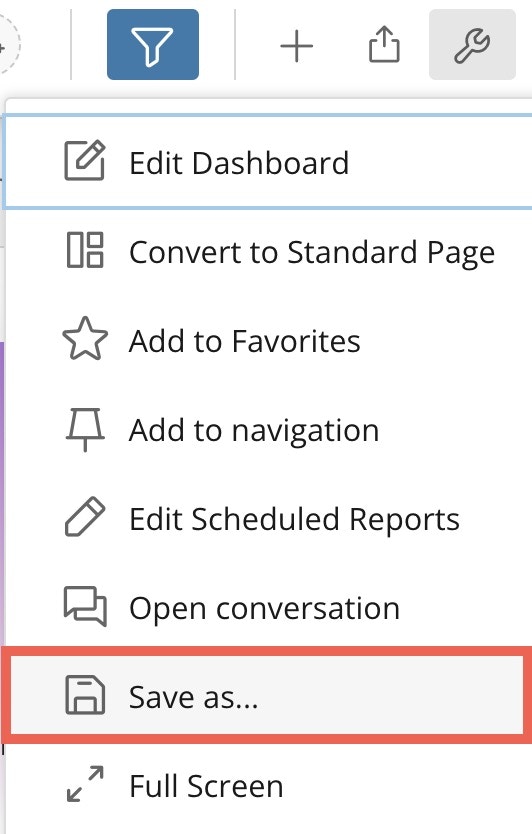
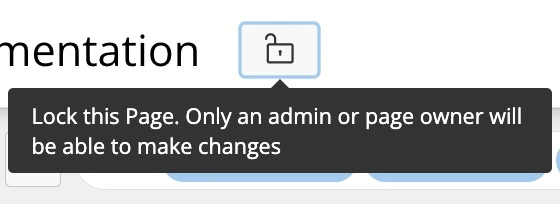 If you want to edit the visualizations in a publication, it's best to make a copy of the dashboard by going to
  **Dashboard options**>
 ### Unsubscribe from a Publication
1. [Access](#access-publications) Publications.
2. In the **Subscriptions** tab, find the publication you want to unsubscribe from and hover over it until
### Unsubscribe from a Publication
1. [Access](#access-publications) Publications.
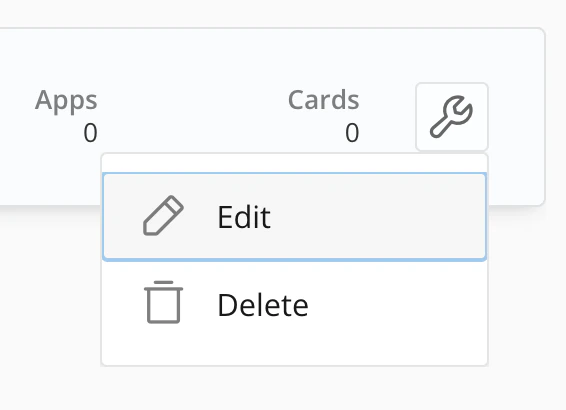
2. In the **Subscriptions** tab, find the publication you want to unsubscribe from and hover over it until  **Subscription options** displays.
3. Select **Subscription options**> **Delete**.
**Subscription options** displays.
3. Select **Subscription options**> **Delete**.
 4. A confirmation dialog displays. This action cannot be undone.
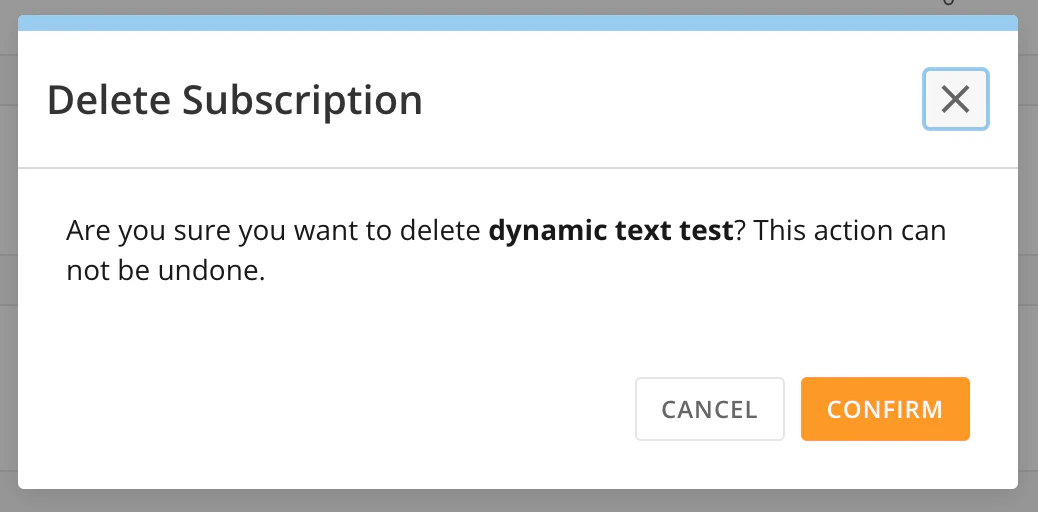 5. Select **Confirm** to delete the subscription.
**Warning:** Confirming deletion immediately initiates the removal of dashboards,
cards, and DataSets included in the publication from the subscriber
environment.
### PDP Policies for Published Content
This section contains information about publishing content with Personalized Data Permissions (PDP).
**Keep in mind:**
* If you [publish the same DataSet in two publications to the same subscriber instance](#publish-the-same-dataset-in-two-publications), the PDP policies of the most recently saved publication are used for data permissions.
* This means that if you want to share the same DataSet to the same subscriber instance twice with different permissions, you must duplicate the DataSet in the publisher's Domo environment.
## Dynamic PDP
When you create a publication using the Dynamic PDP by Org ID permission type, only the part of the DataSet you want that subscriber to see is published to their Domo environment. This keeps your data more secure and you can always make a change to the data the subscriber receives at a later time.
Dynamic PDP takes effect after the next refresh of the publication.
### Publish DataSet Views
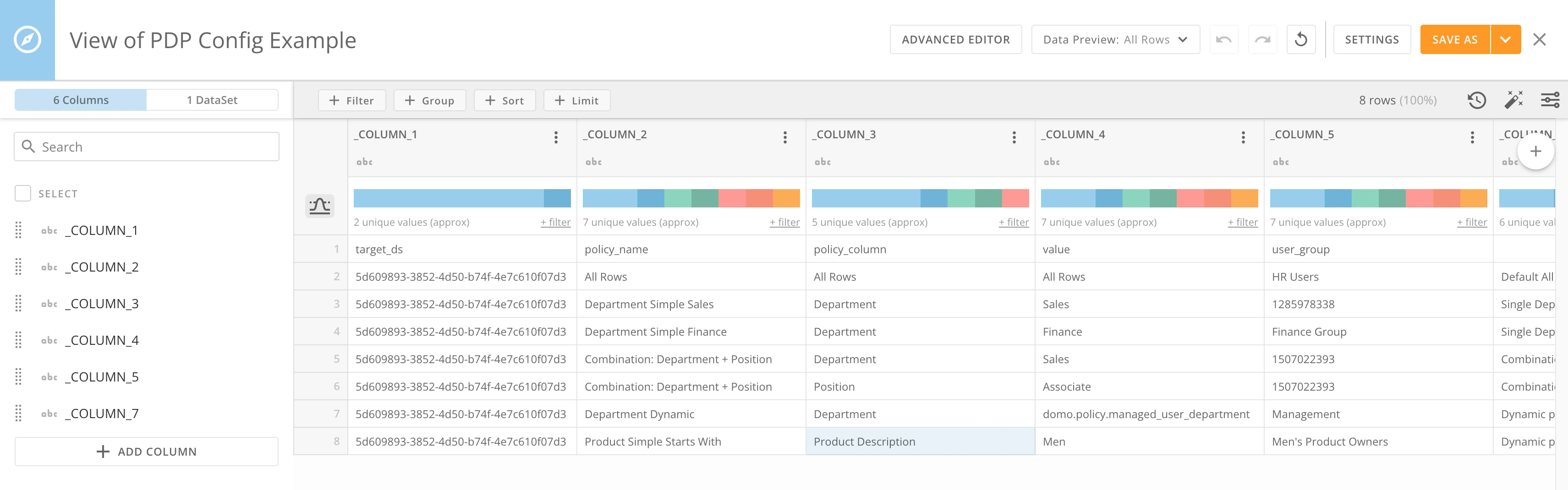
You can use Domo Everywhere to publish DataSet Views. Learn more about [DataSet Views](/docs/s/article/360046074774).
5. Select **Confirm** to delete the subscription.
**Warning:** Confirming deletion immediately initiates the removal of dashboards,
cards, and DataSets included in the publication from the subscriber
environment.
### PDP Policies for Published Content
This section contains information about publishing content with Personalized Data Permissions (PDP).
**Keep in mind:**
* If you [publish the same DataSet in two publications to the same subscriber instance](#publish-the-same-dataset-in-two-publications), the PDP policies of the most recently saved publication are used for data permissions.
* This means that if you want to share the same DataSet to the same subscriber instance twice with different permissions, you must duplicate the DataSet in the publisher's Domo environment.
## Dynamic PDP
When you create a publication using the Dynamic PDP by Org ID permission type, only the part of the DataSet you want that subscriber to see is published to their Domo environment. This keeps your data more secure and you can always make a change to the data the subscriber receives at a later time.
Dynamic PDP takes effect after the next refresh of the publication.
### Publish DataSet Views
You can use Domo Everywhere to publish DataSet Views. Learn more about [DataSet Views](/docs/s/article/360046074774).
 ### Notes
The following notes provide more information about publishing processes.
#### System Refresh
Occasionally, the system may have a cache issue and require 10–15 minutes for updates between the publishing and subscribing instances. If this happens, allow the system time between refreshes.
#### Alerts for Published Content
Alerts do not copy from publisher to subscriber. Subscribers can create Card Alerts in their Domo instance to be triggered by numerical thresholds. DataSet Alerts for appending new rows or changing values are incompatible with the virtual DataSets from a publication.
Subscribers can create DataSet Alerts for published DataSets in their Domo instance. These look and function differently than DataSet Alerts for standard, non-published DataSets. To create a DataSet Alert, select **Create a new alert**. Then follow the steps outlined in [Creating an Alert for a DataSet](/docs/s/article/360042925994).
You cannot trigger alerts for published content every time the data updates, but you can schedule triggers (hourly, daily, etc).
#### Calculations on Cards
Calculations on cards are only copied to the subscriber if they are being used in the published cards.
#### Federated Data
You can publish federated data, but if the original source is federated, the published data cannot be run in a DataFlow.
#### Sample Data DataSets
DataSets with the **Sample Data** type are not supported in Publications. If a publication includes a Sample Data DataSet, subscribers see the error **"1 of 1 subscriber has missing content, please use targeted refresh"** when the publication refreshes.
To resolve this, replace the Sample Data DataSet with a non-sample equivalent (for example, an Imported, DataFlow, or DataSet View output) and refresh the publication.
#### Color Palettes
You can publish an app in App Studio and include an instance chart color palette as a dependency. Whoever accepts the publication or invitation from the subscriber instance needs to have Admin rights to be informed of any color palette changes affecting the instance.
Learn more about [Color Palettes in App Studio](/docs/s/article/000005295).
#### Filter Views
Default filter views do not support Beast Mode calculation fields in App Studio publications. This limitation is on the roadmap for future improvement.
**Need Support?** If you need support with your publication after reviewing this document, contact us at [support@domo.com](mailto:support@domo.com).
Include the following information in your request:
* Domo environment(s) where the behavior is occurring
* Publication name
* Description of behavior
* Screenshot of behavior (if applicable)
* Steps to recreate behavior (if known/applicable)
### Notes
The following notes provide more information about publishing processes.
#### System Refresh
Occasionally, the system may have a cache issue and require 10–15 minutes for updates between the publishing and subscribing instances. If this happens, allow the system time between refreshes.
#### Alerts for Published Content
Alerts do not copy from publisher to subscriber. Subscribers can create Card Alerts in their Domo instance to be triggered by numerical thresholds. DataSet Alerts for appending new rows or changing values are incompatible with the virtual DataSets from a publication.
Subscribers can create DataSet Alerts for published DataSets in their Domo instance. These look and function differently than DataSet Alerts for standard, non-published DataSets. To create a DataSet Alert, select **Create a new alert**. Then follow the steps outlined in [Creating an Alert for a DataSet](/docs/s/article/360042925994).
You cannot trigger alerts for published content every time the data updates, but you can schedule triggers (hourly, daily, etc).
#### Calculations on Cards
Calculations on cards are only copied to the subscriber if they are being used in the published cards.
#### Federated Data
You can publish federated data, but if the original source is federated, the published data cannot be run in a DataFlow.
#### Sample Data DataSets
DataSets with the **Sample Data** type are not supported in Publications. If a publication includes a Sample Data DataSet, subscribers see the error **"1 of 1 subscriber has missing content, please use targeted refresh"** when the publication refreshes.
To resolve this, replace the Sample Data DataSet with a non-sample equivalent (for example, an Imported, DataFlow, or DataSet View output) and refresh the publication.
#### Color Palettes
You can publish an app in App Studio and include an instance chart color palette as a dependency. Whoever accepts the publication or invitation from the subscriber instance needs to have Admin rights to be informed of any color palette changes affecting the instance.
Learn more about [Color Palettes in App Studio](/docs/s/article/000005295).
#### Filter Views
Default filter views do not support Beast Mode calculation fields in App Studio publications. This limitation is on the roadmap for future improvement.
**Need Support?** If you need support with your publication after reviewing this document, contact us at [support@domo.com](mailto:support@domo.com).
Include the following information in your request:
* Domo environment(s) where the behavior is occurring
* Publication name
* Description of behavior
* Screenshot of behavior (if applicable)
* Steps to recreate behavior (if known/applicable)