> ## Documentation Index
> Fetch the complete documentation index at: https://www.domo.com/docs/llms.txt
> Use this file to discover all available pages before exploring further.
# 2016 Release 9 | October
**Note:** These features will be turned on for all instances on or before October 25, 2016.
## New features and enhancements
Features and enhancements in this release include the following:
### Domo PowerPoint Plugin
Use the Domo PowerPoint plugin to pull Domo cards into a PowerPoint presentation. This plugin provides much more power and flexibility than the other available methods for showing cards in PowerPoint. You can download this plugin in **Admin > Tool Downloads**.
Using this plugin, you can do all of the following:
* Connect to the server for the desired Domo instance.
* Create a template for displaying cards in your presentation. You can include or exclude attributes such as card title, description, owner name, last modify date, and so on.
* Specify the page in Domo that cards are being pulled from.
* Refresh the cards in a presentation.
* Specify the types of cards that are pulled into Domo (KPI cards, document cards, custom Apps, etc.).
 For more information, see [Using the Domo PowerPoint Plugin](/s/article/360043437953 "Using the Domo PowerPoint Plugin").
### Domo Excel Plugin
Use the Domo Excel plugin to download DataSets from Domo into Excel. You can then edit the data in Excel just as you could with any Excel spreadsheet. After editing DataSet data in Excel, you can upload the edited data into the same DataSet you downloaded it from, create a new Domo DataSet from this data, or upload the data to another existing DataSet. You can download this plugin in **Admin > Tool Downloads**.
Using this plugin, you can do all of the following:
* Connect to the server for the desired Domo instance.
* Download any DataSet from your connected instance as an Excel file.
* Edit the data in your downloaded DataSet.
* Upload your edited DataSet as a new DataSet, into the same DataSet you pulled the data from, or into a different existing DataSet.
* Refresh the DataSet—if anything has changed in this DataSet, it will be "redownloaded."
For more information, see [Using the Domo PowerPoint Plugin](/s/article/360043437953 "Using the Domo PowerPoint Plugin").
### Domo Excel Plugin
Use the Domo Excel plugin to download DataSets from Domo into Excel. You can then edit the data in Excel just as you could with any Excel spreadsheet. After editing DataSet data in Excel, you can upload the edited data into the same DataSet you downloaded it from, create a new Domo DataSet from this data, or upload the data to another existing DataSet. You can download this plugin in **Admin > Tool Downloads**.
Using this plugin, you can do all of the following:
* Connect to the server for the desired Domo instance.
* Download any DataSet from your connected instance as an Excel file.
* Edit the data in your downloaded DataSet.
* Upload your edited DataSet as a new DataSet, into the same DataSet you pulled the data from, or into a different existing DataSet.
* Refresh the DataSet—if anything has changed in this DataSet, it will be "redownloaded."
 For more information, see [Using the Domo Excel Plugin](/s/article/360043437933 "Using the Domo Excel Plugin").
### DomoR Plugin
The new DomoR plugin allows you to retrieve a DataSet from Domo, complete further processing on it in R, and then upload the changes back to Domo. The plugin can also be used to create a new DataSet in Domo directly from R. You can access installation information, an instructional video, and help links for the plugin from within Domo, by navigating to the Data Center and clicking **R Plugin** in the toolbar at the top of the screen.
For more information, see [Using the Domo Excel Plugin](/s/article/360043437933 "Using the Domo Excel Plugin").
### DomoR Plugin
The new DomoR plugin allows you to retrieve a DataSet from Domo, complete further processing on it in R, and then upload the changes back to Domo. The plugin can also be used to create a new DataSet in Domo directly from R. You can access installation information, an instructional video, and help links for the plugin from within Domo, by navigating to the Data Center and clicking **R Plugin** in the toolbar at the top of the screen.
 For information about the DomoR plugin, see [DomoR Plugin](/s/article/360042923734 "DomoR Plugin").
### Help Center Page
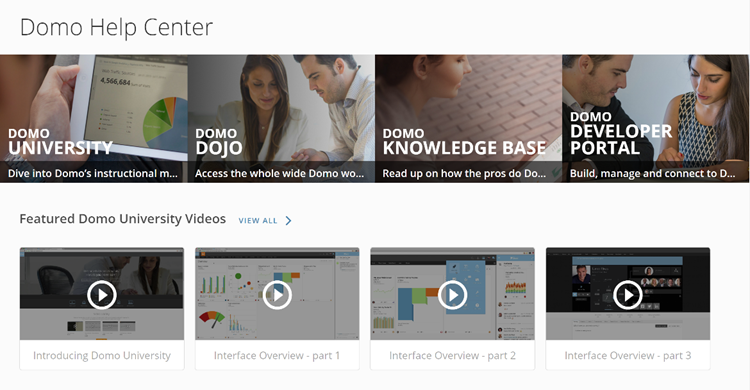
When you now click the **Help Center** link in the main menu, a page opens within Domo from which you can navigate to Domo University, the Domo Dojo, the Knowledge Base, or Domo's Developer Portal. The page also contains several featured videos, which you can play right in this page instead of first having to navigate to the video library in Domo University, as well as the help guides found within Domo.
Note that to access Domo's user documentation, you now click **Domo Knowledge Base** in the new Help Center page. Previously, clicking **Help Center** would open the user documentation directly.
For information about the DomoR plugin, see [DomoR Plugin](/s/article/360042923734 "DomoR Plugin").
### Help Center Page
When you now click the **Help Center** link in the main menu, a page opens within Domo from which you can navigate to Domo University, the Domo Dojo, the Knowledge Base, or Domo's Developer Portal. The page also contains several featured videos, which you can play right in this page instead of first having to navigate to the video library in Domo University, as well as the help guides found within Domo.
Note that to access Domo's user documentation, you now click **Domo Knowledge Base** in the new Help Center page. Previously, clicking **Help Center** would open the user documentation directly.
 For more information, see [Getting Help](/s/article/360042922874 "Getting Help").
### Add to Domo
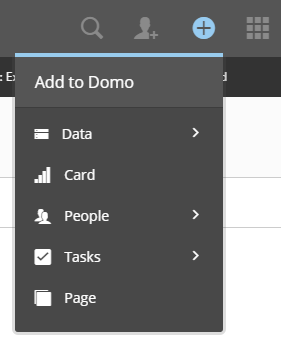
The new "Add to Domo" tool lets you open the "Add" interface for almost any object from anywhere in Domo. With just a few mouse clicks, this features brings to the forefront the tools that are available within Domo, similar to the new Data Center user interface. Objects you can add include the following:
* API, file, or database connectors.
* Magic ETL, SQL, and DataFusion transforms.
* All types of cards—KPI cards, Sumo cards, document cards, etc.
* Card pages.
* Projects and tasks.
* People and groups.
You can also open the Workbench information/download screen (by selecting **Data > On Premise**).
For more information, see [Getting Help](/s/article/360042922874 "Getting Help").
### Add to Domo
The new "Add to Domo" tool lets you open the "Add" interface for almost any object from anywhere in Domo. With just a few mouse clicks, this features brings to the forefront the tools that are available within Domo, similar to the new Data Center user interface. Objects you can add include the following:
* API, file, or database connectors.
* Magic ETL, SQL, and DataFusion transforms.
* All types of cards—KPI cards, Sumo cards, document cards, etc.
* Card pages.
* Projects and tasks.
* People and groups.
You can also open the Workbench information/download screen (by selecting **Data > On Premise**).
 For more information, see [Domo Application Layout](/s/article/360043442453 "Domo Application Layout").
### New Data Center UI
The user interface for the Data Center has been revamped to provide a more consistent experience. Changes to the UI include:
* Navigation between tabs is now accomplished through links on the left side of the screen.
* The Data Warehouse tab is the initially selected tab when you open the Data Center. This view includes a new toolbar with icons for connecting to third-party connectors (categorized as Cloud App, File, and Database connectors); opening the Workbench download page; switching over to Domo's developer environment; and opening the Magic ETL and DataFlow creation views. On all other tabs, you can access these options by clicking the **New** button.
* All options in the **Accounts** tab have been consolidated into two different menus, eliminating the need to remember various icons.
For more information, see [Domo Application Layout](/s/article/360043442453 "Domo Application Layout").
### New Data Center UI
The user interface for the Data Center has been revamped to provide a more consistent experience. Changes to the UI include:
* Navigation between tabs is now accomplished through links on the left side of the screen.
* The Data Warehouse tab is the initially selected tab when you open the Data Center. This view includes a new toolbar with icons for connecting to third-party connectors (categorized as Cloud App, File, and Database connectors); opening the Workbench download page; switching over to Domo's developer environment; and opening the Magic ETL and DataFlow creation views. On all other tabs, you can access these options by clicking the **New** button.
* All options in the **Accounts** tab have been consolidated into two different menus, eliminating the need to remember various icons.
 For more information, see Data Center Layout.
### New Workbench Download Page
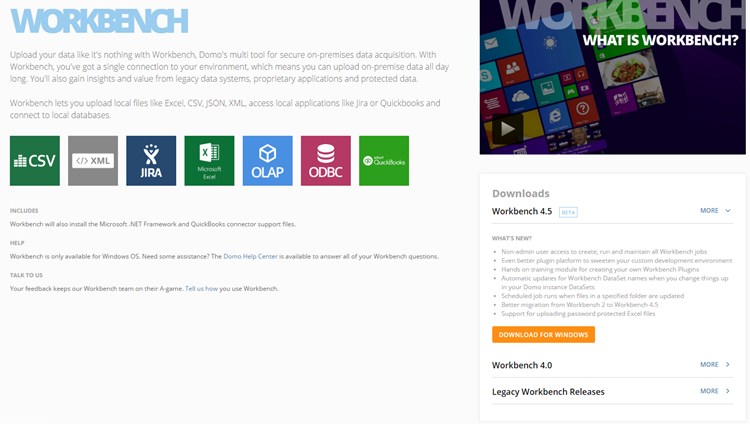
The Workbench download page has been updated to provide a more visually pleasing user experience, more thorough information about Workbench, and "What's New" notes and download buttons for all of the most recent releases. In addition, it has been moved out of the Admin Settings and into a more fitting location in the Data Center. To access the new Workbench download page, select **> Data Center** then click **On Premise** in the toolbar at the top of the window.
For more information, see Data Center Layout.
### New Workbench Download Page
The Workbench download page has been updated to provide a more visually pleasing user experience, more thorough information about Workbench, and "What's New" notes and download buttons for all of the most recent releases. In addition, it has been moved out of the Admin Settings and into a more fitting location in the Data Center. To access the new Workbench download page, select **> Data Center** then click **On Premise** in the toolbar at the top of the window.
 For more information about Workbench installation, see Installing Workbench.
### New public-facing connectors
The following Domo connectors are officially being released to customers:
* Amazon S3
* CallRail
* Flurry
* Mixpanel
* Ooyala
* QuickBase
* ServiceNow
For more information about these and other connectors, see [Configuring Each Connector](/s/article/360042926274 "Configuring Each Connector").
### DataFlow Details view UI changes
A new DataFlow details view is being released, with some changes to the user experience:
* Clicking on an individual DataFlow on the listings page will now take you to the details page instead of the edit page. You can select
For more information about Workbench installation, see Installing Workbench.
### New public-facing connectors
The following Domo connectors are officially being released to customers:
* Amazon S3
* CallRail
* Flurry
* Mixpanel
* Ooyala
* QuickBase
* ServiceNow
For more information about these and other connectors, see [Configuring Each Connector](/s/article/360042926274 "Configuring Each Connector").
### DataFlow Details view UI changes
A new DataFlow details view is being released, with some changes to the user experience:
* Clicking on an individual DataFlow on the listings page will now take you to the details page instead of the edit page. You can select
 **> Edit** on the listings page or click
  on the details page to edit the DataFlow.
* The details page itself is redesigned.
* A new **Settings** tab shows input DataSets for a DataFlow. For any DataSet, you can specify whether to run the DataFlow when that DataSet updates.
* A new **DataSets** tab shows all input and output DataSets
* The **History** tab now surfaces the amounts of input and output data. It also shows the version number.
on the details page to edit the DataFlow.
* The details page itself is redesigned.
* A new **Settings** tab shows input DataSets for a DataFlow. For any DataSet, you can specify whether to run the DataFlow when that DataSet updates.
* A new **DataSets** tab shows all input and output DataSets
* The **History** tab now surfaces the amounts of input and output data. It also shows the version number.
 ### Chart Properties improvements
In the interest of making a simpler and more pleasing user experience, various changes have been made in the Chart Properties. These include the following:
* A number of properties have been marked as deprecated and removed from the product. For a list of deprecated properties, see Deprecated Chart Properties. Note that for any deprecated checkbox-activated properties, if that property was set to "on" before the property was deprecated, the property still appears in your Chart Properties and is still set to "on." However, if you then turn off the property and resave the chart, the deprecated property will no longer be available.
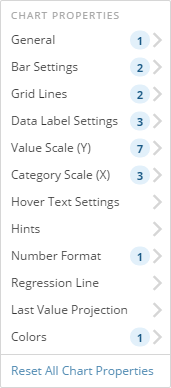
* Numbers to the right of property categories indicate the number of enabled properties within that category. For example, in the following screenshot, one property has been set for **General**, two for **Bar Settings**, and so on.
### Chart Properties improvements
In the interest of making a simpler and more pleasing user experience, various changes have been made in the Chart Properties. These include the following:
* A number of properties have been marked as deprecated and removed from the product. For a list of deprecated properties, see Deprecated Chart Properties. Note that for any deprecated checkbox-activated properties, if that property was set to "on" before the property was deprecated, the property still appears in your Chart Properties and is still set to "on." However, if you then turn off the property and resave the chart, the deprecated property will no longer be available.
* Numbers to the right of property categories indicate the number of enabled properties within that category. For example, in the following screenshot, one property has been set for **General**, two for **Bar Settings**, and so on.
 * Chart properties that only apply when certain other properties are applied are now grayed out when those properties are not applied. For example, the following screenshot shows the Chart Properties dialog for **Data Labels**. Because all properties after **Text** are only applicable when a text string has been entered, those properties are grayed out, thereby eliminating user confusion.
 * The **Large View Legend Position** and **Details View Legend Position** properties have been replaced with the more user-friendly **Portrait View Legend Position** and **Landscape View Legend Position** properties. In addition, all chart types with legends now include the same chart properties for formatting legends.
For more information about chart properties, see [Chart Properties](/s/article/360042925154 "Chart Properties").
## Getting Help
You can view the latest release notes information in the Help Center, which you can access from Domo by clicking **> Help Center**.
If you have questions about Domo,
* search for a topic in the Help Center
* train in Domo University at
[http://www.domo.com/university](http://www.domo.com/university "http://www.domo.com/university")
* get answers in the Domo Community at dojo.domo.com
* reach out to your Domo Customer Success Manager or Technical Consultant
If you have feedback, please send it from within Domo ( **> Feedback**). Or send an email to [product.feedback@domo.com](mailto:product.feedback@domo.com "product.feedback@domo.com").
For more information about getting help, see [Getting Help](/s/article/360042922874 "Getting Help").
* The **Large View Legend Position** and **Details View Legend Position** properties have been replaced with the more user-friendly **Portrait View Legend Position** and **Landscape View Legend Position** properties. In addition, all chart types with legends now include the same chart properties for formatting legends.
For more information about chart properties, see [Chart Properties](/s/article/360042925154 "Chart Properties").
## Getting Help
You can view the latest release notes information in the Help Center, which you can access from Domo by clicking **> Help Center**.
If you have questions about Domo,
* search for a topic in the Help Center
* train in Domo University at
[http://www.domo.com/university](http://www.domo.com/university "http://www.domo.com/university")
* get answers in the Domo Community at dojo.domo.com
* reach out to your Domo Customer Success Manager or Technical Consultant
If you have feedback, please send it from within Domo ( **> Feedback**). Or send an email to [product.feedback@domo.com](mailto:product.feedback@domo.com "product.feedback@domo.com").
For more information about getting help, see [Getting Help](/s/article/360042922874 "Getting Help").