> ## Documentation Index
> Fetch the complete documentation index at: https://www.domo.com/docs/llms.txt
> Use this file to discover all available pages before exploring further.
# Downloading Files from Buzz
When you click on a file thumbnail in a Buzz conversation, the document preview mode opens. This preview mode provides access to a **Download** icon. For more information about the document preview mode, see [Previewing a Document](/docs/s/article/360043430213 "Previewing a Document"). For information about attaching files when creating a Buzz post, see Chatting in Buzz.
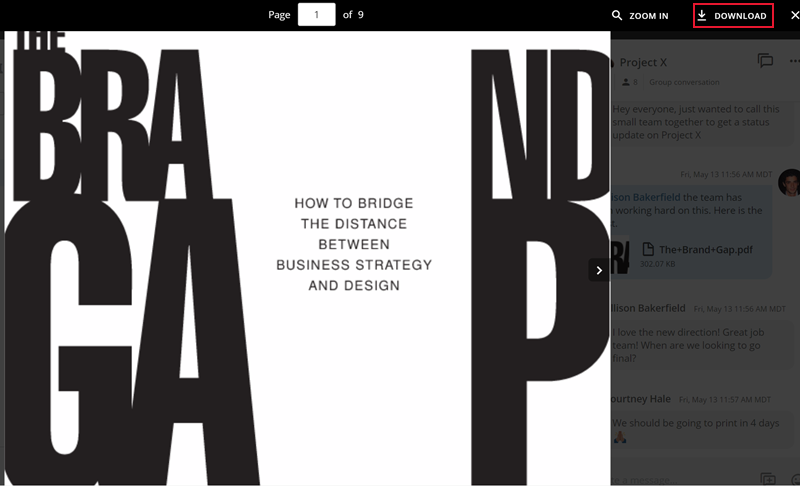 **To preview and download a file in Buzz,**
1. Click the link for the file in the conversation.
The document preview mode opens.
2. Click **Download** in the black bar above Buzz.
The file is downloaded to your computer.
3. To close the preview, click the "x" button in the top right corner.
**Note:** In the interest of preventing users from uploading malicious files into Domo accounts, Domo allows a specific set of file types to be uploaded. If you attempt to upload a file not within this list, an error message appears. For more information, see [Permitted File Types for Attachments](/docs/s/article/360042925634 "Permitted File Types for Attachments").
**To preview and download a file in Buzz,**
1. Click the link for the file in the conversation.
The document preview mode opens.
2. Click **Download** in the black bar above Buzz.
The file is downloaded to your computer.
3. To close the preview, click the "x" button in the top right corner.
**Note:** In the interest of preventing users from uploading malicious files into Domo accounts, Domo allows a specific set of file types to be uploaded. If you attempt to upload a file not within this list, an error message appears. For more information, see [Permitted File Types for Attachments](/docs/s/article/360042925634 "Permitted File Types for Attachments").