> ## Documentation Index
> Fetch the complete documentation index at: https://www.domo.com/docs/llms.txt
> Use this file to discover all available pages before exploring further.

# Adding an Existing Card to a Dashboard

## Intro

If a card already exists in your Domo instance, you can add it to a dashboard without having to recreate it. You can add any kind of card, such as a KPI, Sumo, and Doc Card. You must have access to the card you want to add as well as editing capability in the dashboard.

## Adding an Existing Card to a Dashboard

1. Go to
   **Dashboards** in the navigation header.

<Frame>
  <img alt="2022-07-06_11-51-48.png" src="https://mintcdn.com/domoinc/RY_LcOpP8vfG3Zsy/images/kb/ka05w00000123Sp-00N5w00000Ri7BU-0EM5w000005vOFQ.png?fit=max&auto=format&n=RY_LcOpP8vfG3Zsy&q=85&s=275cd842bd895715526940db1c9984bd" width="2878" height="1470" data-path="images/kb/ka05w00000123Sp-00N5w00000Ri7BU-0EM5w000005vOFQ.png" />
</Frame>

2. Hover over the
   <img src="https://mintcdn.com/domoinc/RY_LcOpP8vfG3Zsy/images/kb/ka05w00000123Sp-00N5w00000Ri7BU-0EM5w000005vOFR.png?fit=max&auto=format&n=RY_LcOpP8vfG3Zsy&q=85&s=32d1029a69a46997ade0be43a5bf6b03" style={{width: 20, height: 20, display: 'inline', verticalAlign: 'start', margin: '0'}} width="98" height="96" data-path="images/kb/ka05w00000123Sp-00N5w00000Ri7BU-0EM5w000005vOFR.png" /> **Menu** to open the **Dashboards** drawer.

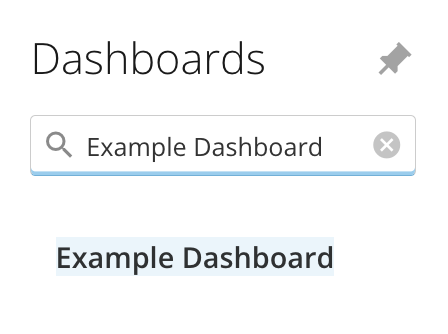
3. Open a dashboard. You can search for one in the
   **Filter by name** bar or select one from the list.
<Frame>
  <img alt="Screen_Shot_2022-07-06_at_4.03.26_PM.png" src="https://mintcdn.com/domoinc/RY_LcOpP8vfG3Zsy/images/kb/ka05w00000123Sp-00N5w00000Ri7BU-0EM5w000005vOFW.png?fit=max&auto=format&n=RY_LcOpP8vfG3Zsy&q=85&s=22c026bd66ad38cbe3dc15467dd124fd" width="448" height="334" data-path="images/kb/ka05w00000123Sp-00N5w00000Ri7BU-0EM5w000005vOFW.png" />
</Frame>

4. Select
   <img src="https://mintcdn.com/domoinc/RY_LcOpP8vfG3Zsy/images/kb/ka05w00000123Sp-00N5w00000Ri7BU-0EM5w000005vOFP.png?fit=max&auto=format&n=RY_LcOpP8vfG3Zsy&q=85&s=ec73fc993bde3040284f3c49f968f940" style={{width: 20, height: 20, display: 'inline', verticalAlign: 'start', margin: '0'}} width="166" height="130" data-path="images/kb/ka05w00000123Sp-00N5w00000Ri7BU-0EM5w000005vOFP.png" /> **Dashboard options** and choose **Edit Dashboard**.

The editing view displays.

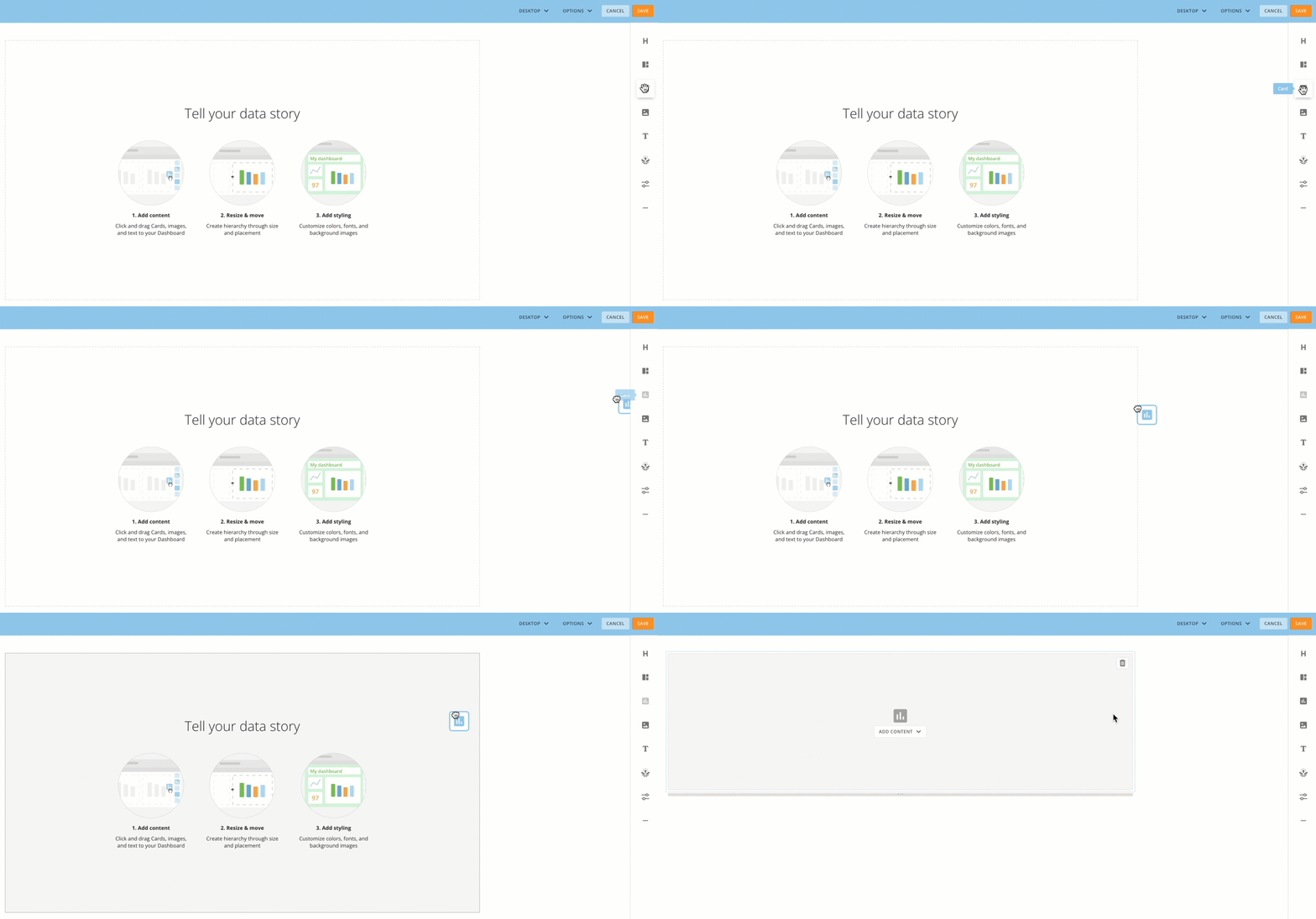
5. Click and drag the
   **Card**

option to the dashboard template.

The **Add Content** menu displays.
<Frame>
  <img alt="2022-08-02_16-02-21__1_.gif" src="https://mintcdn.com/domoinc/RY_LcOpP8vfG3Zsy/images/kb/ka05w00000123Sp-00N5w00000Ri7BU-0EM5w000005vOFV.gif?s=174ce7d972390767deda86abb509fcc0" width="1172" height="546" data-path="images/kb/ka05w00000123Sp-00N5w00000Ri7BU-0EM5w000005vOFV.gif" />
</Frame>

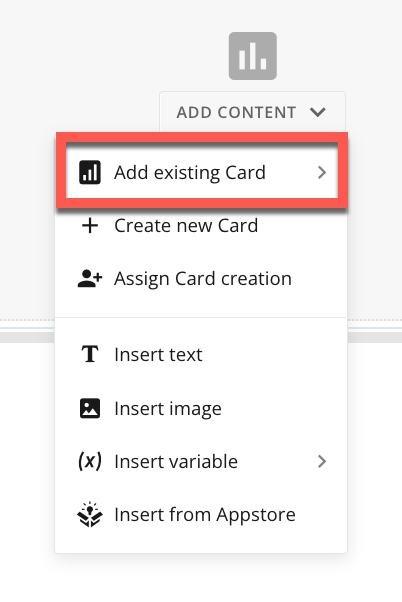
6. From the
   **Add Content** menu, select **Add existing Card**.
<Frame>
  <img alt="2022-08-02_15-50-05.png" src="https://mintcdn.com/domoinc/RY_LcOpP8vfG3Zsy/images/kb/ka05w00000123Sp-00N5w00000Ri7BU-0EM5w000005vOFS.png?fit=max&auto=format&n=RY_LcOpP8vfG3Zsy&q=85&s=8bd30c9069ec97d742053daeda384c76" width="402" height="602" data-path="images/kb/ka05w00000123Sp-00N5w00000Ri7BU-0EM5w000005vOFS.png" />
</Frame>

7. Select a card from the list, or locate the card using the search bar.

8. Select the card.

9. Select
   **Save.**

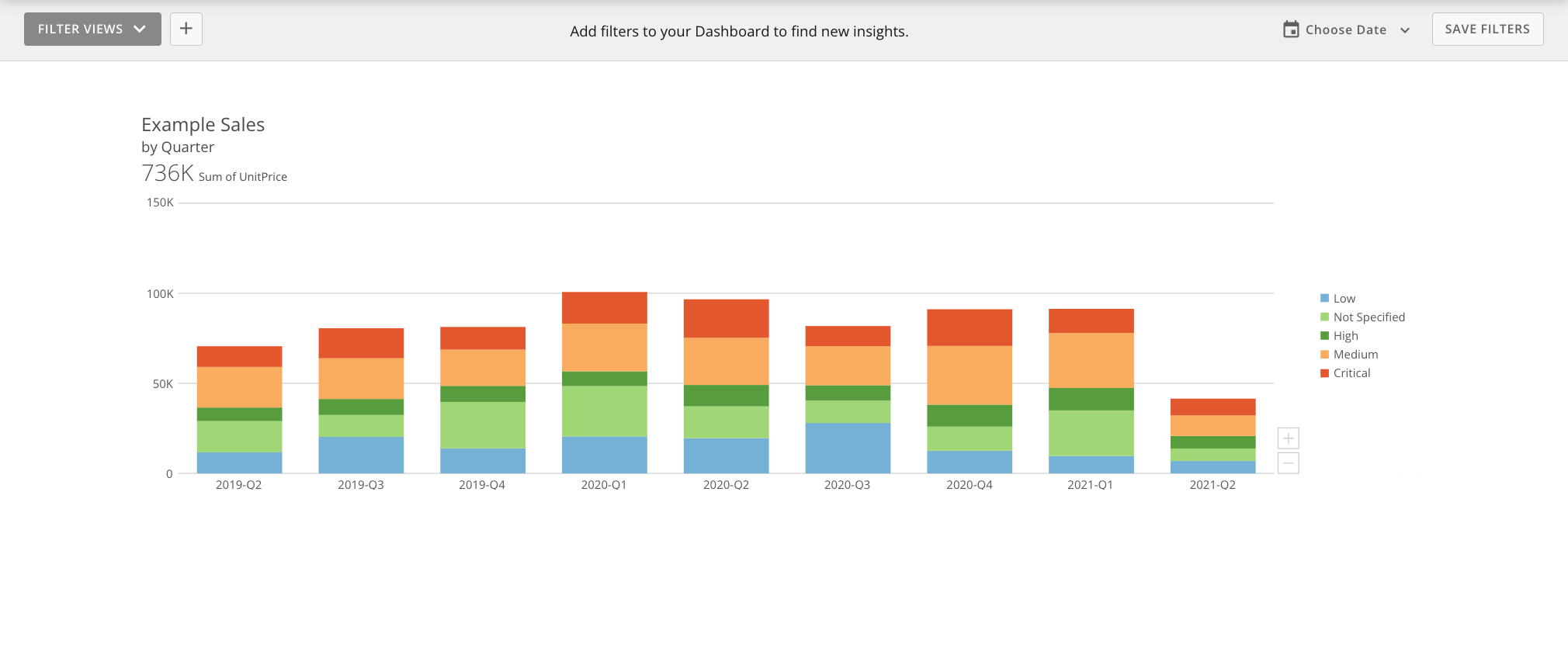
The existing card has been added to the dashboard.
<Frame>
  <img alt="Screen_Shot_2022-08-02_at_4.27.21_PM.png" src="https://mintcdn.com/domoinc/RY_LcOpP8vfG3Zsy/images/kb/ka05w00000123Sp-00N5w00000Ri7BU-0EM5w000005vOFU.png?fit=max&auto=format&n=RY_LcOpP8vfG3Zsy&q=85&s=8633fb0fa25334cd039a68ea0c0eed87" width="2020" height="866" data-path="images/kb/ka05w00000123Sp-00N5w00000Ri7BU-0EM5w000005vOFU.png" />
</Frame>
