> ## Documentation Index
> Fetch the complete documentation index at: https://www.domo.com/docs/llms.txt
> Use this file to discover all available pages before exploring further.
# Adding Cards as Favorites
## Intro
When you add cards as Favorites, copies of those cards are added to your Favorites page. To add a card to your Favorites, you must have access to the card.
You can receive status reports via email and text for favorited cards by configuring the following:
* Daily Alerts are scheduled. For more information about getting Daily Alerts for your Favorites, see [Customizing Notification and Alert Settings](/docs/s/article/360042925814).
* A valid email address and telephone number in your profile. For more information, see [Specifying Your Personal Profile Information.](/docs/s/article/360043439413)
* A summary number on each card. For more information, see [Configuring Your Chart Summary Number.](/docs/s/article/360043428753)
## Adding Cards to Favorites
You can add cards as Favorites from a dashboard or Details view.
If you're viewing the card in a dashboard, follow the steps below:
1. Hover over the card you want to add as a Favorite.
2. Depending on where you're viewing the card, select  **Card options** from a dashboard OR
3. Choose **Add To Favorites**.\
The card is added to your Favorites page.
## Locating Your Favorite Cards
1. In the navigation header, select **Dashboards.**
2. Expand the
**Card options** from a dashboard OR
3. Choose **Add To Favorites**.\
The card is added to your Favorites page.
## Locating Your Favorite Cards
1. In the navigation header, select **Dashboards.**
2. Expand the  **Dashboards** menu and select **Favorites.**
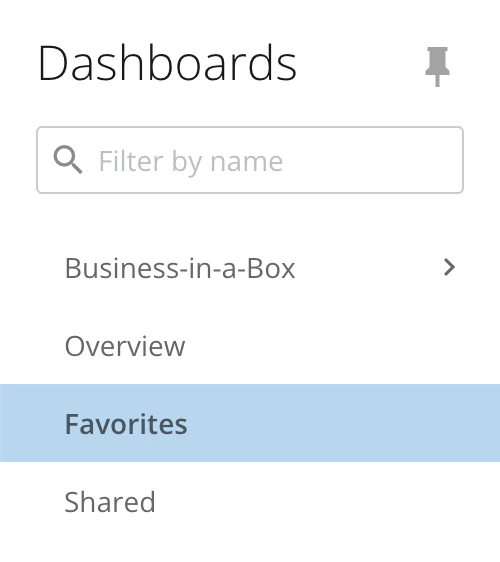 All cards that are set as Favorites display.
**Note:** The Favorites page cannot be converted to a dashboard, but you can create Collections by selecting
All cards that are set as Favorites display.
**Note:** The Favorites page cannot be converted to a dashboard, but you can create Collections by selecting
 **Add** > **New Collection** in the Favorites view. This can be useful when organizing your Favorite cards into categories.
## Removing Cards from Favorites
You can also remove cards from your Favorites. You can do this from the following places:
* The dashboard where the card appears
* The Details view for the card
* From your Favorites page
**Note:** Domo removes a card from your Favorites if your access to the card is removed.
1. Hover over the card you want to remove as a Favorite.
2. Depending on where you're viewing the card, select **Card options** from the Favorites page and dashboard OR
3. Choose **Remove From Favorites**.
The card is no longer set as a Favorite and is removed from the Favorites page.
## Viewing Cards a User Has Set as Favorites
You can see which cards a user has set as Favorites on their Profile page.
**Video - Adding Cards to Favorites**
**Add** > **New Collection** in the Favorites view. This can be useful when organizing your Favorite cards into categories.
## Removing Cards from Favorites
You can also remove cards from your Favorites. You can do this from the following places:
* The dashboard where the card appears
* The Details view for the card
* From your Favorites page
**Note:** Domo removes a card from your Favorites if your access to the card is removed.
1. Hover over the card you want to remove as a Favorite.
2. Depending on where you're viewing the card, select **Card options** from the Favorites page and dashboard OR
3. Choose **Remove From Favorites**.
The card is no longer set as a Favorite and is removed from the Favorites page.
## Viewing Cards a User Has Set as Favorites
You can see which cards a user has set as Favorites on their Profile page.
**Video - Adding Cards to Favorites**