> ## Documentation Index
> Fetch the complete documentation index at: https://www.domo.com/docs/llms.txt
> Use this file to discover all available pages before exploring further.
# Join DataSets by Adding a Unique Key Column
## Intro
Sometimes you want to join DataSets together but there is no unique key column to join on. In this case, you can create a unique key column.
## Create a Unique Key Column
Follow these steps to create a unique key column:
1. Open an existing DataFlow in Magic ETL or begin creating a new DataFlow.
2. Add the
[Rank and Window](/docs/s/article/360042922814 "ETL Actions: Rank and Window") tile to the canvas and connect it to your Input DataSet.
 3. Select the **Rank & Window** tile.
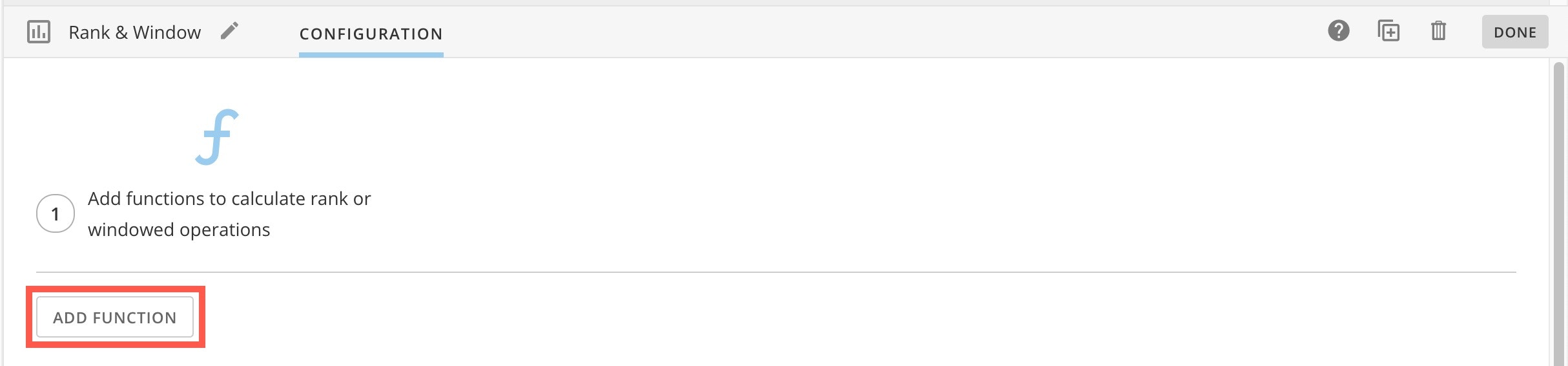
4. In the configuration pane below the canvas, select **Add Function**.
3. Select the **Rank & Window** tile.
4. In the configuration pane below the canvas, select **Add Function**.
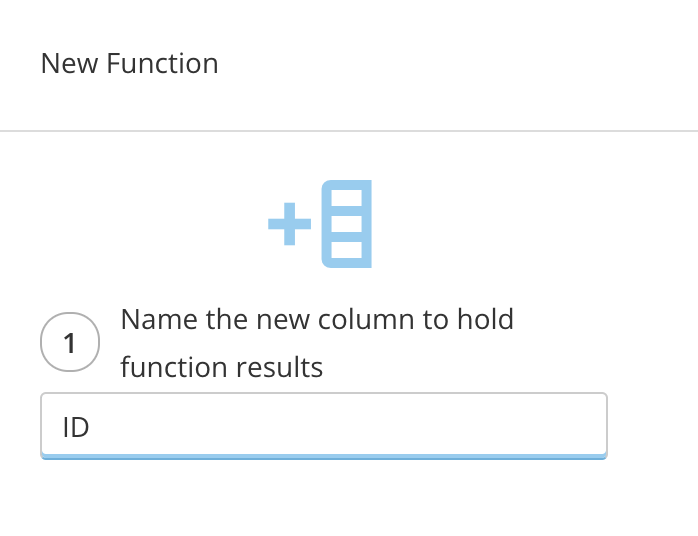
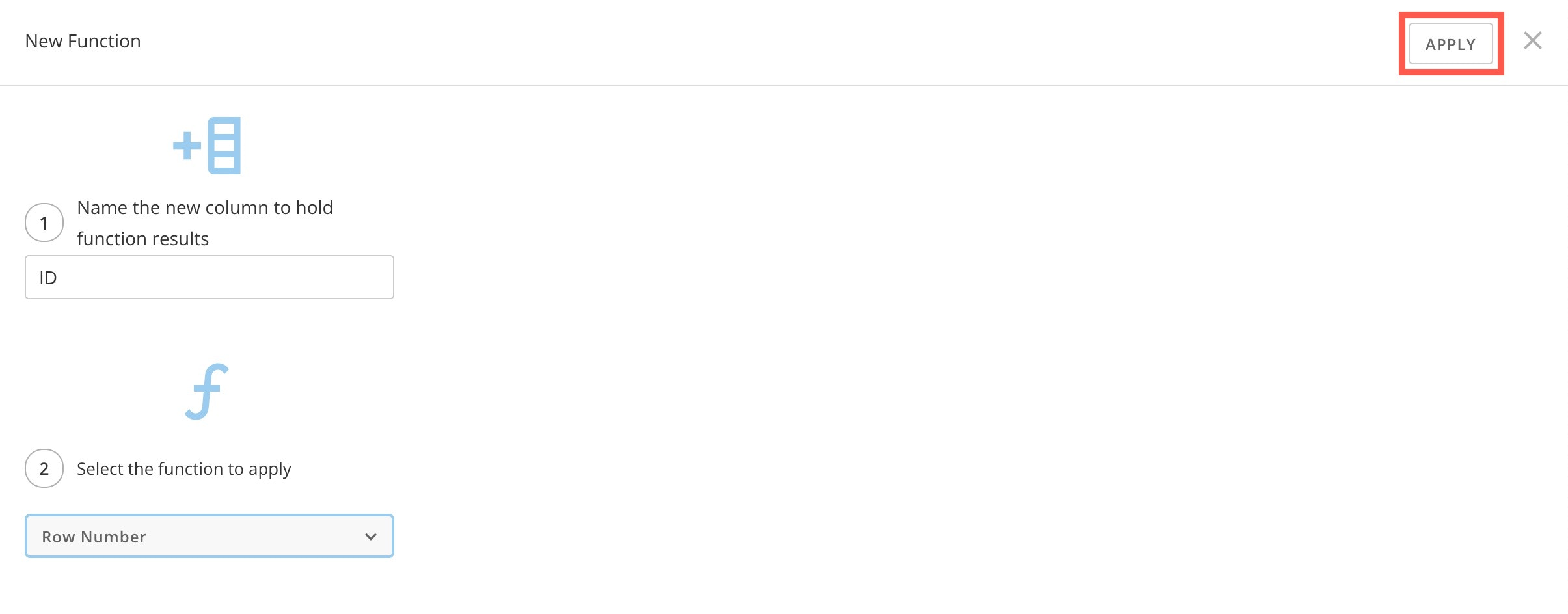
 5. In step 1, name the new column.
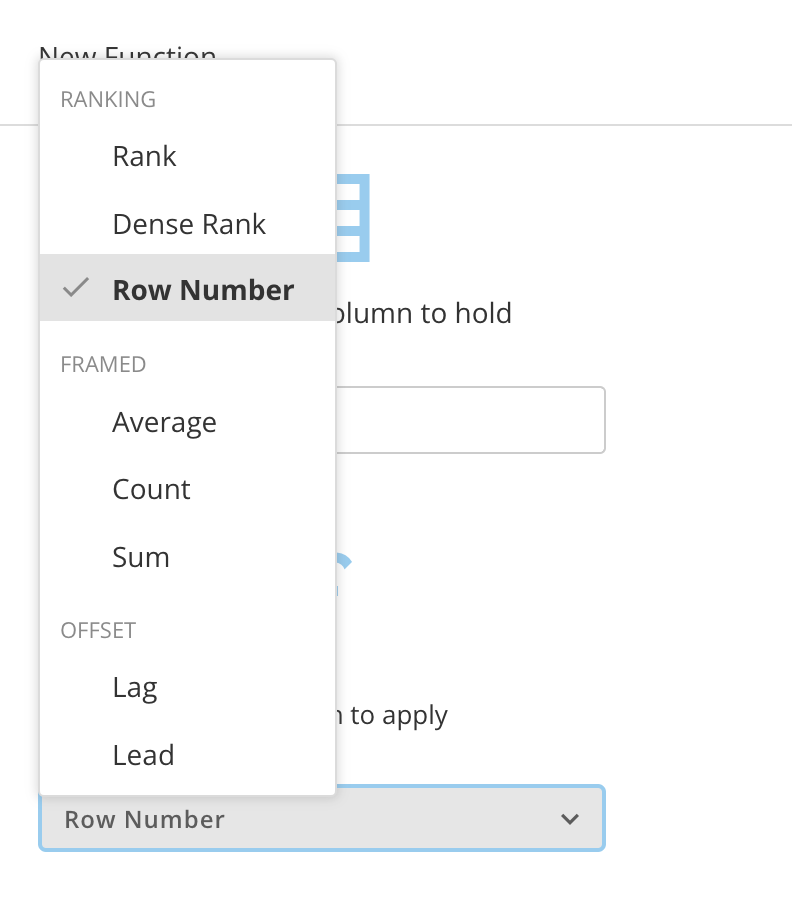
 6. In step 2, expand the **Select the function to apply** dropdown and select **Row Number**.
 7. Select **Apply**.
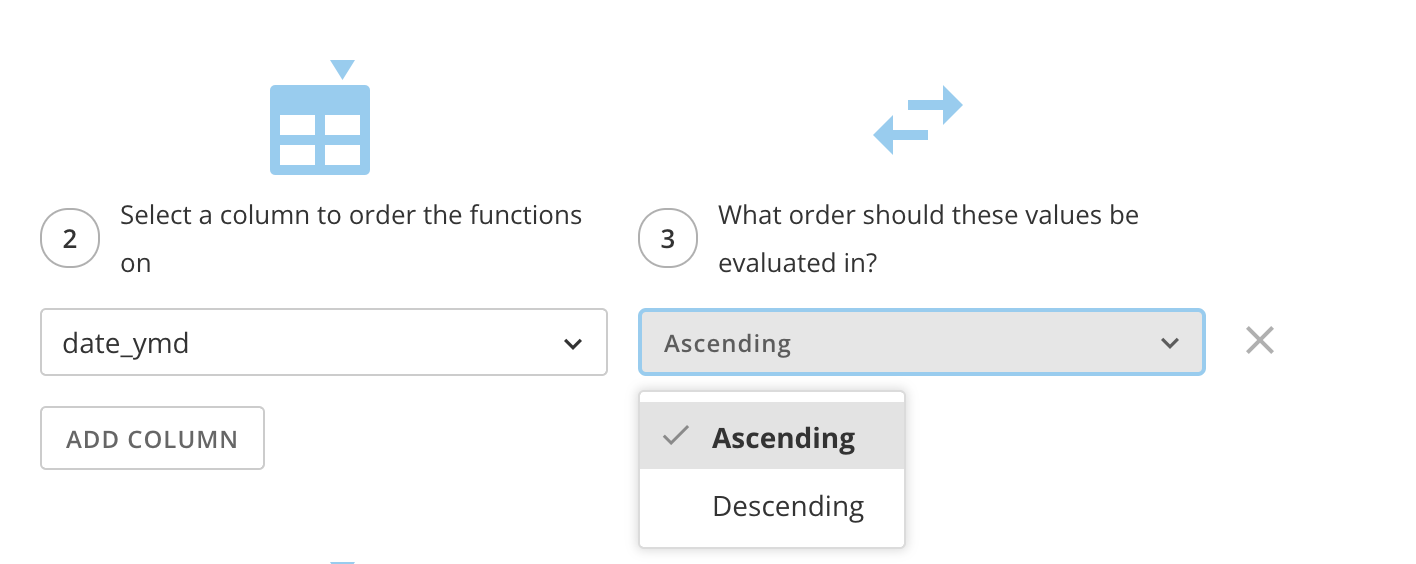
 8. In step 2, choose a column to order the functions on to determine how to apply the row numbers.
9. In step 3, choose to order your column by either ascending or descending values.
8. In step 2, choose a column to order the functions on to determine how to apply the row numbers.
9. In step 3, choose to order your column by either ascending or descending values.
 10. To have a unique key value for every row of your data, leave the optional **What columns make up the partition** option blank.
11. Complete your DataFlow and run it.
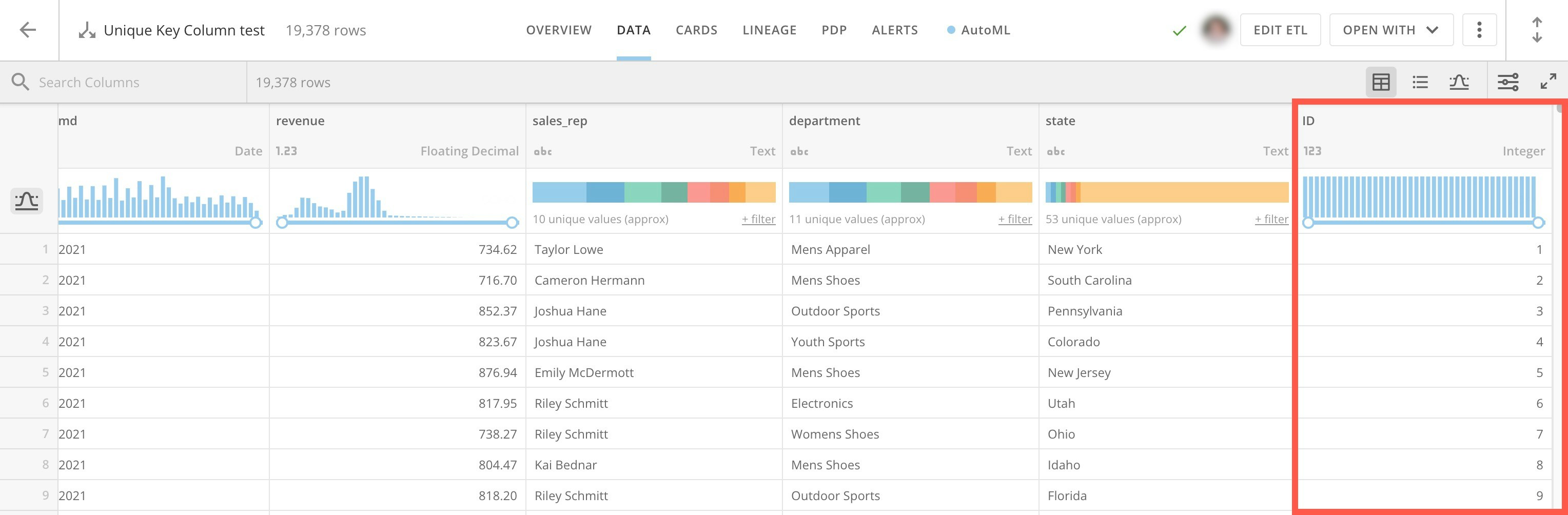
After running your DataFlow, the output DataSet has a new column with a unique value for each row.
10. To have a unique key value for every row of your data, leave the optional **What columns make up the partition** option blank.
11. Complete your DataFlow and run it.
After running your DataFlow, the output DataSet has a new column with a unique value for each row.