> ## Documentation Index
> Fetch the complete documentation index at: https://www.domo.com/docs/llms.txt
> Use this file to discover all available pages before exploring further.
# 2017 Release 4 | April
## New features and enhancements
Features and enhancements in this release include the following:
### Buzz Updates
Based on your feedback, Buzz has been updated to include a number of improvements to facilitate your communication. These improvements include...
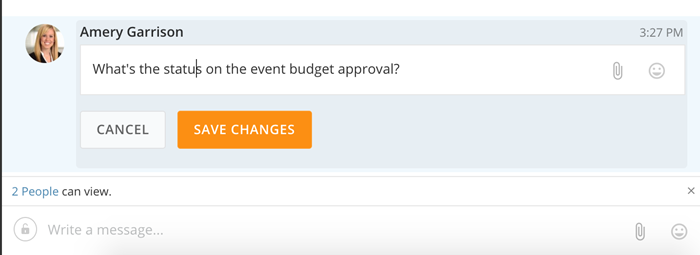
* **Ability to edit messages**. Edit mistakes out of your messages after you have posted them.
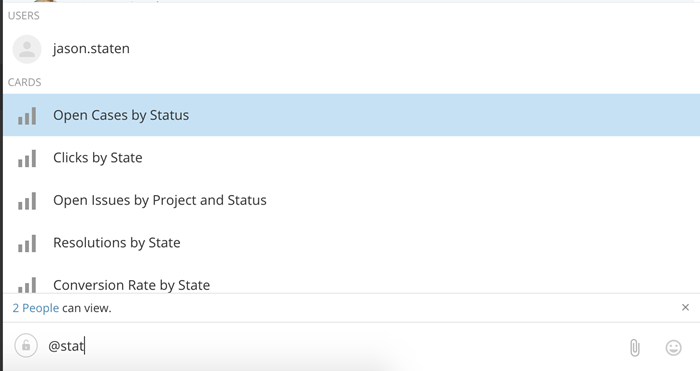
 * **Mention filter that sorts based on category**. @-mentioning in Buzz now filters based on category to allow you to more easily navigate to that card or group you are looking for.
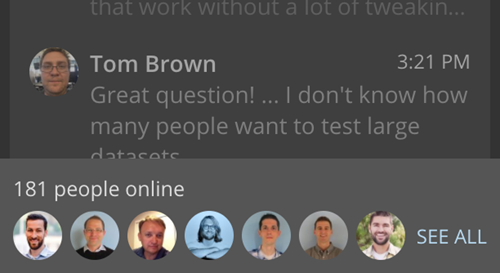
 * **Display who is online**. Just like in your old DomoBuzz, you can see who in your organization is logged into Domo. For more information, see [Seeing Online Users in Domo](/s/article/360042925774 "Seeing Online Users in Domo").
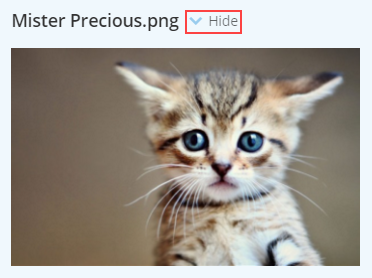
 * **Ability to collapse attachments**. Hide attachments and GIFs that may be distracting you.
 For more information, see [Buzz Layout](/s/article/360043429973 "Buzz Layout").
### Hybrid SSO
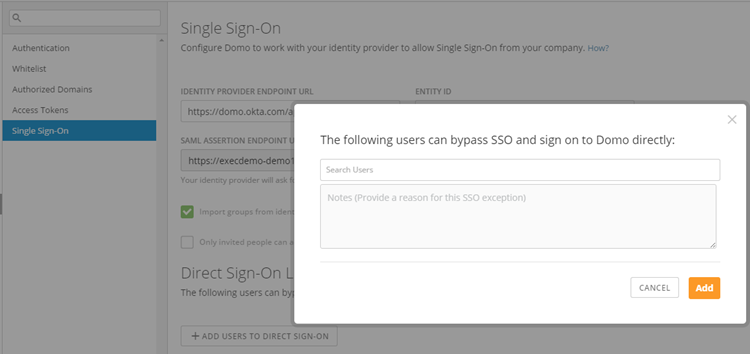
Hybrid SSO allows users with Single Sign-On enabled to specify which of their users can log in directly to Domo.
Previously, hybrid SSO was available only to Administrators using a feature switch. For SSO customers trying to grant Domo access to contractors or non-employees, this often created a dilemma because such users were not usually given accounts in the company's email or directory system. Now, however, Admins can go into the **Single Sign-On** tab in the Admin Settings and specify a set of users who are able to sign into Domo directly, just as they would without SSO enabled. Users can then toggle login modes (Direct or Single Sign-on) from the Domo login screen.
For more information, see [Buzz Layout](/s/article/360043429973 "Buzz Layout").
### Hybrid SSO
Hybrid SSO allows users with Single Sign-On enabled to specify which of their users can log in directly to Domo.
Previously, hybrid SSO was available only to Administrators using a feature switch. For SSO customers trying to grant Domo access to contractors or non-employees, this often created a dilemma because such users were not usually given accounts in the company's email or directory system. Now, however, Admins can go into the **Single Sign-On** tab in the Admin Settings and specify a set of users who are able to sign into Domo directly, just as they would without SSO enabled. Users can then toggle login modes (Direct or Single Sign-on) from the Domo login screen.
 For more information, see Adding Users to Direct Sign-On.
### App Deploy Improvements
For this release we are pushing the following improvements to our App deploy process:
* Support for multi-connector content. Apps can now be powered by 1:n connectors, providing a simple-to-understand interface.
* Multi-user deploy capability. With more complicated Apps, it's unlikely a single person has all the credentials needed to be successful. We've leveraged Buzz and added the ability to collaborate in the power-up process. You can assign specific portions to the right person. This effectively removes the need for sticky notes and other uncomfortable requests for credentials.
### Updated UI for Google Analytics Connector
The user interface for the Google Analytics connector now offers a more intuitive, step-by-step workflow. Instead of providing a single pane for selecting parameters and report types, the new interface divides up options between five panes— **Select Views**, **Select Reports**, **Select Segments**, **Select Duration**, and **Test My Configuration**.
The following screenshot shows the new view for selecting Google Analytics reports in Domo:
For more information, see Adding Users to Direct Sign-On.
### App Deploy Improvements
For this release we are pushing the following improvements to our App deploy process:
* Support for multi-connector content. Apps can now be powered by 1:n connectors, providing a simple-to-understand interface.
* Multi-user deploy capability. With more complicated Apps, it's unlikely a single person has all the credentials needed to be successful. We've leveraged Buzz and added the ability to collaborate in the power-up process. You can assign specific portions to the right person. This effectively removes the need for sticky notes and other uncomfortable requests for credentials.
### Updated UI for Google Analytics Connector
The user interface for the Google Analytics connector now offers a more intuitive, step-by-step workflow. Instead of providing a single pane for selecting parameters and report types, the new interface divides up options between five panes— **Select Views**, **Select Reports**, **Select Segments**, **Select Duration**, and **Test My Configuration**.
The following screenshot shows the new view for selecting Google Analytics reports in Domo:
 For more information including FAQs, see Google Analytics Connector.
## Page and Card Analyzer Filter Search Box
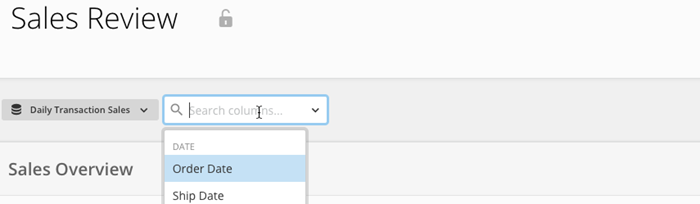
When you add a filter to a page or card, you can now more easily find the columns you're looking for using a new search box.
For more information including FAQs, see Google Analytics Connector.
## Page and Card Analyzer Filter Search Box
When you add a filter to a page or card, you can now more easily find the columns you're looking for using a new search box.
 ## Getting Help
You can view the latest release notes information in the Help Center, which you can access from Domo by clicking **> Help Center**.
If you have questions about Domo,
* search for a topic in the Help Center
* train in Domo University at
[http://www.domo.com/university](http://www.domo.com/university "http://www.domo.com/university")
* get answers in the Domo Community at
[dojo.domo.com](https://dojo.domo.com "https://dojo.domo.com")
* contact Technical Support by entering a help ticket in the Domo Support Portal, by sending a Buzz message to \support, or by emailing [support@domo.com](mailto:support@domo.com "support@domo.com").
* reach out to your Domo Customer Success Manager or Technical Consultant
If you have feedback, please send it from within Domo ( **> Feedback**). Or send an email to [product.feedback@domo.com](mailto:product.feedback@domo.com "product.feedback@domo.com").
For more information about getting help, see [Getting Help](/s/article/360042922874 "Getting Help").
## Getting Help
You can view the latest release notes information in the Help Center, which you can access from Domo by clicking **> Help Center**.
If you have questions about Domo,
* search for a topic in the Help Center
* train in Domo University at
[http://www.domo.com/university](http://www.domo.com/university "http://www.domo.com/university")
* get answers in the Domo Community at
[dojo.domo.com](https://dojo.domo.com "https://dojo.domo.com")
* contact Technical Support by entering a help ticket in the Domo Support Portal, by sending a Buzz message to \support, or by emailing [support@domo.com](mailto:support@domo.com "support@domo.com").
* reach out to your Domo Customer Success Manager or Technical Consultant
If you have feedback, please send it from within Domo ( **> Feedback**). Or send an email to [product.feedback@domo.com](mailto:product.feedback@domo.com "product.feedback@domo.com").
For more information about getting help, see [Getting Help](/s/article/360042922874 "Getting Help").