> ## Documentation Index
> Fetch the complete documentation index at: https://www.domo.com/docs/llms.txt
> Use this file to discover all available pages before exploring further.
# Snowflake OAuth Unload Connector
## Intro
Snowflake OAuth Unload is a cloud-based analytic data warehouse system. Use Domo's Snowflake OAuth Unload connector to unload data from your Snowflake database into Amazon S3. The files are downloaded from S3 into Domo. To use this connector, you must have your Snowflake account name, and the client ID and client secret provided by Snowflake when the client is registered. Choose this connector instead of the Snowflake connector if you are executing very large queries. For more information about the Snowflake API, go to [https://docs.snowflake.net/manuals](https://docs.snowflake.net/manuals).
The Snowflake OAuth Unload connector is a "Database" connector, meaning it retrieves data from a database using a query. In the Data Center, you can access the connector page for this and other Database connectors by clicking **Database** in the toolbar at the top of the window.
You connect to your Snowflake account in the Data Center. This topic discusses the fields and menus that are specific to the Snowflake OAuth Unload connector user interface. General information for adding DataSets, setting update schedules, and editing DataSet information is discussed in [Adding a DataSet Using a Data Connector](/docs/s/article/360042926274).
***
## Best Practices
**Important:** Snowflake asserts your need to manually re-connect your Domo account every time the account expires. The Snowflake integration controls how often the account will expire. If it is set to expire the refresh tokens every 90 days, then you will need to reconnect the account every 90 days. If you would like to increase the refresh timeout to more than 90 days, then you will need to contact **Snowflake Support**, and they can increase the maximum timeout from 90 days to 1 year.
## Prerequisites
To connect to your Snowflake database account and create a DataSet, you must have the following:
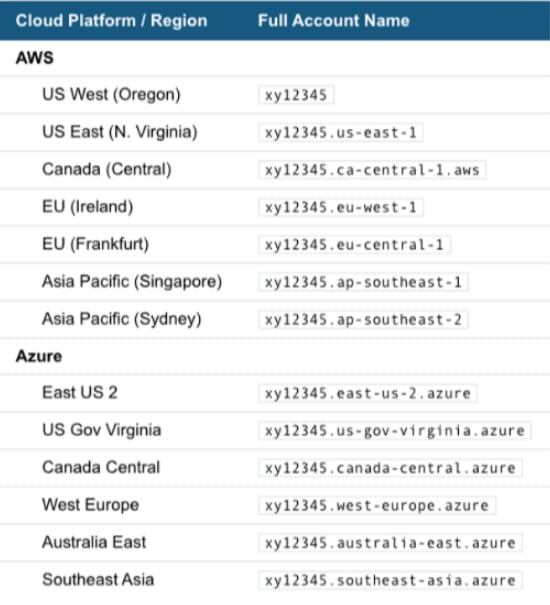
* The full name of your account (provided by Snowflake). This is the portion of your Snowflake URL immediately following `https://`.
Note that your full account name may include additional segments that identify the region and cloud platform where your account is hosted. The following table provides account name examples by cloud platform/region. For each row, it assumes your account name is "xy12345."
 * Client ID provided by Snowflake when the client is registered.
* Client secret provided by Snowflake when the client is registered.
* Your AWS access key. It is available in the AWS Console in the **Security Credentials** section or under **Users** if you are using **IAM**.
* Your AWS secret key, which was provided when you created your Access Key. You can generate a new one in the AWS Console.
* The name of the AWS S3 bucket that your Snowflake data will be unloaded into.
* Your S3 bucket region.
## Connect to Your Snowflake Account
This section enumerates the options in the **Credentials** and **Details** panes in the Snowflake OAuth Unload Connector page. The components of the other panes in this page, **Scheduling** and **Name & Describe Your DataSet**, are universal across most connector types and are discussed in greater length in [Adding a DataSet Using a Data Connector](/docs/s/article/360042926274).
### Credentials Pane
This pane contains fields for entering credentials to connect to your Snowflake account. The following table describes what is needed for each field:
| Field | Description |
| ------------- | -------------------------------------------------------------------------------------------------------------------------------------- |
| Account Name | Enter the account name for your Snowflake account. For information about finding your account name, see "Prerequisites." |
| Client ID | Enter your Client ID provided by Snowflake when the client is registered. |
| Client Secret | Enter your Client secret provided by Snowflake when the client is registered. |
| Access Key | Enter your AWS access key. It is available in the AWS Console in the Security Credentials section or under Users if you are using IAM. |
| Secret Key | Enter your AWS secret access key. It was provided when you created your Access Key. You can generate a new one in the AWS Console. |
| Bucket | Enter the name of the AWS S3 bucket that your Snowflake data will be unloaded into. |
| Region | Select your S3 bucket region. |
| Role | Enter your role. |
Once you have entered valid Snowflake credentials, you can use the same account any time you go to create a new Snowflake OAuth Unload DataSet. You can manage connector accounts in the **Accounts** tab in the Data Center. For more information about this tab, see [Managing User Accounts for Connectors](/docs/s/article/360042926054).
### Details Pane
This pane contains a primary **Reports** menu, along with various other menus which may or may not appear depending on the report type you select.
| Menu | Description |
| -------------------- | ------------------------------------------------------------------------------------------------------------------------------------------------------------------------------------------------------------------------- |
| Query | Enter the SQL query to execute. |
| Warehouses | Select the warehouse. |
| Databases | Select the database. |
| Database Schema | Select the schema. |
| Database Tables | Select the database table. |
| Table Columns | Select the table columns that you would like to include in your report. |
| Query Helper | Copy and paste this query into the Query field if you need help building a query. This query is automatically generated when you select a table and columns in the Database Table and Table Columns fields, respectively. |
| Use Snowflake Schema | Check this box if you wish to use the schema directly from Snowflake instead of letting Domo determine the schema. |
### Other Panes
For information about the remaining sections of the connector interface, including how to configure scheduling, retry, and update options, see [Adding a DataSet Using a Data Connector](/docs/s/article/360042926274).
## FAQ
The Snowflake OAuth Unload Connector optimizes Snowflake data imports by unloading data to a user-defined S3 bucket, before importing the data from S3 to Domo. This connector is suitable for datasets of any size, but performance gains are most noticeable in larger datasets. Once connected, you will be able to replace the entire dataset, append new rows, or merge/upsert new or updated rows. This connector does not support partitions.
To avoid this error, you need to refresh the token. Snowflake asserts your need to manually re-connect your Domo account every time the account expires. The Snowflake integration controls how often the account will expire. If it is set to expire the refresh tokens every 90 days, then you will need to reconnect the account every 90 days. If you would like to increase the refresh timeout to more than 90 days, then you will need to contact **Snowflake Support**, and they can increase the maximum timeout from 90 days to 1 year.
You need the full name of your Snowflake account, and the client ID and client secret provided by Snowflake when the client is registered. You may also provide your role.
Limits depend on your server configuration.
Datasets can run as often as every 15 minutes. However, depending on the runtime of the query, datasets may need to run less frequently.
Make sure that all the words, table names, and field names are correctly spelled. Refer to the Query Helper field for query help.
Before you can connect to a Snowflake database, you must also whitelist a number of IP addresses on your database server on the port you want to connect to. For the full list of IP addresses, see [Whitelisting IP Addresses](/docs/s/article/360043630093).
* Client ID provided by Snowflake when the client is registered.
* Client secret provided by Snowflake when the client is registered.
* Your AWS access key. It is available in the AWS Console in the **Security Credentials** section or under **Users** if you are using **IAM**.
* Your AWS secret key, which was provided when you created your Access Key. You can generate a new one in the AWS Console.
* The name of the AWS S3 bucket that your Snowflake data will be unloaded into.
* Your S3 bucket region.
## Connect to Your Snowflake Account
This section enumerates the options in the **Credentials** and **Details** panes in the Snowflake OAuth Unload Connector page. The components of the other panes in this page, **Scheduling** and **Name & Describe Your DataSet**, are universal across most connector types and are discussed in greater length in [Adding a DataSet Using a Data Connector](/docs/s/article/360042926274).
### Credentials Pane
This pane contains fields for entering credentials to connect to your Snowflake account. The following table describes what is needed for each field:
| Field | Description |
| ------------- | -------------------------------------------------------------------------------------------------------------------------------------- |
| Account Name | Enter the account name for your Snowflake account. For information about finding your account name, see "Prerequisites." |
| Client ID | Enter your Client ID provided by Snowflake when the client is registered. |
| Client Secret | Enter your Client secret provided by Snowflake when the client is registered. |
| Access Key | Enter your AWS access key. It is available in the AWS Console in the Security Credentials section or under Users if you are using IAM. |
| Secret Key | Enter your AWS secret access key. It was provided when you created your Access Key. You can generate a new one in the AWS Console. |
| Bucket | Enter the name of the AWS S3 bucket that your Snowflake data will be unloaded into. |
| Region | Select your S3 bucket region. |
| Role | Enter your role. |
Once you have entered valid Snowflake credentials, you can use the same account any time you go to create a new Snowflake OAuth Unload DataSet. You can manage connector accounts in the **Accounts** tab in the Data Center. For more information about this tab, see [Managing User Accounts for Connectors](/docs/s/article/360042926054).
### Details Pane
This pane contains a primary **Reports** menu, along with various other menus which may or may not appear depending on the report type you select.
| Menu | Description |
| -------------------- | ------------------------------------------------------------------------------------------------------------------------------------------------------------------------------------------------------------------------- |
| Query | Enter the SQL query to execute. |
| Warehouses | Select the warehouse. |
| Databases | Select the database. |
| Database Schema | Select the schema. |
| Database Tables | Select the database table. |
| Table Columns | Select the table columns that you would like to include in your report. |
| Query Helper | Copy and paste this query into the Query field if you need help building a query. This query is automatically generated when you select a table and columns in the Database Table and Table Columns fields, respectively. |
| Use Snowflake Schema | Check this box if you wish to use the schema directly from Snowflake instead of letting Domo determine the schema. |
### Other Panes
For information about the remaining sections of the connector interface, including how to configure scheduling, retry, and update options, see [Adding a DataSet Using a Data Connector](/docs/s/article/360042926274).
## FAQ
The Snowflake OAuth Unload Connector optimizes Snowflake data imports by unloading data to a user-defined S3 bucket, before importing the data from S3 to Domo. This connector is suitable for datasets of any size, but performance gains are most noticeable in larger datasets. Once connected, you will be able to replace the entire dataset, append new rows, or merge/upsert new or updated rows. This connector does not support partitions.
To avoid this error, you need to refresh the token. Snowflake asserts your need to manually re-connect your Domo account every time the account expires. The Snowflake integration controls how often the account will expire. If it is set to expire the refresh tokens every 90 days, then you will need to reconnect the account every 90 days. If you would like to increase the refresh timeout to more than 90 days, then you will need to contact **Snowflake Support**, and they can increase the maximum timeout from 90 days to 1 year.
You need the full name of your Snowflake account, and the client ID and client secret provided by Snowflake when the client is registered. You may also provide your role.
Limits depend on your server configuration.
Datasets can run as often as every 15 minutes. However, depending on the runtime of the query, datasets may need to run less frequently.
Make sure that all the words, table names, and field names are correctly spelled. Refer to the Query Helper field for query help.
Before you can connect to a Snowflake database, you must also whitelist a number of IP addresses on your database server on the port you want to connect to. For the full list of IP addresses, see [Whitelisting IP Addresses](/docs/s/article/360043630093).