> ## Documentation Index
> Fetch the complete documentation index at: https://www.domo.com/docs/llms.txt
> Use this file to discover all available pages before exploring further.
# AWS Cost and Usage Dashboard
## Intro
Millions of businesses worldwide rely on AWS to power their cloud computing platforms. It's a reliable and efficient way to harness the power of cloud computing and scale your company's technological capabilities, but it's critical. You have a way to monitor usage so you don't run into surprises and can easily budget for your access to the cloud.\
The AWS Cost and Usage connector provides visibility into your organization's AWS usage, letting you optimize your AWS spend. Get all the critical metrics you need in one glance, drilling down to get more detailed information when needed.
The AWS Cost & Usage Report contains the most comprehensive set of AWS cost and usage data available, including additional metadata about AWS services, pricing, and reservations (Example: Amazon EC2 Reserved Instances (RIs)). With this connector you can pull your most updated AWS Cost and Usage report data. The first run of the connector pulls data from the current year. Subsequent runs pull historical data. During subsequent runs, the connector will also look at the modified dates on the files and re-pull any modified data. For more information about the AWS API, visit their website ([https://docs.aws.amazon.com/AmazonS3/latest/dev/auth-request-sig-v2.html](https://docs.aws.amazon.com/AmazonS3/latest/dev/auth-request-sig-v2.html)).
You connect to your AWS Cost and Usage account in the Data Center. This topic discusses the fields and menus that are specific to the AWS Cost and Usage connector user interface. General information for adding DataSets, setting update schedules, and editing DataSet information is discussed in [Adding a DataSet Using a Data Connector](/docs/s/article/360042926274).
***
## Getting This Feature
**Note:** If you are interested in joining this feature, contact Customer Success Manager (CSM).
To request for this feature to be enabled, do the following:
1. Reach out to your Domo Customer Success Manager, Technical Consultants, or AE.
2. If you do not have contact information for your CSM, TC, or AE, contact [Domo Technical Support](https://www.domo.com/client-services/domo-support).
## Prerequisites
To configure this connector, you must have the following:
* Your Amazon S3 Bucket name where your CUR report is located
* The report name used when you set up the CUR report in AWS billing
* Your AWS Access Key and Secret Key
* AWS region where your S3 bucket is located
### Creating the Cost and Usage report in AWS:
1. Visit [https://console.aws.amazon.com/billing/home#/reports](https://console.aws.amazon.com/billing/home#/reports)
2. Click the **Create Report** button.
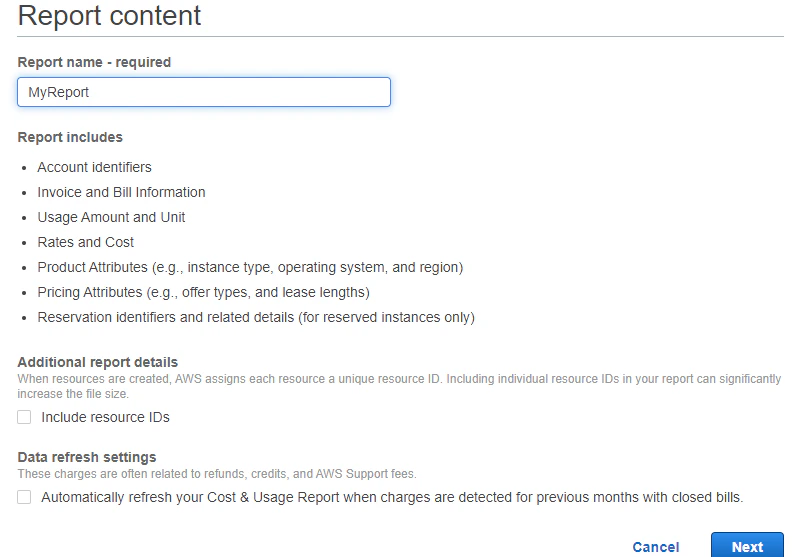
3. Enter the report name, select the required options, and click the **Next** button.
 4. Now, set the delivery options for your report.
5. In order to receive AWS Cost & Usage Reports, you must have an Amazon S3 bucket created and configured with the appropriate access permissions. You can add an existing bucket or create a new one.
4. Now, set the delivery options for your report.
5. In order to receive AWS Cost & Usage Reports, you must have an Amazon S3 bucket created and configured with the appropriate access permissions. You can add an existing bucket or create a new one.
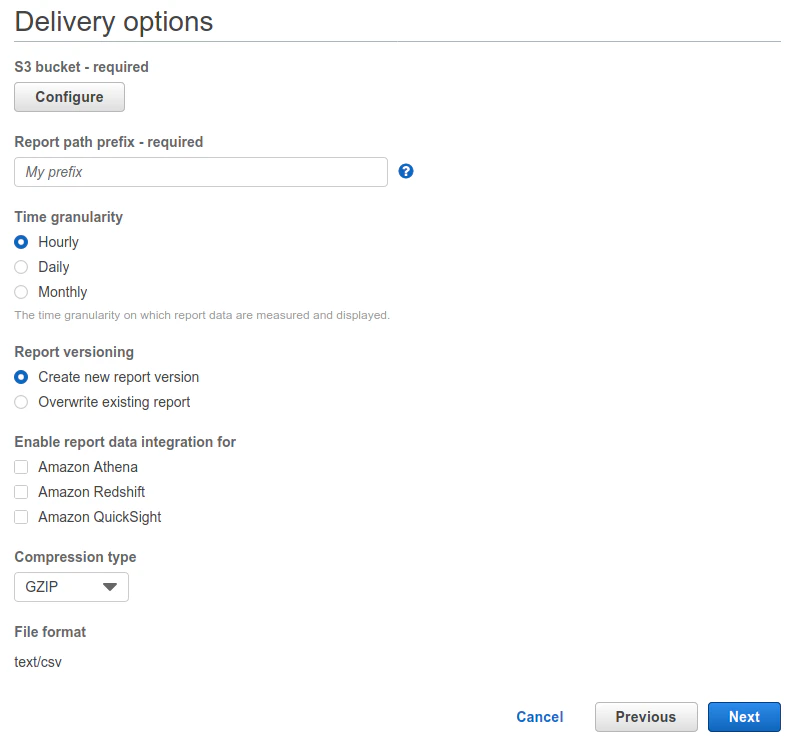 **Important:** Ensure to note the **Report path prefix** and the **Report name** while creating your cost and usage report. You will need these to enter in the connector UI credentials section.
6. Click the **Next** button, review your report configuration, and create the report.
## Connecting to Your AWS Cost and Usage Account
This section enumerates the options in the **Credentials** and **Details** panes in the AWS Cost and Usage Connector page. The components of the other panes in this page, **Scheduling** and **Name & Describe Your DataSet**, are universal across most connector types and are discussed in greater length in [Adding a DataSet Using a Data Connector](/docs/s/article/360042926274).
### Credentials Pane
This pane contains fields for entering credentials to connect to your AWS Cost and Usage account. The following table describes what is needed for each field:
| Field | Description |
| ------------------- | ----------------------------------------------------------------------------- |
| Bucket | Enter your Amazon S3 Bucket name where your CUR report is located. |
| Region | Select the Amazon S3 Region. |
| Report Path Prefix | Enter the path where your CUR report is located. |
| Report Name | Put in the same value you used when you set up the CUR report in AWS billing. |
| Authentication Type | Select method of authentication. |
| Key-Access | Enter your AWS access key. |
| Key-Secret | Enter your AWS secret key. |
Once you have entered valid AWS Cost and Usage credentials, you can run the connector to pull your cost and usage report data.
**Note:** While selecting the Authentication Type, ensure that your authentication parameters have Read access to the S3 folder where all the data is located.
### Details Pane
#### AWS Cost and Usage Running Procedure
The first run of the connector pulls the current month of data. Subsequent runs will check if this month is updated and then start traveling back pulling data month by month.
The Connector is designed to look at the modified dates on the files and again pull the modified data, if any.
### Other Panes
For information about the remaining sections of the connector interface, including how to configure scheduling, retry, and update options, see [Adding a DataSet Using a Data Connector](/docs/s/article/360042926274).
**Important:** Ensure to note the **Report path prefix** and the **Report name** while creating your cost and usage report. You will need these to enter in the connector UI credentials section.
6. Click the **Next** button, review your report configuration, and create the report.
## Connecting to Your AWS Cost and Usage Account
This section enumerates the options in the **Credentials** and **Details** panes in the AWS Cost and Usage Connector page. The components of the other panes in this page, **Scheduling** and **Name & Describe Your DataSet**, are universal across most connector types and are discussed in greater length in [Adding a DataSet Using a Data Connector](/docs/s/article/360042926274).
### Credentials Pane
This pane contains fields for entering credentials to connect to your AWS Cost and Usage account. The following table describes what is needed for each field:
| Field | Description |
| ------------------- | ----------------------------------------------------------------------------- |
| Bucket | Enter your Amazon S3 Bucket name where your CUR report is located. |
| Region | Select the Amazon S3 Region. |
| Report Path Prefix | Enter the path where your CUR report is located. |
| Report Name | Put in the same value you used when you set up the CUR report in AWS billing. |
| Authentication Type | Select method of authentication. |
| Key-Access | Enter your AWS access key. |
| Key-Secret | Enter your AWS secret key. |
Once you have entered valid AWS Cost and Usage credentials, you can run the connector to pull your cost and usage report data.
**Note:** While selecting the Authentication Type, ensure that your authentication parameters have Read access to the S3 folder where all the data is located.
### Details Pane
#### AWS Cost and Usage Running Procedure
The first run of the connector pulls the current month of data. Subsequent runs will check if this month is updated and then start traveling back pulling data month by month.
The Connector is designed to look at the modified dates on the files and again pull the modified data, if any.
### Other Panes
For information about the remaining sections of the connector interface, including how to configure scheduling, retry, and update options, see [Adding a DataSet Using a Data Connector](/docs/s/article/360042926274).