> ## Documentation Index
> Fetch the complete documentation index at: https://www.domo.com/docs/llms.txt
> Use this file to discover all available pages before exploring further.
# Task Center Mobile App
## Intro
The Task Center mobile app allows you to access Task Center from your mobile device, view your queues, and complete tasks.
Learn more about [Task Center](/docs/s/article/000005172).
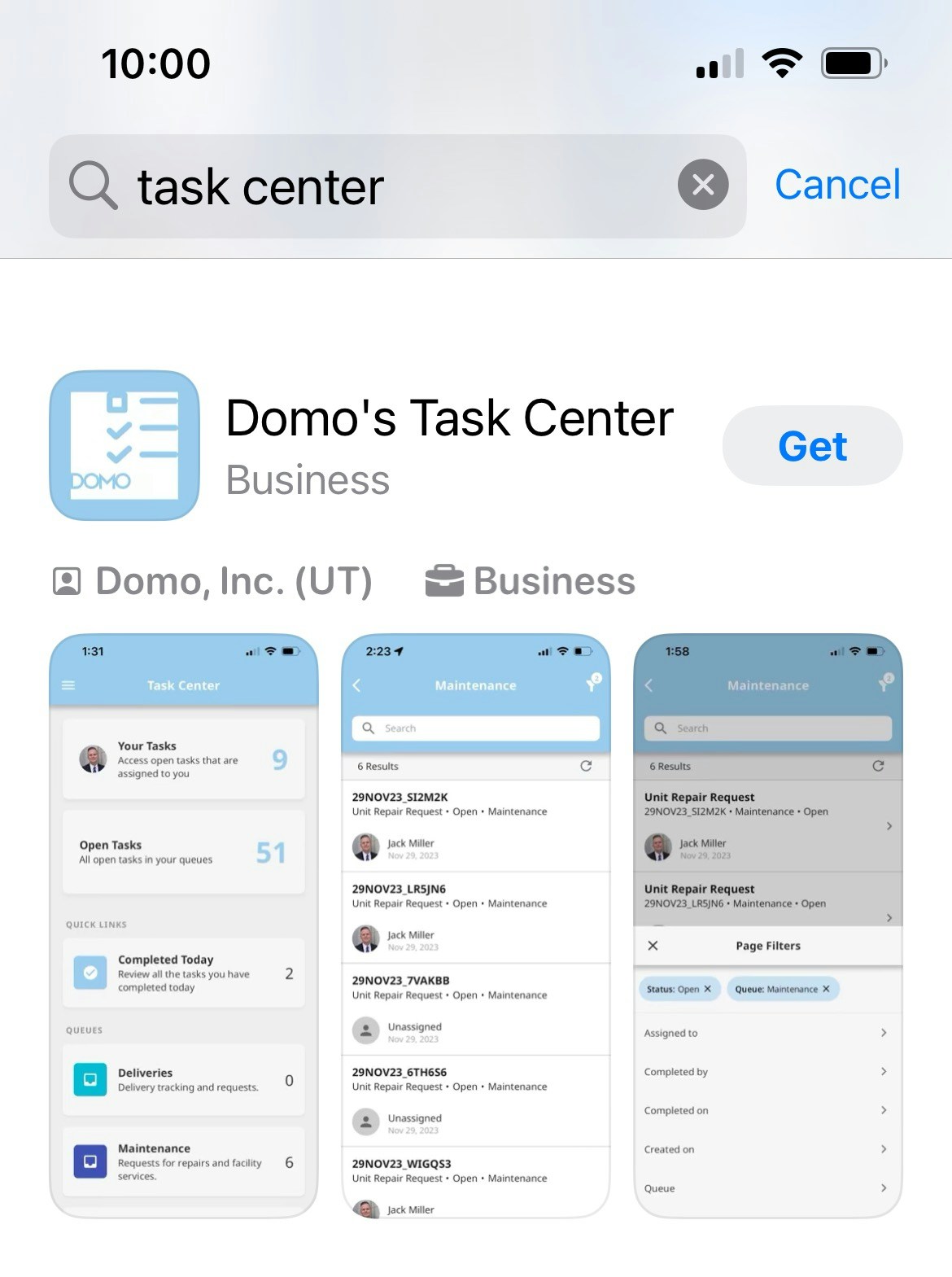
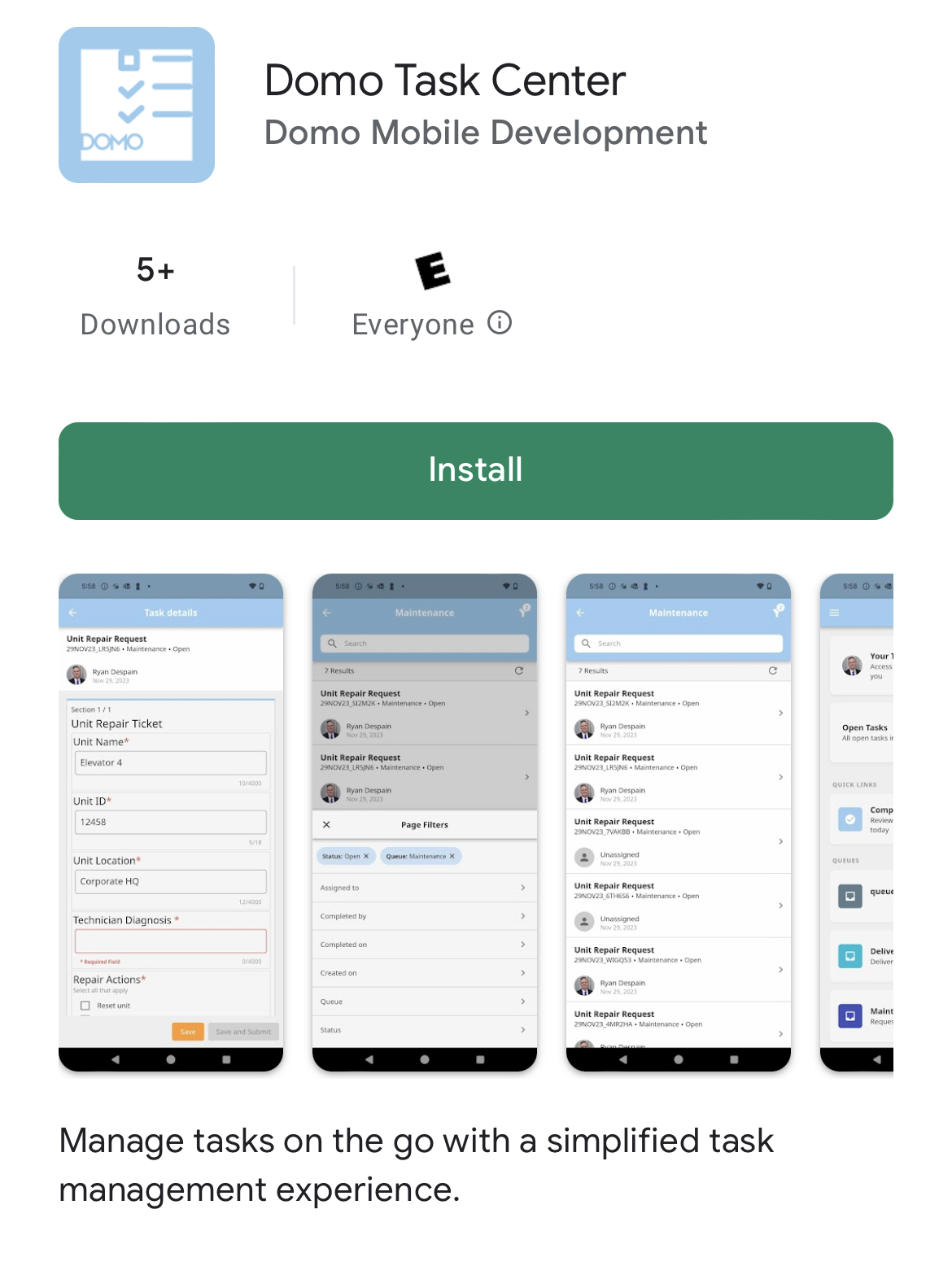
Task Center is available in the Apple App Store (Domo's Task Center) and Google Play Store (Domo Task Center).
 ## Getting Started
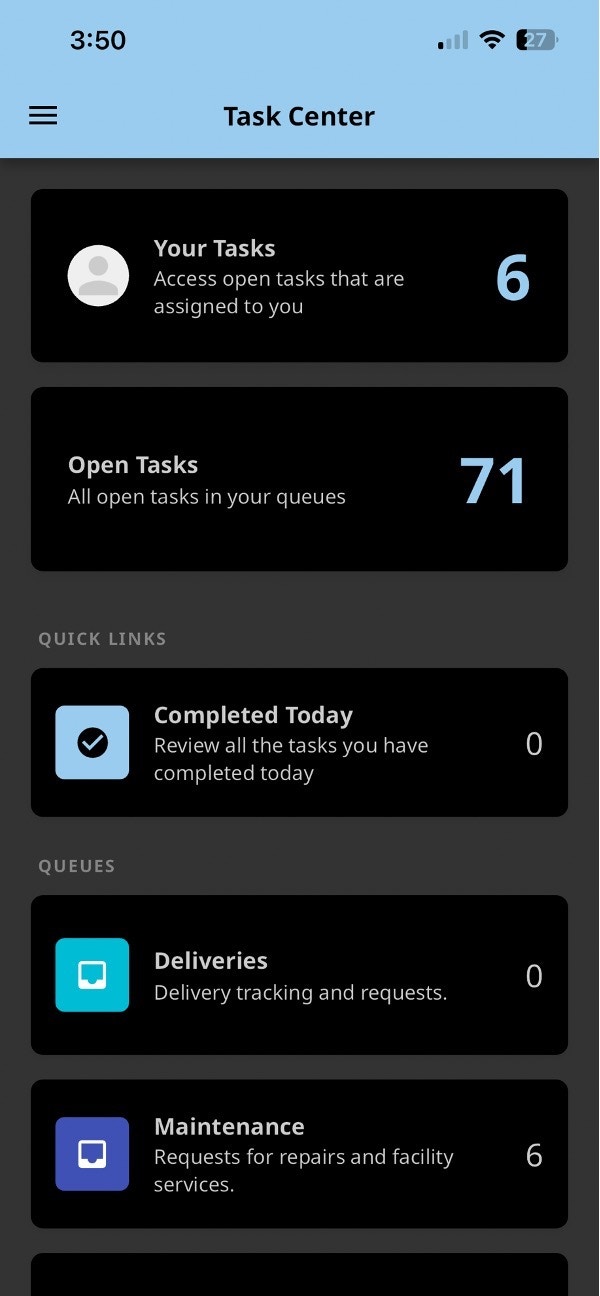
From the Task Center home screen, you can do the following:
* Select the **Your Tasks** tile to view a filtered list of all tasks assigned to you in all queues.
* Select the **Open Tasks** tile to view a filtered list of all open tasks you can complete.
* Select the **Completed Today** tile to view a list of tasks you completed today.
* Select and view each queue that you have access to.
## Getting Started
From the Task Center home screen, you can do the following:
* Select the **Your Tasks** tile to view a filtered list of all tasks assigned to you in all queues.
* Select the **Open Tasks** tile to view a filtered list of all open tasks you can complete.
* Select the **Completed Today** tile to view a list of tasks you completed today.
* Select and view each queue that you have access to.
 ## Task List
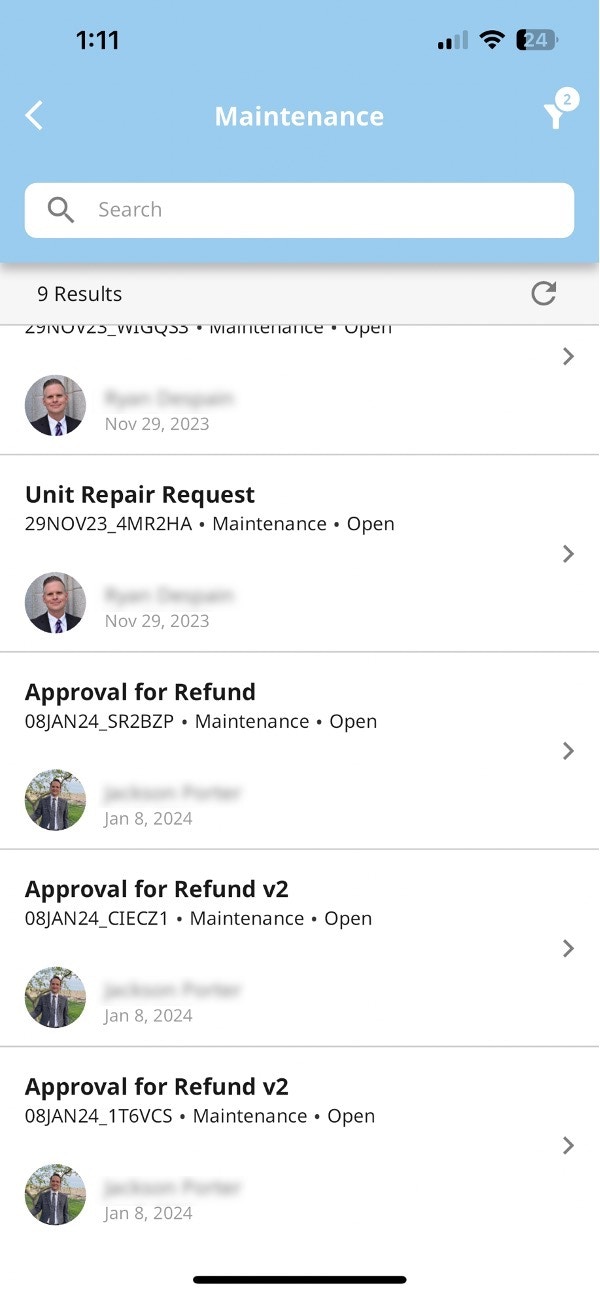
Selecting the **Your Tasks** or **Open Tasks** tile or any of your queues displays a list of tasks for completion.
Select a task to complete it.
## Task List
Selecting the **Your Tasks** or **Open Tasks** tile or any of your queues displays a list of tasks for completion.
Select a task to complete it.
 In a task, required fields are marked with a red asterisk (\* ).
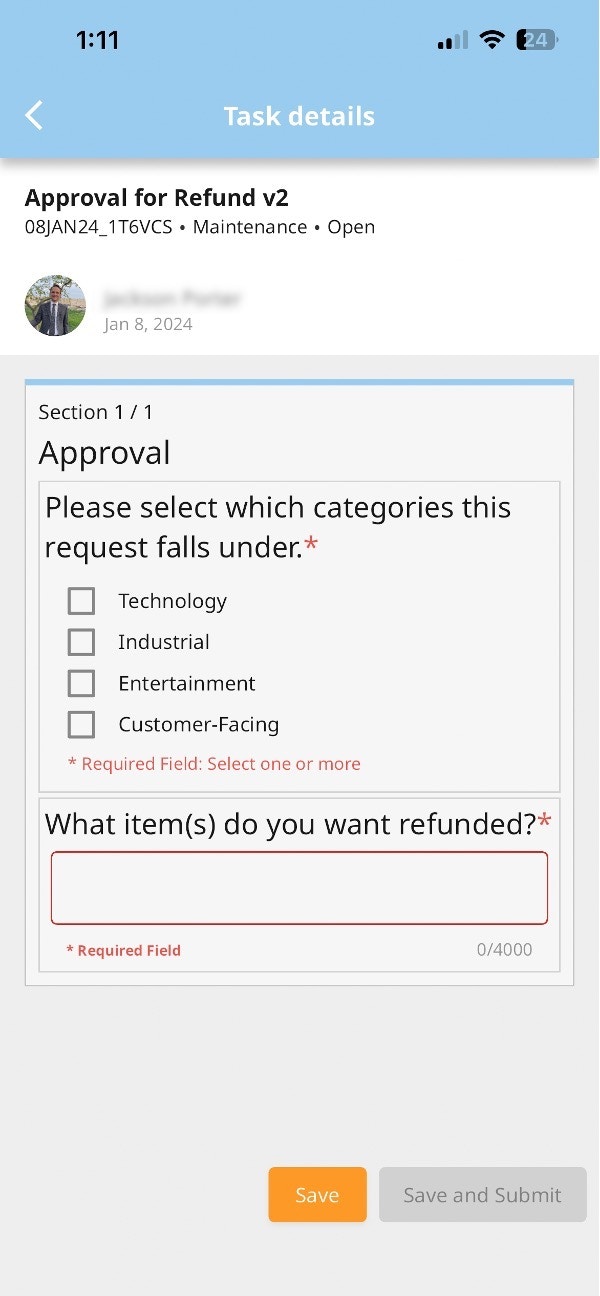 When you are ready to complete the task, select **Save and Submit**.
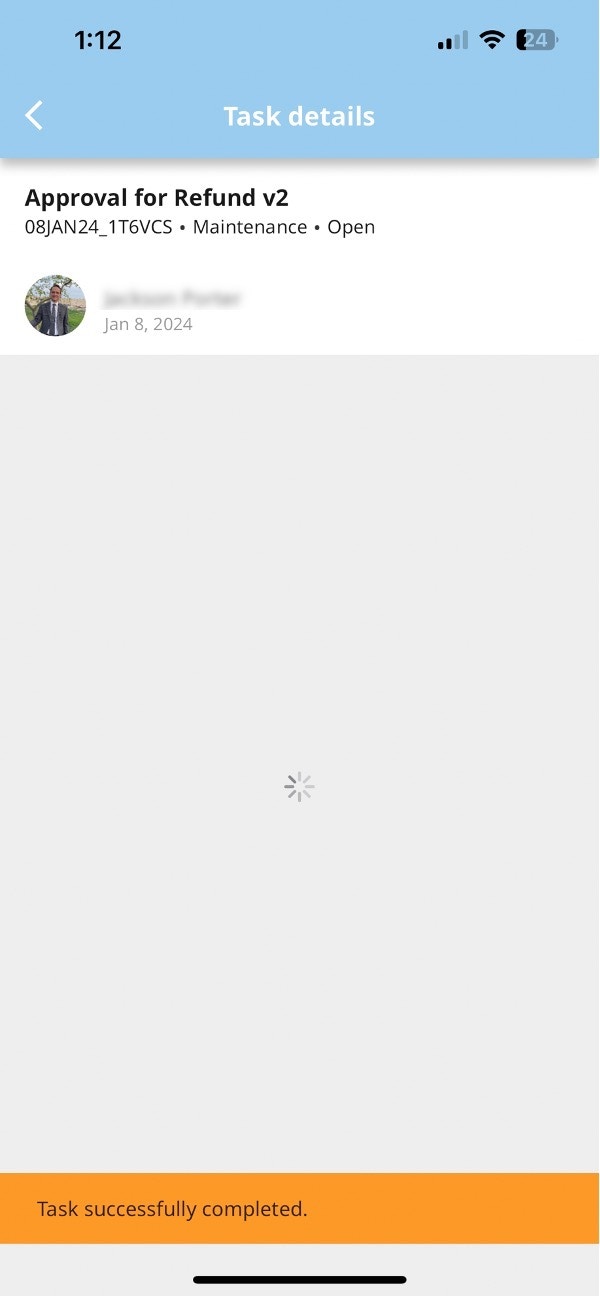
After submission, a **Task successfully completed** banner displays at the bottom of the screen.
When you are ready to complete the task, select **Save and Submit**.
After submission, a **Task successfully completed** banner displays at the bottom of the screen.